Device (re)enrolling
Last updated: Nov 4, 2026
Fluid Attacks applies security and monitoring controls to all the Fluid Attacks devices that employees use, including smartphones.
Enrolling
Fluid Attacks follows these steps when it gives devices to employees:
- The Administrative Director asks for the credentials of the employee, and the IT department creates them in Okta.
- After the IT team creates the account, it logs in to the account, sets a password, and enables MFA.
- When the user is active, the machine is enrolled with those credentials. Then, the Iru configurations are verified: the disk encryption with its key, the necessary applications, and that the user cannot format the disk.
The IT team temporarily stores the local password of the device in 1Password (password manager) until the password is shared with the employee.
- After the enrollment, the password and MFA in Okta are reset. Then, a temporary password is shared with the Administrative Director. The employee uses this password to log in without help.
- The configured device is sent to the employee.
- When the device arrives at the remote work location of the employee, a virtual meeting is set up to sync the new credentials.
Re-enrolling
Fluid Attacks re-enrolls devices when it assigns them to a new employee. But first, Fluid Attacks removes the management profile that was installed before. These are the high-level steps of the process:
- Sign out of iCloud on the device.
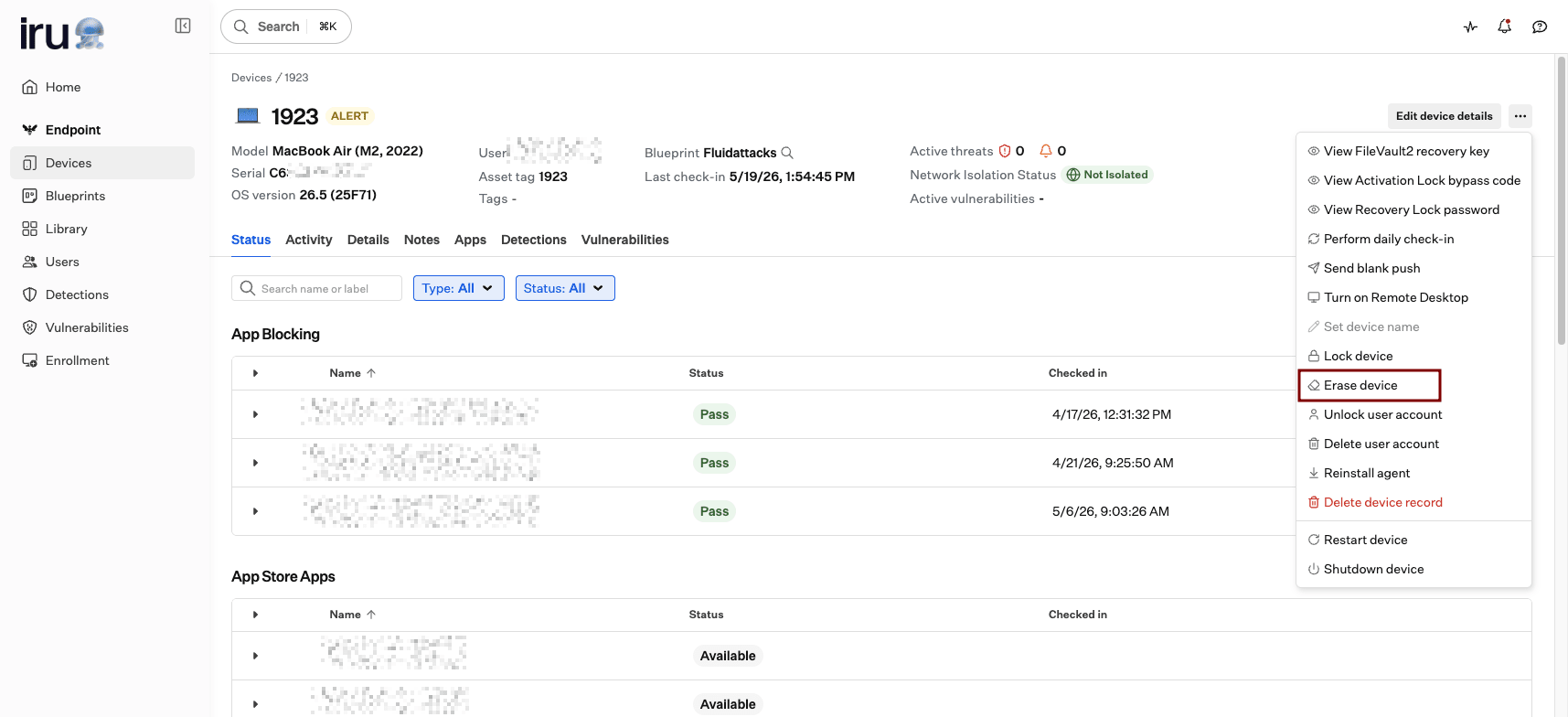
- Erase a managed device remotely with the Erase device command.
- On the device, go to Settings > General > Transfer or Reset.
- Select the Erase All Content and Settings option.
- Complete Setup Assistant on the reset device. The device is set up as a new device.
The MDM tool of Fluid Attacks helps it comply with the guidelines of the National Institute of Standards and Technology in NIST 800-53 and 800-171. It also aligns with hardening frameworks, for example, the Center for Internet Security (CIS) and DISA STIG guidelines.
This image shows an example of the Erase device command on the MDM console: