Azure DevOps
Last updated: Oct 26, 2026
The Azure DevOps integration of Fluid Attacks is free of charge, as are all the local tools and extensions.
Follow these steps to configure the Azure DevOps integration of Fluid Attacks:
-
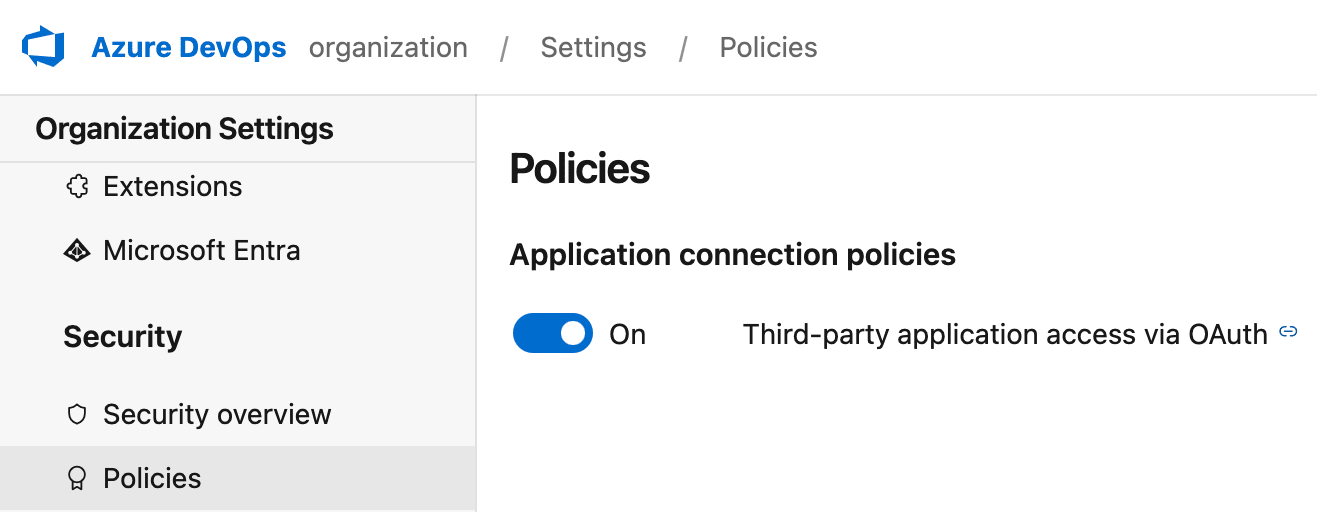
Go to the Organization Settings of your Azure DevOps. Make sure that third-party application access through OAuth is on.
A person with permissions to change the organization settings on Azure DevOps must do this configuration.
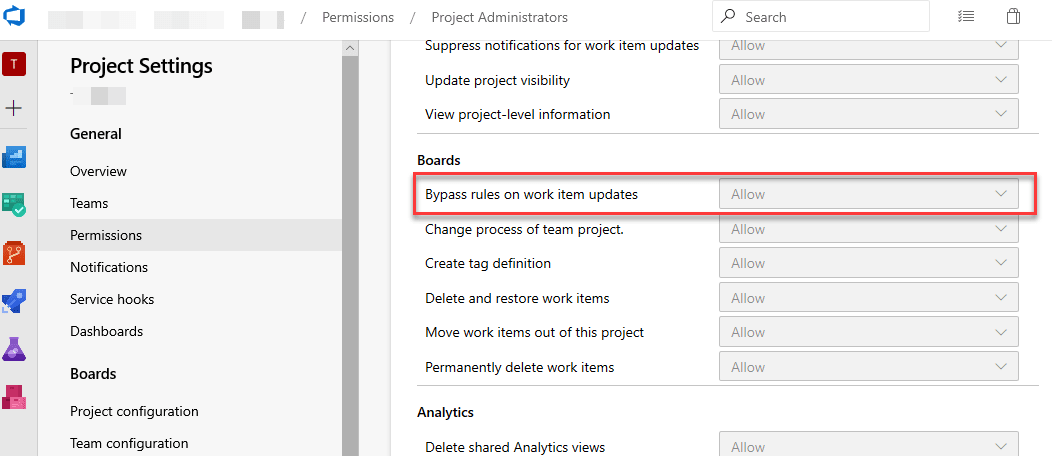
On Azure, issue templates can have custom fields, and some of these fields can be mandatory. Because the integration is generic, it must bypass these rules. Go to your project. Then go to Project Settings > Permissions > Project Administrators. Set "Bypass rules on work item updates" to "Allow". If you want to add tags when you create work items from the Fluid Attacks platform, also set "Create tag definition" to "Allow".
The integration uses the 'Issue' work item type to create items. If this type is not available in your project, or if you are not sure, read this documentation. If the integration cannot create an 'Issue', it uses the 'Bug' type. To prevent duplicate issues, the integration first looks for an issue with the same title as the type of vulnerability. If it finds one, it uses that issue as the parent. Then it creates only the related "Tasks" for each vulnerability of that type.
-
On the Fluid Attacks platform, go to the Integrations section in the collapsible sidebar.

To continue, make sure that you have permissions to see and create issues in your project on Azure DevOps.
-
Click Use integration on the Azure DevOps card. If your organization has set up this integration before, the card does not show that button, and you must click the gear icon (
 )
instead.
)
instead.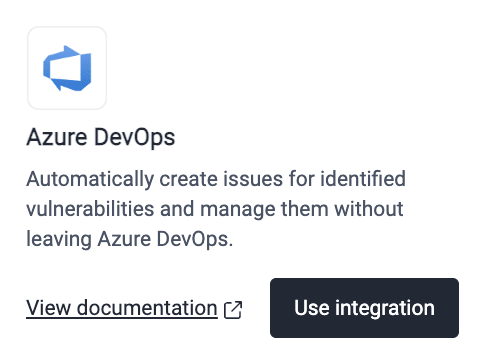
-
Click the Connect button of the group that you want to integrate.

To change the details of a connection, such as the organization, the project or the automatic creation of issues, click the Edit button next to the group name. Make the changes. Then, click Update.
-
Click Authorize to connect your group to the Azure DevOps account.

-
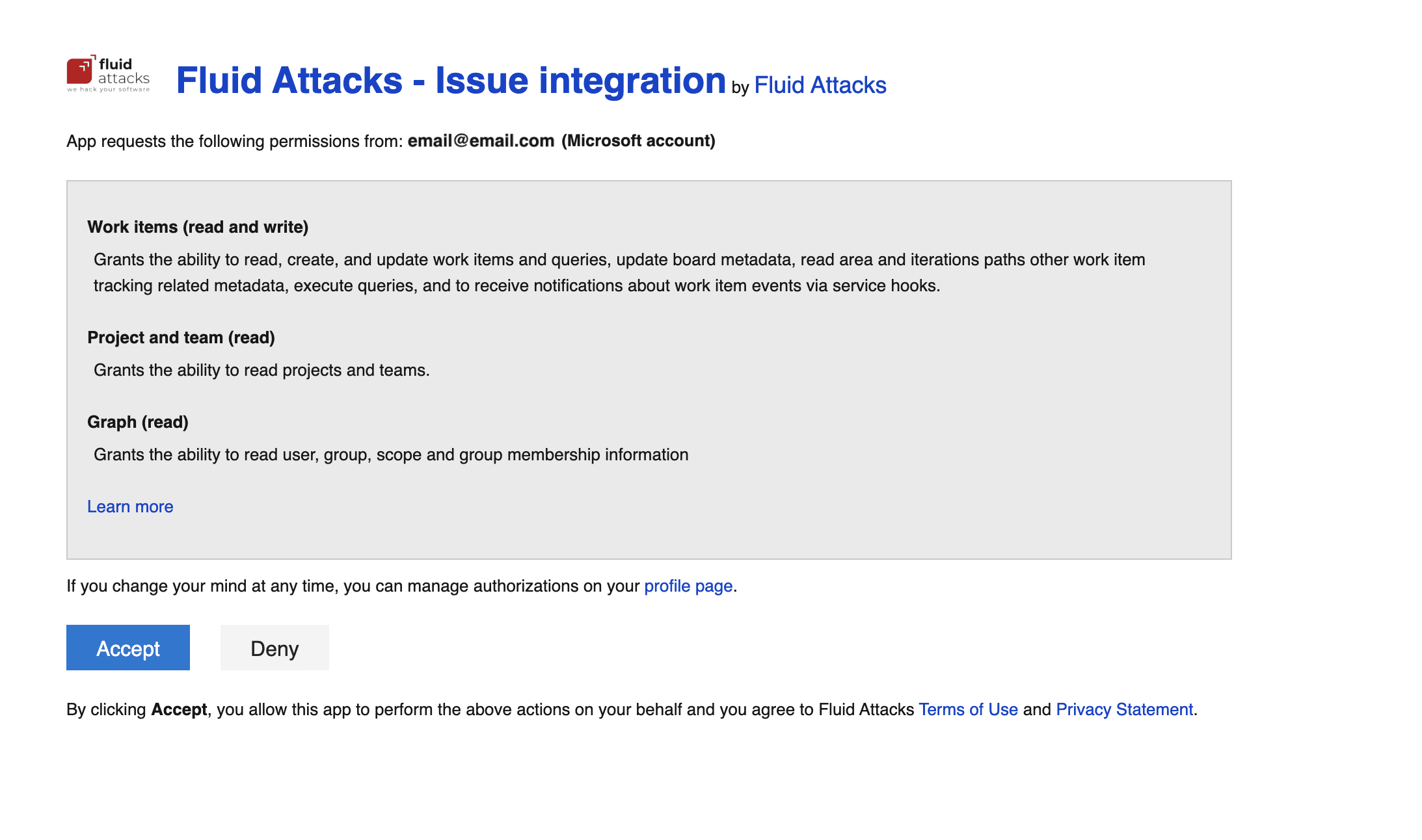
Read the permissions that you give Fluid Attacks with this integration. Click Accept to agree to them.
-
When the Fluid Attacks platform opens again, type your Azure DevOps organization. The organization and the project that you select next must be the same as on your Azure DevOps.
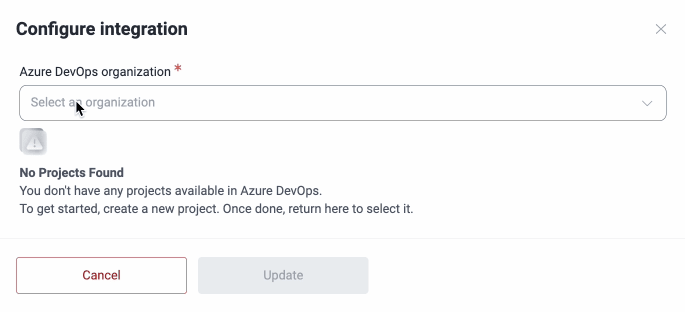
-
Select the Azure DevOps project to connect. Select the person to assign the vulnerabilities to. If you want tags on each new issue, write them. The Assigned To field shows the emails of all persons with access to the project on Azure. These persons do not always have access to the group on the Fluid Attacks platform.
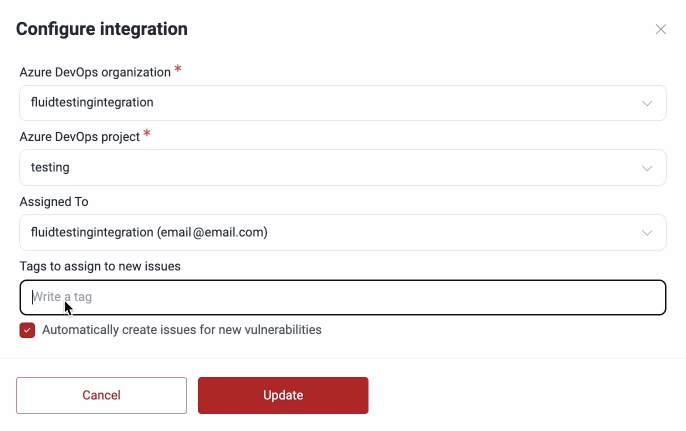
The integration creates issues only for vulnerabilities that are reported after you configure it with this feature on. It does not create issues for vulnerabilities reported before.
-
Click Update. The integration is ready.
This integration operates at the group level. For each group that you want to connect, do steps 4 to 9.
To see the issues that the integration creates on Azure DevOps, go to your project. In the left-side menu, select Boards and then Work items.
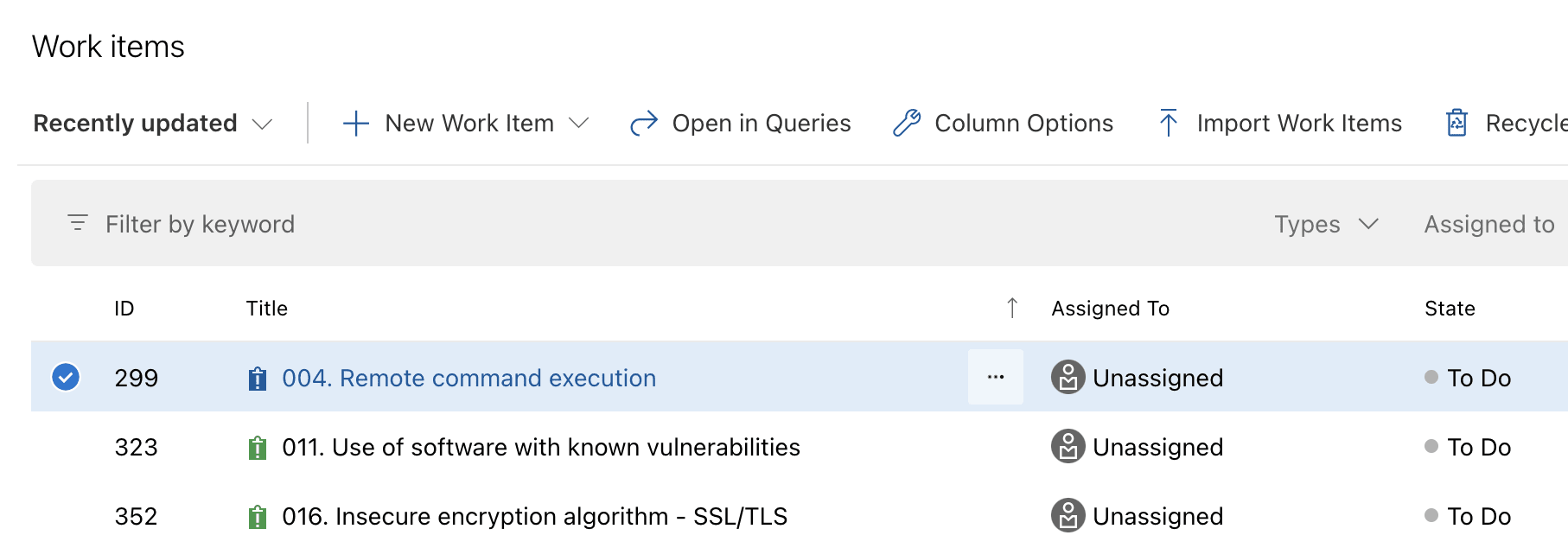
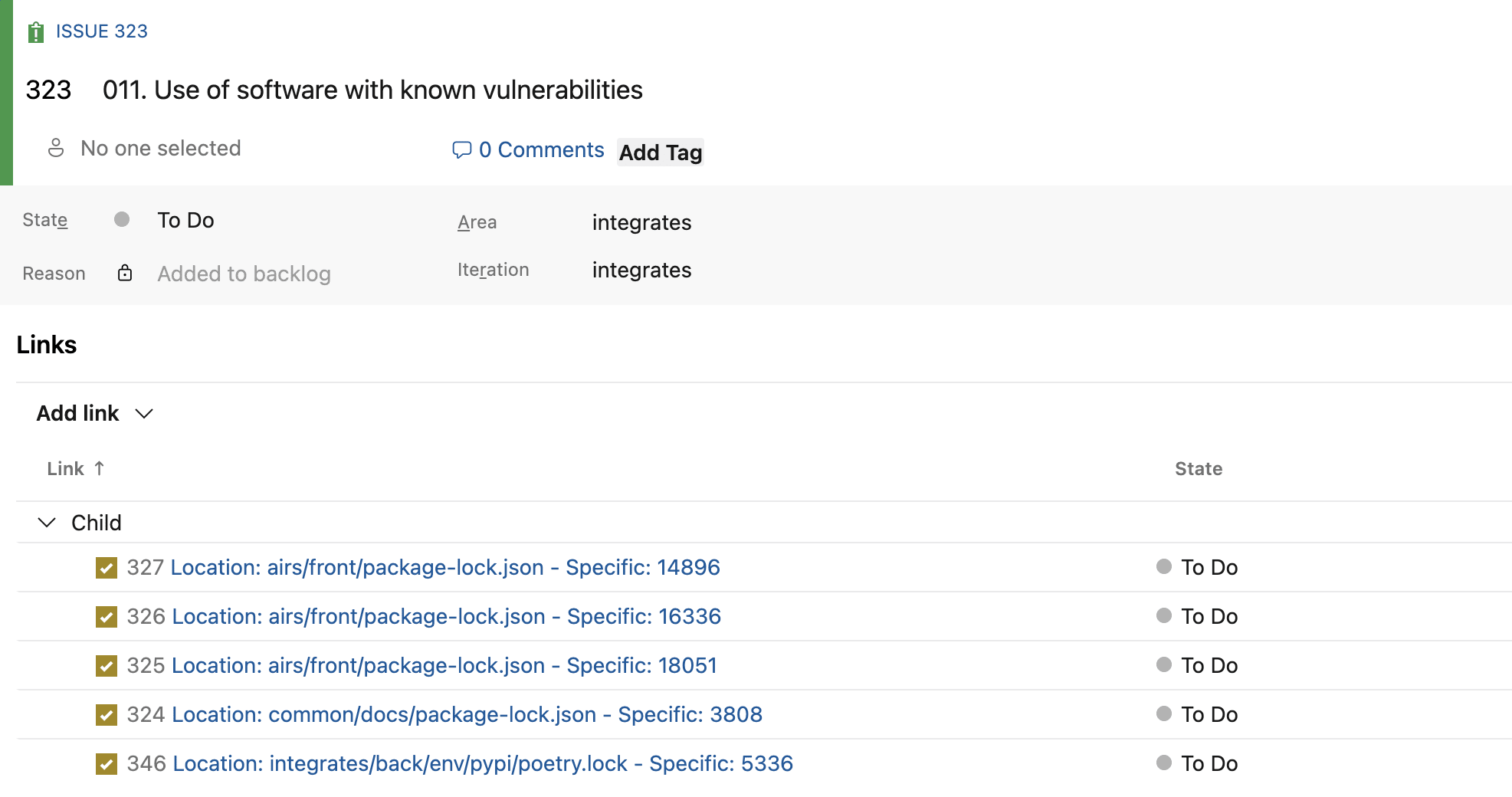
In the issue, you can see the Location and Specific details of the reported vulnerabilities of that weakness, and other related data. The integration creates locations as child tasks of the issue. Their titles show where the vulnerability is. The deduplication logic in the note of step 1 also applies to child tasks.
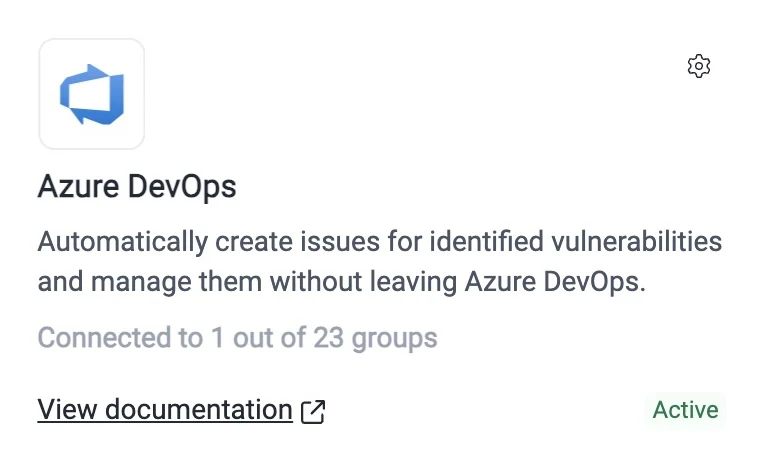
On the Fluid Attacks platform, the Azure DevOps card shows how many of your groups have the integration configured.
Reauthorizing the integration
You can reauthorize the integration at any time to connect its OAuth credentials again. For example, do this if the connection does not operate, or if you must change the credentials because someone will remove the related Azure account. When you reauthorize, the integration continues to create issues without interruption.
If the integration suddenly does not create issues for reported vulnerabilities, first examine if you must reauthorize it. Do this before you search for other causes.
To reauthorize the integration:
- Go to the Integrations section on the Fluid Attacks platform.
- Click the gear icon on the Azure DevOps card to open the group management window.
- Find the connected group in the list. Click its Re-authorize button.
- The page to select a Microsoft account opens. Select the account that has the necessary access rights to the Azure DevOps organization.
- When you go back to the Fluid Attacks platform, the Configure integration dialog opens with your organization and project selected. Click Update.
Read about the other BTS integrations:
Search for vulnerabilities in your apps for free with Fluid Attacks' automated security testing! Start your 21-day free trial and discover the benefits of the Essential plan. If you prefer the Advanced plan, which includes the expertise of Fluid Attacks' pentesting team, complete this contact form.