Vulnerabilities section guide
Last updated: Oct 14, 2026
See a vulnerability summary
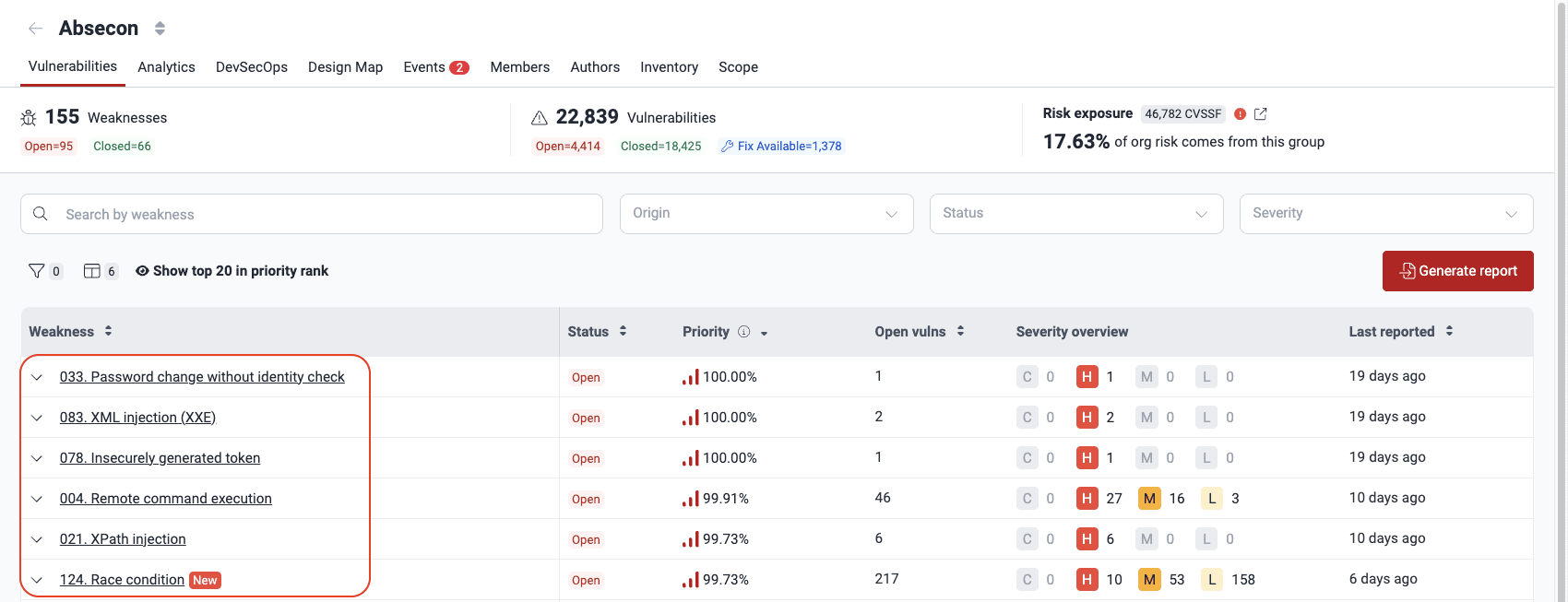
The Vulnerabilities section is the first one you see when accessing a group. It shows a summary of the vulnerabilities detected in the group. The summary includes the quantity of vulnerabilities and the risk exposure they represent. Risk exposure measures how vulnerable the system is to successful cyberattacks. Fluid Attacks measures risk exposure using the CVSSF metric.

The summary gives you this information:
- Weaknesses:
The number of categories
into which detected security issues most likely fall
- Open: The number of weaknesses corresponding to vulnerabilities that are present in the system
- Closed: The number of weaknesses that were reported in the past but are currently not present in the system
- Vulnerabilities:
The number of spots in the system
where security issues have been detected
- Open: The number of vulnerabilities that are present
- Closed: The number of vulnerabilities that were reported in the past but are currently not present
- Fix Available: The number of open vulnerabilities that have a fix available from Custom Fix, Autofix, or a suggested package update
- Risk exposure:
The sum of the CVSSF scores of all unremediated vulnerabilities.
The percentage beneath shows the group's share of the organization's total risk exposure.
A warning icon appears next to the risk exposure value if there are unsolved events in the group (that is, situations that impede testing). Next to the warning icon, there is an external link icon that directs to the group's Events section.
See the list of vulnerabilities detected
Role required: User, Vulnerability Manager or Group Manager
The Vulnerabilities section shows all the vulnerabilities detected in your software. The vulnerabilities are grouped by weakness.
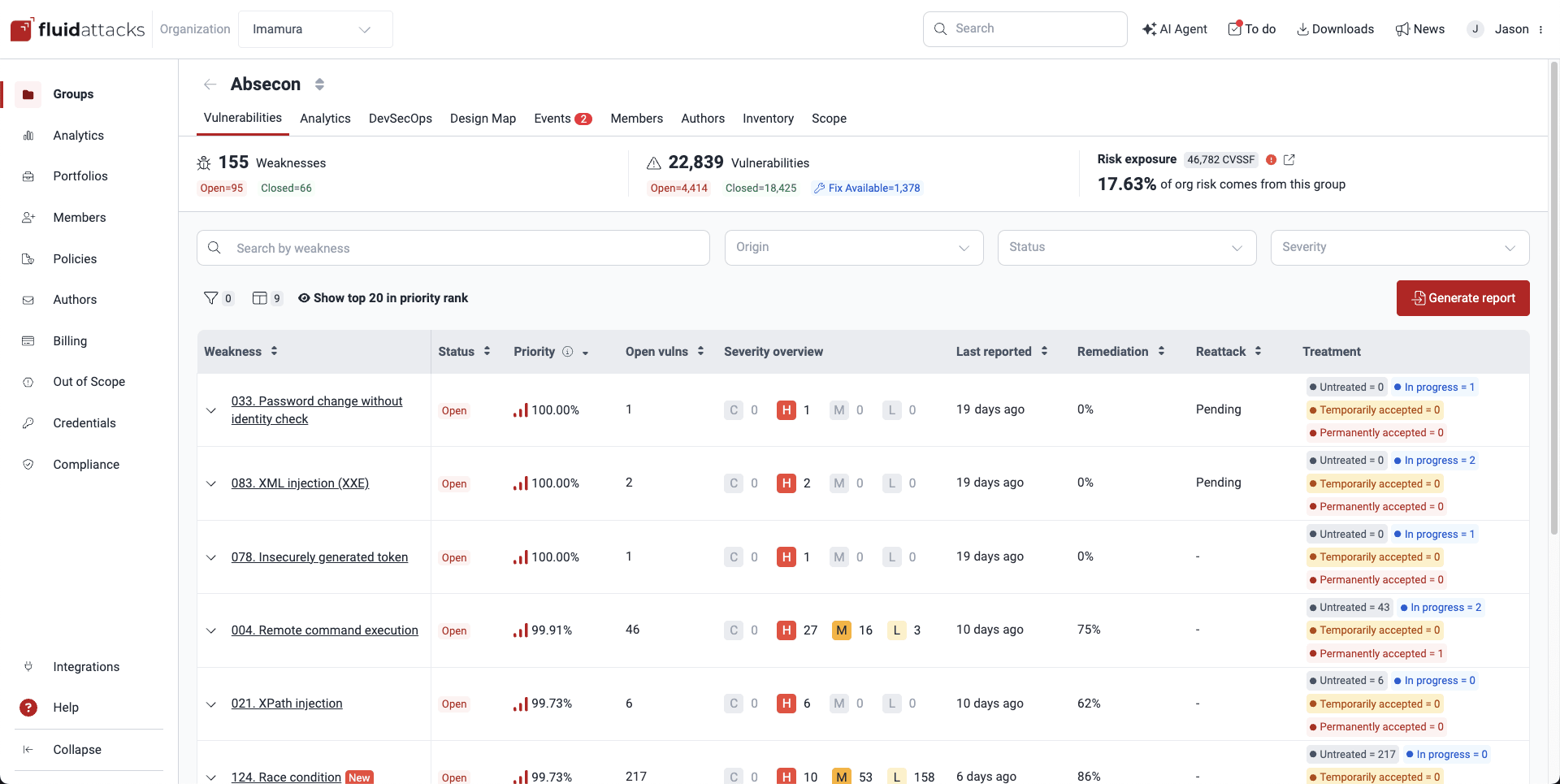
A weakness is a category following Fluid Attacks' classification, whereas a vulnerability is a specific instance of that weakness found in your software.
Vulnerabilities table
Role required: User, Vulnerability Manager or Group Manager
The Vulnerabilities table groups the vulnerabilities detected in your system by weaknesses and provides general details.

The following are short descriptions of what you find for each column:
- Weakness: The standardized security weakness best matching the characteristics of the vulnerabilities in your system
- Status: Indicates the condition of this weakness, where it is Open if the weakness is present or Closed if the weakness has been remediated
- Priority:
The percentile occupied by the vulnerability with the highest priority score
among all those grouped within a given weakness.
This percentile is relative to all vulnerabilities identified so far.
The priority score depends on two factors:
- (a) Your organization's prioritization policies: the transitivity of the affected dependency, the phase of use of the vulnerable component, whether it is listed in CISA's KEV list, the EPSS, the estimated time to fix, the VLAI severity level, and the reachability of the vulnerable function (for SCA vulnerabilities)
- (b) A default score calculated using the CVSS as follows: (4^(CVSS-4)) / 4,096
- Open vulns: The count of vulnerabilities in your system, related to the weakness, that are still present
- Severity overview:
The number of detected vulnerabilities
of each CVSS qualitative severity rating,
which groups scores as follows:
- Low (0.1 - 3.9)
- Medium (4.0 - 6.9)
- High (7.0 - 8.9)
- Critical (9.0 - 10.0)
- Last reported: Days since the last detection of a vulnerability from the respective weakness category (regardless of the current Status)
- Age: Days since this weakness was first detected in your system
- Release date: Date when the weakness was first reported in your system
- Remediation: Percentage of the related reported vulnerabilities remediated by your team
- Reattack: Status of reattacks for this weakness ('Pending' if a reattack is due, '-' otherwise)
- Treatment: The number of vulnerabilities per assigned treatment
Customize your view by reordering, showing or hiding columns using the columns button.
You can use the downward arrow to expand a row and see more information about the weakness, including whether it is exploitable.

You may see the same weakness listed more than once. This is because vulnerabilities that share a weakness can differ in specific attributes such as description, recommendations and severity.
Spot newly reported vulnerabilities
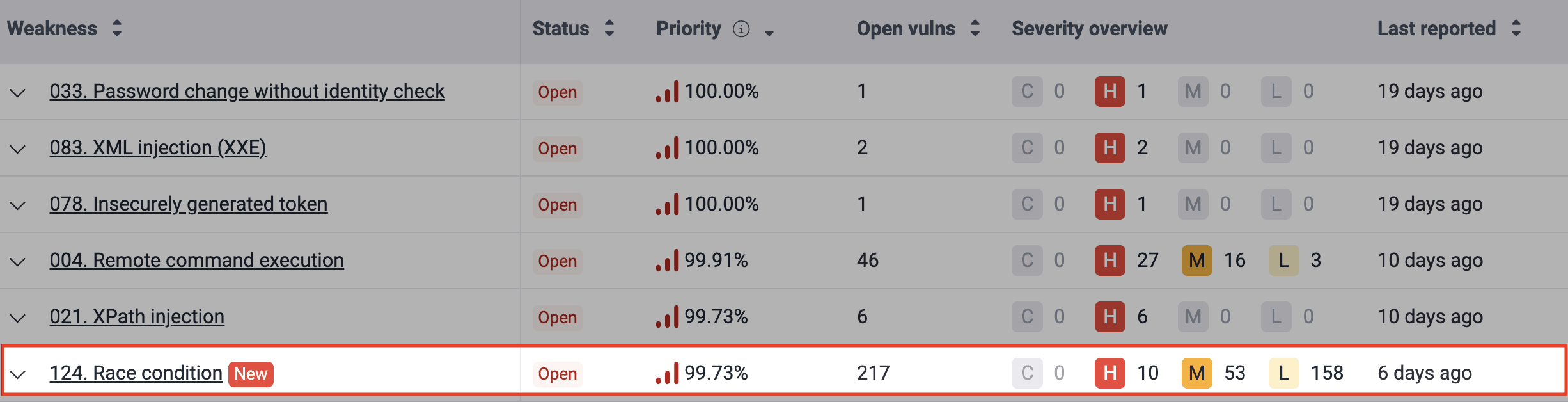
Newly reported weaknesses are highlighted with a New label for seven days in the table, helping you quickly identify them.
Search the Vulnerabilities table
Role required: User, Vulnerability Manager or Group Manager
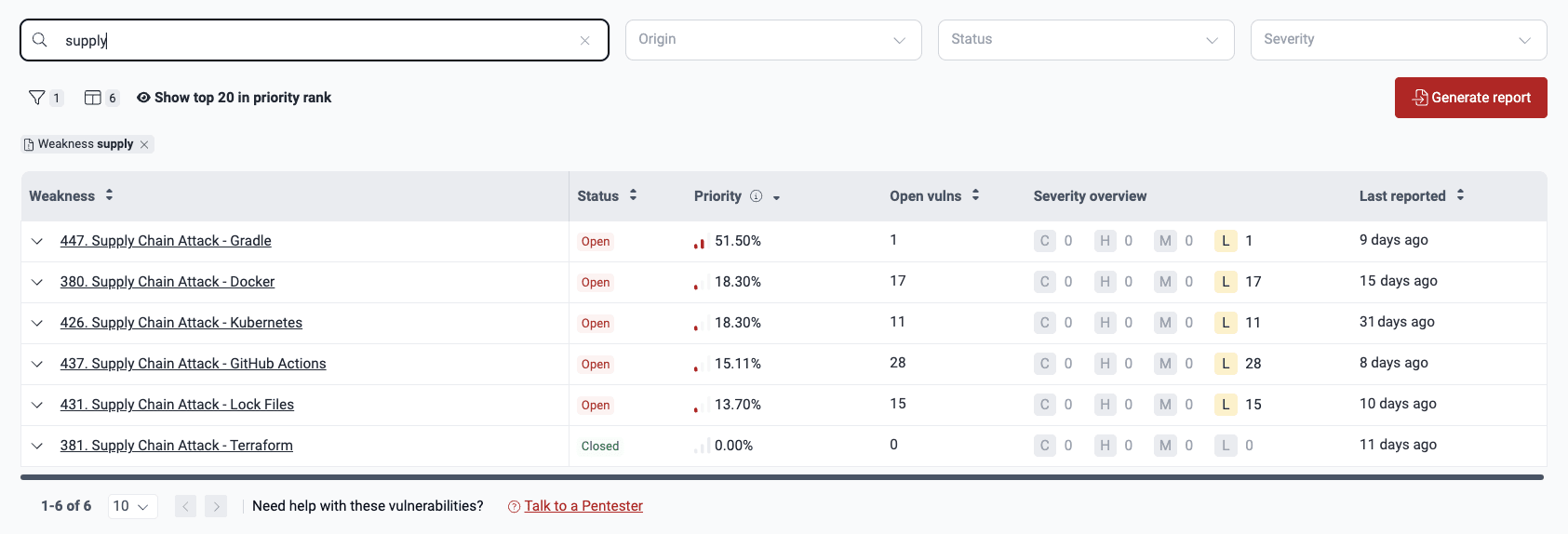
The search bar in the Vulnerabilities section shows only the rows whose content matches your search. Search by entering the name of the weakness, the repository nickname or the vulnerability location (for example, a file name).
Filter the Vulnerabilities table
Role required: User, Vulnerability Manager or Group Manager
You can filter the table to help you find what you need.
To see the filter options,
click the filters button ( ).
).


To clear a filter, click on the X next to it.

Your filters persist only in the Vulnerabilities section of the group you applied them to.
You can also use these quick filters: Origin, Status, and Severity.

See top 20 vulnerabilities to prioritize
Role required: User, Vulnerability Manager or Group Manager
To identify the vulnerabilities you need to fix most urgently, click on Show top 20 in priority rank.

The platform then shows you the 20 vulnerabilities with the highest Priority value within the group. The information shown in the columns is explained further below. You can click on Go to vulnerability to see details of the vulnerability, apply a treatment, get AI-generated remediation guidance, and more.
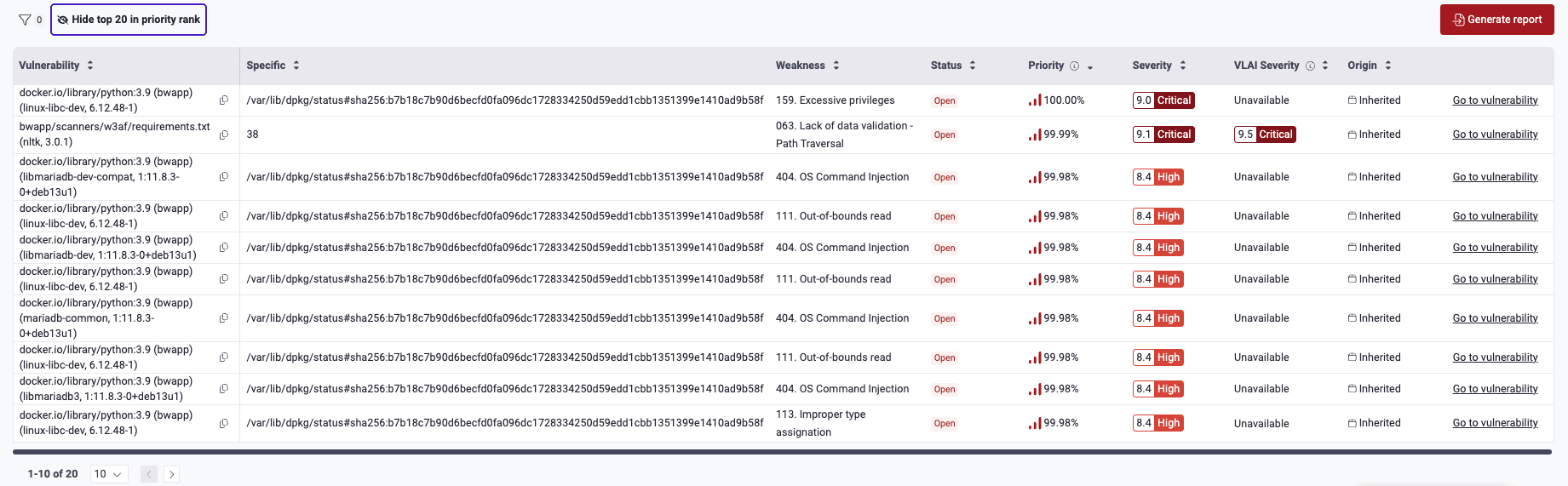
To stop seeing the top 20, click on Hide top 20 in priority rank.
Hide and show columns in the Vulnerabilities table
Role required: User, Vulnerability Manager or Group Manager
You can customize the table view by choosing which columns to display.
Click the columns button ( )
to open a pop-up window
where you can hide or show columns.
To quickly find a desired column,
you can type its name in this window's search bar.
When you finish, click on Save.
)
to open a pop-up window
where you can hide or show columns.
To quickly find a desired column,
you can type its name in this window's search bar.
When you finish, click on Save.
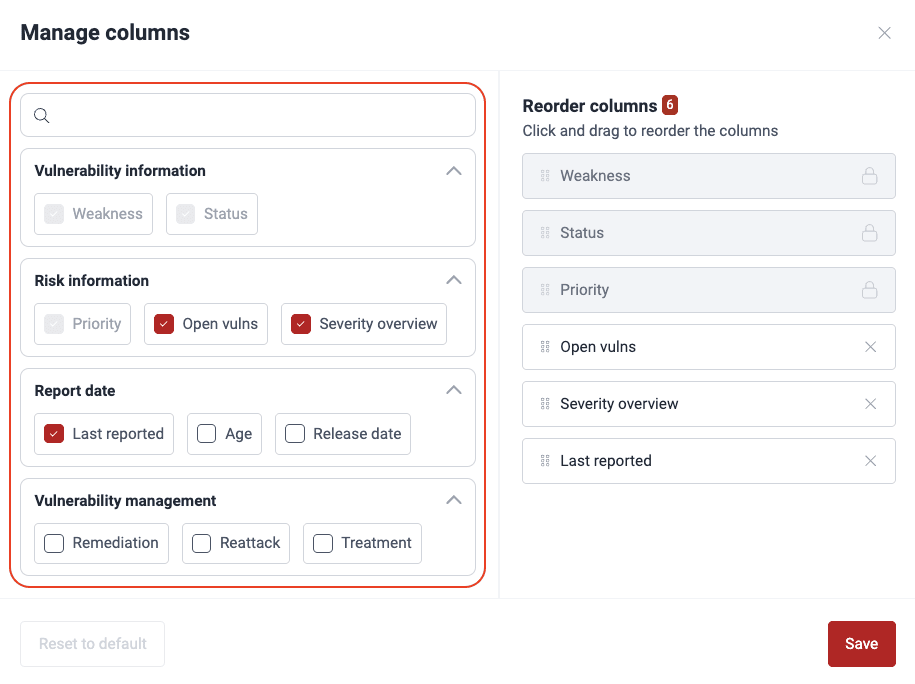
- Your preferences for which exact columns to see persist across your groups.
- Use the Reset to default button to enable only these recommended columns: Weakness, Status, Priority, Open vulns, Severity overview, and Last reported.
Reorder columns in the Vulnerabilities table
Role required: User, Vulnerability Manager or Group Manager
You can further customize the table view by choosing the column order.
Click the columns button ()
to open a pop-up window
where you can drag the column names to rearrange the table.
You can click on the X of a corresponding column to hide it.
When you are finished,
click on Save.
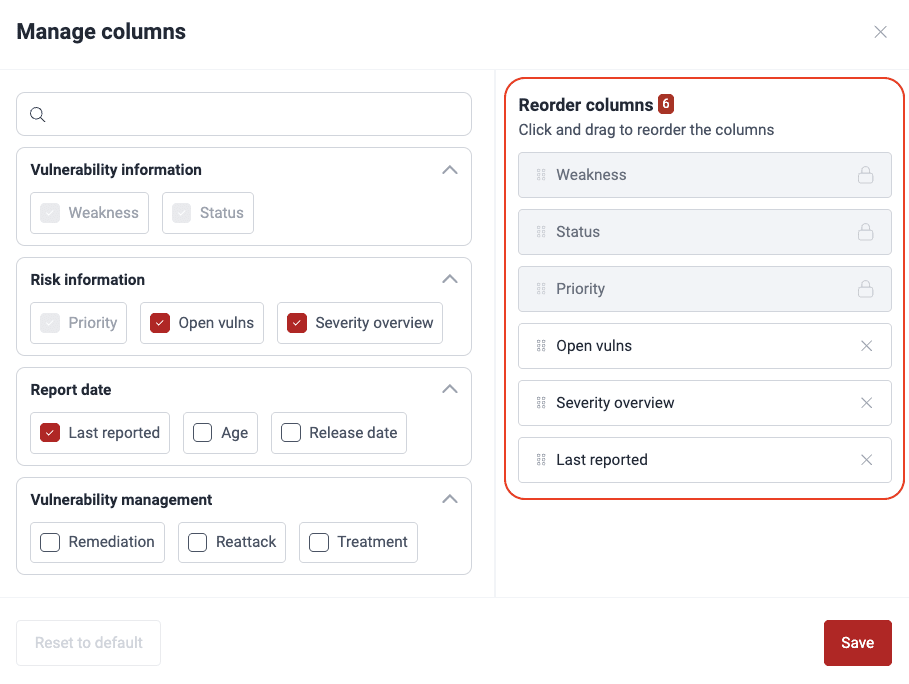
Your column order preferences persist across Vulnerabilities sections within your groups.
Generate reports
Role required: Vulnerability Manager or Group Manager
The Generate report option in the Vulnerabilities section allows you to download reports varying in detail. Group Managers also have the option to generate security testing certificates. For details on available report types and how to generate them, read Download a report of detected vulnerabilities.
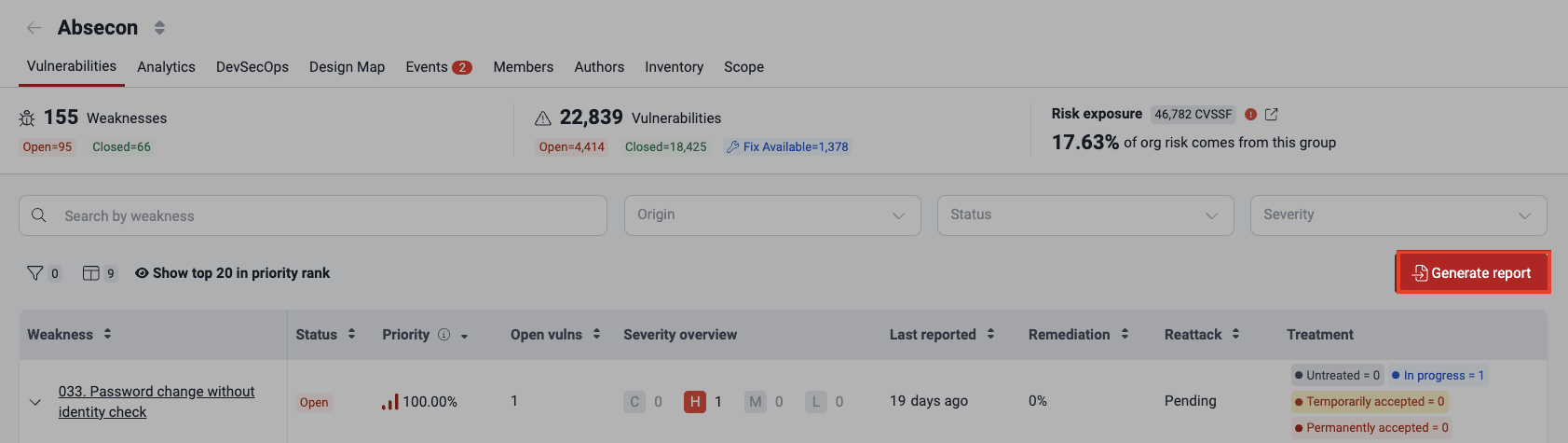
Remember the feature to access recent downloads!
See where vulnerabilities are located
Role required: User, Vulnerability Manager or Group Manager
In the Vulnerabilities section, click on a weakness to open its dedicated view. The header is visible across all tabs. It shows the group name, the weakness, and the estimated remediation time for one vulnerability.

The Vulnerabilities section shows where in your system each vulnerability related to the selected weakness was detected and provides information for its management.
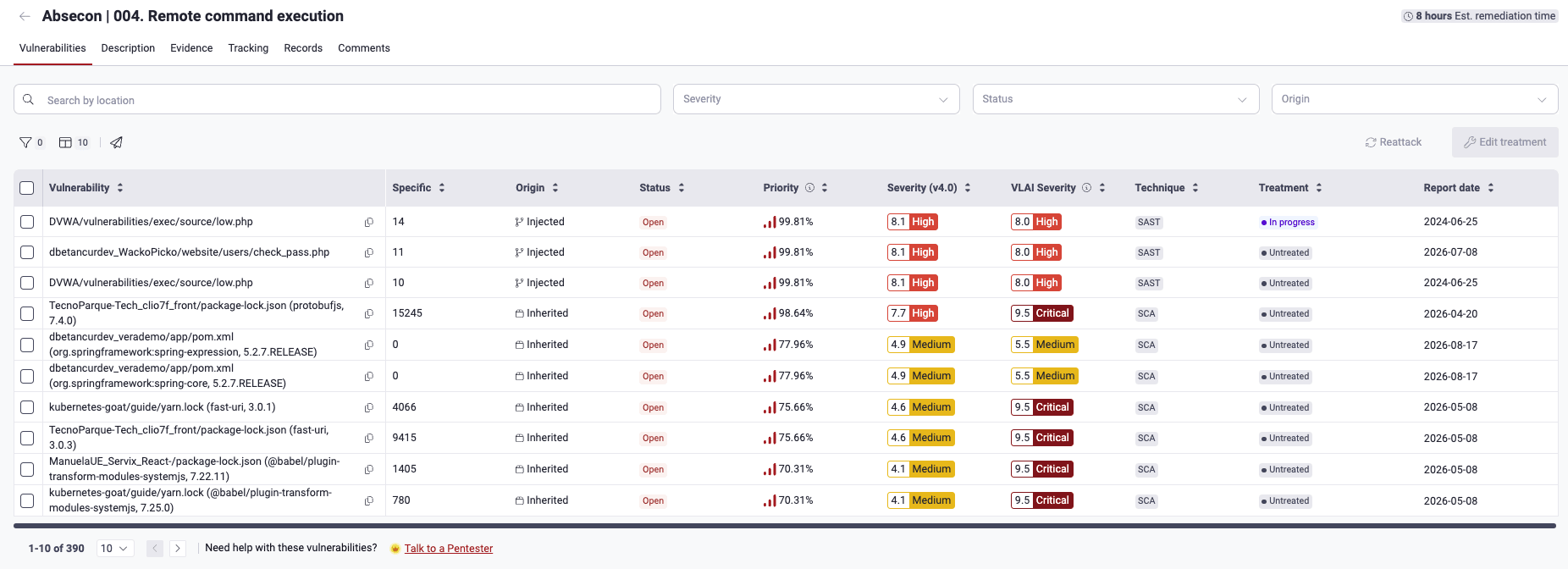
These are the descriptions of what you find in the table:
- Vulnerability: The found vulnerability, identified by its file path
- The copy icon in this column allows you to copy the URL of the vulnerability on the platform for sharing.
- Newly reported vulnerabilities are marked with the New label for seven days.
- Specific: The exact lines of code, inputs (for example, password fields), or ports where the vulnerability was found. This is why the same file may appear more than once in the Location column.
- Origin: Whether the vulnerability is Inherited (present in third-party code) or Injected (present in code owned by your team).
- Status: Indicates whether the vulnerability is Open (present) or Closed (no longer present) in the line of code, input or port
- Severity (v4.0): The Common Vulnerability Scoring System (CVSS) v4.0 score assigned to the vulnerability
- VLAI: The AI-estimated severity level of the vulnerability. Hovering over it reveals the model's confidence percentage. It shows Unavailable when no classification is available for any reason.
- Priority:
The percentile, relative to all vulnerabilities identified so far,
occupied by the vulnerability.
The priority score depends on two factors:
- (a) Your organization's prioritization policies: the transitivity of the affected dependency, the phase of use of the vulnerable component, whether it is listed in CISA's KEV list, the EPSS, the estimated time to fix, the VLAI severity level, and the reachability of the vulnerable function (for SCA vulnerabilities)
- (b) The result of (4^(CVSS-4)) / 4,096
- Technique:
The security testing technique used to detect the vulnerability,
which can be one of these:
- SAST: Automated static code analysis
- Web DAST: Automated dynamic analysis of web applications
- API DAST: Automated dynamic analysis of APIs
- SCA: Automated analysis of third-party dependencies
- SCR: Static code analysis done manually
- PTaaS: Dynamic analysis done manually
- RE: Reverse engineering of your system done manually
- AI SAST: AI-powered static code analysis
- MAST: Analysis of mobile apps
- CSPM: Automated analysis of AWS cloud environments
- SS: Automatic detection of secrets in code
- Treatment:
The defined treatment
for the vulnerability (or lack thereof):
- Untreated: The vulnerability treatment assignment is due (default value for newly reported vulnerabilities)
- In progress: The remediation of the vulnerability has been assigned to a member of your team
- Temporarily accepted: The vulnerability is accepted until a defined date
- Permanently accepted: The vulnerability is accepted indefinitely
- Treated: The vulnerability is no longer present
- Report date: The date and time when the vulnerability was reported
- Treatment acceptance:
The status of a vulnerability acceptance request,
which may be one of the following:
- Submitted: The initial status of the request while waiting for the decision of a Vulnerability Manager or Group Manager
- Approved: The request was approved by a member with any of the above roles
- Rejected: The request was denied by a member with any of the above roles
- Reattack:
Status of reattack requests or outcomes,
if applicable,
which may be one of the following:
- Pending: Fluid Attacks is yet to communicate the outcome of the requested reattack
- On hold: The requested reattack is not possible until your team solves an event impeding testing
- Verified open: The reattack evidences the vulnerability is still present
- Verified closed: The reattack evidences the vulnerability is no longer present
- Tags:
Any tags you or your team have added to identify the vulnerability
Type a tag in the search bar to see only vulnerabilities labeled with it. And go to Analytics to see the number of vulnerabilities for each of the tags you or other team members have created.
- False positive: Whether your organization has flagged the vulnerability as representing no risk to it
- Assignees: The individuals assigned to address the vulnerability
To access the options to show,
hide,
or reorder columns,
click the columns ()
button.
This causes a pop-up window to appear.
On the left,
you can make your selection,
and on the right,
reorder the enabled columns.
Click Save to apply the changes.
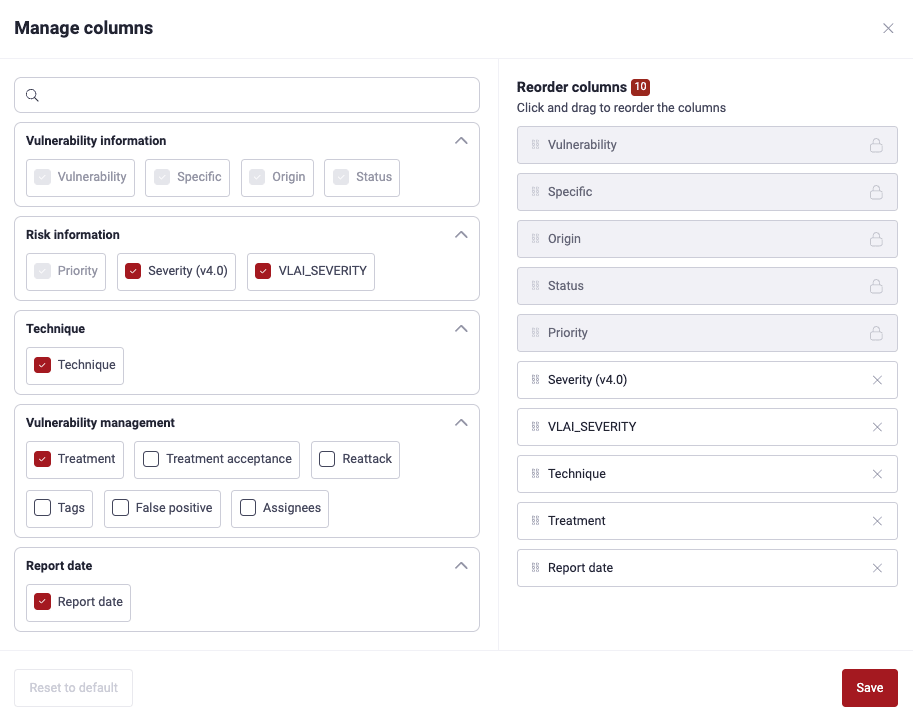
- Your preferences for which exact columns to see persist across your groups.
- Use the Reset to default button to enable only these recommended columns: Weakness, Status, Priority, Open vulns, Severity overview, and Last reported.
To find information in the table, type the repository name in the search bar. The table then shows only the rows whose content matches your search.
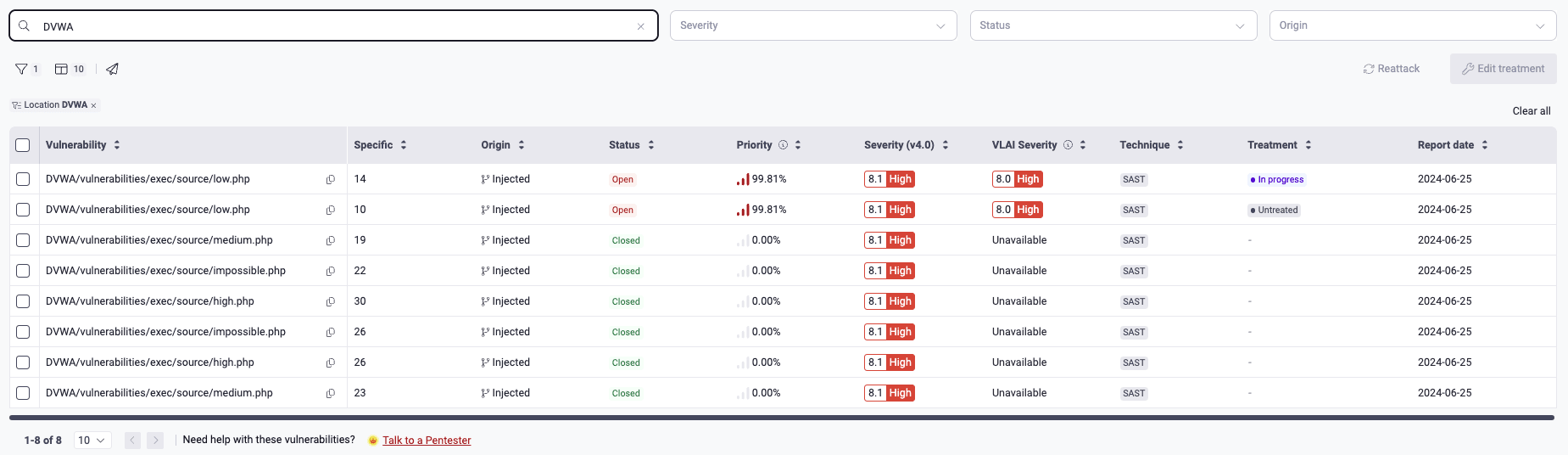
You can limit the information you see on the table
by clicking on the filters button ()
and using one or more of the available options.


You can also use these quick filters: Location, Status, and Origin.

The Location filter and quick filter make the table display only the vulnerabilities detected in the target of evaluation (for example, a Git repository environment URL) whose name you type.
See inside a vulnerability
Role required: User, Vulnerability Manager or Group Manager
In the Vulnerabilities section, click on a vulnerability to open a pop-up window. The window has a header and these tabs: Details, Severity, Code (if applicable), Treatments (if applicable), How to fix, and Tracking. This window has a unique URL. You can share it with team members or Fluid Attacks staff. To copy the URL, click the link icon.
The header is visible across the tabs and consists of tags that inform you of the vulnerability's Severity, Origin, Technique and Status information. If the vulnerability is in third-party software, a tag related to reachability is shown. This tag may have one of these values:
- Latent: (a) The vulnerability is in a package declared in your code, but (b) the package is not imported.
- Potential: (a) The vulnerability is in a package declared in your code. (b) The package is imported by your application's code. (c) But the vulnerability is not necessarily the vulnerable function described in the CVE entry.
- Reachable: (a) The vulnerability is in a package declared in your code. (b) The related package is imported by your application's code. (c) And the vulnerability is the vulnerable function described in the CVE entry.
See the details of a specific vulnerability
Role required: User, Vulnerability Manager or Group Manager
The Details tab shows complete information about the state of the selected vulnerability.
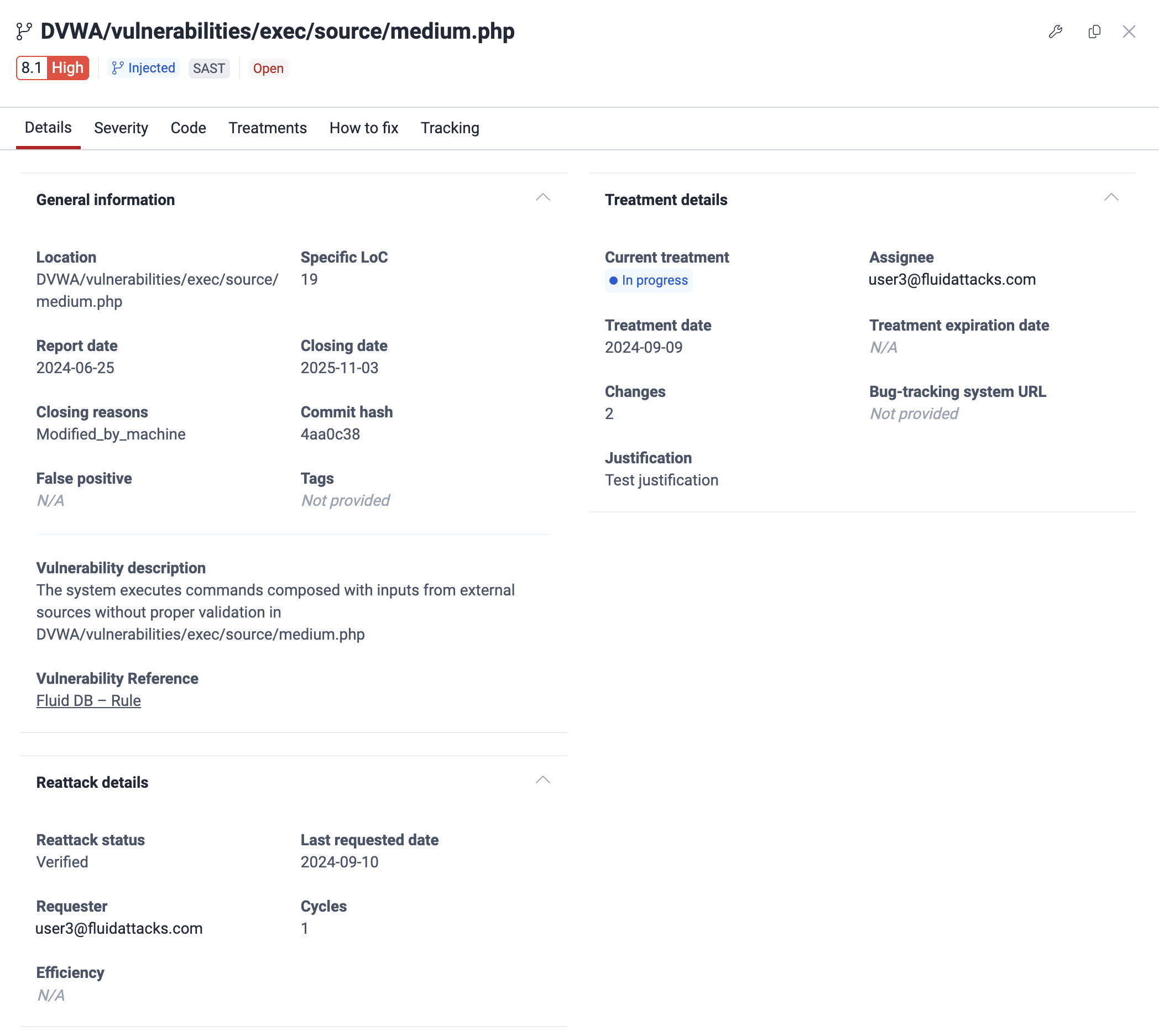
These are the details shown in this tab:
- General information:
- Location: The file path or environment URL
- Specific LoC/port/input: The specific line of code, port number, or input field affected
- Report date: The date the vulnerability was reported
- Closing date: The date when the vulnerability status changed from Open to Closed
- Closing reasons: The reason the vulnerability's Status changed from 'Open' to 'Closed'
- Commit hash: ID of the commit that created the vulnerability
- False positive: Indicates if the False positive request has been applied to this finding (your organization requests this treatment if the finding poses no risk)
- Tags: User-defined tags for identifying the vulnerability
- Time to detect (days): The days it took to report the vulnerability since the commit that introduced it
- Code author: Email of the contributor whose commit presents the vulnerability in question
- Vulnerability description: Fluid Attacks' definition of the vulnerability
- Reattacks:
- Reattack status: If applicable, the outcome of the last reattack request (for possible values, see above)
- Last requested date: The date of the most recent reattack request
- Requester: The email of the member who requested the last reattack
- Cycles: The total number of reattack requests for this vulnerability
- Efficiency: The percentage representing one positive reattack outcome (confirming the vulnerability was fixed) out of all the reattacks carried out
- Treatments:
- Current treatment: The currently applied treatment for the vulnerability (or lack thereof)
- Assignee: The email of the member assigned to address the vulnerability
- Treatment date: The date the treatment was applied
- Treatment expiration date: The expiration date for a Temporarily accepted treatment
- Changes: The number of times the treatment of that vulnerability has changed
- Bug tracking system url: URL of the issue in your bug-tracking system (BTS) related to this vulnerability
- Justification: The reason provided for applying the treatment
- Packages details:
(Visible only for vulnerabilities found via SCA)
- Dependency: The name of the vulnerable package
- Transitivity:
Whether the vulnerable file in your software is directly
or indirectly related to the third-party component in question:
- Direct: The file in your project explicitly imports and uses the third-party dependency
- Transitive: The third-party dependency is required by your direct dependencies, but not directly imported by the file in your project
- Undeterminable: No one can determine whether this dependency is direct or transitive for this file
- Advisory ID: The associated Common Vulnerabilities and Exposures (CVE) identifier of the vulnerable version
- %EPSS: The likelihood of the vulnerability being exploited compared to that of all other known vulnerabilities
- Stage:
The stage(s) in which your project depends on the third-party dependency:
- Build: Your file depends on the third-party component only in the software development stage
- Run: Your file depends on the third-party component in the live production environment
- Reachability: Whether the function related to the vulnerability is called by your application's code (see a description of the possible values above)
- Version status: Whether you are using the dependency in its latest version or a newer version is available. It also shows the specific version you are using and the latest version available.
- Affected version: The vulnerable dependency version
- CPEs: The string following the Common Platform Enumeration (CPE) for identifying the dependency
- Namespace: Identifier indicating the supplier organization or project for the entry
- Advisory URLs ([#]): Reference URLs (for example, the URL of the vulnerability advisory)
- KEV: Whether the related vulnerability is in CISA's Known Exploited Vulnerabilities Catalog, meaning it has been exploited in the wild
Learn the severity of a specific vulnerability
Role required: User, Vulnerability Manager or Group Manager
The Severity tab provides detailed information about the CVSS severity score assigned to the specific vulnerability.
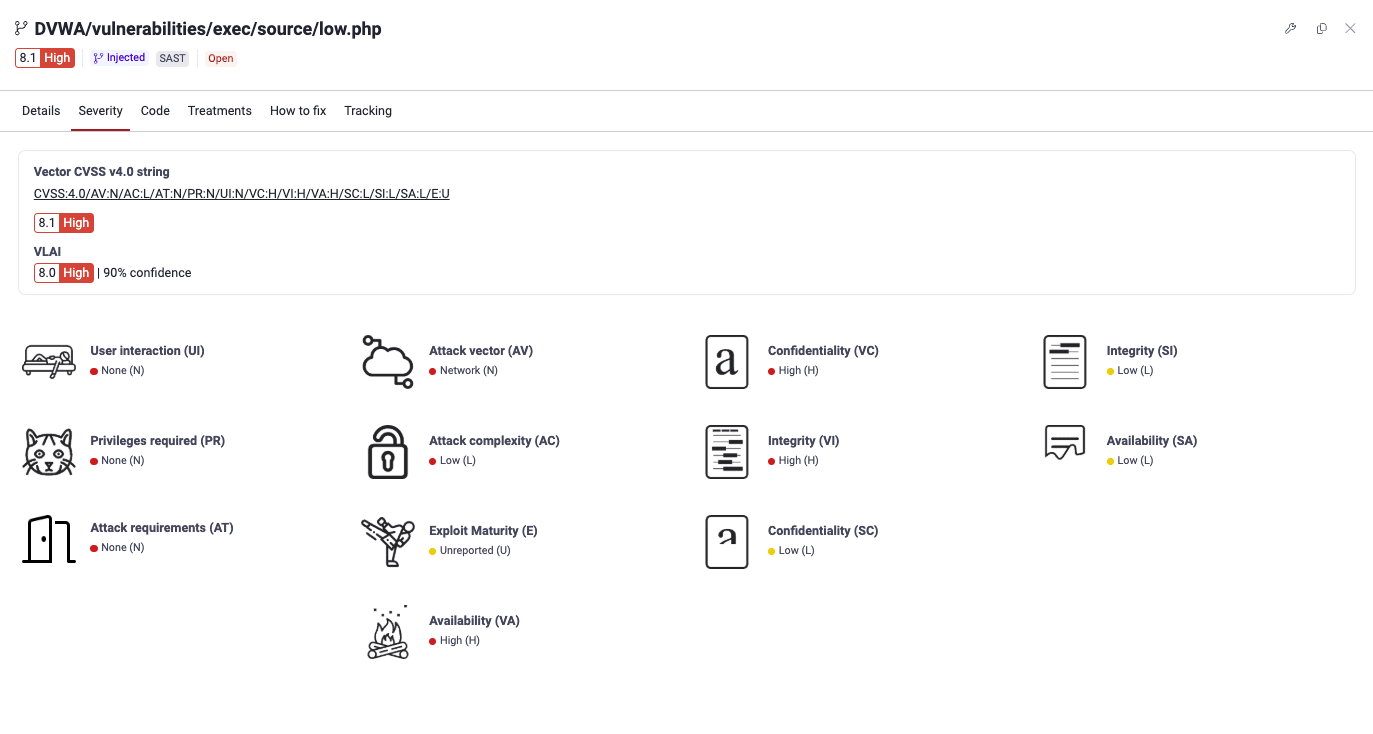
These are the details shown:
- Vector CVSS v4.0 string:
The values used to derive the score represented textually
Click the string to follow the link to the score calculator showing said values.
- The calculated severity score and its corresponding qualitative rating
- The severity score breakdown
showing the values for each metric
along with a visual representation of the value
Hover over the metric to reveal its definition and the description of its possible values.
- VLAI Severity: The AI-estimated severity level, showing the qualitative rating (Low, Medium, High or Critical), a representative numeric score, and the model's confidence percentage. It shows Unavailable when no classification is available for any reason.
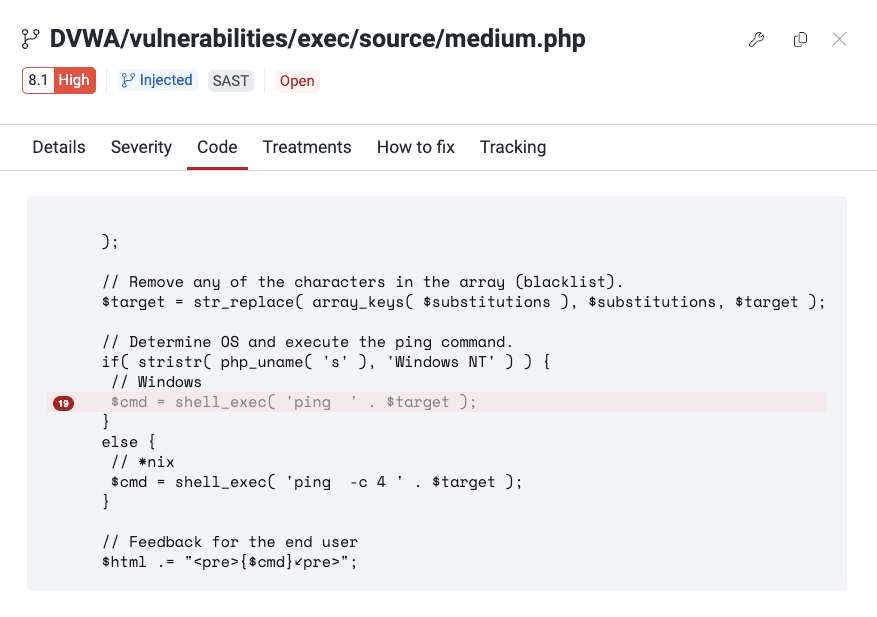
See the vulnerable line of code
Role required: User, Vulnerability Manager or Group Manager
The Code tab highlights the vulnerable code snippet and shows the code surrounding it, allowing you to pinpoint the issue directly within your codebase.
Edit treatment for a vulnerability
Role required: User, Vulnerability Manager or Group Manager
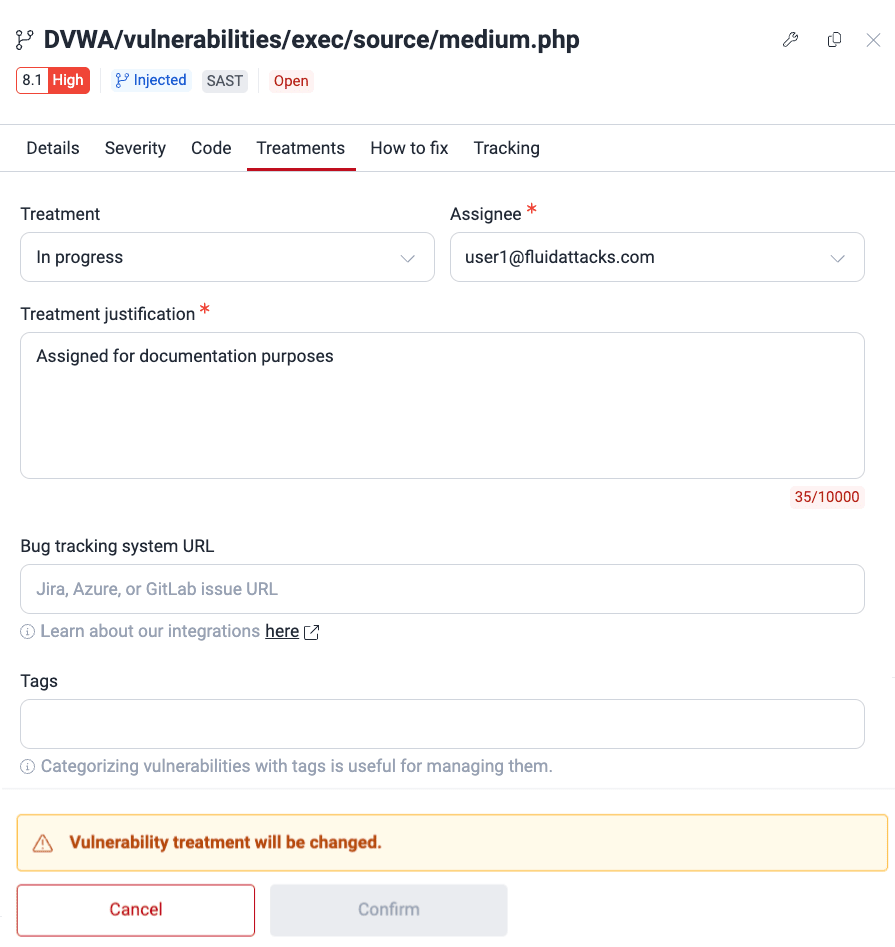
The Treatments tab lets you manage the treatment for the vulnerability. You can also manage tags and link to the related issue in a bug-tracking system. Read about these fields in Assign treatments.
Get a custom guide to fix the vulnerability
Role required: User, Vulnerability Manager or Group Manager
- AI-generated fix guides are only available for vulnerabilities detected via SAST or SCR in supported languages. - Always review the accuracy of remediation guides generated with AI.
From the pop-up window,
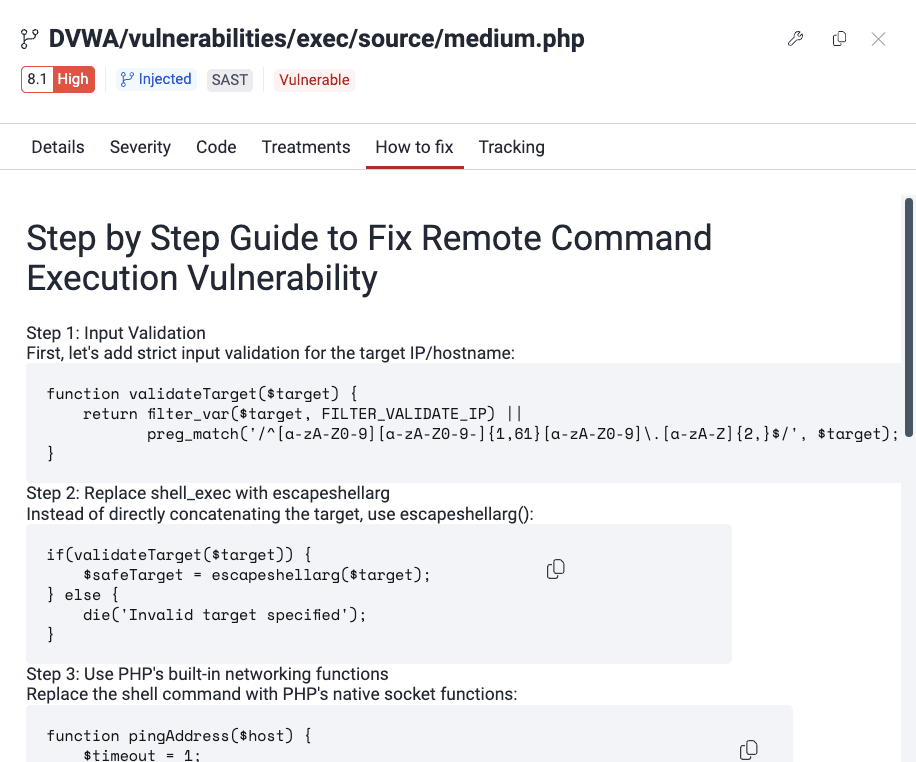
you can get a step-by-step,
AI-generated guide
to remediate the vulnerability.
Select the How to fix tab
or click the fix button ( ).
Fluid Attacks'
Custom fix feature
then creates a remediation guide for the vulnerability.
Note that this feature is not available for some vulnerabilities.
).
Fluid Attacks'
Custom fix feature
then creates a remediation guide for the vulnerability.
Note that this feature is not available for some vulnerabilities.

Get an automatic fix for the vulnerability
Role required: User, Vulnerability Manager or Group Manager
- AI-generated fix guides are only available for vulnerabilities detected via SAST or SCR in supported languages. - Always review the accuracy of remediation guides generated with AI.
Automatic fix suggestions are currently only available
on VS Code and Cursor
using the Fluid Attacks extension.
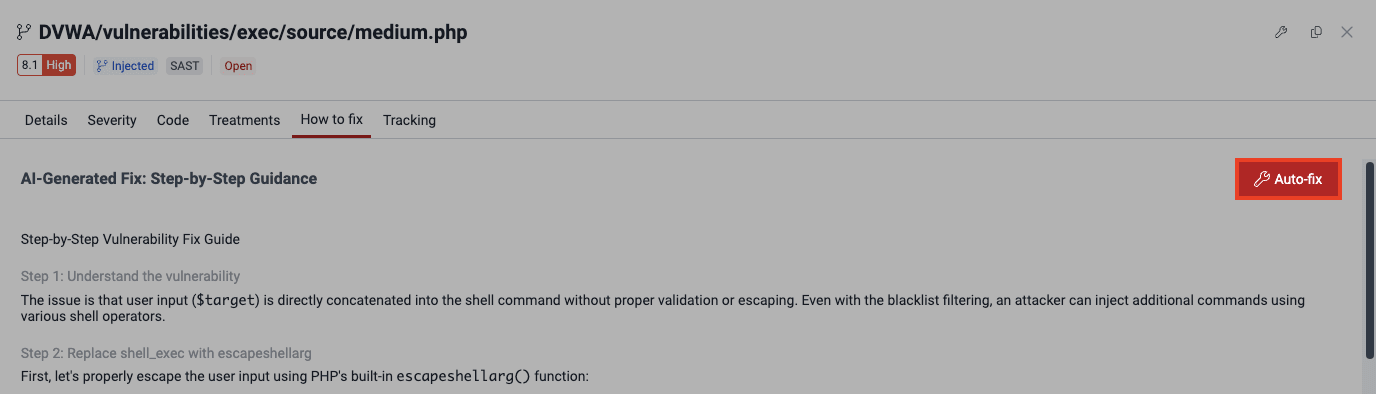
If Fluid Attacks has an automatic fix for the vulnerability,
a button labeled Auto-fix appears.
It appears after you click the How to fix tab
or the fix button ().
Clicking on the button enables a pop-up window
that displays requirements for using the feature
and a link to download the extension.
See the recommended dependency version
Role required: User, Vulnerability Manager or Group Manager
In the case of inherited vulnerabilities, the How to fix tab shows you what dependency versions you should upgrade to. To learn more, read See safe dependency versions.
See the history of a specific vulnerability
Role required: User, Vulnerability Manager or Group Manager
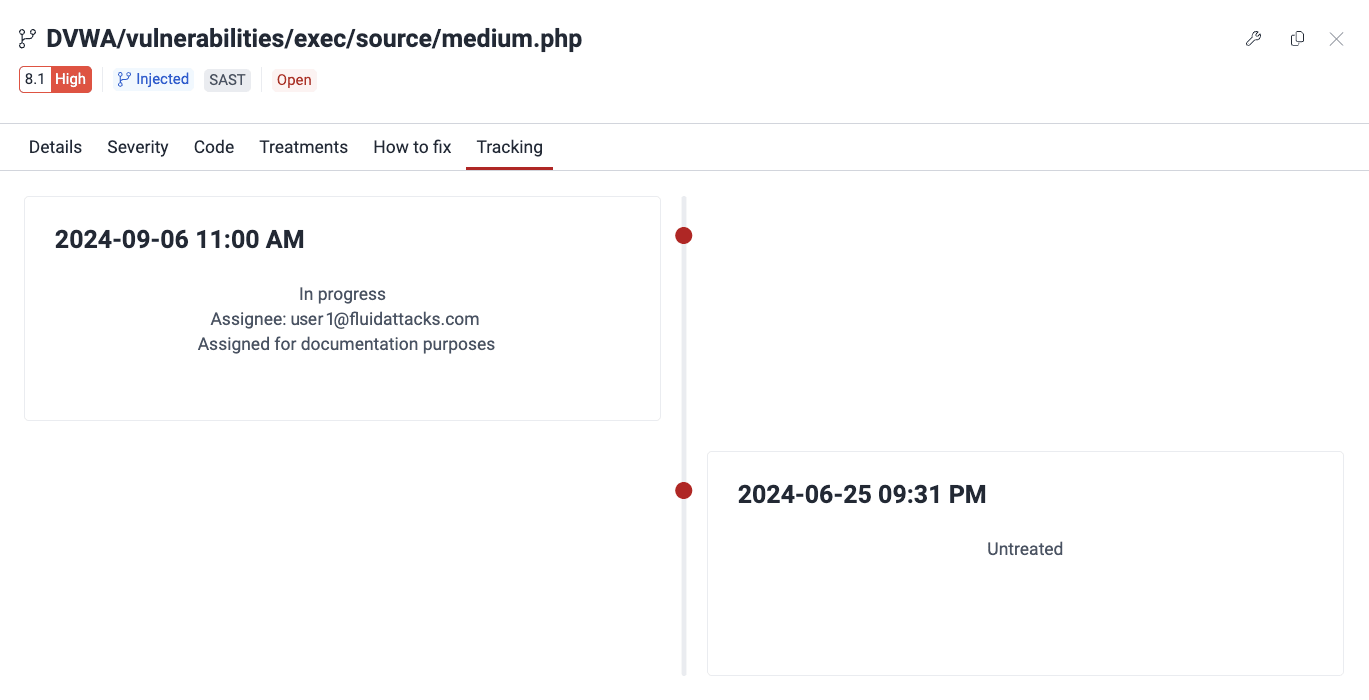
In the Tracking tab, you can see the management decisions made for a vulnerability over time. These include changes in status, treatments, and other relevant details.
Get the link to share the details of a vulnerability
Role required: User, Vulnerability Manager or Group Manager
You can share the pop-up window
for a vulnerability with others
because it has a unique URL
that contains the vulnerability ID.
To copy the URL,
click on the copy icon ( ).
).

This feature is also available through the copy icon in the Vulnerability column.
See the description of vulnerabilities
Role required: User, Vulnerability Manager or Group Manager
The Description section provides definitions and characteristics to help you understand the issues and possible fixes.
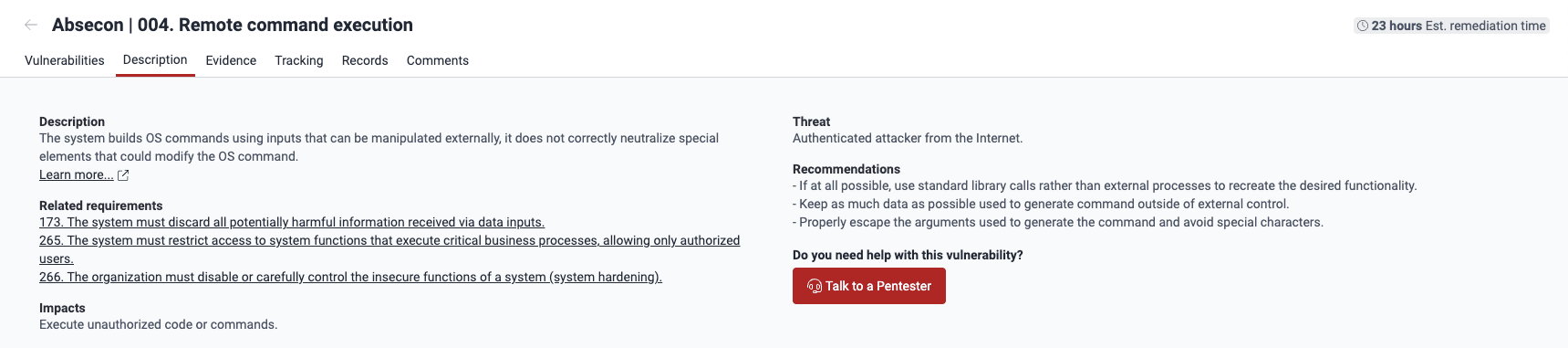
Specifically, this section provides the following information:
- Description: Fluid Attacks' definition of the weakness in question
- Related requirements: The security requirements, according to Fluid Attacks' classification, that may have been violated
- Impacts: What an attacker can achieve exploiting the vulnerability
- Threat: The attack vector an attacker has to follow and the privileges they require to exploit the vulnerability
- Recommendations: Advice for remediating the vulnerability
- Do you need help with this vulnerability?: Link to schedule a video meeting to discuss the vulnerability with one of Fluid Attacks' pentesters
See evidence of exploitability
Role required: User, Vulnerability Manager or Group Manager
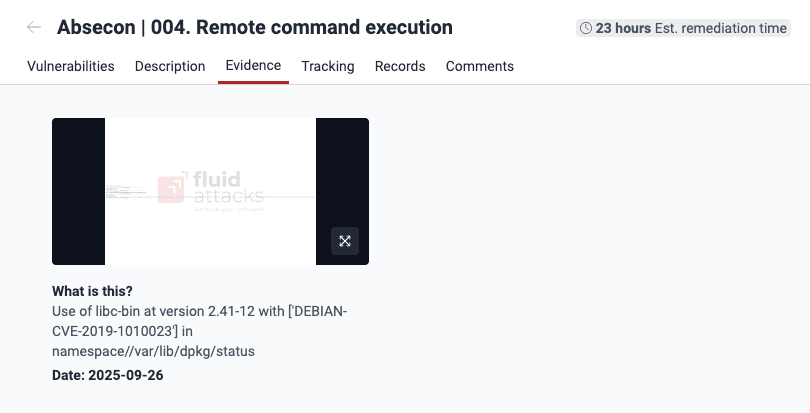
In the Evidence section, you may find screenshots of code snippets that show the presence of vulnerabilities. You may also find screenshots or videos that show the ethical exploitation of some of those vulnerabilities. You can click on these resources to enlarge them and then download them. Learn more details about this section in Examine the evidence of exploitability.
See the timeline of vulnerabilities
Role required: User, Vulnerability Manager or Group Manager
In the Tracking section, you can view the timeline of vulnerabilities. The timeline shows cycles marked by reattack outcomes and acceptance treatments. To see the timeline for a vulnerable line of code, input or port, refer to See the history of a specific vulnerability.

See affected records
Role required: User, Vulnerability Manager or Group Manager
The Records section contains sensitive information gathered by Fluid Attacks' pentesters during ethical vulnerability exploitation. This information is specific to your organization. It may include:
- Financial details (for example, account numbers, transactions, and credit card numbers)
- Personal data (for example, phone numbers, contacts, and personally identifiable information)
- Technical information (for example, roles, keys, and access tokens)
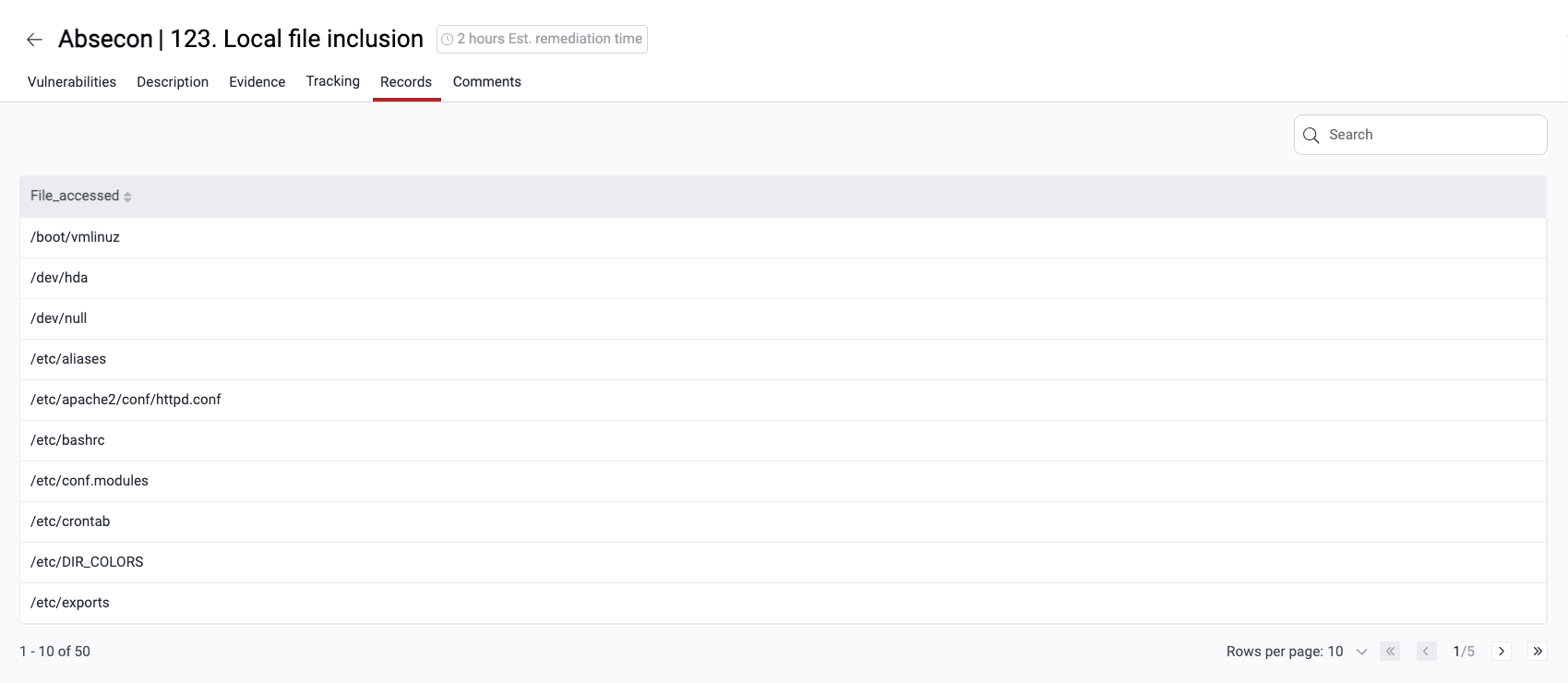
The information in this section is stored only here and is exclusively accessible to authenticated users with proper permissions within your group.
Comment on vulnerabilities
Role
required:
User, Vulnerability Manager or Group Manager
Plan required: Advanced
(this section is available in the Essential plan in view-only mode)
The Comments section is a space for discussions between your team and Fluid Attacks about vulnerabilities. Any member can post a new thread or reply to an existing one. To learn more, read Post comments.

To learn more about the platform, see Platform interface and sections.
Notify of a vulnerability
Role required: Vulnerability Manager or Group Manager
You can send an email notification to members to inform them of open vulnerabilities. To do this, follow these steps:
- Access the group where the target vulnerability was detected.
- In the Vulnerabilities section,
click on the associated weakness.
- In the Vulnerabilities section,
click on the notify button (
 ).
).

- In the pop-up window,
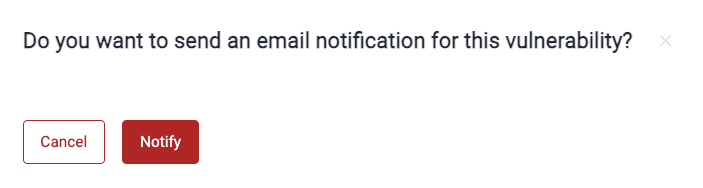
confirm the delivery by clicking Notify.
The platform then sends the notification to members who have Vulnerability alert enabled.
Request reattacks
Role required: User, Vulnerability Manager or Group Manager
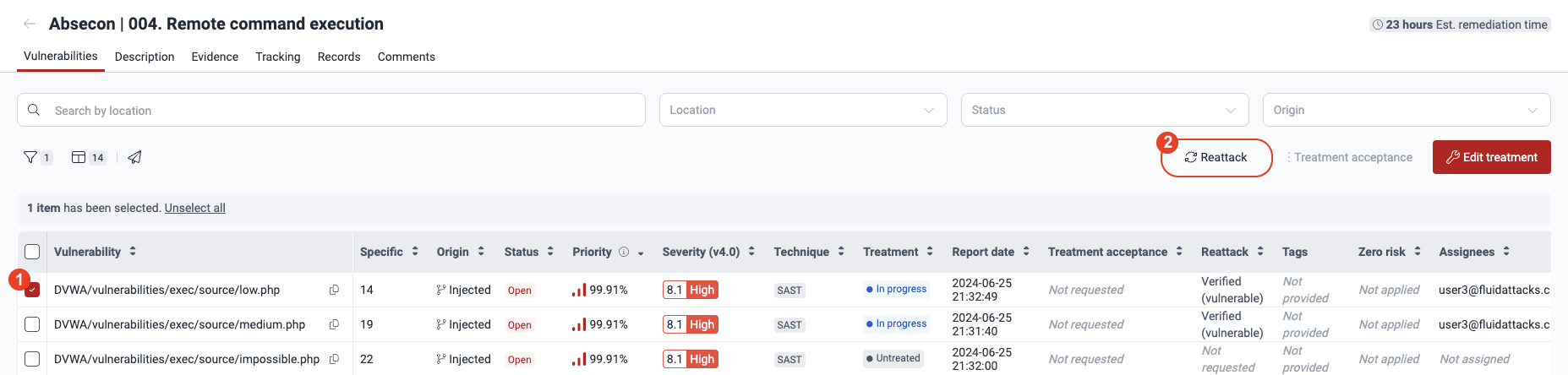
From Fluid Attacks' platform, you can send requests to verify the effectiveness of your code fixes. These retests done by Fluid Attacks are called reattacks. To request them, check the boxes of the vulnerabilities in the Vulnerabilities section and click Reattack. Find all the details about this feature in Verify fixes with reattacks.
Edit treatment, assignee, BTS link and more
Role
required:
User, Vulnerability Manager or Group Manager
Members with the User role can assign fix work to themselves and edit the
External BTS, Tags and Priority values.
You can modify vulnerability management decisions from the platform's Vulnerabilities section. To make your modifications, follow these steps:
- Go to Vulnerabilities by clicking on a weakness name.
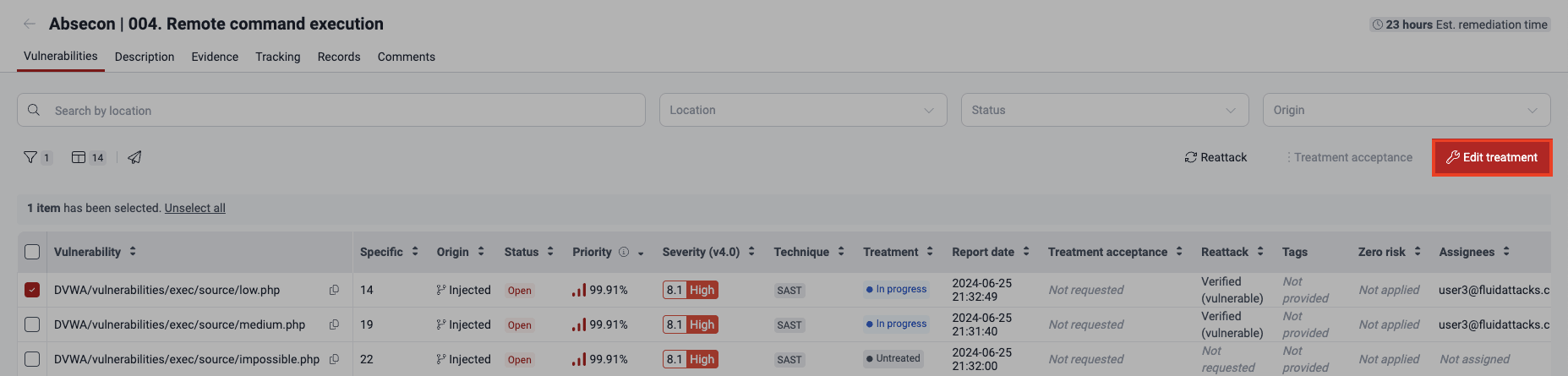
- In the table, select the checkbox on the left of the vulnerability that you need to edit.
- Click the Edit treatment button.
- Make the necessary changes in the form.
Treatment and Assignee can only be modified
by Vulnerability Managers
and Group Managers.
(For the descriptions of the fields,
read Assign treatments.)

- Click on Confirm to apply the changes.
Approve vulnerability acceptance requests
Role required: Vulnerability Manager or Group Manager
In the Vulnerabilities section, you can approve the request for a vulnerability to be temporarily or permanently accepted. You do this with the Treatment acceptance option. For all the details, read Assign treatments.

Search for vulnerabilities in your apps for free with Fluid Attacks' automated security testing! Start your 21-day free trial and discover the benefits of the Essential plan. If you prefer the Advanced plan, which includes the expertise of Fluid Attacks' pentesting team, fill out this contact form.
Resolve events
The Events section in the Fluid Attacks platform keeps a record of solved and unsolved events within a group, which are situations impeding security testing.
Examine evidence
In the Evidence section of the platform, Fluid Attacks provides supporting proof of the existence and exploitation of the corresponding type of vulnerability.