Installation
Last updated: Oct 27, 2026
Download the extension
Read the requirements of the VS Code extension.
To download the extension, follow these steps:
-
Open VS Code.
-
Open the extensions view.
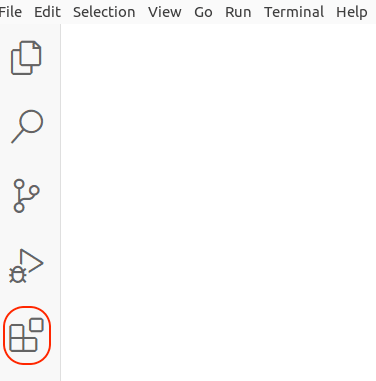
-
Type Fluid Attacks in the search bar.
-
Find the extension and click Install.
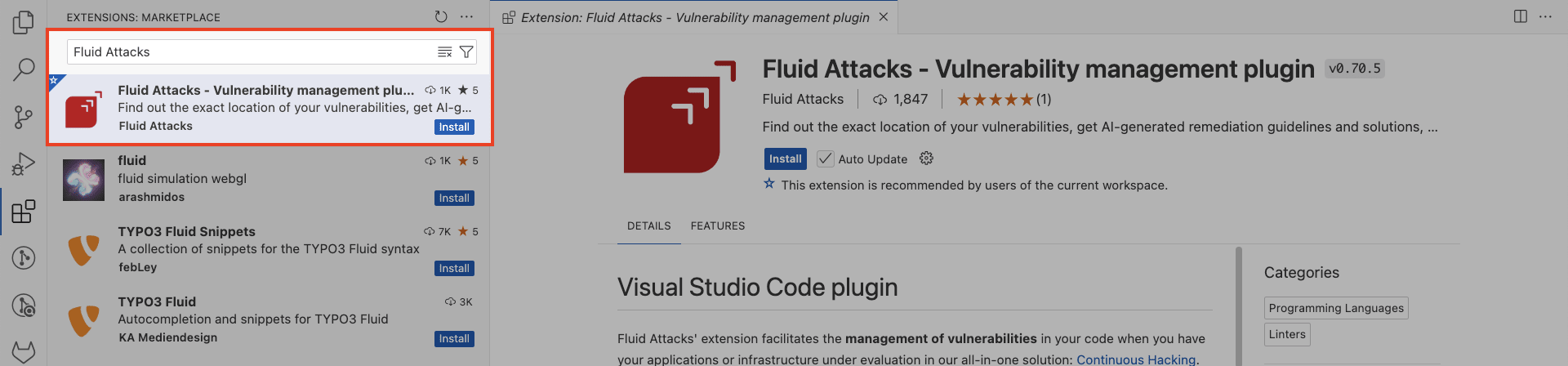
Connect VS Code with the Fluid Attacks platform
To configure the extension, you must have a correct API token. Generate one before you do the steps below.
After you download the extension, configure it to connect the Fluid Attacks platform with VS Code. You can do this in two ways:
Configure within the extension
-
Click the Fluid Attacks extension icon in the VS Code activity bar.
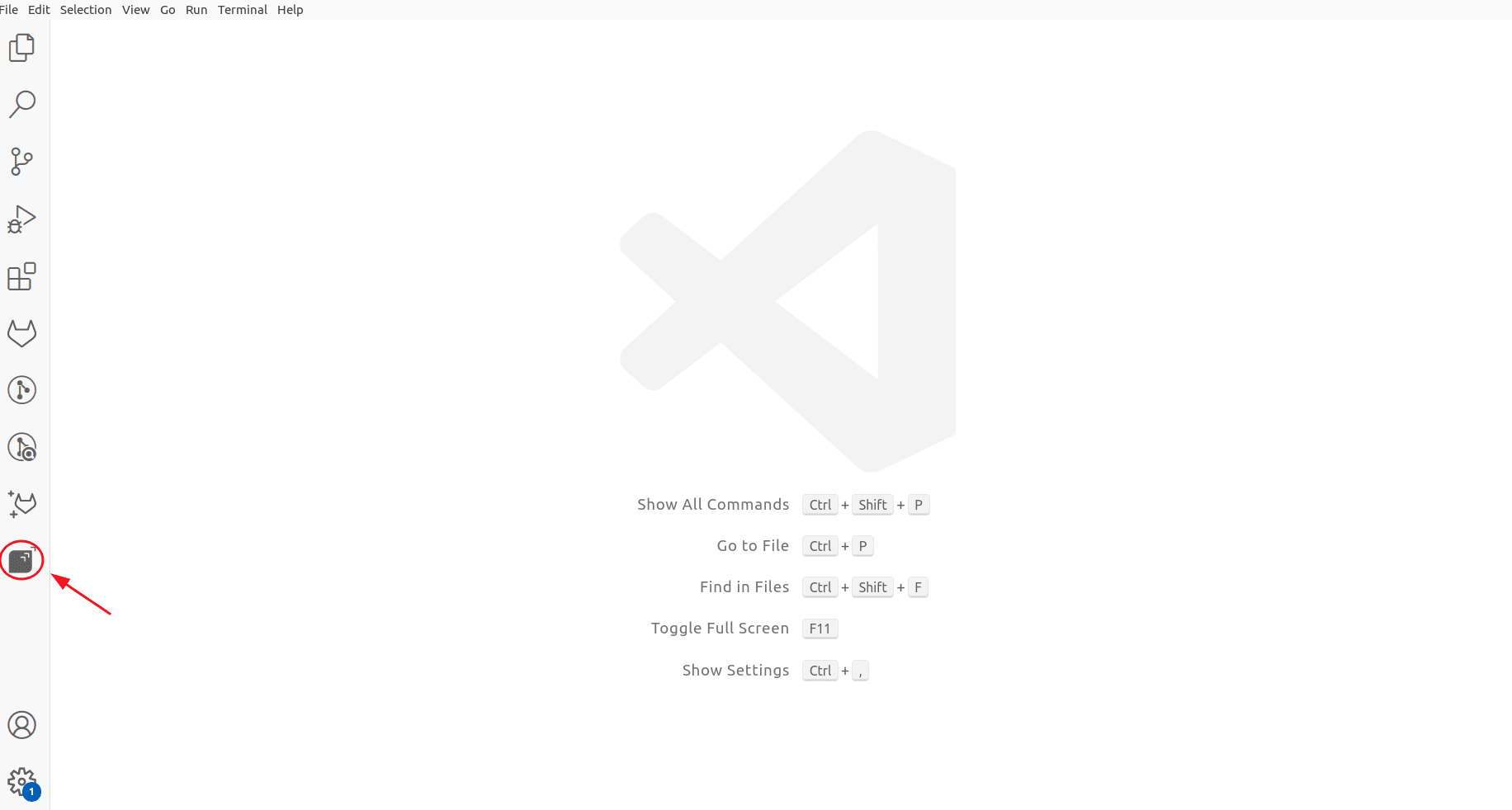
-
Click Add token.
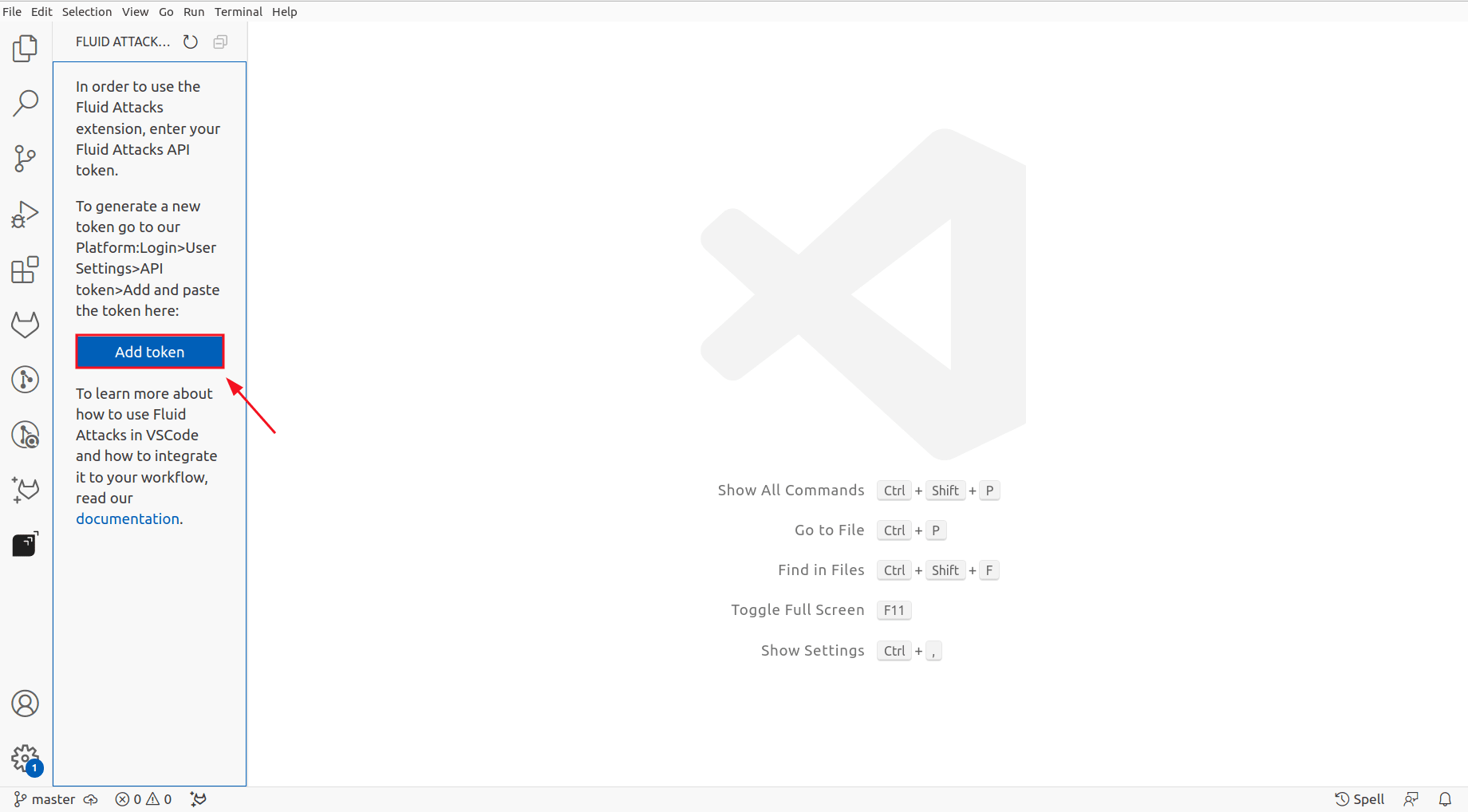
-
Paste your API token.
-
Press Enter.
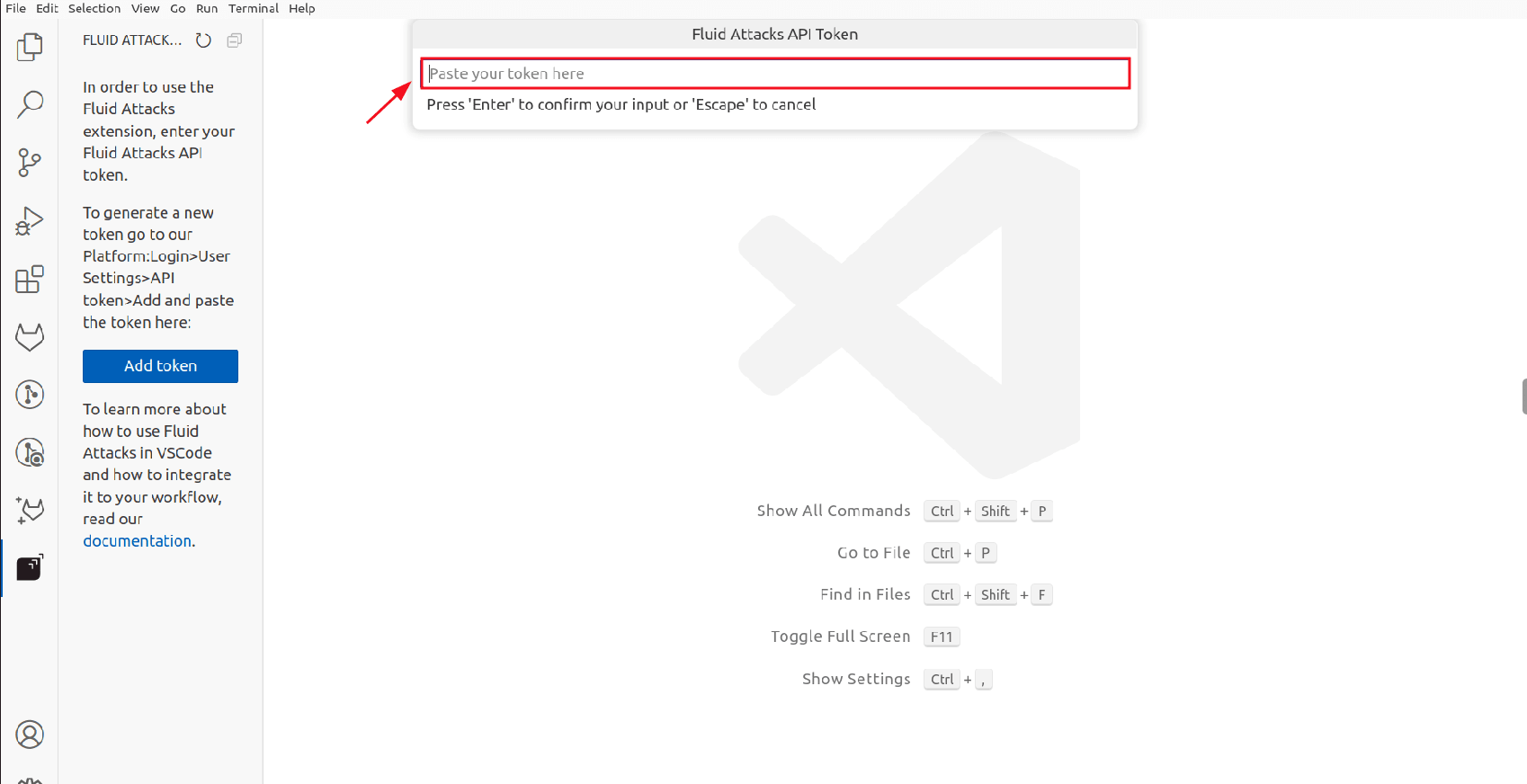
-
Click Reload in the notification to apply the new token.
Configure using the terminal
-
Open the terminal in VS Code.
-
Use this command to set the
FLUID_API_TOKENenvironment variable to your API token:export FLUID_API_TOKEN="your_token"
Verify successful installation
The extension analyzes only the files that you give as input. Thus, make sure that you include all the related files to manage all your vulnerabilities.
After you configure the VS Code extension, make sure that it works correctly:
-
Open the base folder of your Git repository in VS Code.
-
Make sure that the base folder has the same name as the repository nickname. If not, make sure that the local repository has a remote URL.
-
Make sure that the Fluid Attacks extension icon is in the activity bar of the IDE.
-
Make sure that the files with vulnerabilities have red dots. If you see them, the configuration is correct.
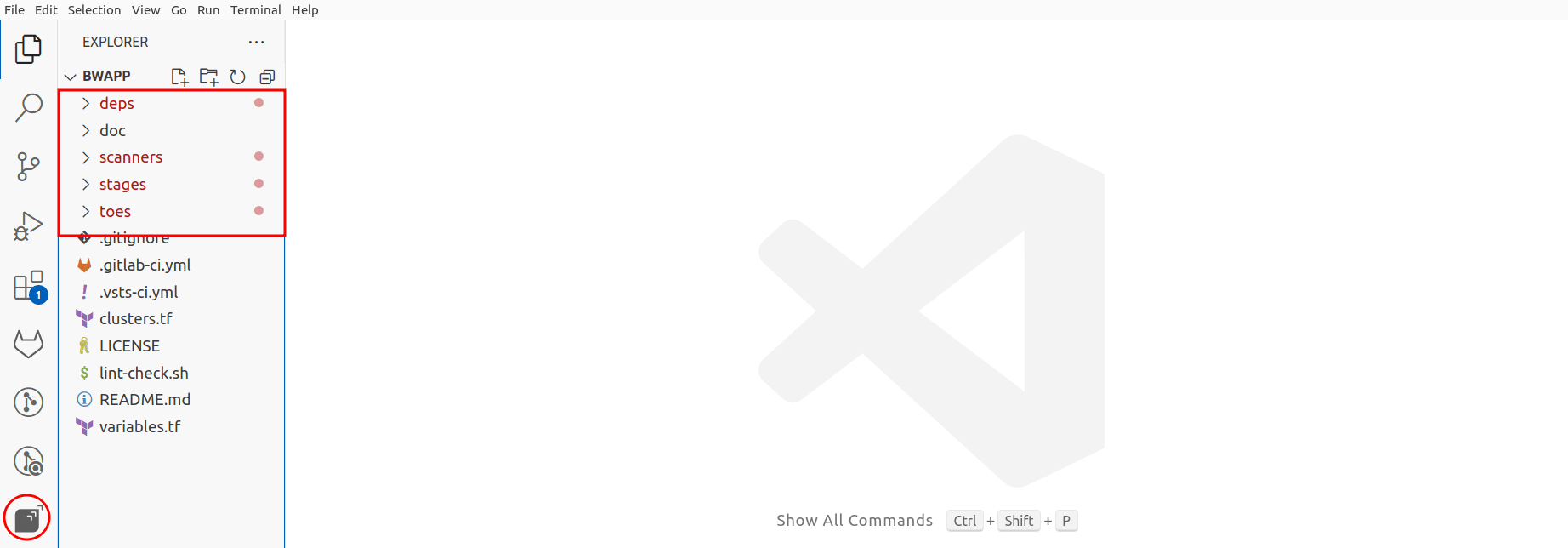
Some functions of the extension do not work without the Git history. Make sure that your project is a Git repository that you cloned with Git.
Troubleshooting
If the Fluid Attacks VS Code extension does not work correctly, do the troubleshooting steps.
Telemetry
The Fluid Attacks extension collects error data. Fluid Attacks analyzes this data to improve the functions and performance of the extension. This data collection obeys your VS Code telemetry settings. To stop it, disable the telemetry of VS Code.