Troubleshooting
Last updated: Oct 27, 2026
This guide gives troubleshooting steps for common problems with the Fluid Attacks VS Code extension. For example, the extension does not work correctly or does not show vulnerabilities. If you have a problem, do the steps below carefully to resolve it.
-
Make sure that you have the latest version: Make sure that the latest version of the Fluid Attacks extension is installed in your VS Code IDE. To find updates, go to the Extensions tab in VS Code.
-
Use a local environment: At this time, the extension works only in local development environments. It does not work with remote development configurations.
-
Make sure that the API token is correct: Make sure that you added a correct API token to the extension configuration. If necessary, get a new token from the Fluid Attacks platform.
-
Install Git: Make sure that Git is installed on your system. To install or update this version control system, download it from git-scm.com/downloads. Linux and Mac OS have Git installed by default. Also, make sure that the repository is a Git repository and that it has a remote URL. To see the remote URL, run this command in the repository:
git config --local --get remote.origin.url. -
Make sure that the group and scope are correct: On the Fluid Attacks platform, make sure that you have access to the group of your repository. Also, make sure that the repository is in the scope of the group.
-
Open the editor in the correct directory: Open VS Code from the root directory of your local Git repository. This directory is the base folder of your local repository. The extension uses the structure of the repository. If you open the editor from a parent directory or a different location, the extension does not work correctly.
-
Make sure that the repository name and URL are correct: For the extension to work correctly, Fluid Attacks recommends that the local folder of your repository has the same name as its nickname in the scope of your group on the Fluid Attacks platform. As an alternative, make sure that the remote URL of your Git repository is the same as the URL in the scope on the Fluid Attacks platform.

-
Clone the repository again: Sometimes, the extension does not show vulnerabilities, although the token is correct and the Fluid Attacks platform reports vulnerabilities. A possible cause is a damaged Git history. In this condition, clone the target repository again. This can resolve the problem.
If the extension does not work correctly after you do the steps above, contact the Fluid Attacks support team at [email protected]. To help the team find the problem quickly, include this information in your email:
-
Current version of the extension
-
Current IDE version
-
The operating system of the IDE
-
Name of the group and name of the repository that you work on
-
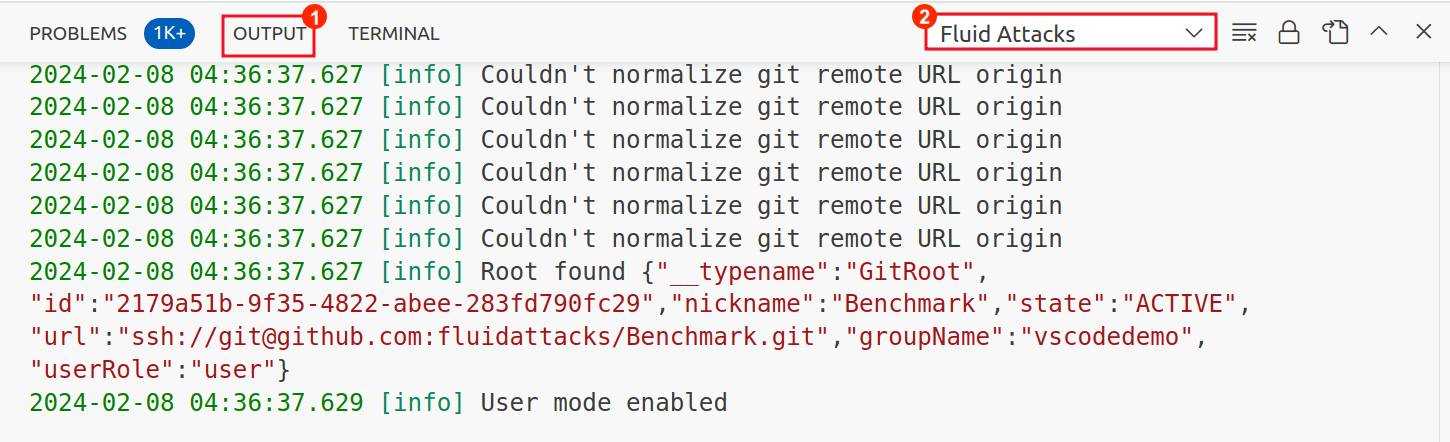
Full text log of the extension. To get the log, open the Output tab in the panel of VS Code. Then, select Fluid Attacks in the drop-down menu, as the screenshot below shows.