Connector connection
Last updated: Sep 30, 2026
This page is a complete guide to install and use the Connector connection. With this connection, Fluid Attacks accesses your private resources for security testing through a secure channel.
Architecture
This section describes the architecture of the Connector connection. The connection runs on Cloudflare. The section explains how Fluid Attacks uses a pivot agent to access your private network. It also gives the minimum requirements and the limitations of this method.
High-level architecture
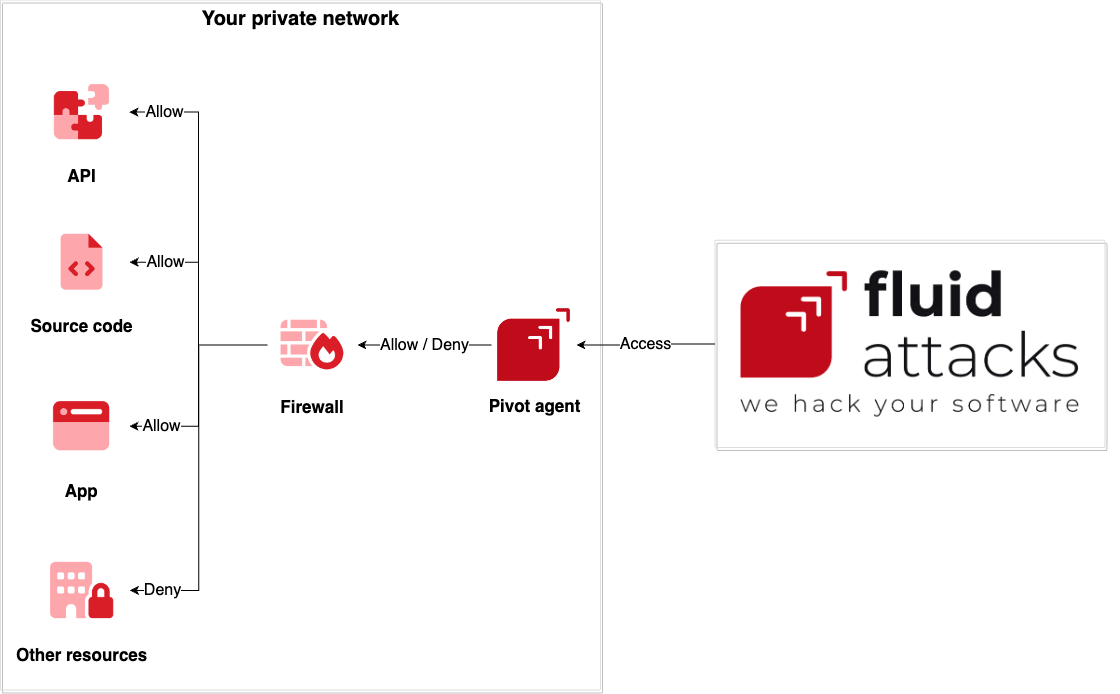
To access your private resources through a secure channel, Fluid Attacks uses a "pivot agent." You install this agent on a container or a server in your private network. The agent is an intermediary. It runs as a service that listens and runs only network queries. Fluid Attacks interacts only with the local or internal private network resources that you authorize.
This diagram shows how the connection works:
Pivot agent minimum requirements
- One CPU
- 2 GiB of memory
- A minimum of 5 GB of free disk space
- A user with administrative privileges (only to access the server and install the agent from your side)
- Docker, Linux, Windows, or macOS
- Stable access to the Internet
- Firewall rules configuration (see the installation steps)
Limiting access for the pivot agent
Fluid Attacks accesses your private network through the pivot agent. To increase security, configure your firewall to give the pivot agent only the minimum necessary permissions. Fluid Attacks then accesses only the resources necessary for the assessment. This limits the exposure.
Service limitations
Restricted IP addresses
Fluid Attacks reserves some IP addresses for internal use in its system. The Connector connection cannot route them:
- Routing in the Fluid Attacks internal network: 192.168.0.1
- DNS resolution in the Fluid Attacks internal network: 192.168.0.2
- Reserved for internal testing:
- 192.168.0.60 - 192.168.0.62
- 192.168.1.60 - 192.168.1.62
- 192.168.10.60 - 192.168.10.62
- 192.168.100.60 - 192.168.100.64
- 192.168.127.60 - 192.168.127.62
- Reserved for a stable system and Cloudflare internal services:
- 17.0.0.0 - 17.255.255.255
- 100.64.0.0 - 100.80.255.255
- 100.96.0.0 - 100.112.255.255
- 169.254.0.0 - 169.254.255.255
- 224.0.0.0 - 224.0.0.255
- 240.0.0.0 - 255.255.255.255
Do not expose these IP addresses to the pivot agent. This prevents service disruptions.
Maximum hosts
A Connector connection can route a maximum of 1,024 hosts. This limit keeps the network and HTTP logs correct.
Self-signed certificates
If your private network uses self-signed SSL certificates, the connection does not examine the HTTPS traffic. The logs then contain less information. The cause is the Cloudflare network. The connection runs on it, and it needs certificates from trusted Certificate Authorities (CAs) for full validation and logging. Use SSL certificates from an approved CA to get complete navigation logs in the tunnel.
Installation
Configure the Connector connection
Two tracks run at the same time. Fluid Attacks makes the tunnel. You prepare the pivot agent. Installation starts only after the two tracks are complete.
Fluid Attacks creates the tunnel
- Complete the connection form with your network configuration.
- Fluid Attacks makes the Cloudflare tunnel with that configuration and makes a secret token. The tunnel state stays Inactive at this point.
- Fluid Attacks sends you the secret token in 8 business hours.
You prepare the pivot agent, in parallel
- Prepare a container or a server in your private network that meets the minimum requirements. This server is the pivot agent.
- Configure the firewall rules for these actions:
- Download the cloudflared agent or pull the cloudflared Docker container.
- Connect to the Cloudflare network.
- Connect to the internal resources that Fluid Attacks accesses.
You can share access to some servers in the same private network. Then make sure that the pivot agent can connect to each server.
Do not install cloudflared before you configure these firewall rules correctly from your side. You must have outbound rules to the IPs or domain destinations listed here, on port 7844 (TCP and UDP protocols). These rules give a stable connection and correct DNS resolution.
Install cloudflared when the two tracks are complete
Start the installation only after Fluid Attacks sends the secret token. You must also make sure that the pivot agent and the firewall rules are complete.
-
Install cloudflared on the pivot agent:
-
Linux:
-
Binary: Download the binary for your architecture and run it directly:
cloudflared-linux-<YOUR ARCH> service install <SECRET TOKEN> -
Debian-based systems (.deb): Download and install cloudflared on your server with these commands:
sudo dpkg -i cloudflared-linux-<YOUR ARCH>.deb cloudflared service install <SECRET TOKEN> -
Red Hat-based systems (.rpm): Download and install cloudflared on your server with these commands:
sudo rpm -i cloudflared-linux-<YOUR ARCH>.rpm
cloudflared service install <SECRET TOKEN>
-
-
Windows
-
Option 1: Download and install cloudflared on your server with winget:
winget install --id Cloudflare.cloudflaredThen run this command with the secret token from Fluid Attacks:
cloudflared.exe service install <SECRET TOKEN> -
Option 2: Download the latest release of cloudflared. Rename the file to "cloudflare.exe". Put it in the C:/Cloudflared/ folder. If there is no folder, make it. Then go to the C:/Cloudflared/ path and run this command:
.\cloudflared.exe service install <SECRET TOKEN>
-
-
Docker: Deploy a service with the cloudflared Docker container on your container runtime system. Examples are AWS ECS, AWS EKS, Azure AKS, and GCP GKE. Then run this command with the secret token from Fluid Attacks:
docker run -d --name cloudflared cloudflare/cloudflared:latest tunnel --no-autoupdate run --token <SECRET TOKEN>
Run this command as a System Administrator. In a Docker container, the root user in the container is enough.
After you install cloudflared and it runs, the tunnel tries to connect. If the configuration is correct, the tunnel state changes from Inactive to Healthy.
-
Test your connection
After you make the connection, make sure that it works:
- Docker: Examine the logs of your container. The method to access the logs depends on your container runtime, for example AWS ECS, AWS EKS, Azure AKS, or GCP GKE.
- Windows: Follow the official steps to test connectivity with Powershell.
- Linux and macOS: Follow the official steps to test connectivity with dig.
Example
This is a detailed example of a Connector connection that exposes the resources of your application through a secure channel.
Scenario
You must give Fluid Attacks access to three servers in your private network:
- Your Git repository server
- Your application environment server
- Your internal DNS server, for name resolution
You want to make these use cases possible:
- Fluid Attacks clones your Git repository with SSH.
- Fluid Attacks tests your application with HTTPS.
- Fluid Attacks resolves your internal domains with DNS.
Configuration
Follow these steps:
- Complete the connection form. Fluid Attacks then configures a connection for you.
- Install cloudflared on one of the servers that you want to share. In this example, you install it on the Git repository server.
- Receive a secret token from Fluid Attacks for the connection.
Firewall rules
Then make the firewall rules that make the use cases above possible. For the Git repository server, set these egress firewall rules:
- For secure connection:
- Allow TCP/UDP on port 7844 to region1.v2.argotunnel.com (necessary).
- Allow TCP/UDP on port 7844 to region2.v2.argotunnel.com (necessary).
- Allow TCP on port 443 to api.cloudflare.com (optional, to check for software updates).
- Allow TCP on port 443 to update.argotunnel.com (optional, to check for software updates).
- For internal communication:
- Allow TCP connections on port 443 (HTTPS) to the application environment server.
- Allow TCP/UDP connections on port 53 (DNS) to the DNS server.
For the application environment server, set this ingress firewall rule: Allow TCP connections on port 443 (HTTPS) from the Git repository server.
For the DNS server, set this ingress firewall rule: Allow TCP/UDP connections on port 53 (DNS) from the Git repository server.
Start the connection
With cloudflared installed and the firewall rules set, start the connection. As a System Administrator, run the registration command with the secret token from Fluid Attacks.
Testing the connection
When the connection is on, test it as described above.
This example covers all its use cases. It applies when you have (a) a pivot agent that works and (b) minimum privilege firewall rules in your private network.
Authentication
This connection supports these authentication mechanisms:
| OAuth | SSH | HTTPS |
| ❌ | ✅ | ✅ |
Frequently asked questions
What is Connector used for?
With Connector, Fluid Attacks accesses your private resources for security testing through a secure channel. Your network stays isolated and secure.
What are the minimum system requirements for the pivot agent?
See Pivot agent minimum requirements.
Why are 5 GB of free disk space necessary for the pivot agent?
The 5 GB are not an official requirement. But we strongly recommend a minimum of 5 GB of disk space on the pivot agent that runs the cloudflared software. This space holds the agent binaries, the configuration files, the logs, and the temporary caches of the agent.
The more space also lets you install future software updates without problems. It prevents errors from storage that is not sufficient. The actual disk use is usually lower. It changes with the configuration and the use.
Why are "administrative privileges" needed?
Administrative privileges are necessary only to access the server, install the cloudflared agent, and run the related commands. These privileges are not necessary for Fluid Attacks. Special system access or permissions are not necessary for the cloudflared agent to run on the server.
How do you access my resources?
The connection is a secure, encrypted tunnel. You run the cloudflared agent on your server with a unique token. The agent makes an outbound tunnel to the Cloudflare network. Fluid Attacks connects to your tunnel with the Cloudflare WARP client. The client sends network-only requests to the resources that you expose from the pivot agent. You do not open inbound ports on your side.
Can you access all resources on my private network?
No. Fluid Attacks accesses only the resources that you list. Through the cloudflared tunnel, Fluid Attacks reaches only some resources. Each resource must satisfy two conditions: the pivot agent can access it, and you configured it as exposed.
You must also give a list of these resources (routes, domains, and internal DNS) in the web form. Fluid Attacks then does not access a different resource in your internal network, also when the pivot agent can connect to it.
Can I change the access to my internal network resources at all times?
Yes. You can change the permissions, the firewall rules, or the network architecture that controls the access from Fluid Attacks to your resources at all times. But you must also tell Fluid Attacks about these changes. We then update the tunnel configuration. Contact your Fluid Attacks Engagement Manager, or send a ticket to [email protected].
How is the installation token generated and what are its characteristics?
When Fluid Attacks makes a tunnel, Cloudflare makes an installation token. The token authorizes the cloudflared agent to install on the host (the pivot agent) and links that host to the tunnel. The token has 181 characters and is a secret value. Cloudflare makes it at random, thus each token is unique for each tunnel and hard to guess. Its structure is almost the same to a base-64 JWT, but it does not follow the standard JWT format.
Does the token expire, and can I use it again?
The installation token does not expire. Cloudflare does not regenerate it automatically. While the tunnel exists, you can use the token to install the service on each host. After the installation completes and the agent runs as a service, you no longer need the token. It is necessary again only to install the agent again on the same host or on a different host.
How do I get the installation token?
If you do the installation, your Engagement Manager at Fluid Attacks usually gives you the token in private. If live guidance is necessary during the installation, Fluid Attacks gives you the token during the procedure.
Is the token sent through the tunnel, and is there a risk of interception?
The tunnel does not transmit the token. The pivot agent uses it locally, only during the service installation. After the installation, the agent connects directly to the Cloudflare servers through a secure channel. Not one of the two sides makes sure of the token again. Thus nobody can intercept the token during the tunnel operation.
How do I know if my firewall rules are correctly configured?
Before the installation, make sure of these conditions:
- Your firewall lets the pull of the cloudflared Docker container or the download of the cloudflared agent.
- Your firewall lets connections to the Cloudflare network of Fluid Attacks. For more information, see the official documentation on connectivity tests.
- Your firewall lets access to the internal resources that Fluid Attacks assesses.
Is it necessary or mandatory to configure all specified outbound firewall rules?
No. The Cloudflare tunnel needs only the outbound rules to the IPs or domain destinations listed here, on port 7844 (TCP and UDP). The rules for port 443 (TCP and UDP) are optional. Some more features use them, such as the download and update of the cloudflared binaries. The rules for Region US are usually not necessary. You can ignore them.
When must I configure firewall rules with domains or IPs?
Use the Cloudflare domains if your firewall filters by FQDN (Fully Qualified Domain Name) or enforces SNI (Server Name Indication). If your firewall does not support or apply these functions, configure each IP address that Cloudflare specifies.
In special cases, configure the outbound firewall rules for the domains and for the IPs at the same time. These cases are when network devices cannot make the Cloudflare tunnel connectivity, or when the DNS resolution fails.
What happens if firewall rules are not configured correctly?
If the necessary firewall rules are not correct, the connection fails. Fluid Attacks then cannot access your resources. The tunnel connectivity shows the Inactive or Down state.
If your network blocks or discards UDP (quic) traffic, the domain name resolution can fail. This causes more connectivity problems. Fluid Attacks then has difficulties to fetch and analyze your resources, most frequently in the automatic cloning or the testing.
What if my network uses a proxy behind the firewall?
If your network uses a proxy to control the outbound traffic, configure the firewall rules on the two the firewall and the proxy. The two must let outbound traffic to the domains, IP addresses, ports, and protocols that Cloudflare specifies.
What must we do with the connection when your service ends?
To end the connection, follow the instructions to uninstall the cloudflared agent below. You can also remove the binaries, executables, or container images of cloudflared that you downloaded. If you want, disconnect the server.
How do I check if the cloudflared service is correctly installed?
To check the status of the service, run one of these commands:
-
Linux: Run this command and check that the result shows Active: active (running):
systemctl status cloudflared -
Windows: Run one of these commands and check that the result shows STATE: RUNNING:
sc query cloudflaredGet-Service cloudflared -
Docker: Run one of these commands to check that the cloudflared container runs:
docker ps | grep cloudflareddocker ps | findstr cloudflared
How can I get logs from the cloudflared service?
To get the logs in real time, run one of these commands:
-
Linux:
journalctl -u cloudflared -f -
Windows:
Get-WinEvent -LogName Application -ProviderName cloudflared -MaxEvents 30 -Wait -
Docker
docker logs -f cloudflared
How do I start the cloudflared service if needed?
To start the service after a stop, run one of these commands:
-
Linux:
systemctl start cloudflared -
Windows: Run one of these commands:
sc start cloudflaredStart-Service cloudflared -
Docker
docker start cloudflared
How do I stop the cloudflared service if needed?
To stop the service, run one of these commands:
-
Linux
systemctl stop cloudflared -
Windows Run one of these commands:
sc stop cloudflaredStop-Service cloudflared -
Docker
docker stop cloudflared
How do I restart the cloudflared service if needed?
To restart the service, run one of these commands:
-
Linux:
systemctl restart cloudflared -
Windows:
Restart-Service cloudflared -
Docker
docker restart cloudflared
How do I uninstall the cloudflared service?
To uninstall the service, run one of these commands:
-
Linux:
cloudflared service uninstall -
Windows: First, run this command:
cloudflared service uninstallIf it does not work, go to the C:/Cloudflared/ path (or the path where you stored the cloudflared.exe binary) and run this command:
.\cloudflared service uninstallIf the two commands do not work, first stop the cloudflared service. Then run one of these commands to force the deletion:
sc delete cloudflaredRemove-Service cloudflaredFinally, remove each cloudflared.exe binary and each cloudflared folder from your disk. This step is optional, but we recommend it.
-
Docker: Run these commands, one by one:
docker stop cloudflareddocker rm cloudflaredFinally, remove the cloudflare/cloudflared image. This step is optional, but we recommend it if you want to free space:
docker rmi cloudflare/cloudflared:latest
Troubleshooting
Follow these steps to find and correct frequent problems with the cloudflared agent. The sequence goes from basic checks to advanced diagnostics.
Check server requirements
Make sure that the server meets the minimum system requirements to run the agent.
Make sure of the internal network connectivity
Make sure that the pivot agent can connect to the internal resources that it must connect to. This rules out accessibility problems, such as unavailable resources or incorrect internal firewall rules.
- Make sure that the resource is active and available, and that its network location did not change.
- From the pivot agent,
try to access the resource with network commands
such as
telnet,netcat,nslookup,dig,curl, orping. This diagnoses the connectivity and the DNS resolution. - If possible, check your firewall logs to make sure that the firewall lets the traffic to the resource.
- Make sure with us that the resource is in the tunnel configuration on our side. If not, tell us to add it.
Make sure of the external network connectivity
Make sure that nothing blocks the outbound traffic from your server to the Cloudflare tunnel. The tunnel needs this traffic to make and to work.
- Make sure that your firewall and proxy rules let outbound traffic to the Cloudflare domains and IPs on port 7844 (TCP and UDP).
- Do the connectivity tests to the Cloudflare tunnel from the connectivity test documentation to make sure the outbound TCP traffic.
- If possible, check your firewall logs to make sure the outbound connectivity to the Cloudflare IPs and domains.
Check agent execution status
- Make sure that the agent is active and runs. Run the correct command.
- Get and check the execution logs of the cloudflared service.
Rule out cloudflared agent version issues
An expired or corrupted version can cause failures, such as a tunnel that does not work or a cloudflared agent that does not run.
- Uninstall the cloudflared agent. Remove the expired binary, executable, or container from the storage of your server.
- Download the latest version. Install it. If necessary, request the installation secret token.
- Check the execution status of the agent.
Run and test a tunnel connection manually
If the cloudflared service or the tunnel does not work, run the agent manually to get a clearer diagnosis.
-
Stop the cloudflared service.
-
Run a temporary connection with this command. If necessary, request the installation secret token:
cloudflared tunnel --no-autoupdate run --token <SECRET TOKEN> -
Examine the terminal logs for error messages.
-
To stop the temporary execution, abort the command or close the terminal at the moment you want. Then restart the cloudflared service if necessary.
Rule out secret token issues
In some cases, the agent fails because the secret token expired.
- If necessary, tell Fluid Attacks for a new token.
- Stop the cloudflared service.
- Run the cloudflared installation command again with the new token.
- Check the service status after the execution.
Check intermediate network devices
If the problem continues, your network devices (firewall, proxy, and others) can block or not support the quic protocol.
- Make sure again that the necessary outbound firewall rules to the Cloudflare tunnel (port 7844, UDP protocol) are configured and enabled on your network devices.
- Configure the two the domains and the IPs in your outbound firewall rules at the same time.
- If that does not correct the problem, configure only the IP-based rules, also when your devices can use domain-based rules.
- Make sure that your network devices support the quic protocol.
- Finally, update their firmware or configure them to let this protocol, if possible.
Support
If help with the Connector setup is necessary, send an email to Fluid Attacks at [email protected].
Tags
Egress connection
Securely connect Fluid Attacks to your resources using Egress. Configure your firewall and whitelist Fluid Attacks static IPs to allow security testing.
Types of authentication
Learn about the authentication methods Fluid Attacks may use to securely access your repositories. Get links to the steps for using OAuth, SSH, and HTTPS.