Vulnerability details in Jira
Last updated: Mar 26, 2026
Have you already got the Jira integration? If not, install it.
Access the link to vulnerability evidence from issues
Permission required: In order to access the link in Jira issues to vulnerability evidence, you must have permission to assign or be assigned issues.
When you leverage Fluid Attacks' Jira integration to create issues about reported vulnerabilities, a link to evidence of vulnerability exploitability in your software is automatically suggested among the prefilled issue description. Follow these steps to find said link, which opens Fluid Attacks' platform.
-
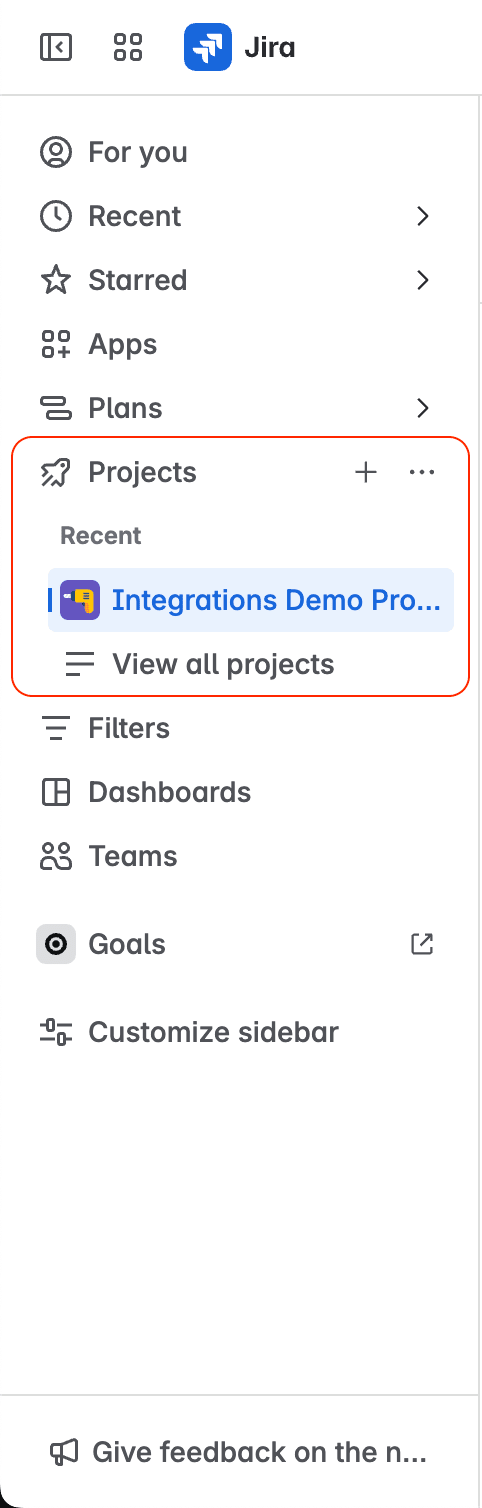
Open your Jira project where the vulnerability in question was reported by Fluid Attacks.
-
Access Fluid Attacks from the project menu.

-
Click on View to enter the issue linked to the vulnerability.
-
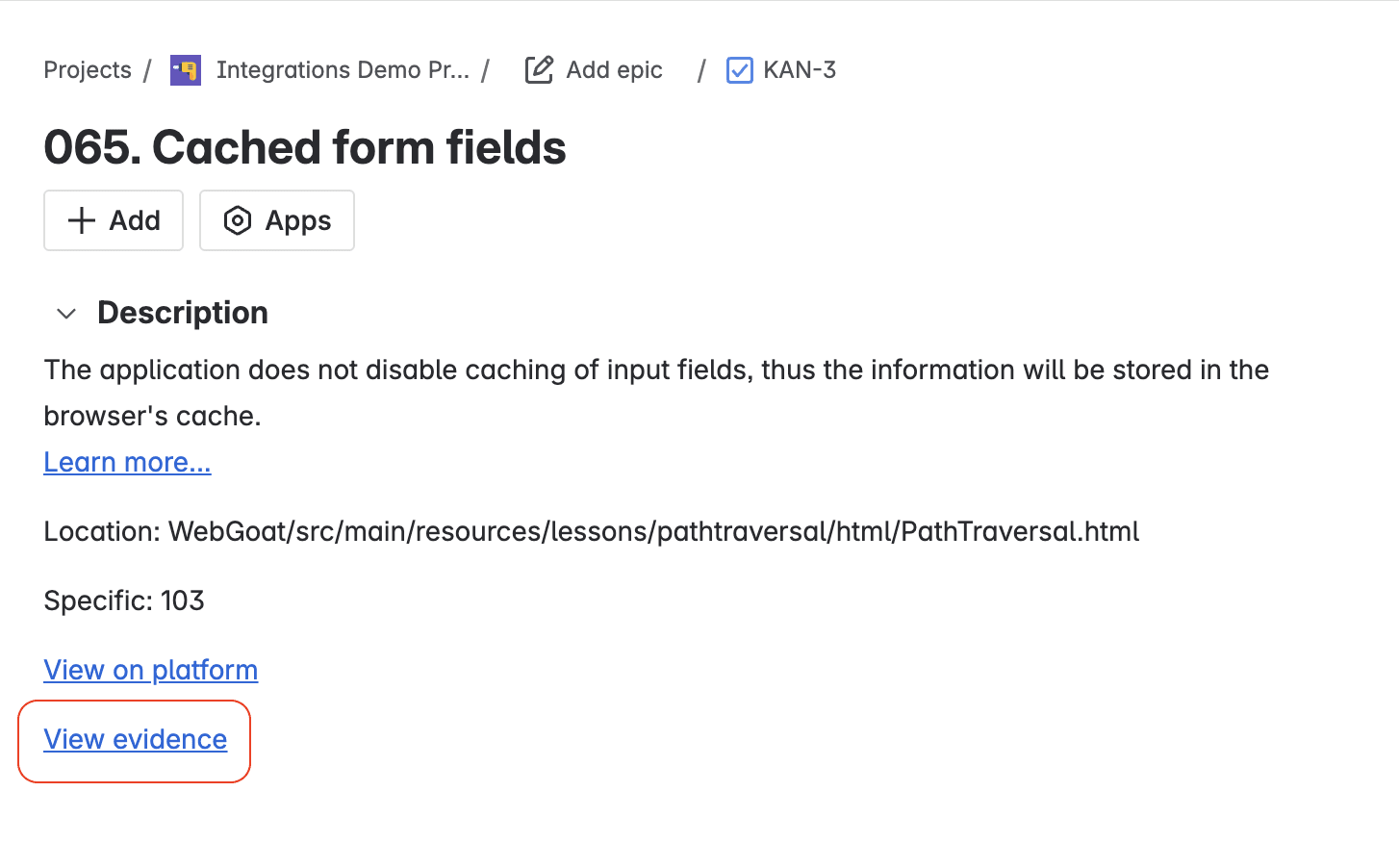
In the issue description, click on View evidence.
Access the link to vulnerability location and details from issues
Permission required: In order to access the link in Jira issues to vulnerability location and more details on Fluid Attacks' platform, you must have permission to assign or be assigned issues.
The link to vulnerability location and details is among the prefilled information when you create issues on reported vulnerabilities using Fluid Attacks' Jira integration. The steps below are to find said link in issues, which directs to the Fluid Attacks platform.
-
Enter the issue linked to the vulnerability as instructed in this article's first section.
-
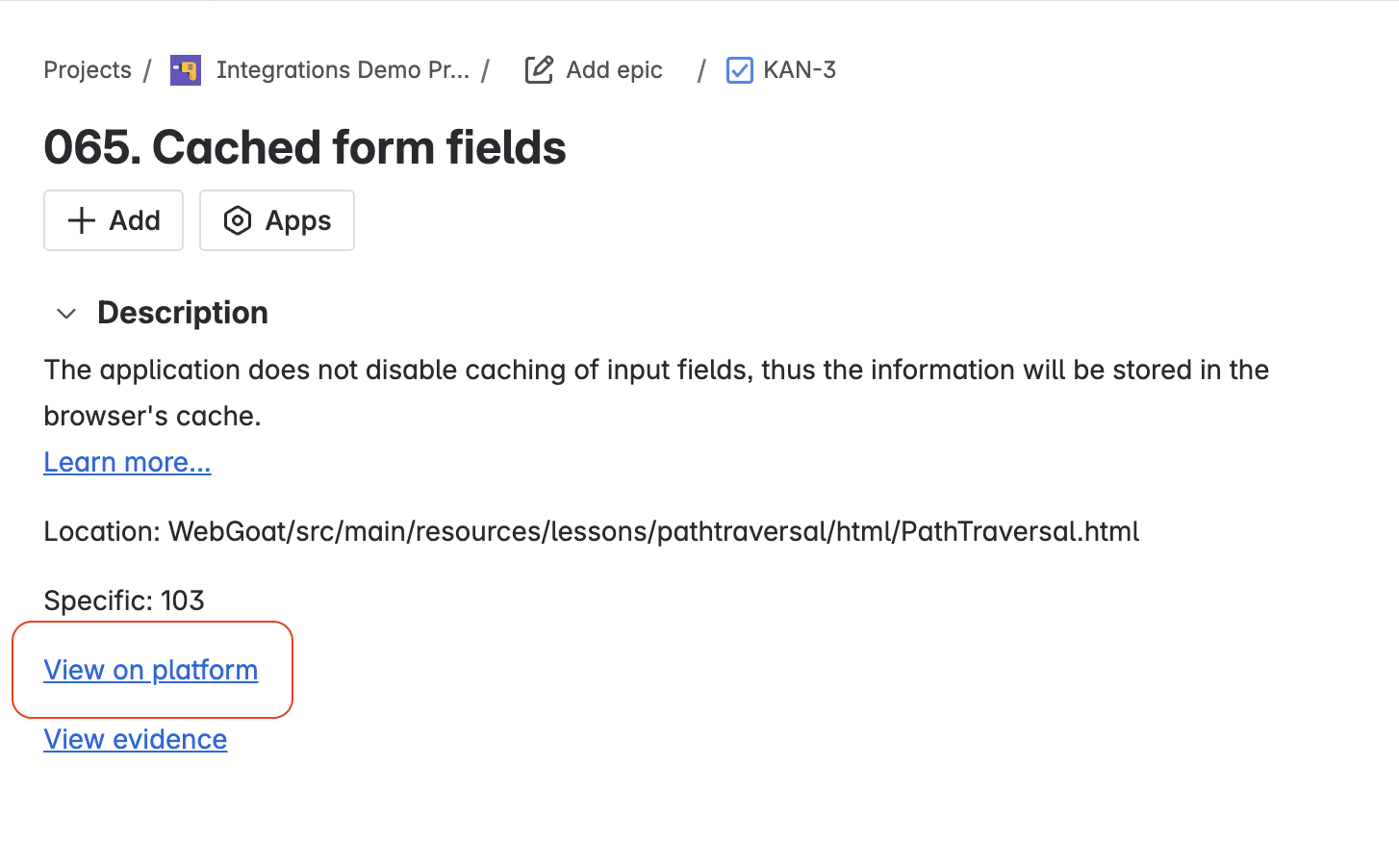
In the issue description, click on View on platform.
Download the VS Code extension
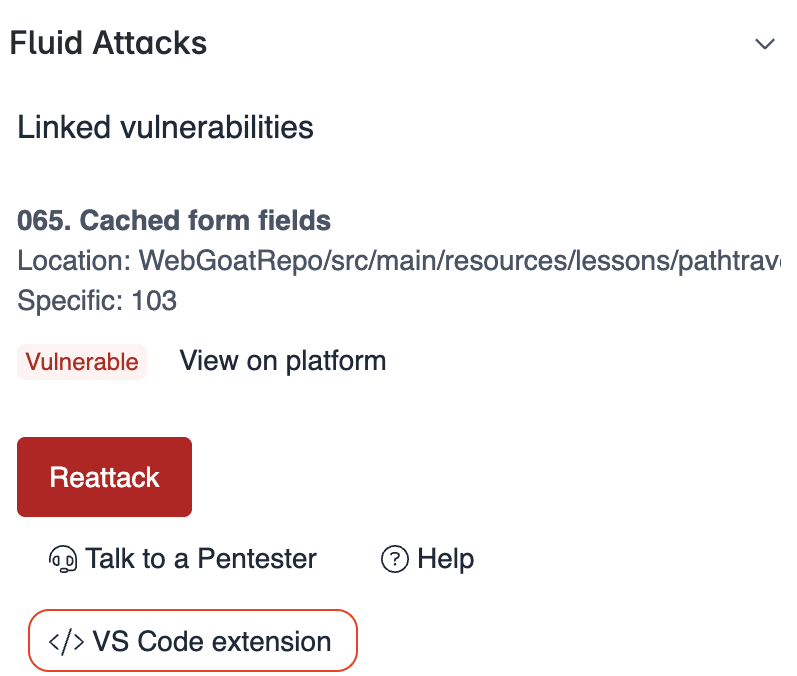
With the VS Code extension, you can spot the exact location of vulnerabilities faster in your IDE. From a Jira issue linked to a vulnerability, click on the link to the Visual Studio Marketplace, where you can download the extension.
Access the link to the Fluid Attacks documentation on the vulnerability
Permission required: In order to access the link in Jira issues to Fluid Attacks' documentation on vulnerabilities, you must have permission to assign or be assigned issues.
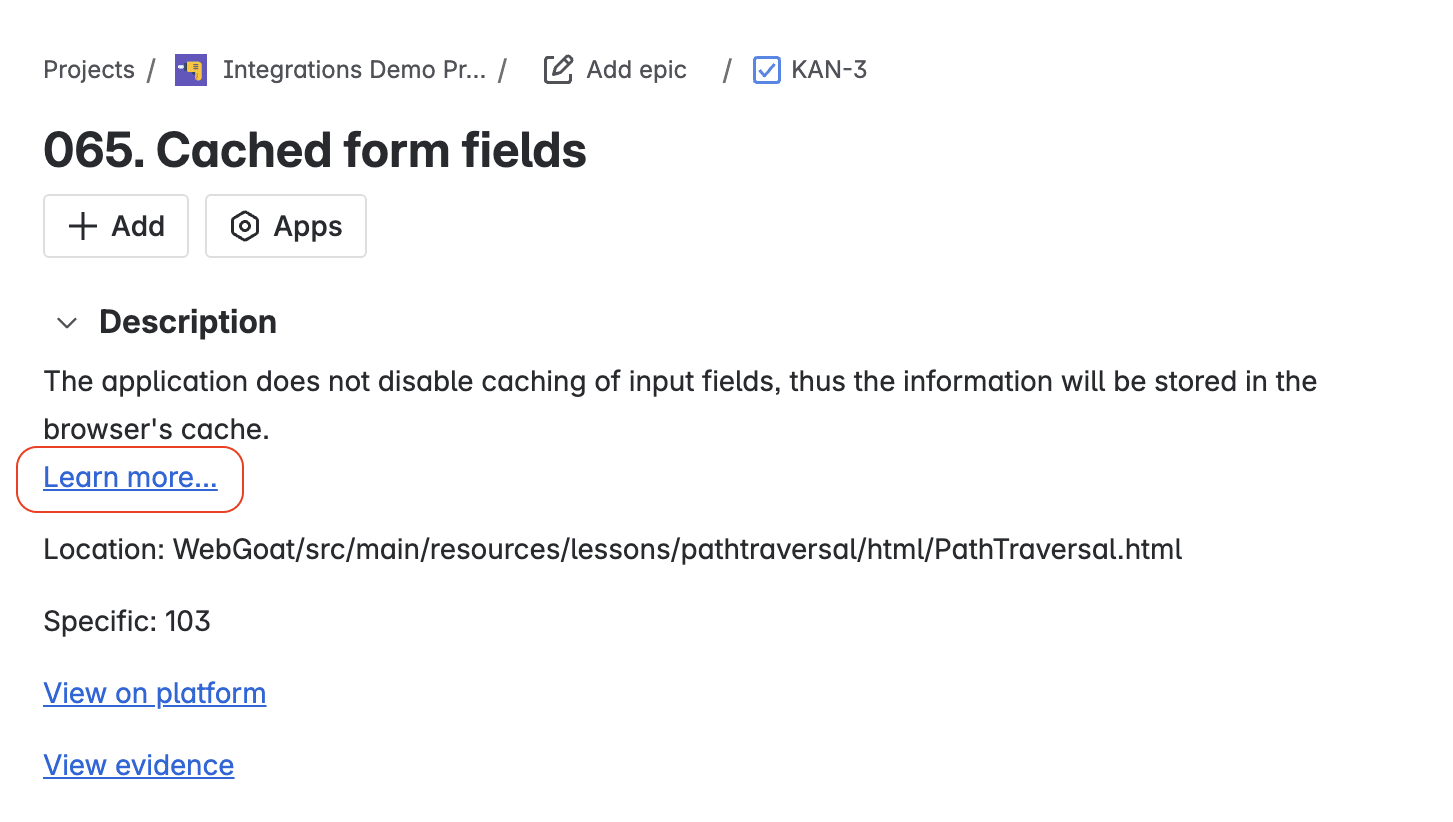
The next steps are to find the link to Fluid Attacks' public documentation on the type of vulnerability the issue is about.
-
Enter the issue linked to the vulnerability as instructed in this article's first section.
-
In the issue description, click on Learn more.
Search for vulnerabilities in your apps for free with Fluid Attacks' automated security testing! Start your 21-day free trial and discover the benefits of the Continuous Hacking Essential plan. If you prefer the Advanced plan, which includes the expertise of Fluid Attacks' hacking team, fill out this contact form.
Link vulnerabilities
Learn about the integration feature to link vulnerabilities reported by Fluid Attacks to Jira issues and unlink them.
Request reattacks
Learn about the integration feature to request reattacks by Fluid Attacks from a Jira issue to verify that the fix to a software vulnerability was successful.