Peer Reviewer Assistant
Last updated: Oct 27, 2026
The Peer Reviewer Assistant reviews the code changes of a pull request or a merge request (PR/MR). It reports the vulnerabilities that the change introduces in your code hosting platform.
The assistant covers the branch where the work occurs. A feature branch has a short life, and you do not register it on the platform. Without the assistant, you find its vulnerabilities only after the merge.
To connect your platform, read its own page: GitHub, GitLab, or Azure DevOps. When a PR/MR gets no review, read Troubleshooting.
The Peer Reviewer Assistant is available to groups on the Essential and Advanced plans.
Available only for cloud-hosted repositories. On-premises installations (GitLab, Azure DevOps, and GitHub Enterprise Server) are not supported.
Availability in each platform
| Function | GitHub | GitLab | Azure DevOps |
|---|---|---|---|
| Review of the lines that the change adds | Available | Available | Available |
| Comment in the PR/MR | Available | Available | Available |
| Review of each new commit | Available | On the roadmap | Available |
| Status check on the commit | Available | On the roadmap | Available |
| Severity threshold of your policy | Available | On the roadmap | Available |
| Exclusions of the root | Available | On the roadmap | Available |
| Exceptions | Available | On the roadmap | Available |
| Record in the DevSecOps section | Available | On the roadmap | Available |
| Block the merge | Available | On the roadmap | Available |
Fluid Attacks develops the functions that GitLab does not have at this time. The goal is the same behavior in the three platforms.
What the assistant reviews
The assistant compares the PR/MR against the merge base of the branch that the change targets. It reports only the vulnerabilities on the lines that the change adds.
The assistant does not report a line that the change does not add, also when a scanner finds a vulnerability on that line. Thus a PR/MR that changes a file with known vulnerabilities reports nothing. The author does not receive the history of the file.
The assistant runs these Fluid Attacks scanners on the code changes:
| Scanner | What it detects |
|---|---|
| SAST | Vulnerabilities that the change introduces in the code |
| SCA | Vulnerabilities in the dependencies that the change affects |
| SS (Secret Scanning) | Secrets and credentials that the change introduces |
The assistant does not run DAST, MAST, or CSPM analysis.
What starts a review
| Action on the PR/MR | GitHub | GitLab | Azure DevOps |
|---|---|---|---|
| You open it | Yes | Yes | Yes |
| You push a new commit | Yes | No | Yes |
| You open it again | Yes | No | Yes |
| You ask for a re-run of the check | Yes | — | — |
| You close or merge it | No. The platform closes the review | No | No |
| You change the target branch | Yes | No | Yes |
| You mark it as Ready for review | No | — | — |
In GitLab, only the first review occurs. A new commit does not start a new review. To get the review of the corrected code, open a new merge request.
In GitHub, the assistant reviews a draft pull request in the usual manner. The mark Ready for review does not start a new review, because the assistant reviewed each push to the draft.
A re-run does a new scan. It does not only examine the previous result again. Thus a re-run obeys the exclusions and the threshold that the root has at that moment.
The classes of vulnerability
| Class | What it means | Effect on the check |
|---|---|---|
| Unmanaged | The score is equal to the threshold or more, and it has no exception | The check fails |
| Allowed | An exception in the platform covers it | The check does not fail |
| Allowed on registered branch | The branch that the group registered already accepts it | The check does not fail |
| Below threshold | The score is less than the severity threshold | The check does not fail |
What the registered branch already accepts
The review examines what the group already accepted on the branch that it registered. A vulnerability that the change introduces, and that this branch already accepts, reports as Allowed on registered branch and does not fail the check.
Three decisions of the platform count as accepted:
- A vulnerability confirmed as zero risk.
- A vulnerability temporarily accepted, until its acceptance expires. The platform approves this acceptance immediately, except when a policy of your organization asks for an approver.
- A vulnerability permanently accepted, after an approver accepts it.
The same is true of an accepted vulnerability in a dependency.
When the change moves the code
The review follows a line to its origin. Thus, an acceptance stays after some changes, but not after other changes.
| What the pull request does to the line | The acceptance |
|---|---|
| Moves it in the same file | Follows it |
| Shifts it or changes its indentation | Follows it |
| Edits it, even one character | Does not follow it. The line is new code |
| Copies it to another file | Does not follow it. The copy is new code |
A temporary acceptance that expires stops counting as accepted on the registered branch. The next review classifies that vulnerability again, and it can fail the check.
The platform follows the vulnerability to its new place. Thus a decision that you made on the registered branch continues to apply when the change moves the code to a different line. In a dependency, it follows the package, the version, and the advisory.
The severity labels obey the CVSS 4.0 score:
| Label | Score |
|---|---|
| Critical | 9.0 and more |
| High | 7.0 to 8.9 |
| Medium | 4.0 to 6.9 |
| Low | Less than 4.0 |
The summary comment
The assistant keeps one comment in each pull request. It edits this comment at each review. Thus the conversation stays clear.
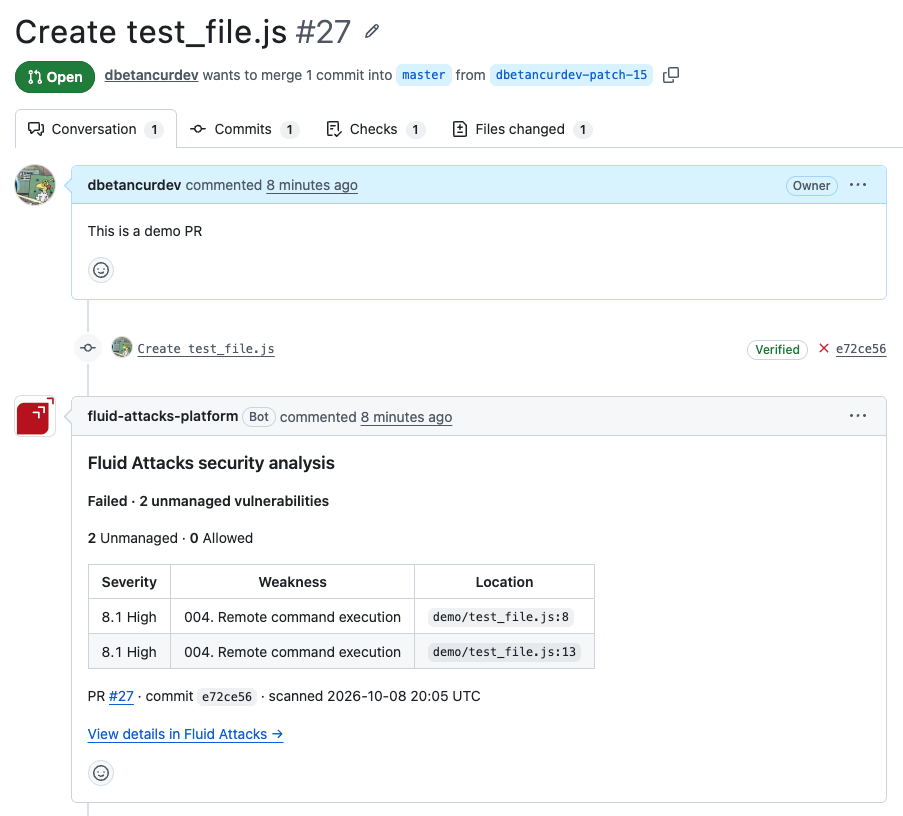
The heading of the comment is Fluid Attacks security analysis. Below the heading, a headline gives the result:
| Headline | When |
|---|---|
Failed · 2 unmanaged vulnerabilities | There is one unmanaged vulnerability or more |
Passed · No vulnerabilities found | The assistant reported nothing |
Passed (accepted risk) · 3 vulnerabilities allowed in Fluid Attacks | An exception covers each vulnerability |
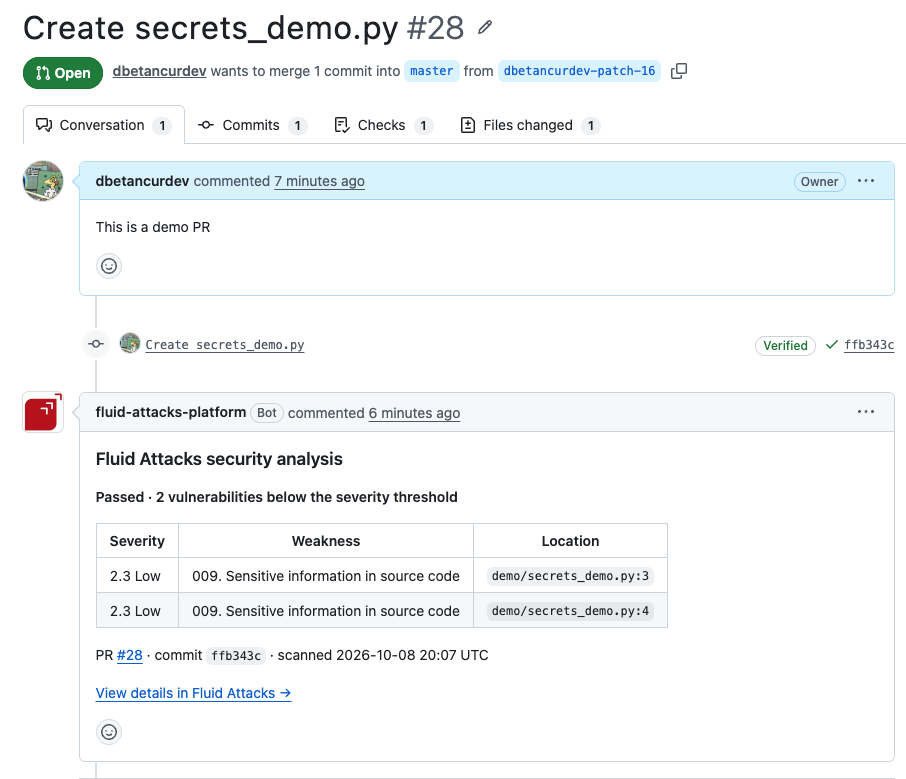
Passed (accepted risk) · 1 vulnerability allowed, below threshold (8.1) | Each vulnerability is below the threshold |
Passed (accepted risk) · 2 vulnerabilities allowed on registered branch | The registered branch already accepts each vulnerability |
Incomplete · The security scan could not complete | The scan did not end |
When a review has more than one of these classes,
the headline names each one, separated by commas:
Passed (accepted risk) · 1 vulnerability allowed in Fluid Attacks, 2 vulnerabilities allowed on registered branch.
Below the headline, the comment has these parts:
- A count line,
2 Unmanaged · 1 Allowed. Allowed adds the vulnerabilities that an exception covers and the vulnerabilities below the threshold. When the registered branch already accepts one or more, the line ends with· 3 Allowed on registered branch. - A table with the three most severe unmanaged vulnerabilities. The table shows the severity, the weakness, and the location of each one. A review without unmanaged vulnerabilities has no table.
- The line
+57 more in Fluid Attacks, when the review found more than three unmanaged vulnerabilities. - A last line that attaches the result to a commit:
PR #18 · commit ea65c74 · scanned 2026-10-07 00:39 UTC. - The link View details in Fluid Attacks →. This link opens the review of that pull request in the platform.
When every vulnerability is below the severity threshold, the headline says Passed (accepted risk):
If you push a newer commit during the scan, the assistant does not write the old result in the comment. The comment always agrees with the commit that it names.
When a pull request belongs to a repository that no group reviews, the assistant writes a different comment: Fluid Attacks did not review this pull request. The comment explains that the repository is not in the scope of a Fluid Attacks group, that no scan occurred, and that the message is not a security result. A later review replaces it with the summary.
The status check
Available in: GitHub and Azure DevOps. On the roadmap for GitLab.
The name of the check is Peer Reviewer Assistant. GitHub shows it as Fluid Attacks Platform / Peer Reviewer Assistant, because GitHub puts the name of the app before the name of the check. Azure DevOps shows it as fluidattacks/peer-reviewer-assistant. Use this name when you make the check necessary in the policy of the branch.
| Result | The check reports |
|---|---|
| Passed | Success |
| Passed (accepted risk) | Success |
| Failed | Failure |
| Incomplete | Failure |
The check alone does not block a merge. It blocks a merge only when you make it necessary in your branch protection rule or in your ruleset. Read GitHub.
Annotations in the diff
The assistant writes an annotation on the line of each vulnerability:
- An unmanaged vulnerability has an annotation of the type failure.
- A vulnerability below the threshold has an annotation of the type notice.
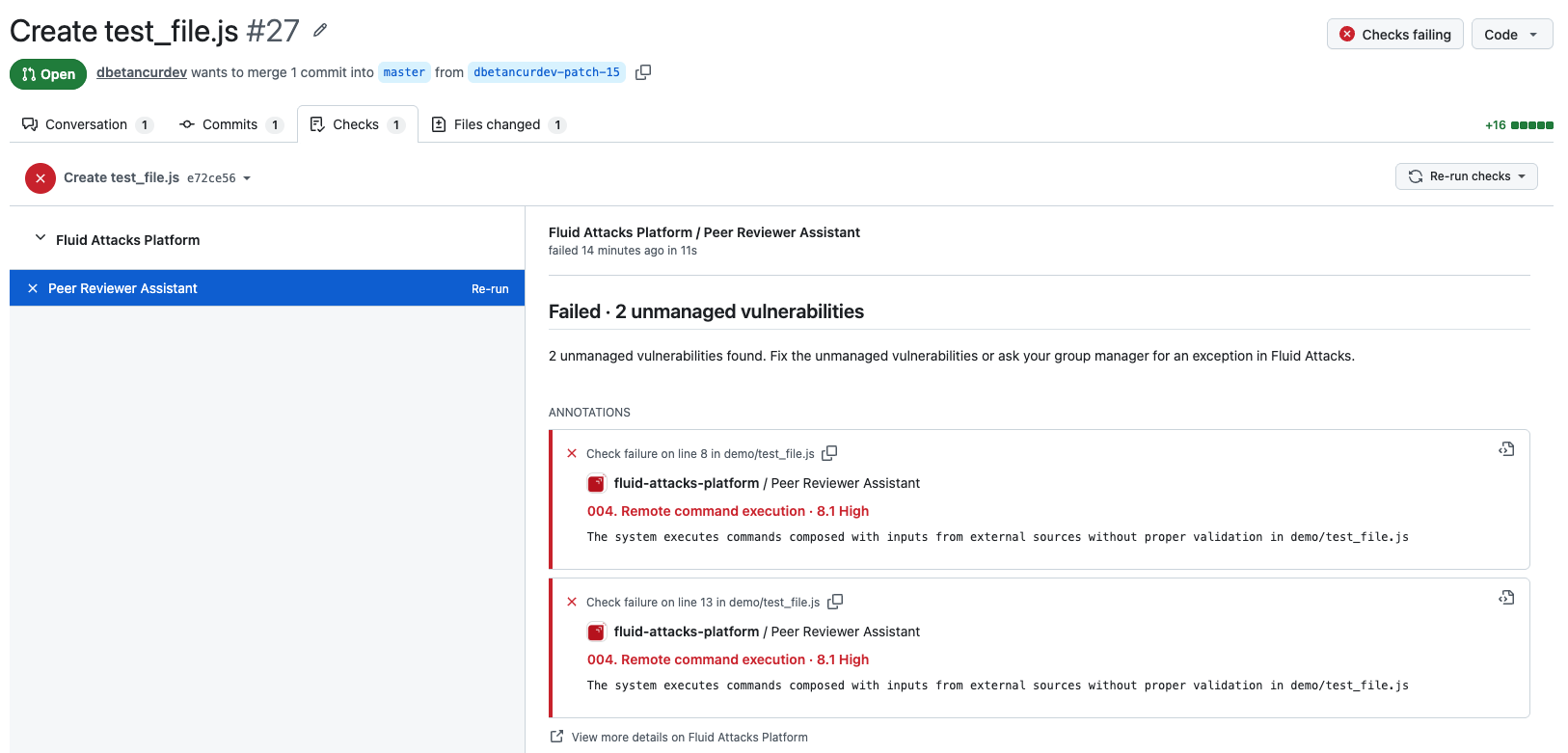
The assistant writes a maximum of 50 annotations.
When the review finds more than 50,
the summary of the check ends with The first 50 are annotated.
The platform shows the full list.
The severity threshold
Available in: GitHub and Azure DevOps. On the roadmap for GitLab.
The review uses the same policy as CI Gate: Minimum to break the build. You set this policy in Policies, at the level of the organization. You can also set a different value for one group. Read Security gates.
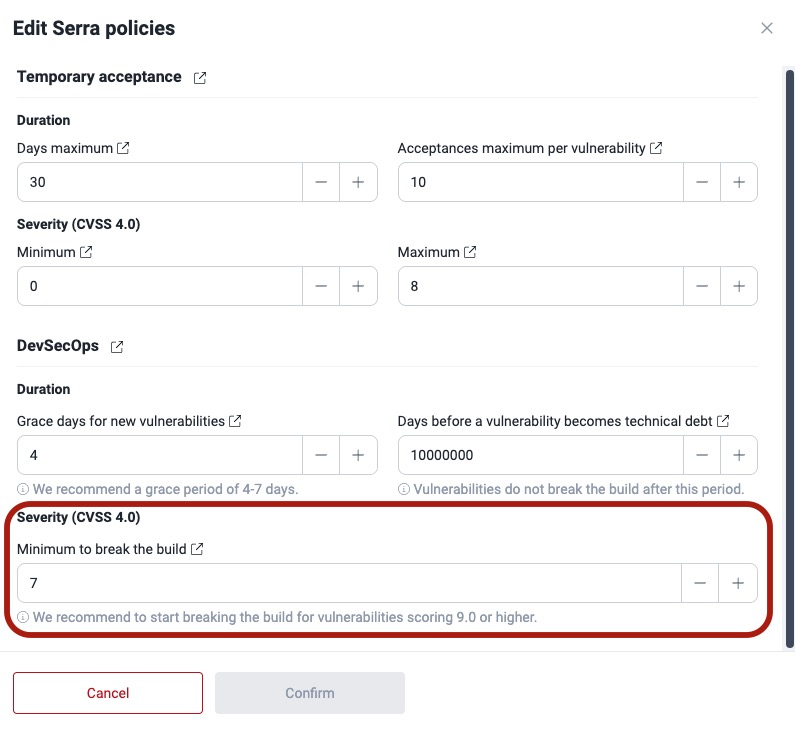
A vulnerability breaks the check when its score is equal to the threshold or more than the threshold:
| Threshold | Score of the vulnerability | Result |
|---|---|---|
| 8.1 | 8.1 | The check fails |
| 8.1 | 8.0 | The check does not fail |
| 8.2 | 8.1 | The check does not fail |
Only a score less than the threshold passes. A vulnerability with a score equal to the threshold breaks the check.
The assistant detects and reports a vulnerability below the threshold. The summary comment counts it, and the diff shows it as a notice. This vulnerability does not make the check fail.
If you change the threshold, ask GitHub to re-run the check. The assistant does a new scan and applies the new threshold. Thus you do not push a commit. Azure DevOps does not have a re-run. In Azure DevOps, push a commit.
Exclude files from the review
Available in: GitHub and Azure DevOps. On the roadmap for GitLab.
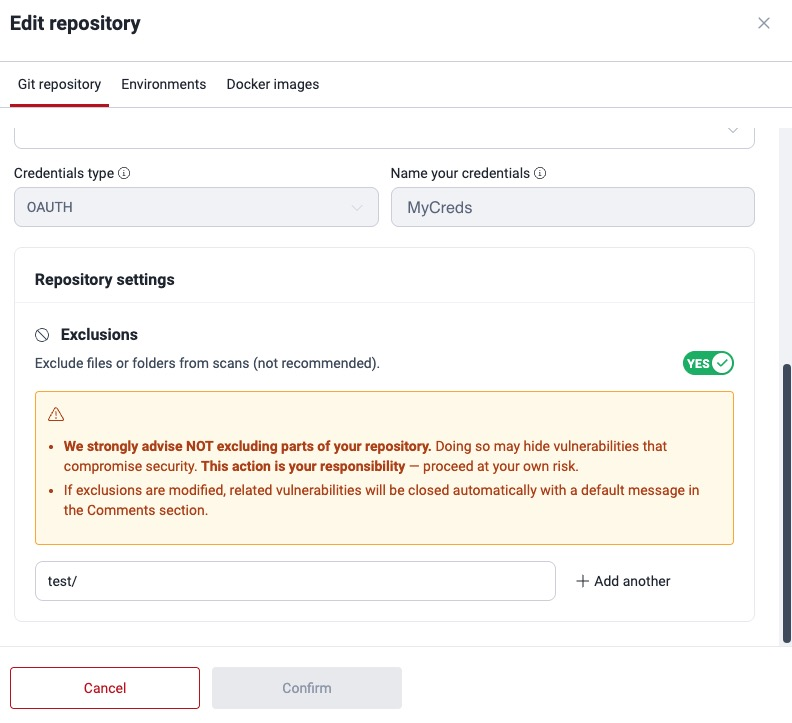
Each Git root has an Exclusions field. The patterns of this field use gitignore syntax. The review obeys them: if an exclusion covers a file, the assistant does not report that file, also when the change adds a vulnerable line to the file.
You edit the exclusions where you register the root. Read Exclude subpaths in Git repositories.
| Pattern | What it excludes |
|---|---|
*.min.js | All the minified JavaScript files |
node_modules/ | The node_modules directory and all its content |
test/fixtures/* | All the files below test/fixtures |
src/legacy/ | The src/legacy directory |
config/local.* | config/local.yaml, config/local.json, and so on |
Fluid Attacks recommends that you do not exclude parts of your repository. An exclusion can hide a vulnerability that puts your security in danger.
In the platform, the patterns belong to the root, and not to a branch. To edit them, you must have the permission to update the exclusions of a root.
The obsolete exclusion files of the repository
Two files in the root directory of the repository continue to exclude files at this time:
.fluidattacksignorefluidattacks-exclude.txt
These two files are obsolete. They operate at this time, but the assistant will not read them in the future. Move their patterns to the Exclusions of the root. When a review finds one of these files, the summary comment tells you that the file is obsolete.
To move the patterns:
- Open the file and copy its patterns.
- Go to the Scope section of the group.
- Open the Git root of that repository.
- Add the patterns in the Exclusions field.
- Delete the file from the repository.
Until you delete a file, the assistant obeys these rules:
- If the repository has the two files, the assistant uses
.fluidattacksignore. - A line that starts with
#is a comment. - The assistant ignores an empty line.
Exceptions
Available in: GitHub and Azure DevOps. On the roadmap for GitLab.
An exception permits the merge of a pull request with a vulnerability that your team accepts. You do not change the code, and the policy stays the same for all the other pull requests.
Role required: Group Manager. A developer cannot grant an exception on their own pull request.
Grant an exception
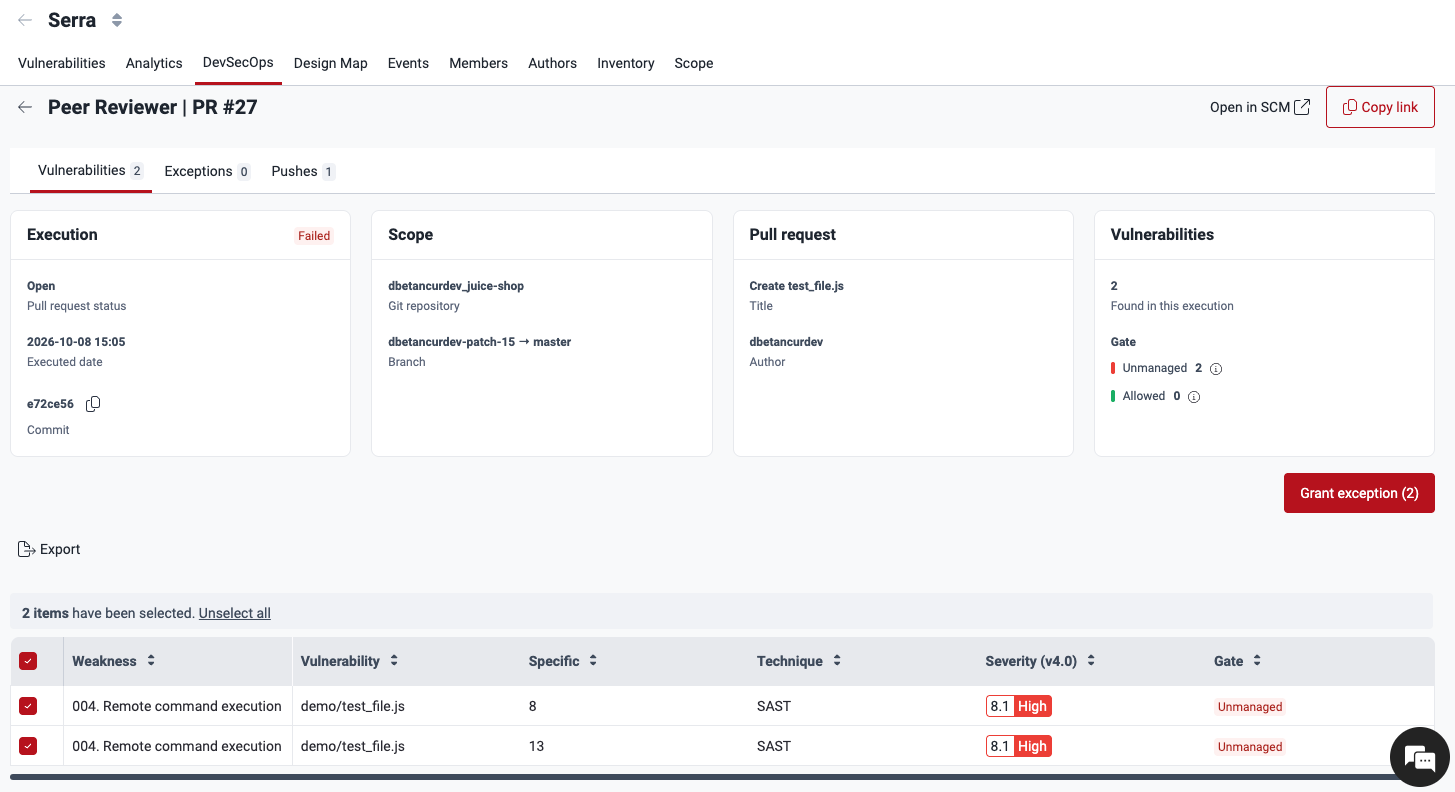
- Open the review of the pull request in the platform. The fastest way is the View details in Fluid Attacks → link in the summary comment.
- In the Vulnerabilities tab, select the unmanaged vulnerabilities that you accept.
- Click Grant exception.
- Examine the list below Vulnerabilities to except.
- Write a justification: why this pull request can merge with this vulnerability.
- Confirm.
The Grant exception window lists what you accept, and it asks for the justification:
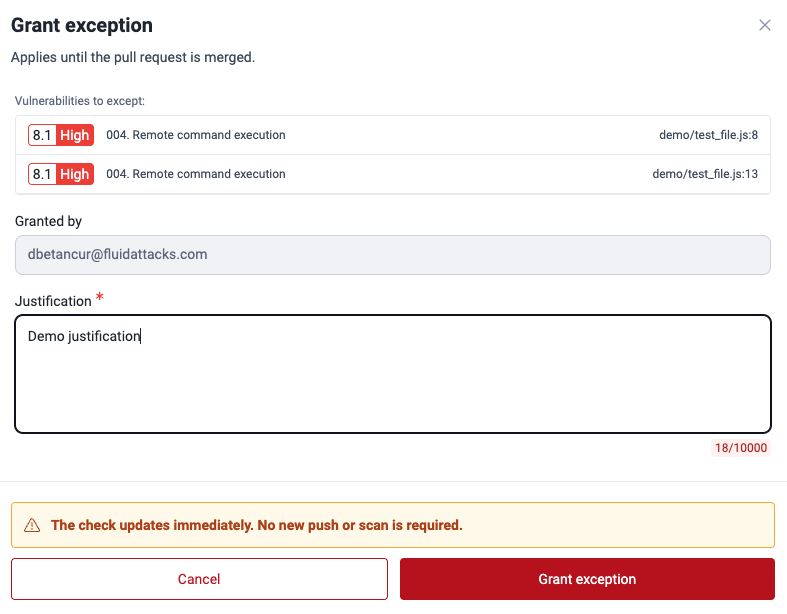
The justification is necessary. The form does not accept an empty
justification. The form also rejects a justification that starts with a symbol
such as -, =, +, or @.
The check changes immediately. You do not push a commit, and the assistant does not scan again. The platform publishes the result again on the same commit, and it writes the summary comment again.
If the platform cannot reach your code hosting platform at that moment, it saves the exception and tells you that it could not update the check. Push a new commit, or ask for a re-run, to apply it.
A vulnerability has one active exception at a time. If another exception already covers a vulnerability that you select, the platform rejects the grant and tells you which ones are already covered.
Revoke an exception
You revoke an exception in the Exceptions tab of the review, with the Revoke button of that exception. The vulnerabilities that it covered are unmanaged again, and the platform publishes the result again on the same commit.
| Who revokes it | When |
|---|---|
| The person who granted it | Always |
| Another Group Manager | When the person who granted it is no longer a Group Manager with access to the group |
The platform refuses the revocation when it cannot act on the pull request. This occurs when the repository is disconnected, or when the group stopped pull request review. Thus the platform and your code hosting platform always agree about the permission to merge.
You cannot revoke an exception two times. The platform tells you that it is already revoked.
What an exception covers, and for how long
| Condition | What occurs |
|---|---|
| You push a new commit to the pull request | The exception continues to apply, also when the code moves to a different line |
| You open the pull request again | The exception applies again |
| You merge or close the pull request | The exception ends |
| The same vulnerable code occurs in a different pull request | The exception does not cover it. You make a decision for each pull request |
| The same block of code occurs two times in one pull request | These are two different vulnerabilities. An exception on one does not cover the other |
An exception does not move to a different pull request. If you accept a risk one time, this is not a permission for the future.
You cannot grant an exception on a pull request that is closed or merged. You also cannot grant an exception on a review whose scan did not end. The platform tells you so. Exceptions become available again after a scan ends.
You cannot grant an exception when the platform cannot act on the pull request. This occurs when the repository is disconnected, or when the group stopped pull request review. The platform rejects the grant. It does not save a decision that your code hosting platform does not obey.
You cannot select a vulnerability below the severity threshold. This vulnerability does not make the check fail, thus there is nothing to accept.
A pull request that passes with exceptions reports the same result as a clean pull request. Thus a rule of the branch permits the merge of the two. The platform keeps the record of each exception: what, who, and why.
Review in the platform
Available in: GitHub and Azure DevOps. On the roadmap for GitLab.
You find each review of a pull request in the DevSecOps section of the group. A row with the Security check Peer Reviewer Assistant is a review of a pull request.
| Column | What it shows for a pull request |
|---|---|
| Identifier | PR #18 · ea65c74, with the source branch below |
| Security check | Peer Reviewer Assistant |
| Result | In progress, Passed, Passed (accepted risk), Failed, or Incomplete |
| Vulnerabilities | The total, with N unmanaged · M allowed below. A dash while the scan continues |
| Git repository | The nickname of the root |
| Executed day | The date when the review ended |
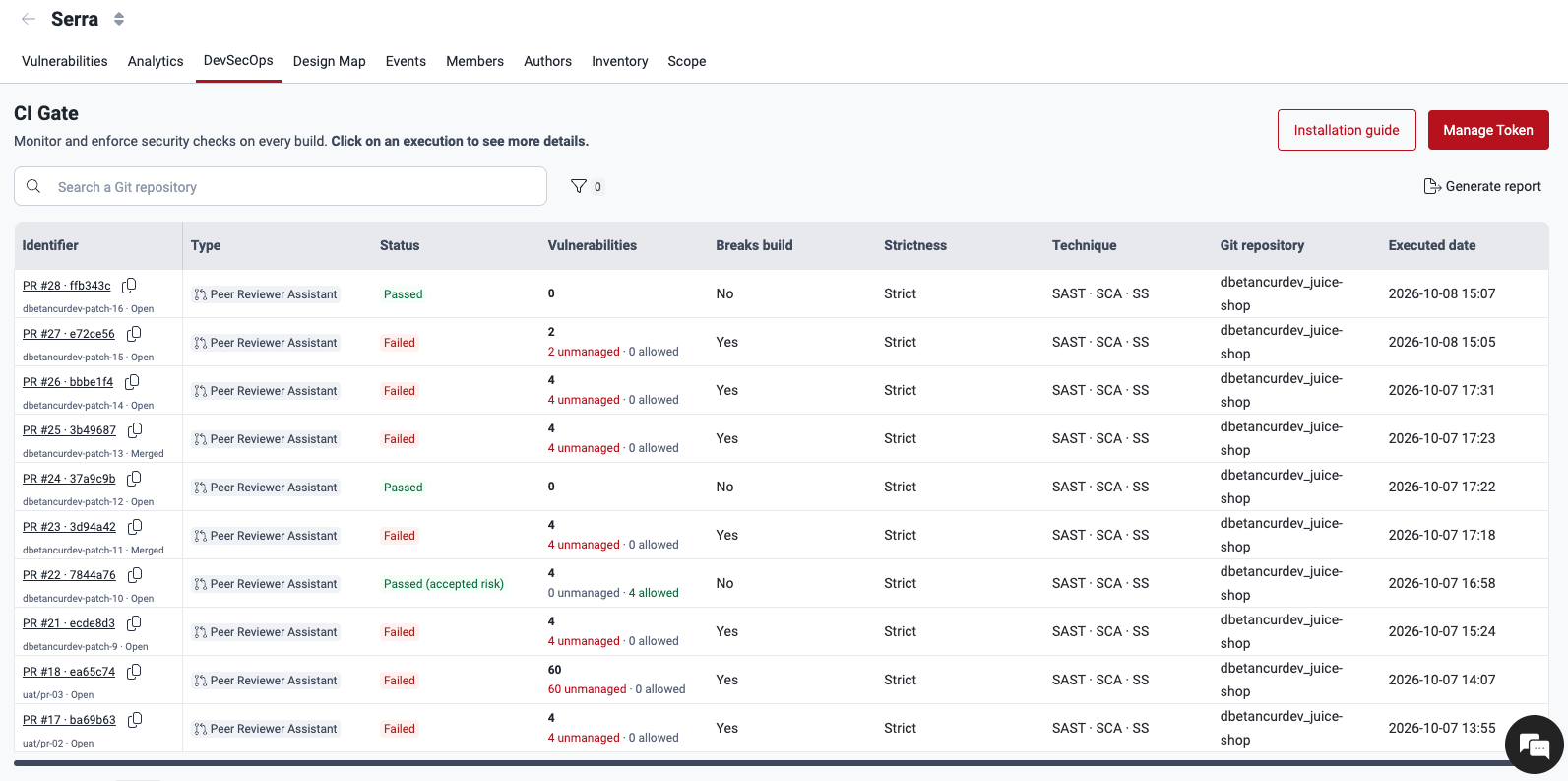
The platform counts a vulnerability below the severity threshold as allowed, together with the vulnerabilities that an exception covers and the vulnerabilities that the registered branch already accepts. The detail of the review separates them.
The detail of one review
Click the identifier of the row to open the review. The View details in Fluid Attacks → link in the summary comment opens the same page.
The header shows the number and the title of the pull request, its status, and six fields:
| Field | What it shows |
|---|---|
| Git repository | The nickname of the root |
| Branch | The source branch and the target branch |
| Commit | The commit of the review |
| Pull request | The number of the pull request |
| Author | The person who opened the pull request |
| Executed date | The date when the review ended |
Copy link gives you the address of the review. Send it to a person who can grant an exception. Open in SCM opens the pull request again.
The state of the pull request
When the pull request reaches a state that changes what the review means, the detail opens with a message:
| Message | What it tells you |
|---|---|
| The scan could not complete | Nothing was evaluated. Push a new commit to scan again |
| New vulnerability not covered | A commit after the exceptions introduced a vulnerability that they do not cover, thus the check failed again |
| Pull request merged | The exceptions ended, and they were not carried over to the target branch |
| Pull request closed without merging | The exceptions are inactive. If the pull request opens again, they apply again |
| Pull request reopened | The exceptions apply again. Nothing had to be approved again |
The review has three tabs.
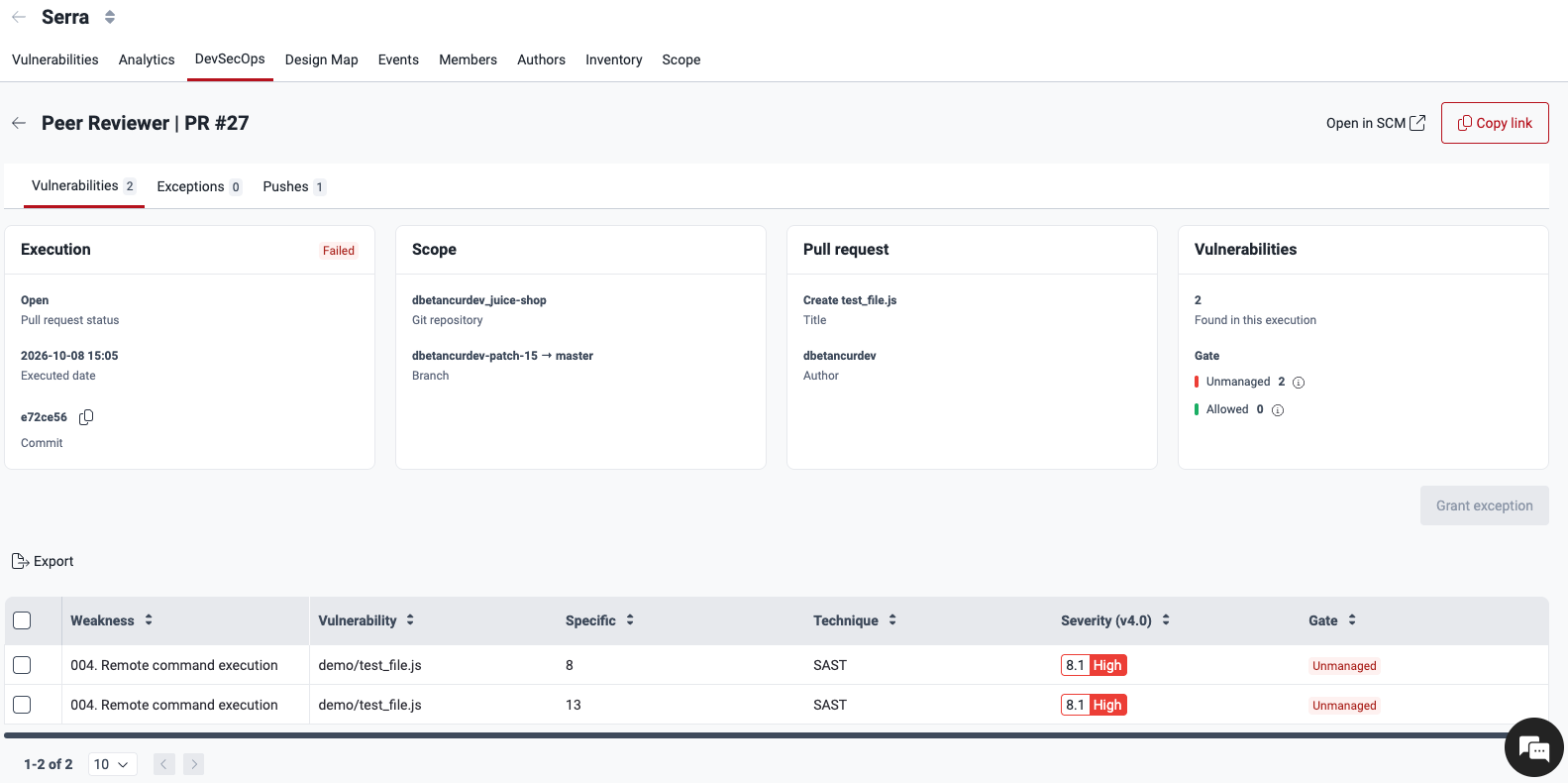
Vulnerabilities
This tab shows each vulnerability of the review, with its weakness, its file, its line, its technique, and its score. The Gate column shows Unmanaged, Allowed, or Below threshold. An allowed vulnerability also shows which exception covers it. Click Export CSV to get the list as a file. You also grant the exceptions in this tab.
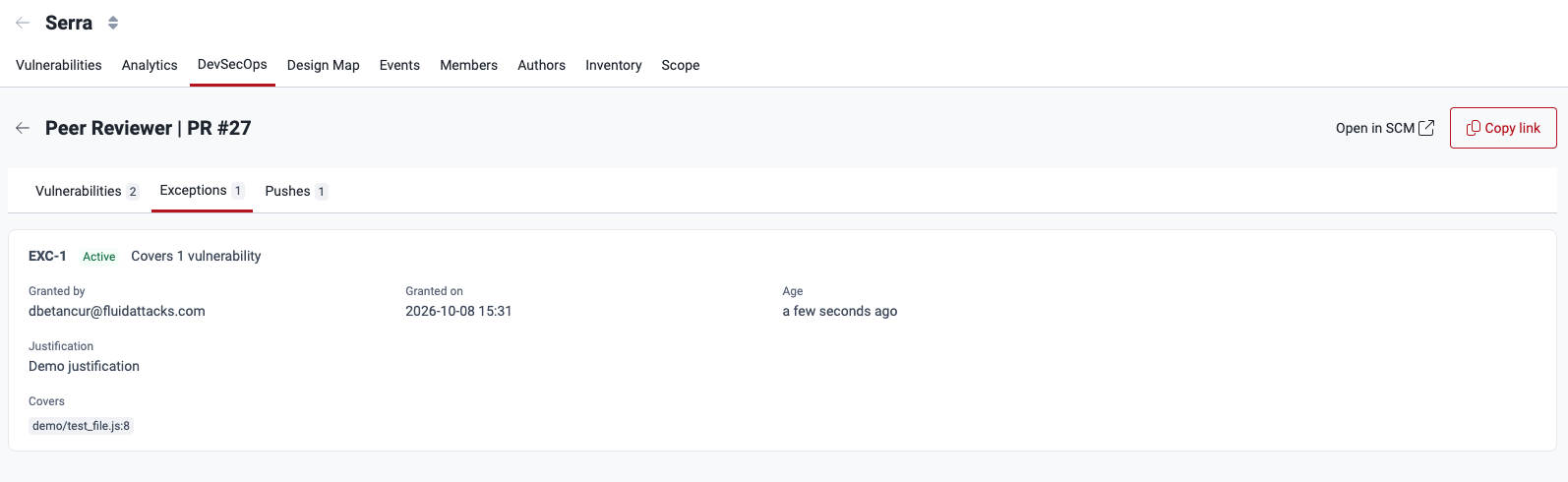
Exceptions
This tab shows the history of the exceptions of the review: who granted each one, when, how many vulnerabilities it covers, and its justification. View allowed vulnerabilities opens the list that it covers, and Revoke cancels it.
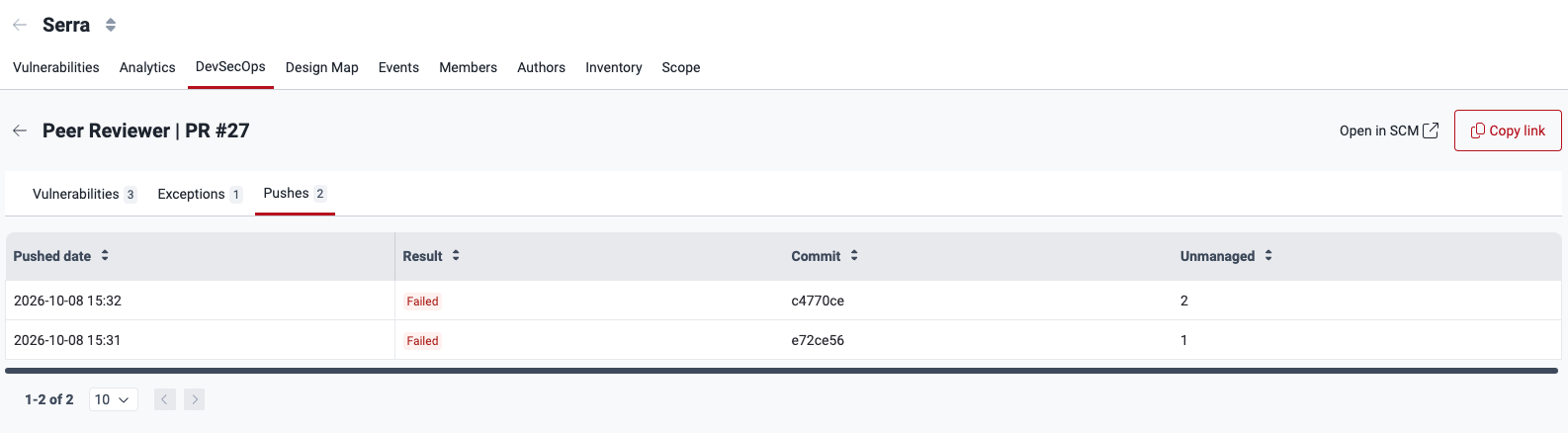
Pushes
This tab shows one row for each commit of the review, the newest first, with the result of that review, the vulnerabilities that it found, and the exceptions that applied to it. It is the history of how the pull request arrived at its current state.
If the Peer Reviewer Assistant did not review a pull request, the platform tells you so. It does not show an empty review.
What to do with each result
| Result | What you must do |
|---|---|
| Failed | Correct the unmanaged vulnerabilities. If you cannot, ask your group manager for an exception in Fluid Attacks |
| Passed (accepted risk) | Nothing. The platform keeps the record of each allowed vulnerability |
| Passed (accepted risk), below the threshold | Nothing is necessary. But it is better to correct them |
| Incomplete | Push a new commit, or ask for a re-run of the check |
An Incomplete result means that the scan did not end, thus some vulnerabilities can be absent. It is not a result about your code. The check reports a failure, because Fluid Attacks cannot tell you that your change is safe.
Capabilities and use cases
Complete reference for Fluid Attacks MCP tools — analytics, vulnerability management, asset discovery, security scanning, DevSecOps, and knowledge base capabilities.
GitHub Peer Reviewer Assistant
Install the Fluid Attacks GitHub App, select the groups that get their pull requests reviewed, and manage or disconnect the connection.