Security gates
Last updated: Aug 25, 2026
Manage your organization's security gates
Role required: Organization Manager
Fluid Attacks' platform allows you to define your policies regarding how your organization handles vulnerability acceptance, manages user access, and prioritizes remediation efforts.
To view these policies, access the Policies section from the collapsible menu.
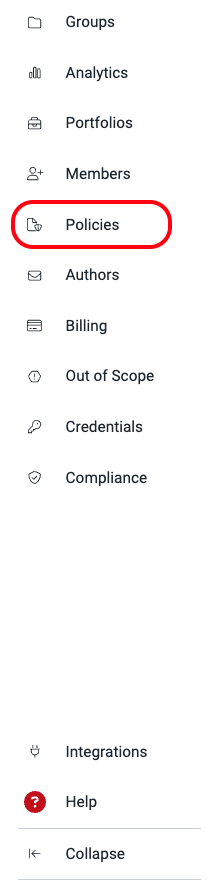
Policies is further divided into three sections. The first section allows you to define policies about the temporary acceptance of vulnerabilities, breaking the build, and platform usage. You can learn about the other two sections in "Vulnerability acceptance" and "Vulnerability prioritization attributes".
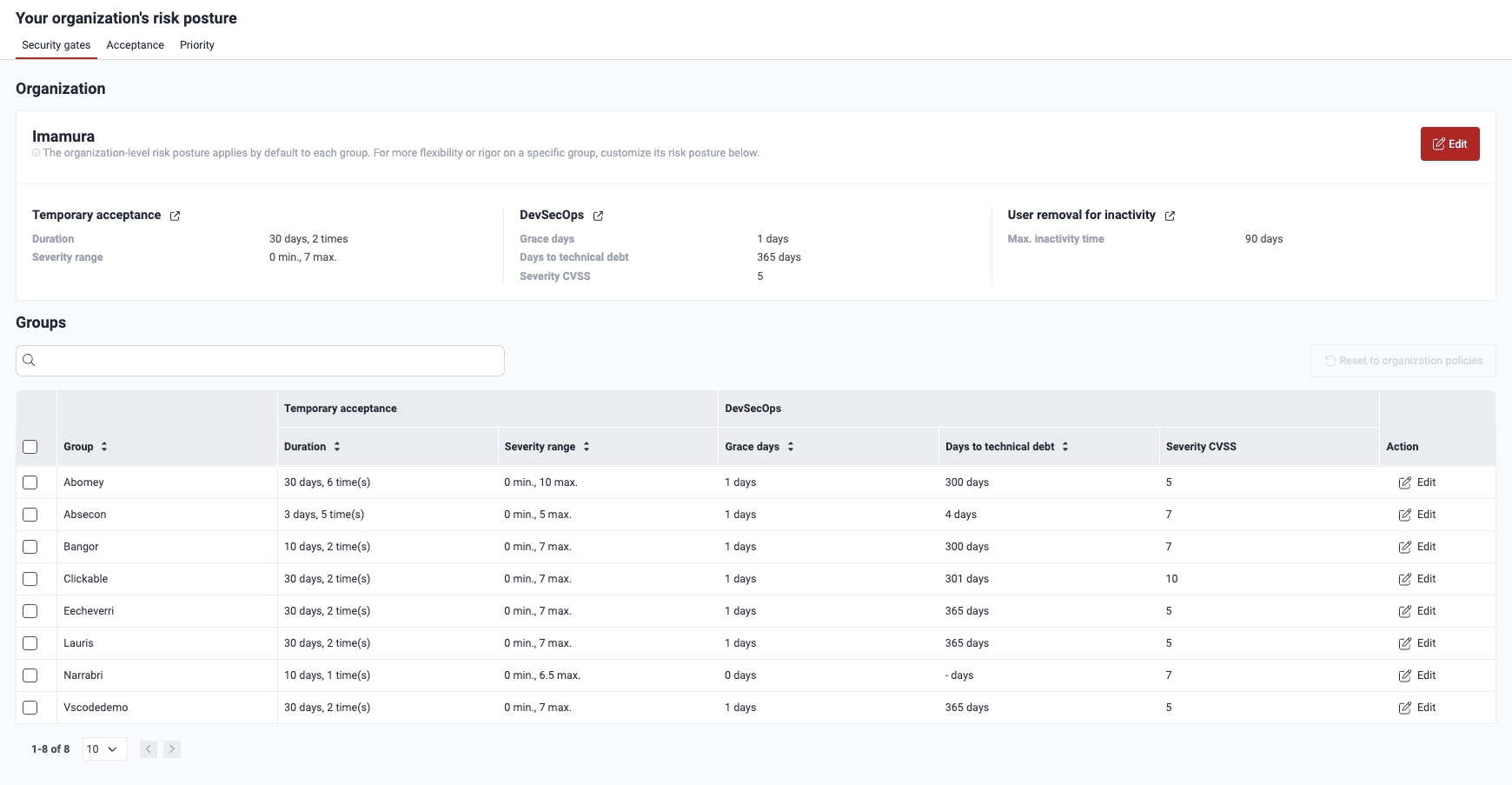
Under Organization, you find the security gates configuration that your organization applies by default for each of its new groups. To modify it, click on Edit. A pop-up window appears, displaying the eight policies available to you, which are explained further below on this page. To save any changes, click on Confirm.
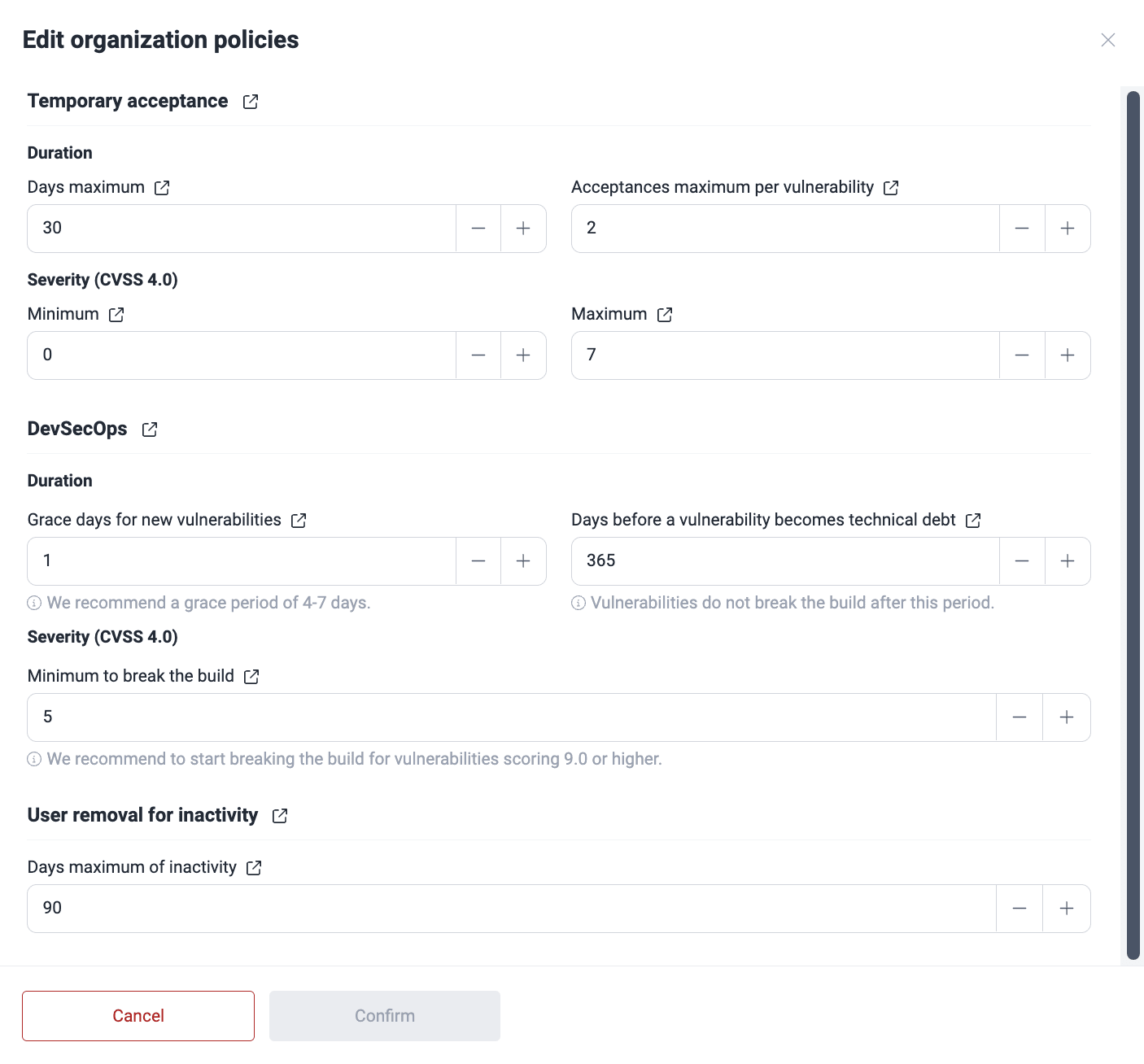
Temporary acceptance
These four thresholds only constrain per-vulnerability temporary acceptance under Vulnerabilities. They do not limit the org-level weakness-type policies submitted and approved on the Vulnerability acceptance page, where a Manager can still approve a temporary or permanent acceptance policy for an entire weakness type regardless of these settings. In the UI and on the Understand roles page, these fields are also referred to as Days maximum, Acceptances maximum, and Severity range.
Maximum number of calendar days a finding can be temporarily accepted
Indicates for how many days a vulnerability can be temporarily accepted. The platform allows it to be at most 999 calendar days.
This policy affects the executions of CI Gate, as temporarily accepted vulnerabilities do not break the build. Set this cautiously to avoid leaving vulnerabilities unaddressed for extended periods, causing risks to your applications.
Maximum number of times a finding can be accepted
Indicates the maximum number of times a vulnerability can be temporarily accepted. Once this limit is reached, the vulnerability cannot be temporarily accepted again, even if it goes through other treatments or is present again after having been remediated once.
Minimum CVSS score allowed for temporary acceptance
Indicates the minimum Common Vulnerability Scoring System (CVSS 4.0) score (0.0 to 10.0) required for a vulnerability to be temporarily accepted.
Maximum CVSS score allowed for temporary acceptance
Indicates the maximum CVSS 4.0 score allowed for vulnerabilities to be temporarily accepted.
Permanent acceptance has no equivalent day, count, or severity guardrails to the ones above. This is by design: permanent acceptance already requires explicit approval from an Organization Manager or Group Manager before it takes effect.
DevSecOps
Grace period where newly reported vulnerabilities will not break the build
Indicates the number of days during which newly discovered vulnerabilities do not trigger CI Gate to break the build. Exercise caution when setting this value to minimize the risk of unaddressed vulnerabilities impacting your applications.
Fluid Attacks suggests allowing at least four days of "grace period" to give your team time to assign fix work. This time may be especially helpful when vulnerabilities are reported right before the weekend.
Number of days until vulnerabilities are considered technical debt and do not break the build
Indicates the period (in days) before a vulnerability is considered "technical debt" and does not break the build. That is, during that number of days, an open vulnerability that exceeds the severity threshold and has cleared the grace period still breaks the build. After this period, the vulnerability does not break the build, even if it remains open.
Minimum CVSS score of an open vulnerability to break the build
Indicates the minimum severity score an open vulnerability must have to break the build. Below this threshold, a vulnerability will not break the build, regardless of how long it remains open. For example, with a threshold of 7.0, an open vulnerability scoring 6.9 does not break the build even after the grace period has passed. But a vulnerability scoring 7.5 does break the build, provided it remains open for more than the grace period and during the configured days to technical debt limit.
Fluid Attacks recommends teams just getting accustomed to timely remediation to break the build for vulnerabilities that have a severity score of 9.0 or higher. This threshold may facilitate addressing the critical issues with urgency, while preventing team fatigue at the start of the implementation, and ideally should be set lower later for better security.
Number of days after which a member is removed due to inactivity
Indicates the allowed inactivity period (in days) before a member is automatically removed from the organization on the platform. Its default value is 90 days. The removed member loses all access and must request a new invitation to rejoin. The latter has to be issued by an Organization Manager.
Activity includes using the API with your token as an authentication method.
Manage your security gates at a group level
Role required: Organization Manager
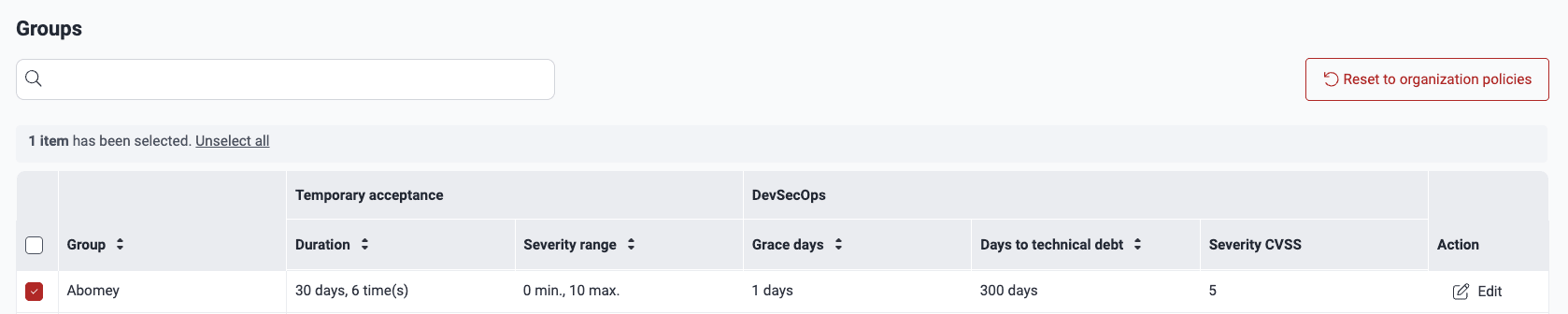
Groups inherit the security gate policies of the organization they are in. However, you can customize these policies at the group level. Under Groups in Security gates, you can see the current configuration in each of the groups you have access to. To make changes to this configuration, click on Edit.

In the pop-up window, define your group's specific policies (see the definitions above) and click the Confirm button when you are done.
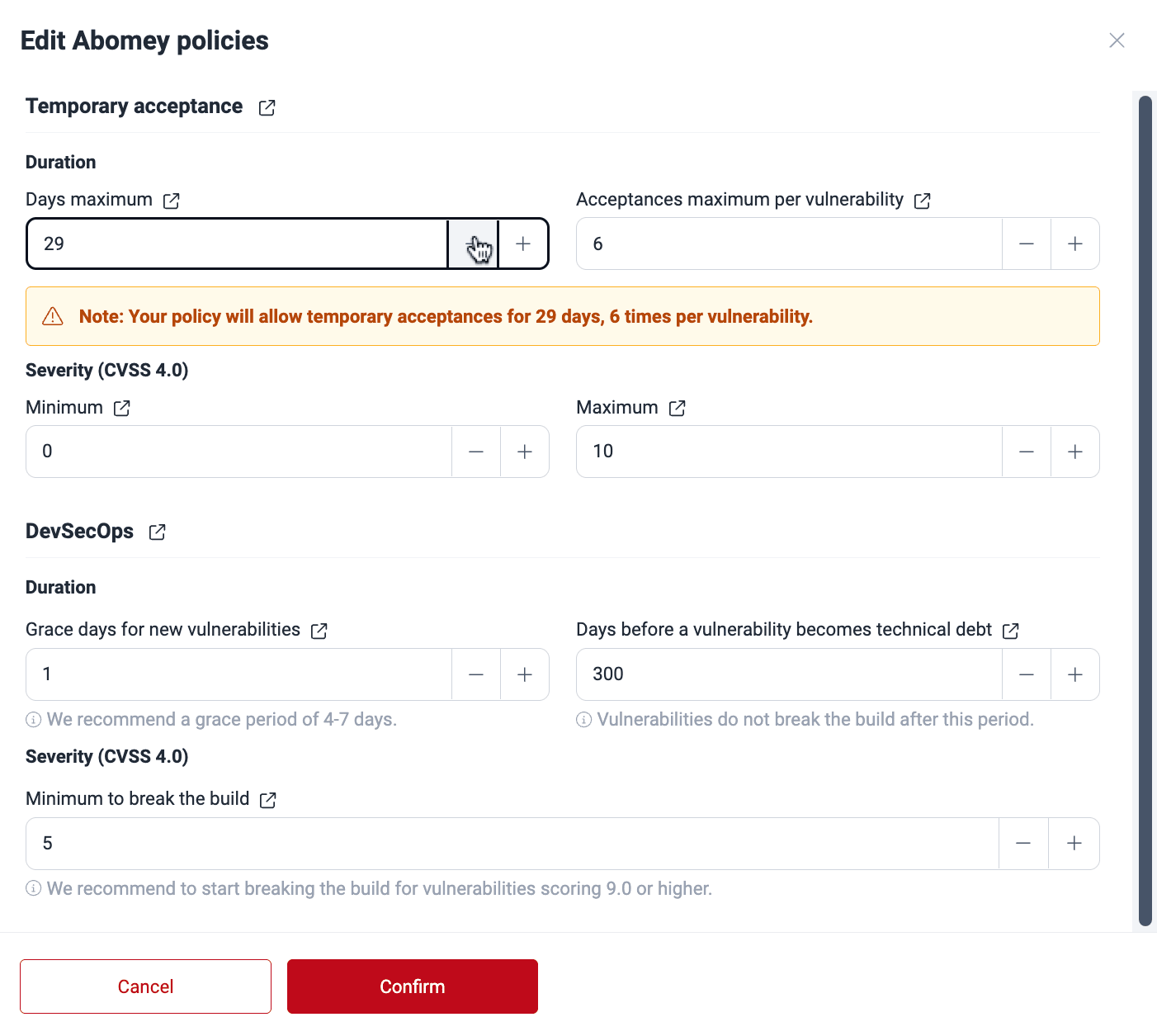
Upon confirming, you get an email notification announcing the policy change.
On the platform, it is also possible to change the security gates configuration of one or more groups to that currently used at the organization level. To do this, select the group(s) and click on Reset to organization policies.
Search for vulnerabilities in your apps for free with Fluid Attacks' automated security testing! Start your 21-day free trial and discover the benefits of the Essential plan. If you prefer the Advanced plan, which includes the expertise of Fluid Attacks' pentesting team, fill out this contact form.
CI Gate executions
View the execution details of the Fluid Attacks CI Gate, the security measure that acts as a security gate in CI/CD environments and breaks the build.
Vulnerability acceptance
The Fluid Attacks platform offers setting policies to accept vulnerabilities permanently or temporarily within its risk management features.