Repositories
Last updated: Oct 26, 2026
On the Fluid Attacks platform, repositories are the top-level entry points for security testing. You can add Git repositories, environments, and URL roots to the scope.
Manage Git repositories
The list and details of the Git repositories that Fluid Attacks clones and analyzes for vulnerabilities is in the Git Repositories part of the Scope section. In this part, you can add new repositories. You can also edit and activate or deactivate the listed repositories, export their data, and exclude subpaths from security testing.
Branch testing coverage
-
Fluid Attacks' plans include client-managed automated testing of all the necessary branches through its scanners' CLI. Thus, clients can do their own tests before, during, and after the integration of code to a primary branch that Fluid Attacks tests.
-
Fluid Attacks' plans include Fluid Attacks-managed automated testing of one single branch per repository. You can register the same repository in more than one group. But each combination of repository and branch can be active in only one group of the organization at a time.
-
In the Advanced plan, the Fluid Attacks pentesters test manually only one active repository branch for each group. They look for vulnerabilities in one version of the system. The test of only one branch gives better security. It makes sure that contributing developers do not bypass tests and that the tested version is the version to integrate and deploy. It also gives coherent assessments and makes it easier to monitor findings and fixes.
As a result, your development team can efficiently address reported vulnerabilities, and the Fluid Attacks team can effectively make sure that your fixes are successful. In addition to the code branch analysis, Fluid Attacks also manually tests the environments of that code branch, for full security coverage.
About repository cloning
When you add a Git repository to the platform successfully, the platform clones it for security tests. To learn how Fluid Attacks keeps your repository clone secure, read the Fluid Attacks confidentiality compliance measures.
The platform clones all active repositories on a schedule, so that it always has the latest versions of your repositories. This occurs every three hours during working hours, Monday through Friday.
To analyze new changes, you can also start a clone process with the Update button in the Scope section. When you request a reattack in Vulnerabilities, the platform also clones your repository to analyze its latest version.
If you deactivate a Git repository on the platform, Fluid Attacks removes its clone and stops the tests on that repository.
Summary
A summary in the Scope section shows the total number of registered repositories, with the number of active repositories (in the tests) and inactive repositories (not in the tests). It also shows the number of registered environments and secrets. These assets are necessary for full tests. To learn how to register them, read the instructions here. Fluid Attacks recommends that you test one or more production environments, for the most realistic attacks. It also recommends that you give secrets, to make authenticated tests possible.

Git repositories table
Role required: User, Vulnerability Manager or Group Manager
The table in Git Repositories shows your repositories in the scope of security testing and the repositories that were in the scope before (with the "Inactive" mark).
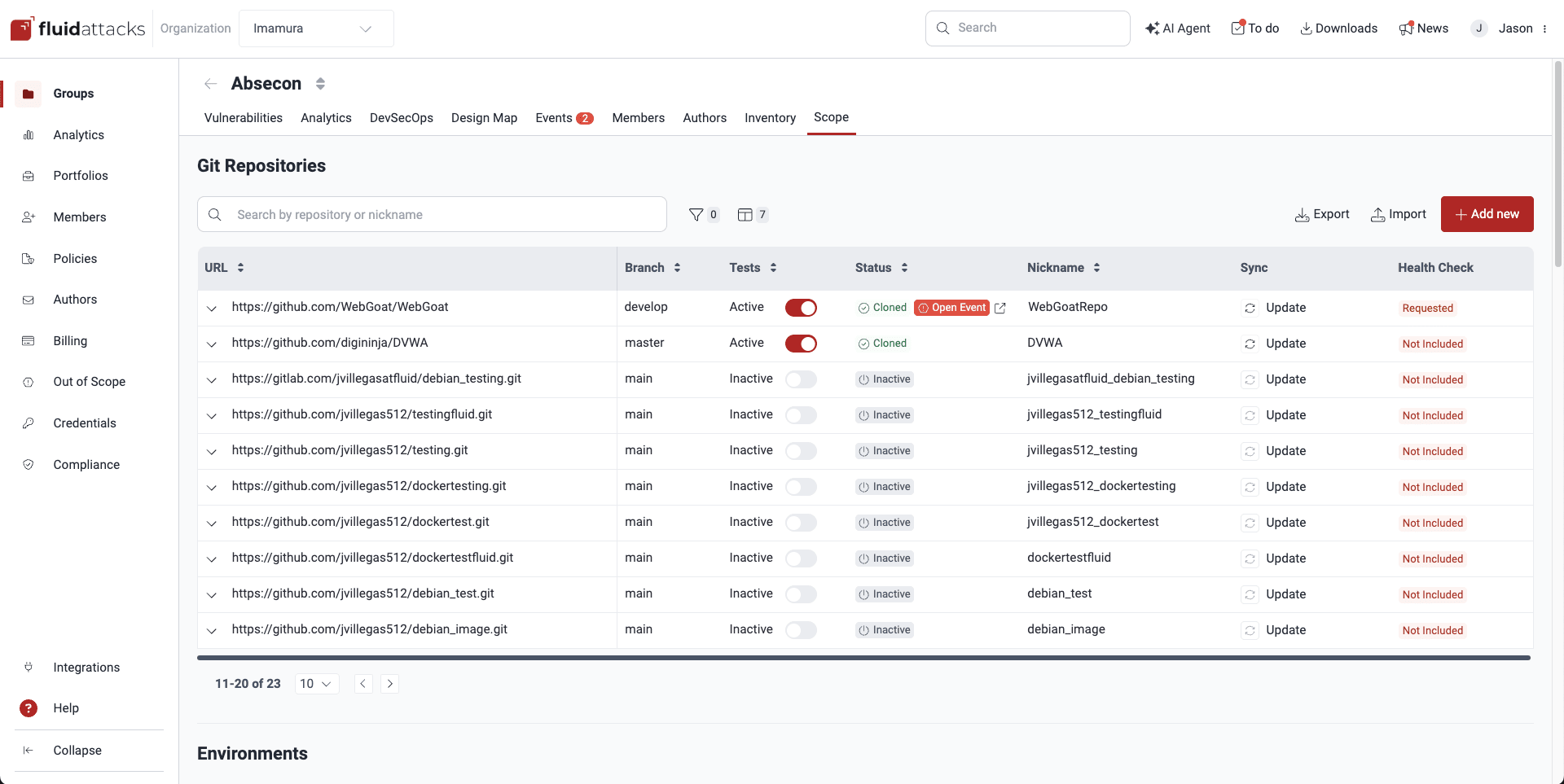
This is a description of the columns of this table:
- URL: The URL of the repository with the code that Fluid Attacks clones and tests
- Branch: The branch that Fluid Attacks tests (make sure you understand the details above)
- Tests: If the repository is in the scope of security testing: Active means that Fluid Attacks tests it, and Inactive means that Fluid Attacks does not test it
- Status:
The code repository cloning
status,
which can be one of these:
- Cloning: The platform clones the repository
- Cloned: The platform cloned the repository successfully
- Failed: The clone process failed
- Inactive: The platform does not clone the repository, because it is not in the current scope
- Unknown: The initial status before the clone process
- Queued: A tool run to check this repository is in the queue
When an event is present regarding a repository, the tag 'Open event' is displayed in this column along with an icon that links to the reported problem on the platform.
- Nickname: A name from the URL to identify the repository easily
- Sync: Sends a request to clone the repository again after changes, when you want the latest version (see About repository cloning for the automatic clone schedule)
- Health Check:
If the Health Check
is included for the repository
(this field is available only for groups in the Advanced plan,
because the Health Check includes manual security testing).
These values are possible:
- Included: Health Check is included
- Not Included: Health Check is not included
- Requested: A user requested the Health Check
An arrow points down on the left of the URL column. Click this arrow to expand the rows and see a description of each repository. You can also use the arrows in the rows to expand them one by one.
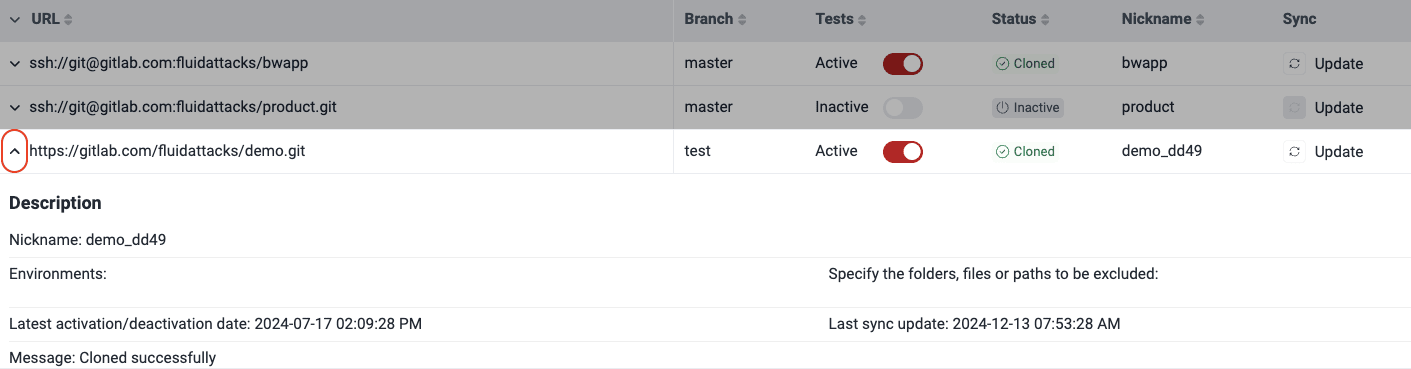
The nickname is automatically derived from the URL associated with the added repository. Duplicate nicknames are not permitted. If a new repository is being added, and its nickname would be one that already exists, four random characters are appended to the URL-associated nickname.
Add a new Git repository
Role required: User, Vulnerability Manager or Group Manager
Click Add new to include a code repository in the security testing scope. You can add a new repository with Open Authorization (OAuth), or you can type the repository details manually.
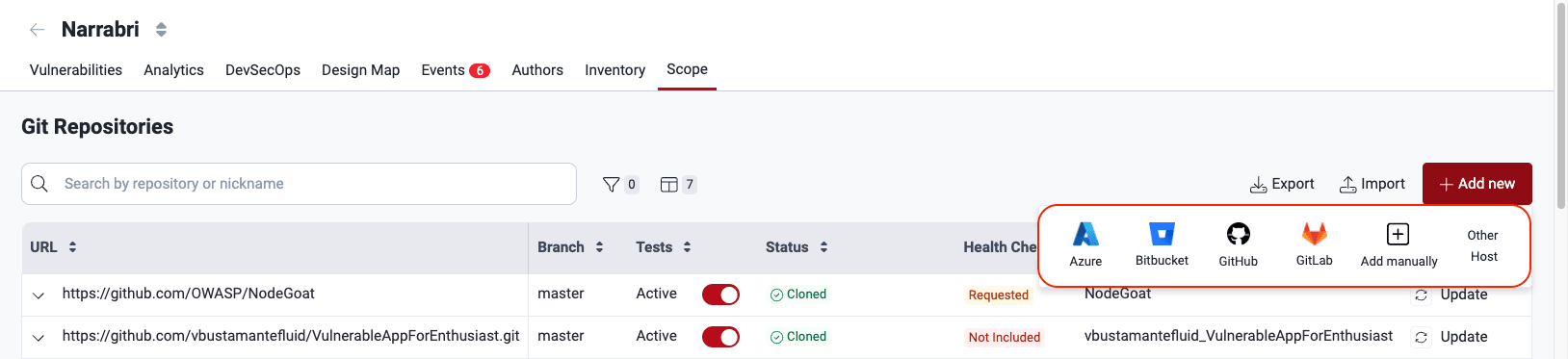
Add Git repositories using OAuth
With OAuth, you can quickly add repositories from popular providers: Azure, Bitbucket, GitHub, and GitLab.
Before you add a Git repository in Scope with this method, you must authorize the connection between the Fluid Attacks platform and the account on the supported provider.
After you create the OAuth credentials on the platform, do these steps to add a Git repository in the Scope section:
-
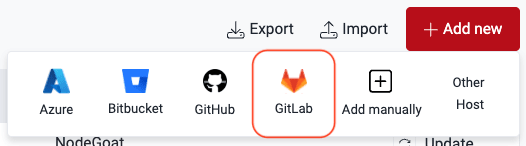
Click Add new. Then, select the code repository hosting provider of your repository. This example uses GitLab as the provider.
-
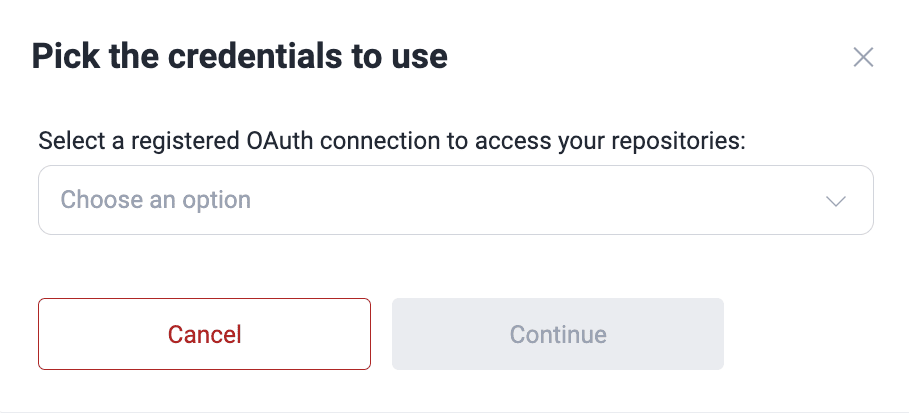
In the pop-up window, select the user credentials of the OAuth connection for that provider.
-
When you select the credentials, the platform gets all the applicable data from the repositories and their branches. The load time changes with the volume of data. When the data loads, the Continue button becomes active. Click Continue.
-
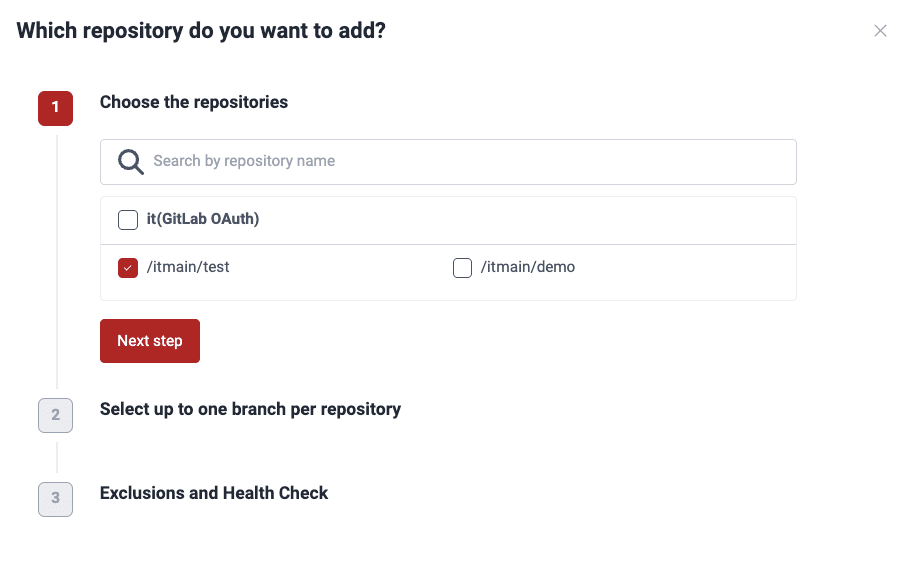
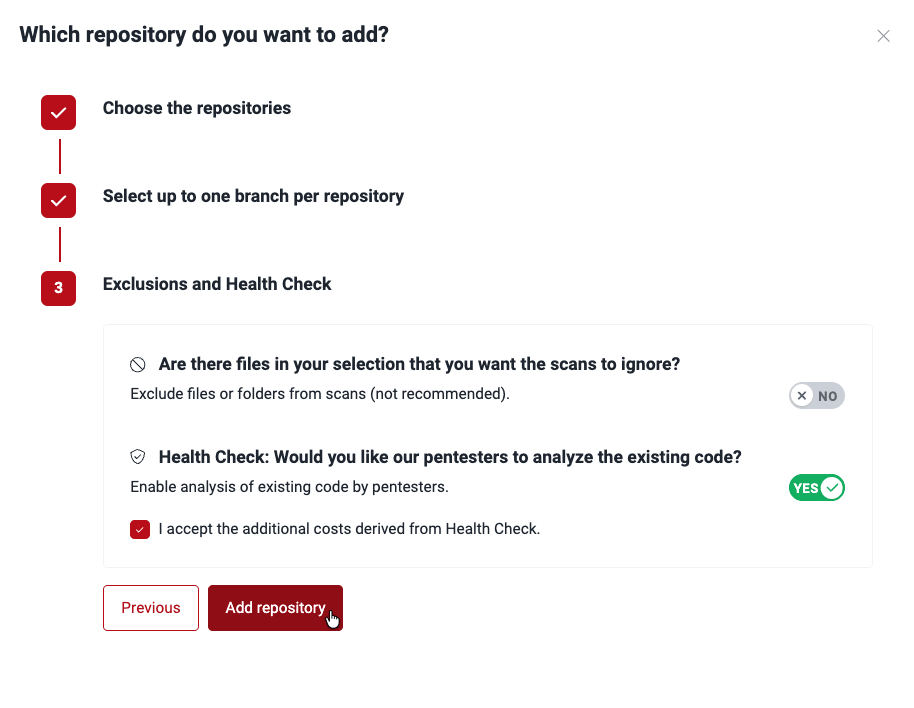
The platform shows a three-step form. First, select the repositories to add. Then, click Next step.
-
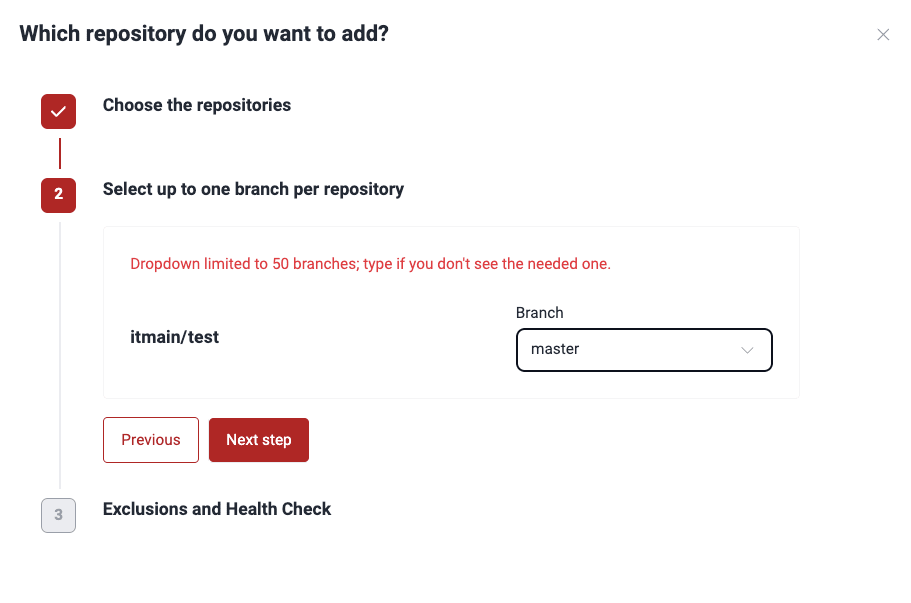
Select the branch of each repository to test. Then, click Next step.
-
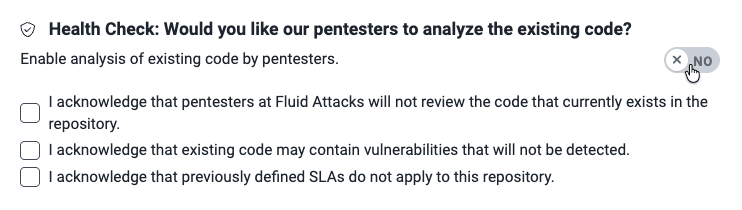
Select if you want to exclude files from security testing. If you select Yes, type the paths of the files or folders to exclude. (You can also exclude files with exclusions as code.)
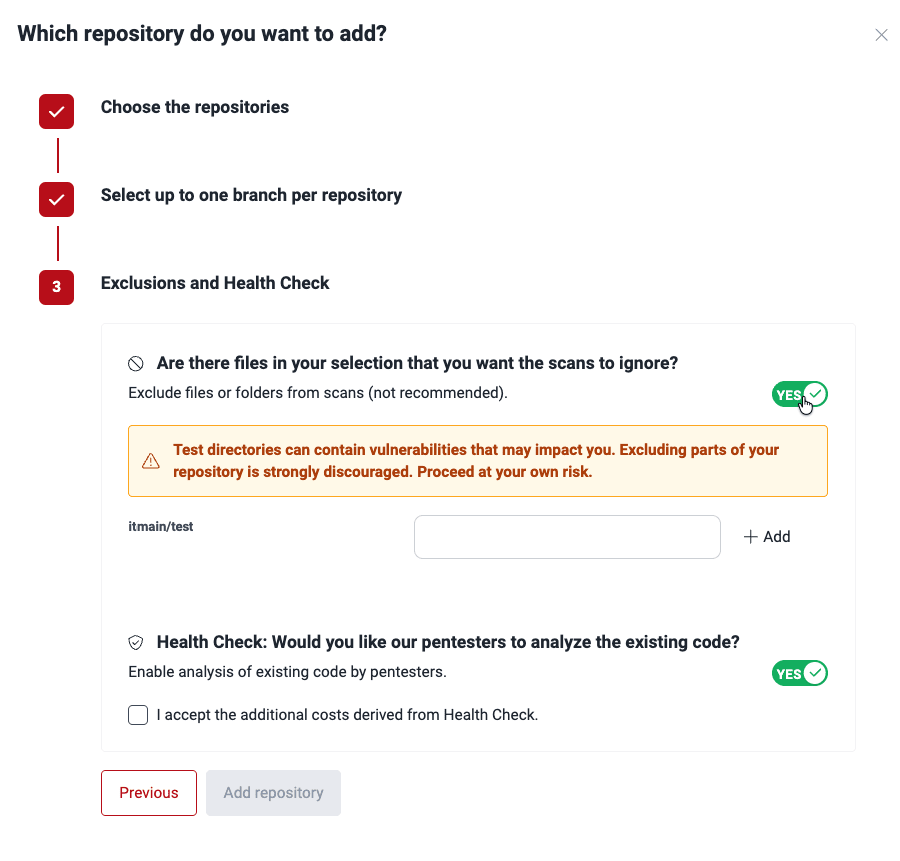
Then, select if you want the Health Check, that is, manual tests by the pentesters on the code that is in the repository at this time. If you select Yes, accept that this option costs more.

If you select No, accept the risks.
-
Click Add repository to add the Git repositories.
Add a new Git repository manually
To add a new Git repository manually with its details, do these steps:
-
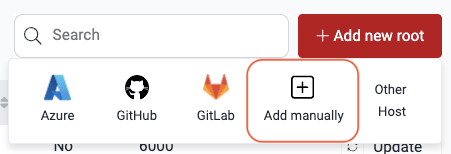
Click Add new. Then, select Add manually.
-
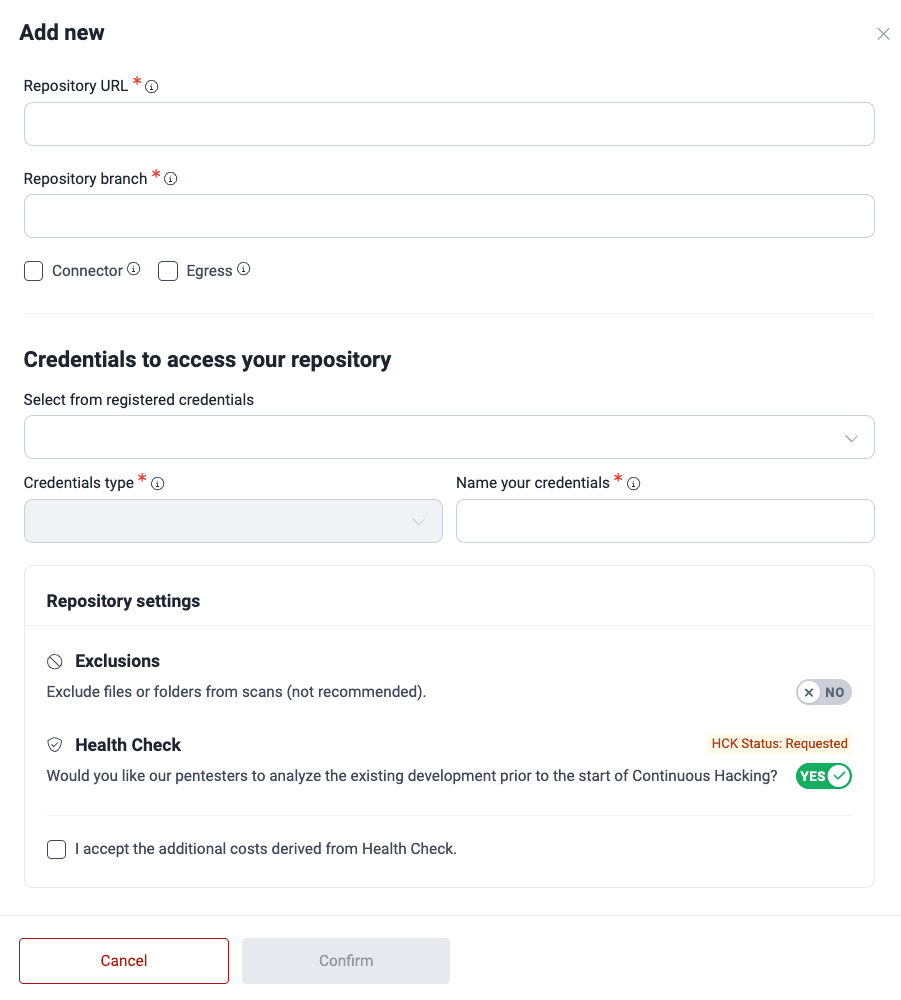
Complete the form with this information about the repository:
- Repository URL: The URL of the repository
- Repository branch: The branch of the repository to test
- Connector: If the repository is in a private network with a configured Cloudflare Tunnel
- Egress: If the repository is in a private network and your firewall must allow the IP addresses of Fluid Attacks
- Existing credentials: If applicable, the credentials that you created before to access the repository
- Credentials type:
The authentication method,
which the platform identifies automatically from the URL:
- User and password: The traditional login method with your user name and password
- SSH: A secure key-based authentication method to access remote systems, with more security than passwords
- Access token: A Personal Access Token for authorizing Fluid Attacks with Azure DevOps
- AWSROLE: Lets Fluid Attacks assume an Identity and Access Management (IAM) role in your AWS account
- OAUTH: Lets Fluid Attacks access your repositories on supported platforms (Azure, Bitbucket, GitHub, and GitLab)
- Name your credentials: A name to identify the credentials easily
- Exclusions: The paths of the files or folders to exclude from security testing, if you want to exclude some (you can also set exclusions with code. This field is available only for Group Managers.)
- Health Check: If you want the Health Check, that is, manual tests of the existing code by the Fluid Attacks pentesters
The following registration rules apply:
- Same group, same repository, any branch — not allowed. A group cannot register the same repository more than once, regardless of which branch is used.
- Different groups, same repository, same branch — not allowed. A repository and branch combination can only be covered by one group at a time across the organization.
- Different groups, same repository, different branch — allowed,
unless both groups are on the Advanced plan.
Each group can monitor a different branch of the same repository
(for example,
mainin one group anddevelopin a different group), but at most one Advanced-plan group per organization can hold an active registration for any given repository.

-
Click Confirm to add the repository.
Existing credentials
Fluid Attacks needs credentials to access the repositories to test. When you add or edit a repository, the form shows the field Select an existing repository credential.
Click the drop-down menu to see a list of credentials. These are credentials that you used before to add Git repositories, or that you added before in the Credentials section. The platform keeps them for use in all the groups of the organization.
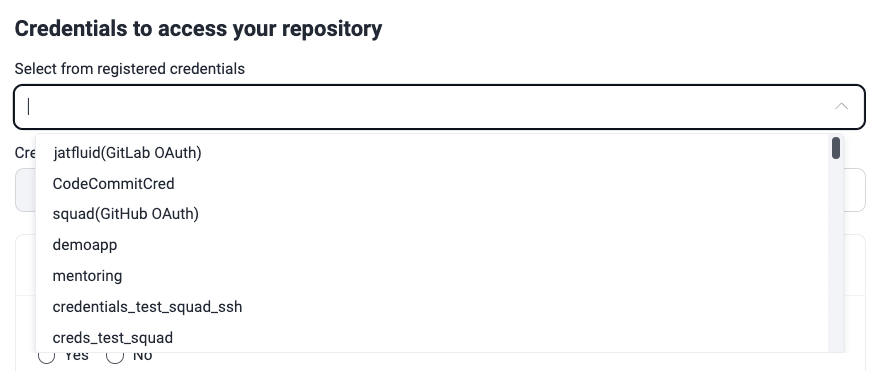
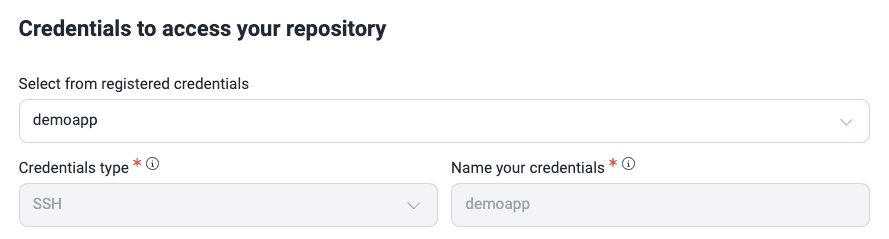
If one of the listed credentials is applicable to the repository, select it. The platform then automatically completes the Credentials type and Name your credential fields.
Credentials type
To add a Git repository in the Scope section, you can use one of these authentication methods: user and password, SSH key, Azure Personal Access Token, and cross-account AWS IAM role. The platform identifies the credentials type from the repository URL.
Add a repository with user and password
With HTTPS authentication, you access the repository with a user name and a password.
Passwords must be at least 20 characters long, start with a letter, and contain no spaces. They must include at least one uppercase letter, one lowercase letter, one number, and one special character (e.g., ! @ # $ %).
When you complete all the credential fields, the Check access button shows. Click it to make the platform check the credentials for the repository clone. Fluid Attacks recommends that you check access first, and that you add the repository only if the message "Success - Access checked!" shows.
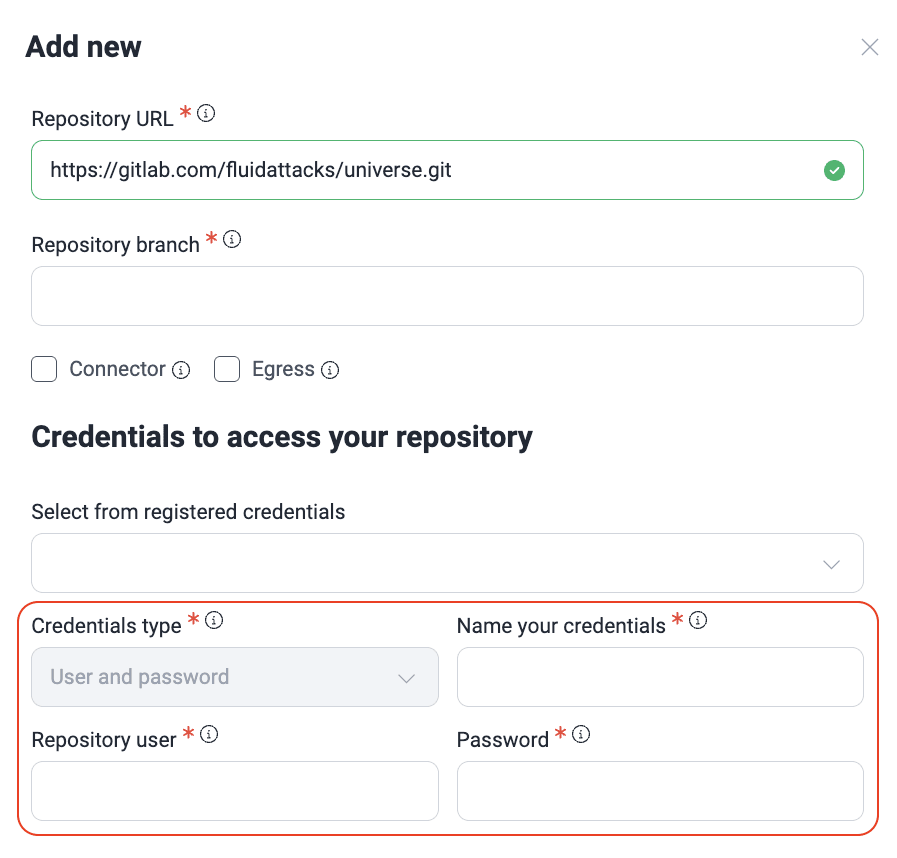
When providing the username and password for a GitHub repository, you must replace the password with a personal token. Refer to the official GitHub documentation for guidance on generating this token.
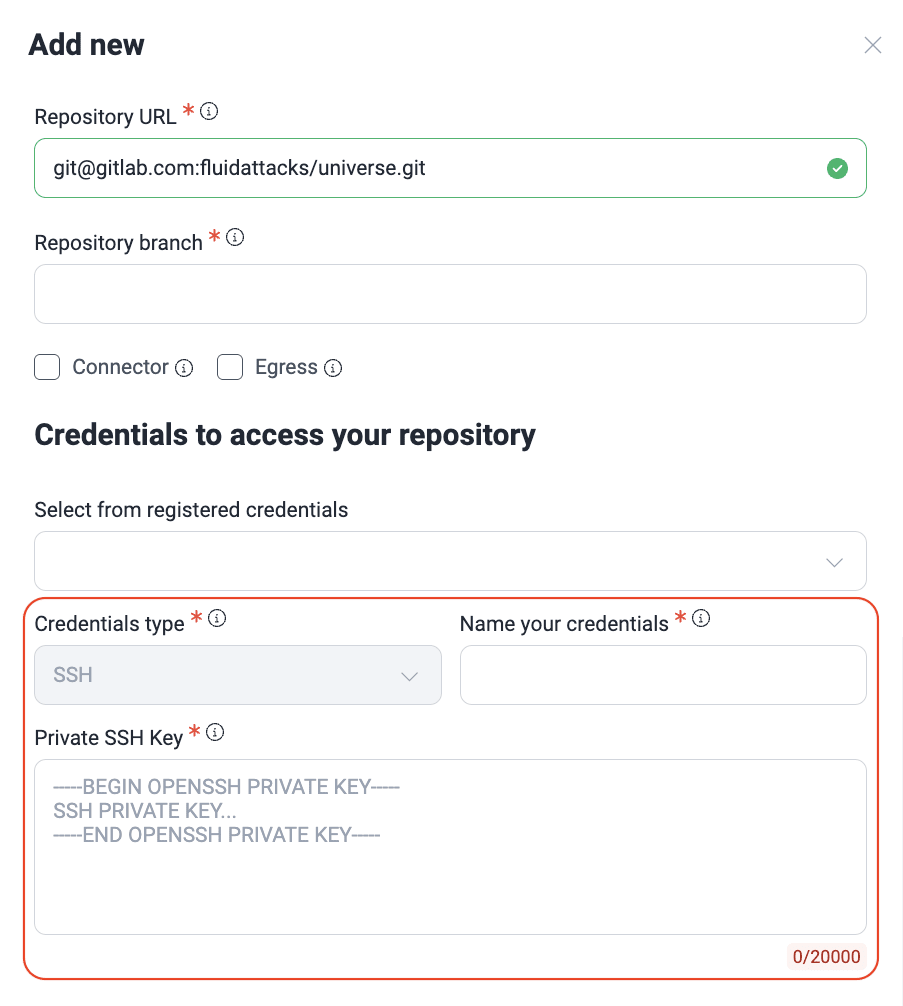
Add a repository with an SSH key
SSH keys connect to your repository server without a user name and password. If you select this credential type when you add or edit a Git repository, you must give a private key.
Add a repository with an Azure DevOps PAT
To connect Fluid Attacks securely to your Azure DevOps repositories, use a Personal Access Token (PAT). A PAT is a unique password with the access rights that you select. With a PAT, you do not share the credentials of your primary account.
Make a PAT with the necessary permissions in Azure DevOps. Then, type it here so that Fluid Attacks can clone and test your repository.
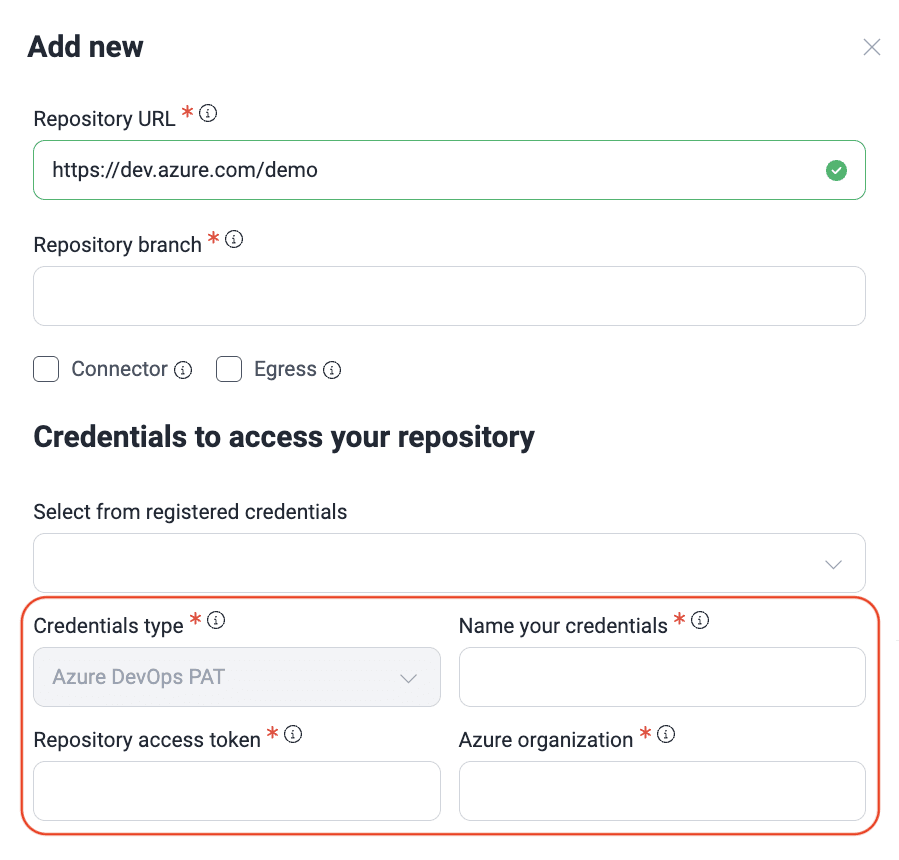
For information on managing your Personal Access Tokens, read the official Azure DevOps documentation.
Add a repository with a cross-account IAM role
To integrate Fluid Attacks with your AWS environment in more than one account, you can use a cross-account Identity and Access Management (IAM) role. With this role in one AWS account, you securely give the permissions that you set to a different AWS account. Thus, Fluid Attacks can access and test your resources without direct credentials.
For the instructions to create an IAM role, read "AWS IAM role for CodeCommit".
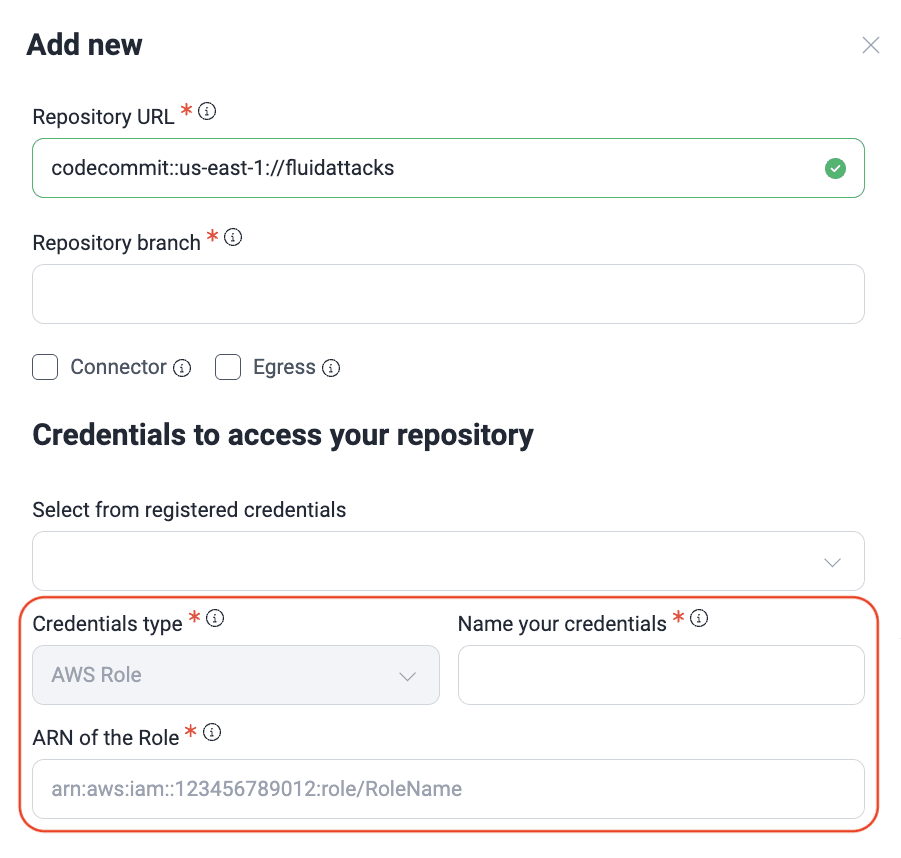
For information on cross-account resource access, read the official AWS documentation.
Exclude subpaths in Git repositories
Role required: Group Manager
You can exclude files or full folders from the scope of the Fluid Attacks security testing. For example, you can exclude functional tests or dummy files of your repository.
The Fluid Attacks platform has a function to do this. Be careful. If the excluded files or folders have vulnerabilities, it is possible that you do not find them.
You can define up to 100 exclusion patterns per Git repository. Each pattern can have up to 512 characters. Tailor the exclusions to your specific requirements.
To make exclusions, do these steps:
-
Go to the Scope section of your group.
-
To add a Git repository and set the files or folders to exclude, click Add new. To set exclusions for a repository that you added before, click its URL.
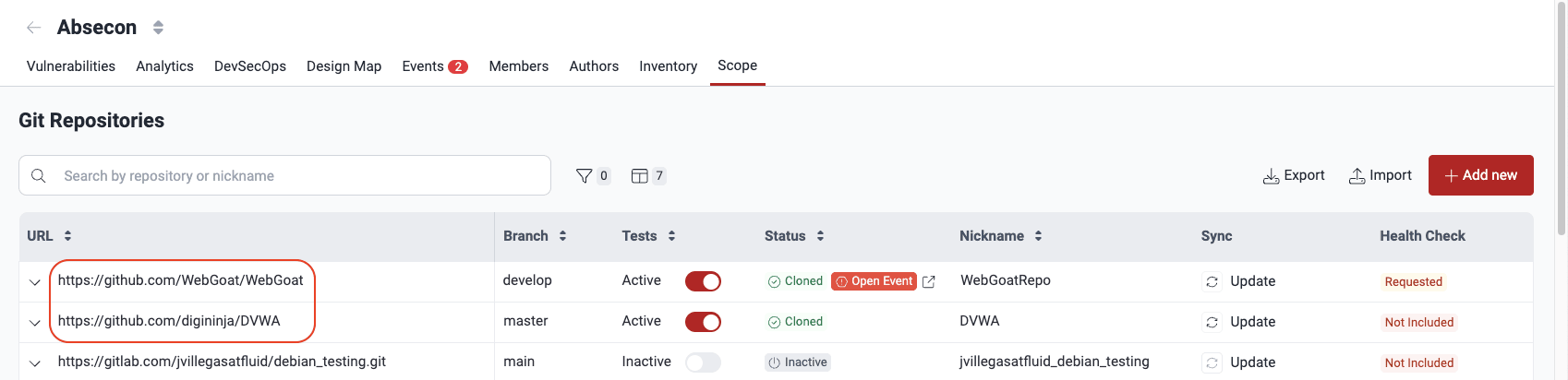
-
In the pop-up window, scroll down to Exclusions.

-
Change the answer to Yes. A field shows where you can type the pattern of the file or folder to exclude. To add more exclusions, use the Add another option. To remove an exclusion, click its trash can icon.
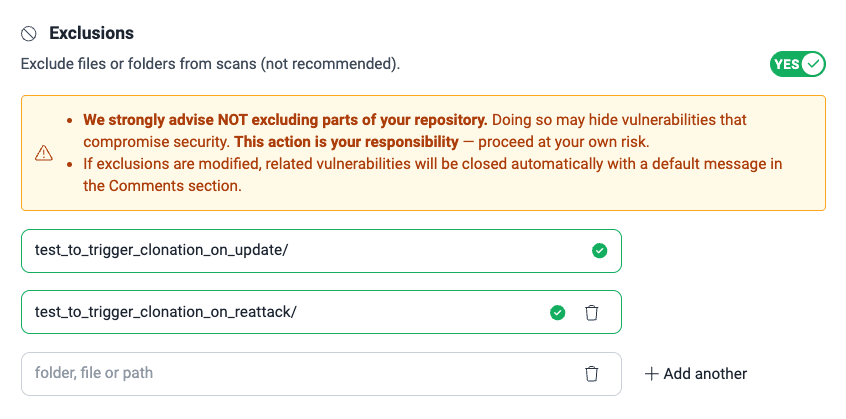
It is advisable to know about pattern usage and exclusion best practices beforehand. Click the question mark icon next to "Specify the folders, files or paths to be excluded" to access reference documentation.
(a) Fluid Attacks' exclusion option does not support patterns with the prefix "!" as explained in the above link.
(b) Use the wildcard (*) carefully and always try to be as specific as possible.
-
Click Confirm to apply the exclusions.
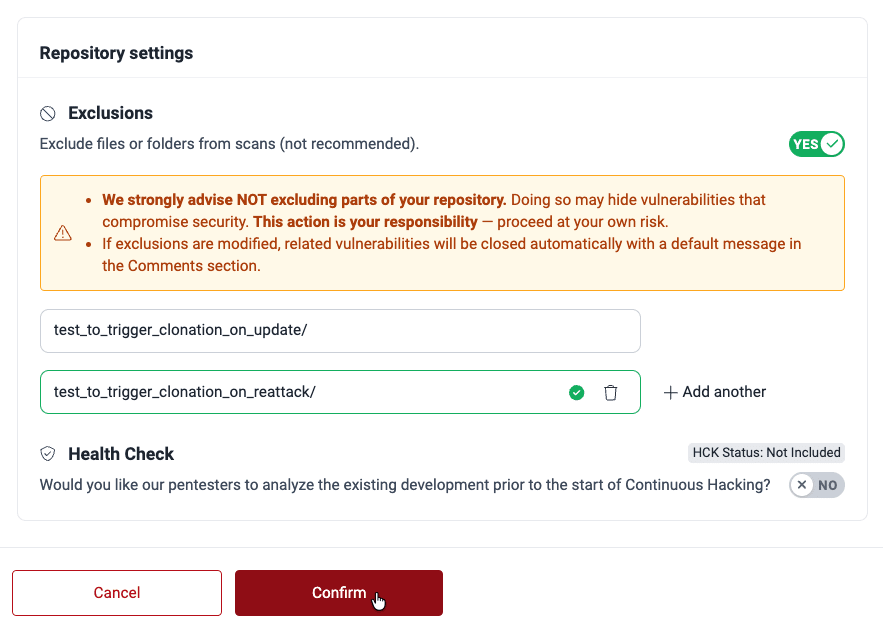
Exclusion examples
node_modules/build/tmp/test/*.js(exercise caution when using wildcards)repo-root/dummy/exclude-me.js
Keep in mind that exclusion is a case-sensitive feature, which means it distinguishes between uppercase and lowercase letters in the path you provide.
Set exclusions as code
The Fluid Attacks scanner recognizes exclusions
in the source code of your application.
One method is to add NOFLUID and an explanation as a comment
before insecure code.
A different method is to write exclusions in a .fluidattacks.yaml file
at the root of the project.
For the details, read "Exclude findings from scan reports".
Import repositories through a CSV file
Role required: User, Vulnerability Manager or Group Manager
Prepare the CSV file
You can import more than one repository for testing with a comma-separated values (CSV) file. The maximum file size for this method is 1 MiB.
Make sure that your CSV file has this header format with seven columns.

You can download a sample of this CSV format from the Fluid Attacks platform. In the desired group, go to Scope, click on Import and then on example CSV import file.
This table explains the information to include in the file:
| Column | Required | Description | Example |
| url | Yes | The URL of the repository containing the code to be cloned (include the protocol prefix, i.e., https:// or ssh://) | ssh://[email protected]:user/example-repo.git |
| branch | Yes | The specific branch to be cloned (please read the details above) | main |
| includes_health_check | Yes | Indicates whether Health Check is requested for the repository (can be "true" or "false") | true |
| git_ignore | Yes (can be left empty) | The paths within the repository that you want to exclude from testing. If excluding multiple paths, separate them using semicolons (;). For comprehensive evaluations, you are advised to leave this field empty. | test_data/ ;mocks/files/ |
| credential_id | Yes | The unique identifier for the credentials used to access the repository, which you can obtain by querying the Fluid Attacks API, as shown below this table, after registering your credentials. | 4f48f4d2-8478-4a33-a2d3-fac8e03d9cfc |
| connection | No | The type of connection to your assets. You can set it to "egress" or "ztna" or leave it blank for no custom connection; get more information in Access to your assets. | ztna |
| nickname | No (defaults to the repository name if left blank) | The custom nickname for your repo.
You can define it using alphanumeric and some special characters
(:_.) but not exceeding 128 characters, or leave it blank.
The nickname must be unique in your organization. | my_repo_1 |
To get the credentials ID, use this query in the API:
query MyQuery {
  organizationId(organizationName: "org_name") {
    credentials {
      id
      name
      type
    }
  }
}
This example shows the ID in the result.
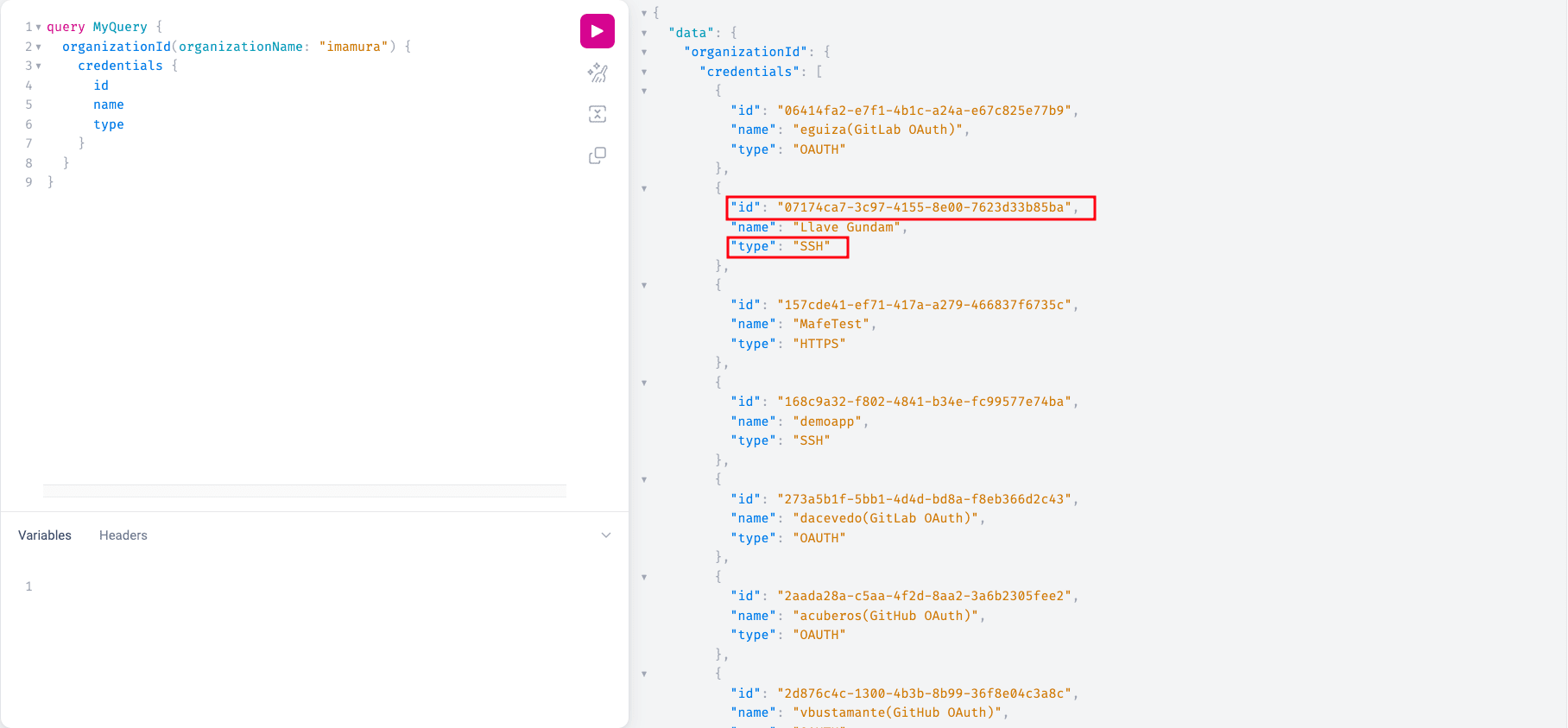
Make sure to match the selected credentials type with the URL protocol. For instance, if the URL employs SSH, opt for SSH credentials.
Import the CSV file
When your CSV file is ready, do these steps to import the repositories on the Fluid Attacks platform:
-
Go to the Scope section. Then, click Import.

-
Click Add file.
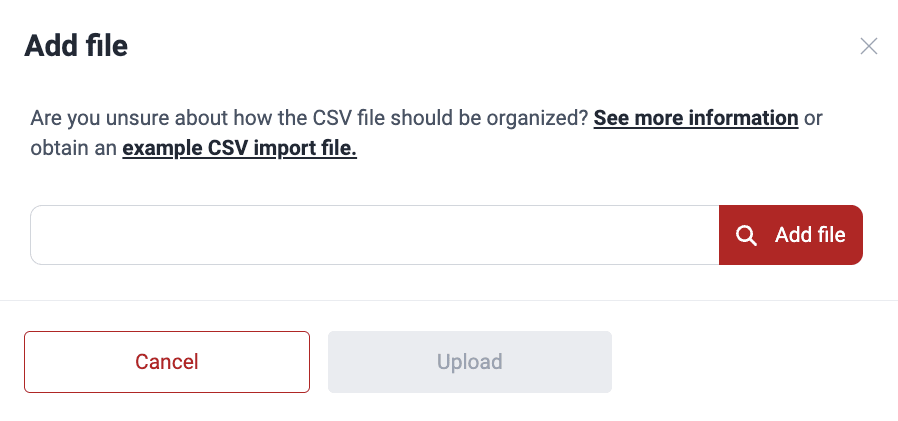
Here you can also download the sample CSV file on which to base yours.
-
Select the CSV file. Then, click Upload.
When you click Upload, you get a confirmation message. The added Git repositories show in the table, and the platform starts to clone them.
If an error occurs during import, it is likely due to your file not adhering to the required format. Carefully review the error message for specific details on the issue and its location within the file. See below the kinds of checks to which the CSV file is subjected.
CSV file checks
When you upload a CSV file to import repositories, the platform does these checks:
- File format and size: Ensures the file is UTF-8 encoded (a byte order mark is tolerated), comma-delimited (semicolon- or tab-separated files are rejected), correctly quoted, and no larger than 1 MiB per upload request; blank lines are ignored
- Header validation: Rejects files whose header has empty or duplicate column names; trailing empty columns are ignored
- Row limit: Accepts up to 200 data rows per upload request; the platform splits larger files automatically when importing from the web interface
- Invalid URL or branch: Ensures the provided URL and branch are valid and correctly formatted
- Prevention of CSV injection: Safeguards against malicious code injection attempts through the CSV file
- Incorrect characters: Verifies that fields do not contain invalid characters
- Credentials ID validation: Confirms the validity of the specified credentials ID
- Avoiding duplicates: Prevents duplicate entries within the CSV file (same URL and branch)
- Avoiding Root Duplicates: Prevents the import of a repository and branch combination that is active in the organization. The same repository can still be imported into another group using a different branch, unless the importing group is on the Advanced plan and the repository is registered in a different Advanced-plan group.
Export Git repositories table
Role required: User, Vulnerability Manager or Group Manager
Click Export to download a comma-separated values (CSV) file with the information of the Git repositories table and this other information:

- Id: The unique identifier of the repository
- State: Shows if the repository is active
- Cloning message: More information about the clone process or its result
- Use egress: Shows if the clone process uses Cloudflare Egress IPs
- Use vpn: Shows if the clone process uses the Legacy VPN
- Use ztna: Shows if the clone process uses Cloudflare ZTNA
- Repo creation date: The timestamp of when the repository was added to the platform
- Added by (mail): The email of the user who added the repository
- Last edited by (mail): The email of the user who changed the repository last before the export
- Date last edited: The timestamp of the most recent change before the export
- Credentials Id: The identifiers of the credentials for the clone process
- Credentials name: The name of those credentials
- Credentials type: The credential method, for example, HTTPS, OAUTH, or AWSROLE
- Gitignore: The repository paths that the assessments exclude
- Environments: The URLs to access the environments of the repository
- Excluded environments: The environment URLs that the assessments exclude
Show or hide columns of the Git repositories table
Role required: User, Vulnerability Manager or Group Manager
With the Columns button, you can reorder, show, or hide columns in the Git repositories table. Click Columns and customize the table. Then, click Save.
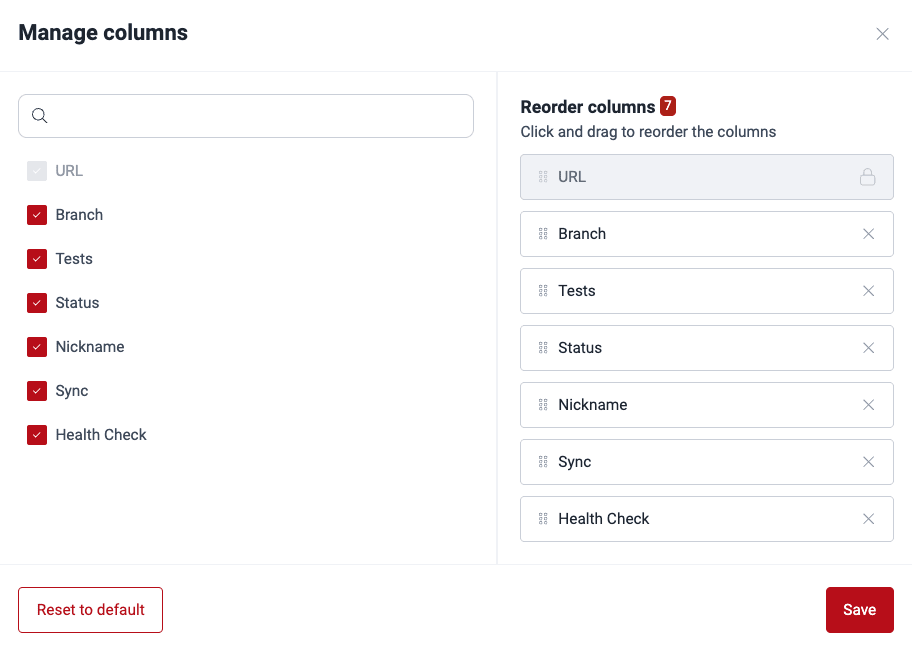
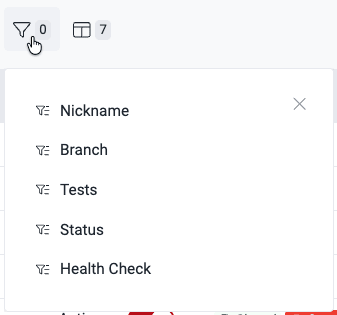
Filter the Git repositories table
Role required: User, Vulnerability Manager or Group Manager
To filter the Git repositories table,
click the filter button
( )
and use the options.
)
and use the options.

Edit a Git repository
Role required: User, Vulnerability Manager or Group Manager (Group Managers can edit all fields; see below for what Users can update)
Members with the User role can update the following Git repository details: Nickname, Connector access, Egress access, credentials, and Health Check.
To change the details of an active Git repository, that is, a repository in the scope of evaluation, do these steps:
-
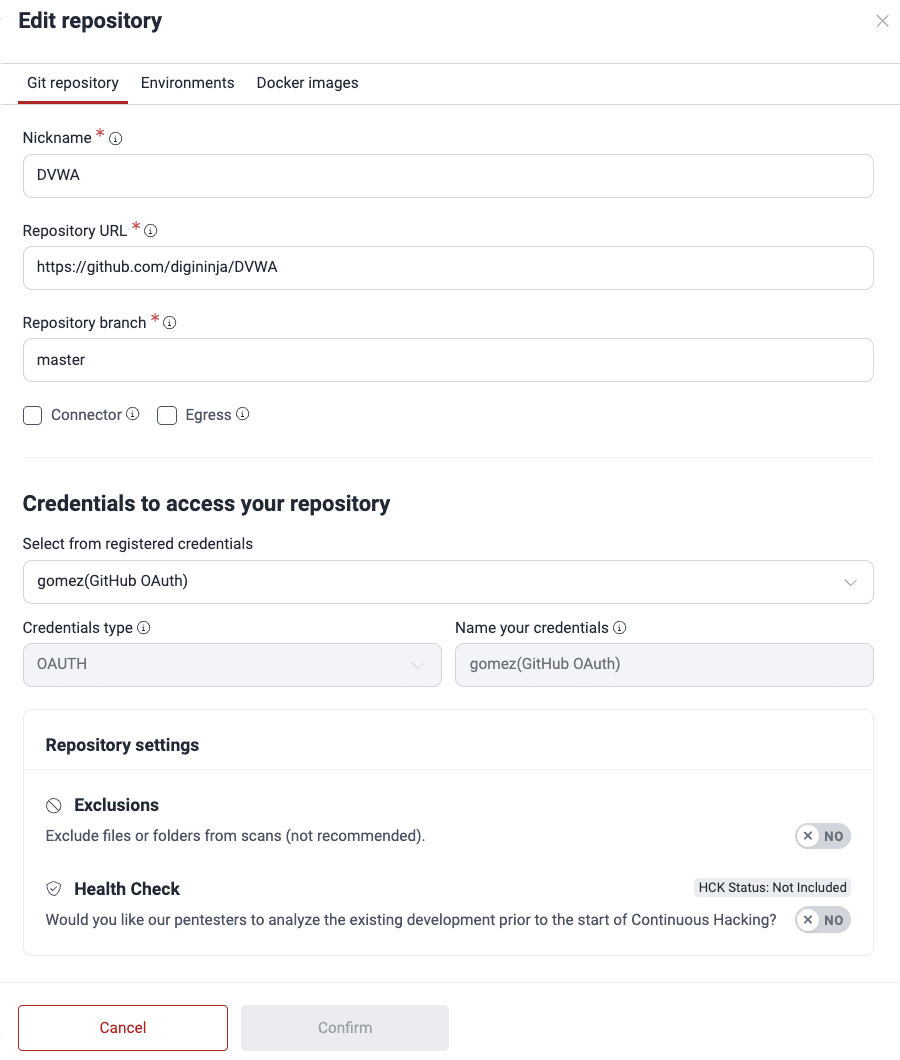
In the Scope section, find the active Git repository to edit. Then, click its URL.
-
The pop-up window has two tabs: Git repository and Environments. Change the necessary details in the Git repository tab.
-
Click Confirm to apply the changes.
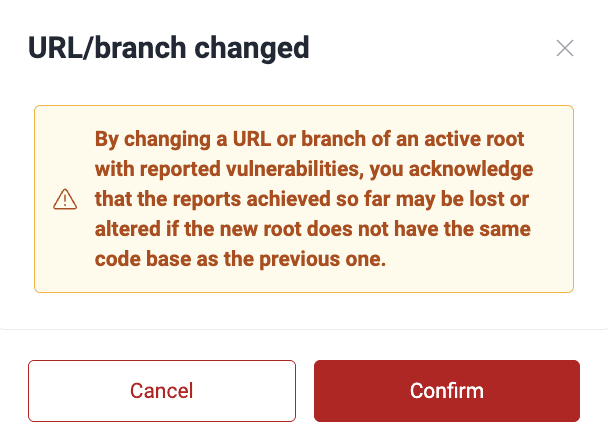
When altering the repository's URL and branch, a warning message is displayed, highlighting the potential risks tied to such modifications. Proceed with these changes only after careful consideration.
Deactivate a Git repository
Role required: Group Manager
Scope changes may lead to reporting new vulnerabilities or changing the status of reported vulnerabilities to "Closed".
To keep a repository in the scope of security testing or to remove it, change its Tests value in the Scope section. The value can be Active or Inactive:
- Active: The platform clones the repository, and the AppSec testing tool and the pentesters of Fluid Attacks can analyze it
- Inactive: The repository was added to the scope by mistake, it does not exist at this time, or its location changed. Thus, Fluid Attacks does not clone or test it
You can change the Tests configuration at any time. A detailed change history is maintained for traceability. Also, Tests changes send email notifications to all the subscribed project stakeholders, in Fluid Attacks and in the organization of the customer.
To deactivate a repository, do these steps:
-
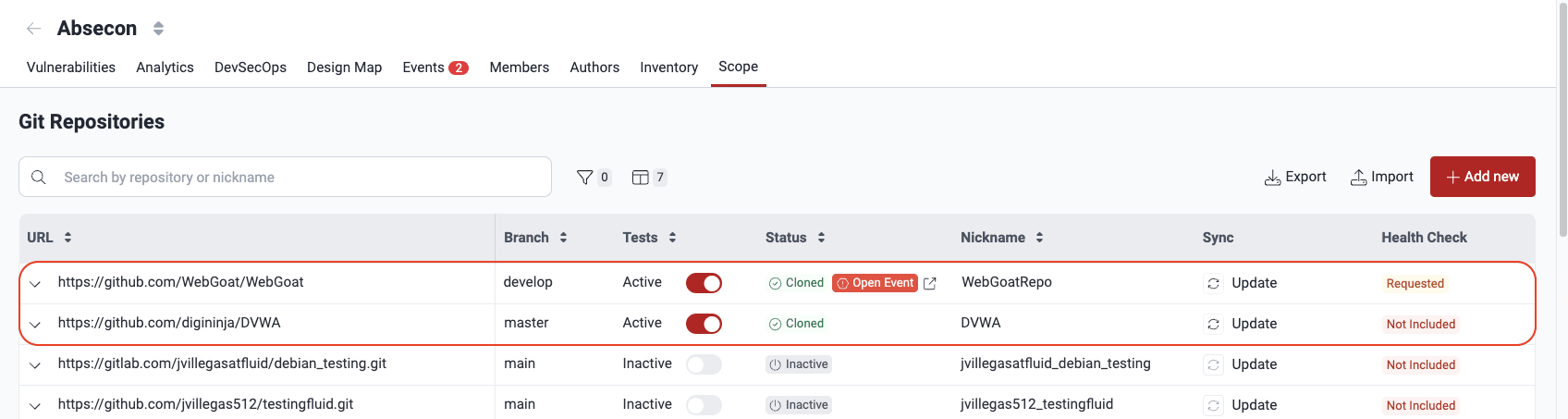
Go to the group's Scope section. Then, find the repository to deactivate.
-
In the Tests column, set the toggle to off. (If you cannot see this column, use the Columns option to see if it is hidden.)

-
In the pop-up window, give the reason for the deactivation.
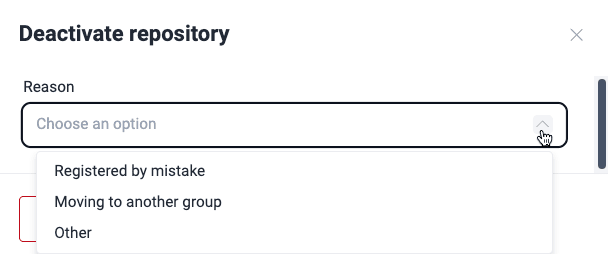
You can select one of these reasons:
- Registered by mistake: You or your team added this repository by mistake, or wrote incorrect details. To update only the URL, branch, or other attributes, edit the repository and do not deactivate it.
- Moving to another group: You want to move the repository and its vulnerability report to a different group. If you select this option, use the search bar to find the target group in your organization. The target group must have the same subscription as the current group.
- Other: If the two previous reasons do not apply, use this option to explain the deactivation.
-
Click Confirm to apply the deactivation.
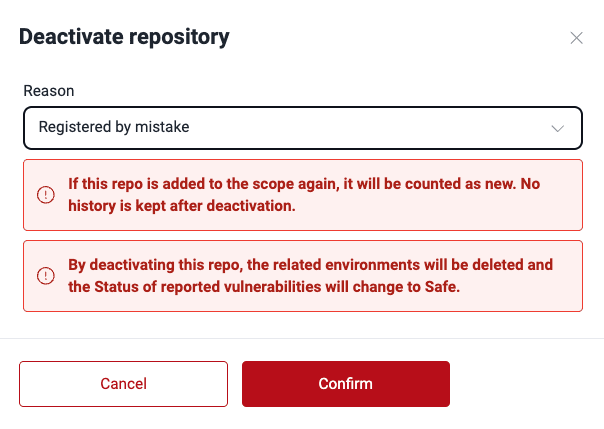
Move a Git repository
Role required: Group Manager
To move a Git repository to a different group of the organization, do these steps:
-
Do the steps to deactivate it above.
-
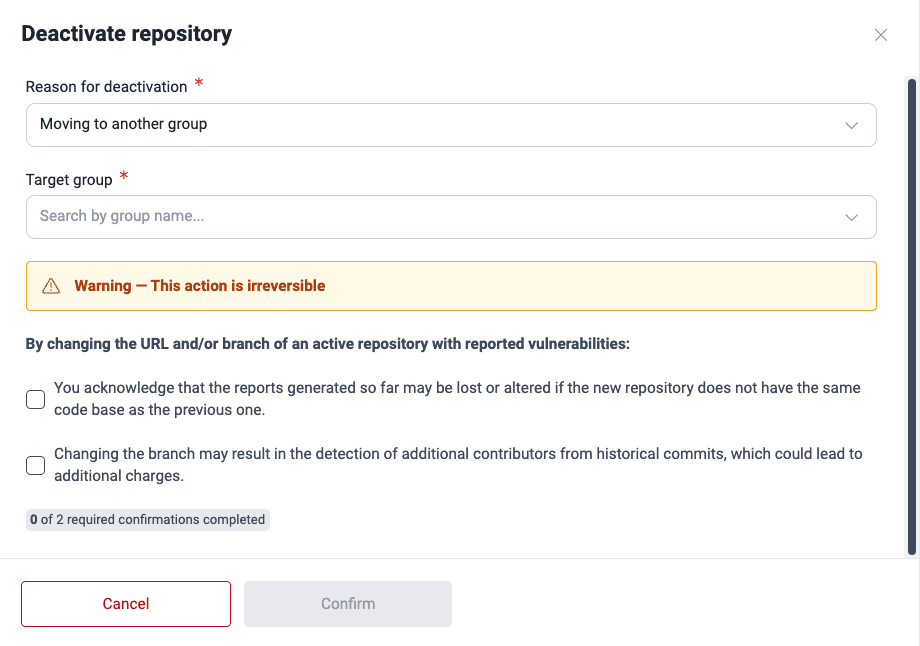
Select Moving to another group as the reason for the deactivation.
-
Select the target group.
-
Select the checkboxes to confirm these points:
- You accept that the move can remove or change the current reports if the new repository does not have the same code base as the previous repository.
- If you change the branch, the platform can find more contributors in historical commits. This can cause more charges.
-
Click Confirm.
Manage URL Roots
URL roots are dynamic environments on a web server. When you add them to the Fluid Attacks scope, Fluid Attacks can test your live web applications directly.
Know your URL Roots table
Role required: User, Vulnerability Manager or Group Manager
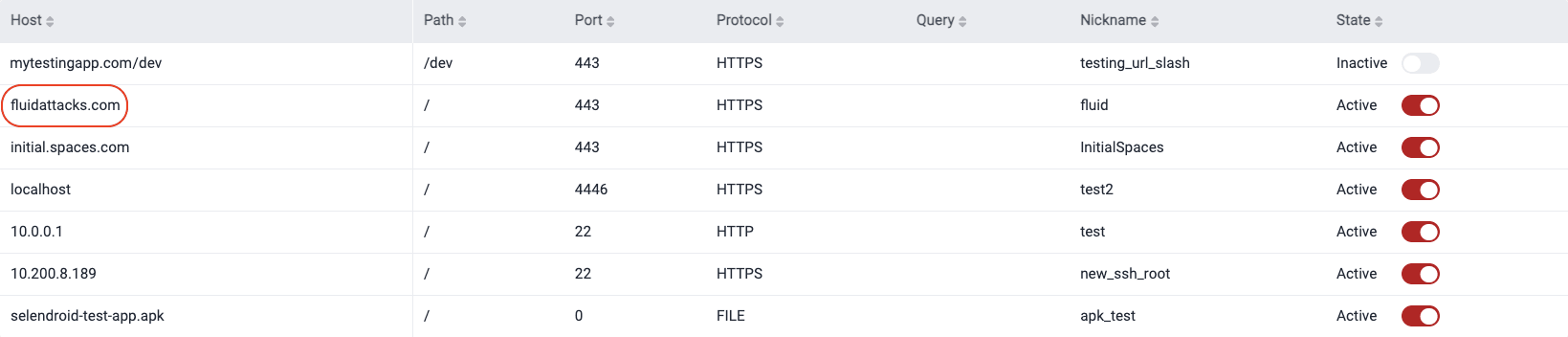
The Scope section has a table that shows the URL roots.
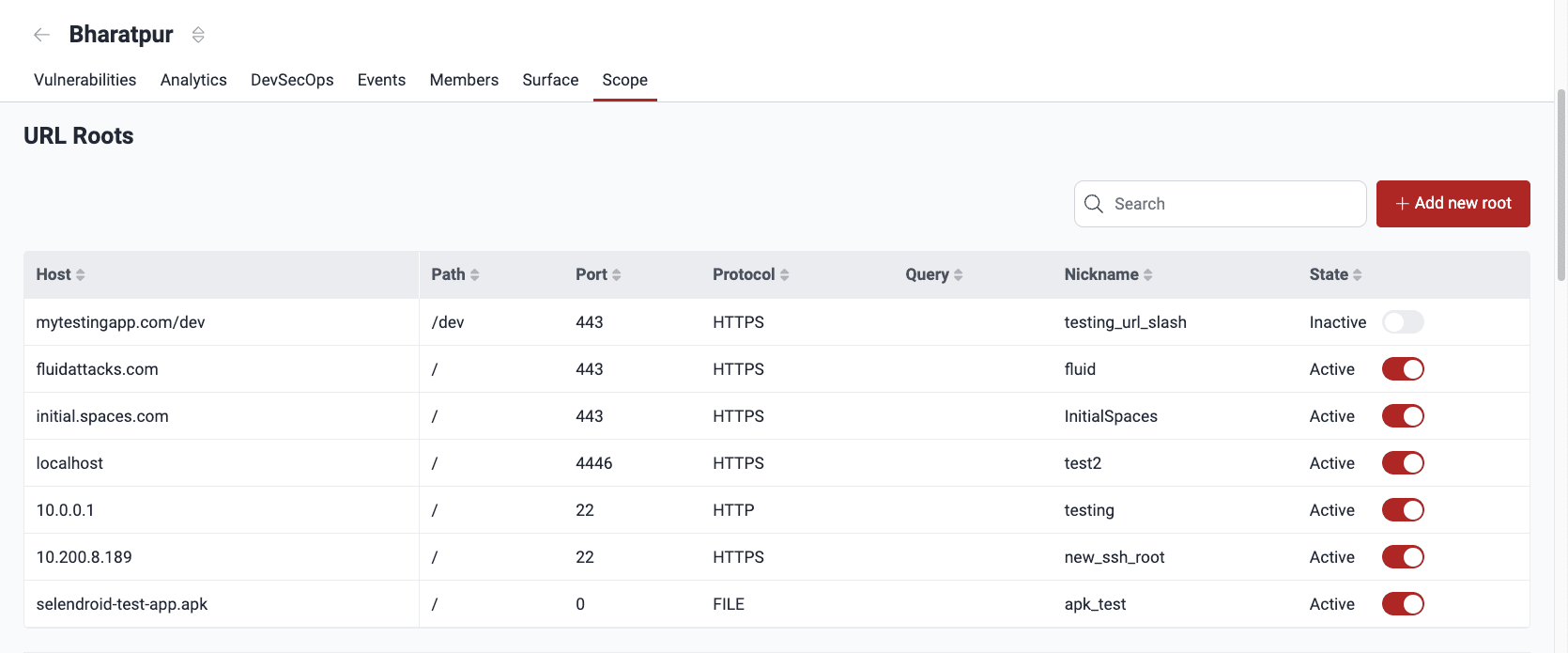
The table has this information:
- Host: The domain name or IP address of the web server
- Path: The path of the URL to test
- Port: The port number to access the URL
- Protocol: The protocol of the browser, for example, HTTP or HTTPS
- Query: The query parameters of the URL
- Nickname: A user-defined name to identify the root easily
- State: If the root is in the scope of security testing: Active means that Fluid Attacks tests it, and Inactive means that Fluid Attacks does not test it
Add a URL root
Role required: User or Group Manager
To add a new URL root for security testing, do these steps:
-
Go to the Scope section of the group where you want to add the URL root.
-
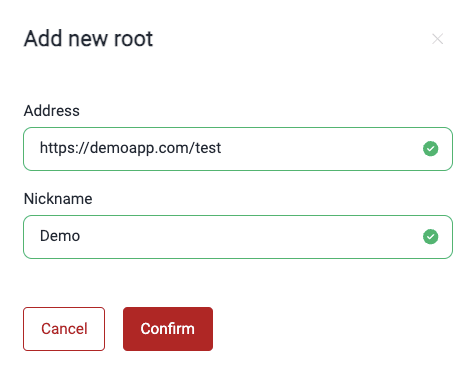
In URL roots, click Add new root.
-
Type the full URL of the deployed environment to test and a nickname for it.
-
Click Confirm.
Edit a URL Root
Role required: User or Group Manager
Click a URL to see the options to change its nickname, its access secrets, and its subpaths excluded from testing.
To change the nickname of a URL root, do these steps:
-
Go to the Scope section of your group.
-
Click the URL root to edit.
-
In the pop-up window, change the nickname.
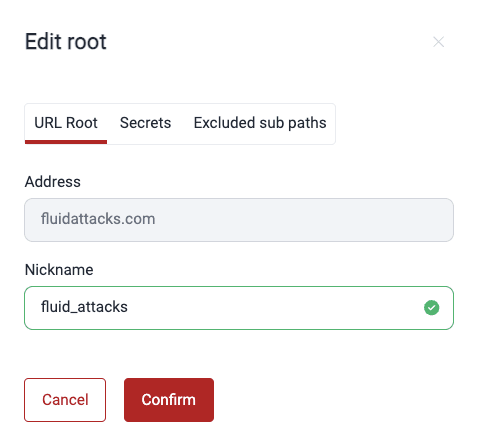
Each URL root must have a unique nickname.
-
Click Confirm.
Deactivate a URL Root
Role required: Group Manager
The steps and considerations to deactivate a URL root are the same as for deactivating a Git repository.
Exclude subpaths in URL Roots
Role required: Group Manager
You can exclude up to 250 subpaths per URL root. Each subpath pattern can have up to 512 characters.
Please note that excluding subpaths means they are not considered in vulnerability analysis.
To exclude a subpath of an active URL root from security testing, do these steps:
-
Go to the Scope section of the group.
-
Click the host of the URL root with the subpath to exclude.
-
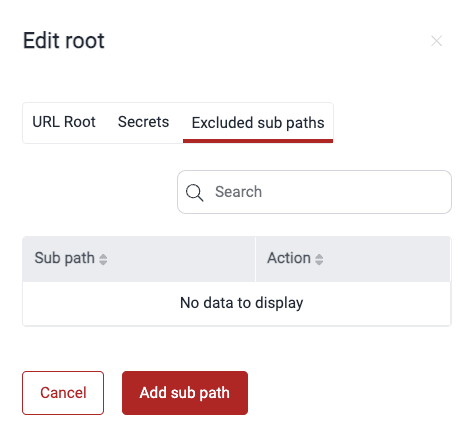
In the pop-up window, switch to the Excluded subpaths tab.
-
Click Add sub path.
-
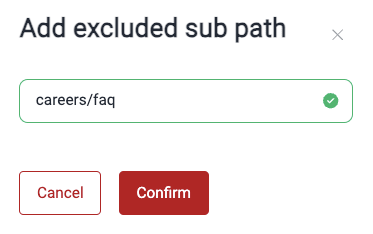
Type the subpath to exclude.
-
Click Confirm.
To include the subpath in the testing scope again, do these steps:
-
Click the host of the URL root.
-
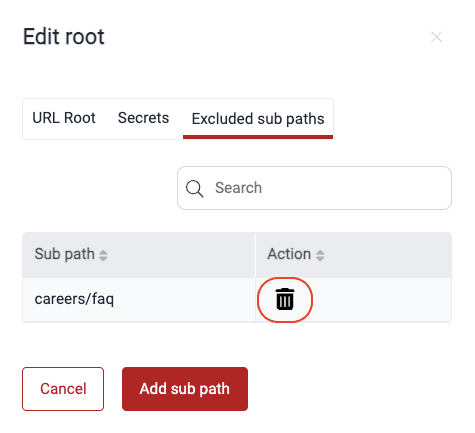
Go to the Excluded subpaths tab.
-
Click the trash can icon of the subpath to include again.
Search for vulnerabilities in your apps for free with Fluid Attacks' automated security testing! Start your 21-day free trial and discover the benefits of the Essential plan. If you prefer the Advanced plan, which includes the expertise of Fluid Attacks' pentesting team, complete this contact form.
Organization-level authors
Efficiently manage the organization mailmap in the Authors section to keep all contributor information orderly on the Fluid Attacks platform.
Import repositories with OAuth
Learn to import Git repositories on the Fluid Attacks platform using Open Authorization to start security testing.