Understand roles
Last updated: Sep 25, 2026
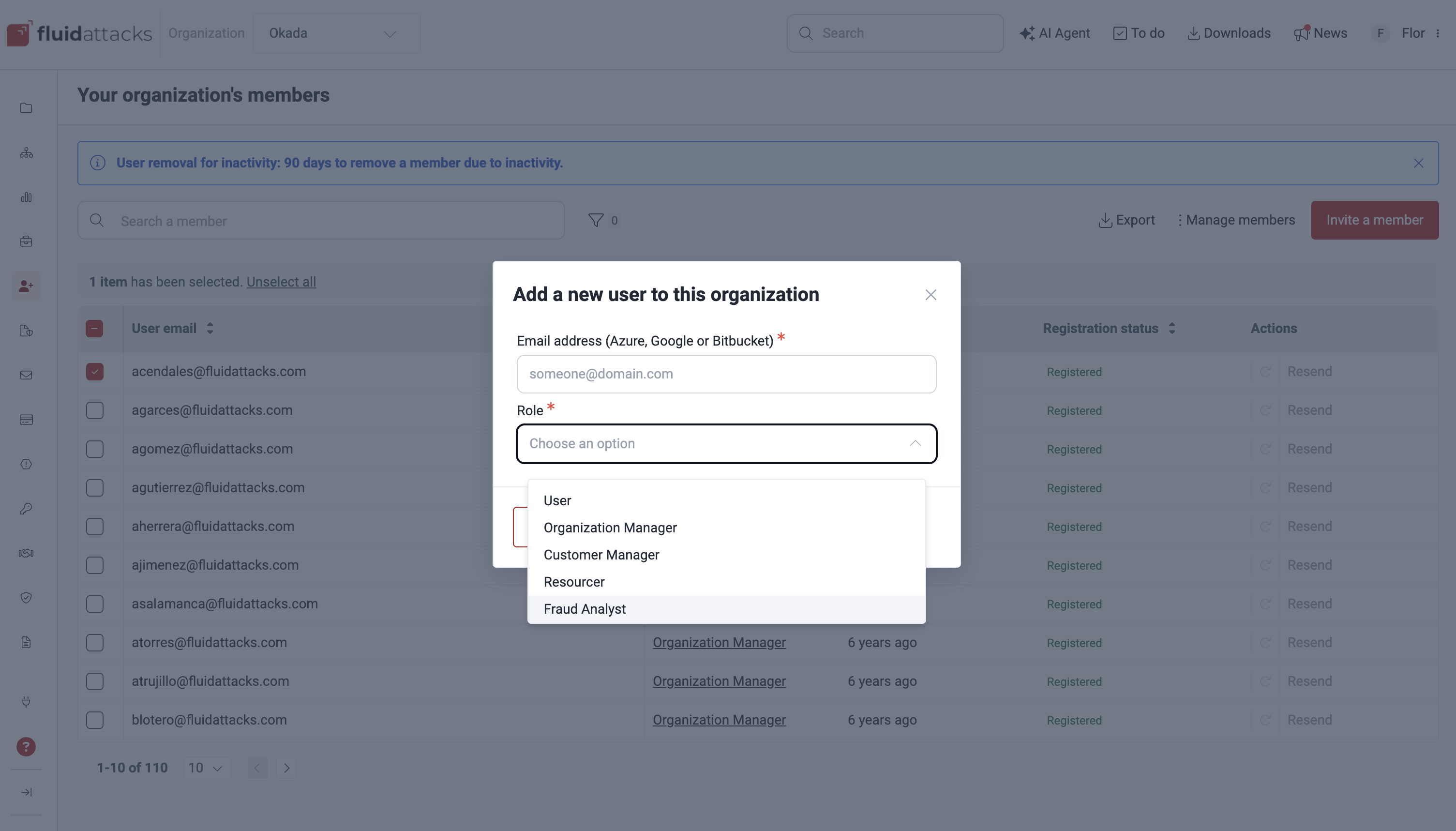
Members on the Fluid Attacks platform have distinct roles with associated permissions. You can view your role in the user menu for the organization or group currently selected. This menu is in the upper-right corner of your screen.
This page explains the roles available on the platform and the permissions each one grants.
Organization-level roles
Organization Manager role
Members with the Organization Manager role automatically get the Group Manager role in every group of the organization.
This role is for technical leaders within their organization. It lets them access all client privileges on the platform. It also lets them manage credentials, billing, members, and policy settings. This is in addition to the vulnerability management functions of other client roles.
User role (organization level)
Members with a User role at the organization level are read-only dashboard viewers for the organization. The role lets a stakeholder see the organization's aggregate security posture and compliance standing. It also shows the credentials list and a list of their own groups, if any. They cannot add members, change policy or payment settings, or remove credentials or members. Within groups, they can hold any of the three roles available for clients: Group Manager, User, or Vulnerability Manager.
Fraud Analyst role
This role is for fraud-prevention stakeholders. A Fraud Analyst can access the Fraud risk center and see how the organization's open vulnerabilities map to fraud categories. They can view the organization's security summary per fraud category: status, severity breakdown, and affected systems. Vulnerability findings and locations reach them only when they escalate a risk. This information appears in the escalation email.
They can request priority remediation of a fraud category on an affected system. The platform calls this action escalating a fraud risk. This action does not change the vulnerability. It notifies the responsible contacts of the affected system.
A Fraud Analyst cannot manage vulnerabilities. They cannot manage members, roots, groups, or any organization setting. They cannot access platform sections outside the Fraud risk center. If they try, the platform redirects them to the Groups section.
Group-level roles
Group Manager role
This role is for technical leaders and product leaders within their group. It lets them perform all client actions available in the group. It also grants these exclusive capabilities:
- Generate testing certificates.
- Accept vulnerabilities permanently.
- Approve their company's vulnerability deletion requests.
- Manage group information.
- Manage group members.
- Deactivate and move Git repositories.
- Add exclusions to the testing scope.
See the permission tables below for the complete list.
User role
Most members in a group get this role, typically developers responsible for vulnerability remediation.
Members with this role can:
- Access vulnerability information.
- Request reattacks.
- Update treatments.
- Make false positive requests.
- Add and remove tags.
- Post comments.
They can also:
- Manage the testing scope: add Git repositories, URL roots, and environment secrets.
- Manage Group tokens.
- Upload and delete threat model files.
- Add and download group files.
- Create and remove portfolios.
- Request event verifications.
At the organization level, they can download compliance reports and submit vulnerabilities for temporary or permanent acceptance.
Vulnerability Manager role
This role is for technical leaders within their group. It grants additional oversight capabilities on top of the User role.
Vulnerability Managers can:
- Generate reports.
- View group members.
- Assign fix work to members.
- Approve or reject treatment acceptance requests.
- Manage the testing scope, Group tokens, and threat model files.
- Request reattacks, update treatments, and post comments on vulnerabilities.
These last two bullets match the group-level permissions of the User role.
The Vulnerability Manager role does not exist at the organization level.
Permissions
Below are the descriptions of the permissions available to clients on Fluid Attacks' platform. This page groups these permissions into two levels: group and organization.
CI Gate
- Generate/update Group token: Generate and update the token for the CI Gate. The CI Gate is an application that inspects builds for policy noncompliance. It prevents deployment if it finds any. Available at DevSecOps > Manage token > Generate/Reset.
- View Group token and its expiration date: View the current Group token and when it expires. Available at DevSecOps > Manage token > Reveal token.
- View CI Gate executions: View reports of executions of the CI Gate in your CI/CD. Available at DevSecOps.
Design Map
-
Add threat model files: Upload threat model files that are correlated with the vulnerabilities reported by Fluid Attacks. Available at Design Map > Files > Add.
-
Delete threat model files: Delete threat model files that are correlated with the vulnerabilities reported by Fluid Attacks. Available at Design Map > Files > Delete.
Events
- Request verification on events: Request verification that an event is resolved. Available at Events > Request verification.
- Export file in Events: Download event data as a CSV file. Available at Events > Export.
Files
-
Add file: Upload any files you find helpful or necessary to test the group. Available at Scope > Files > Add.
-
Download file: Download files helpful or necessary to test the group. Available at Scope > Files > [Click on file] > Download.
-
Delete file: Delete files no longer helpful or necessary to test the group. Available at Scope > Files > [Click on file] > Delete.
Group
- Delete group: Delete an unnecessary group. Available at Scope > Delete this group.
- Update group information: Update group information. Available at Scope > Information.
- Use Help options: Access help options for clients to understand vulnerabilities or features, report issues, and more. Available at Help.
Members
- Add member: Invite members to the group with one of the three client roles: Group Manager, User, or Vulnerability Manager. Available at Members > Invite a member.
- Delete member: Delete members from the group. Available at Members > Manage members > Delete.
- Update member: Update roles of members. Available at Members > Manage members > Edit.
- View members: View the table of members in the group. Available at Members.
- View authors: View the table of developers who contribute to the group. Available at Authors.
- Invite contributor: Send invitations to contributor developers to register on the platform. Available at Authors > Invite.
Notifications
- Receive notifications: Get notifications related to your group.
- Add hook: Add webhooks that notify you when events happen in groups. Available at Integrations > Webhooks > Connect.
- Edit hook: Edit webhooks that notify you when events happen in groups. Available at Integrations > Webhooks > Edit.
- Remove hook: Remove webhooks that notify you when events happen in groups. Available at Integrations > Webhooks > Edit > Remove.
Portfolio
- Create portfolio tag: Add tags to sort groups within an organization. This helps you get analytics for specific groups. Available at Scope > Portfolio > Add.
- Remove portfolio tag: Remove a group from a specific portfolio. This removes the tag. Available at Scope > Portfolio > Remove.
Reports
- Generate certificate: Generate a certificate of security testing with Fluid Attacks. Available at Vulnerabilities > Generate report > Security testing certificate.
- Generate report: Generate vulnerability reports at different levels of detail for a specific group. Available at Vulnerabilities > Generate report.
Repositories or roots
- Activate/deactivate repository: Deactivate and activate assets to test. Available at Scope > Git Repositories/URL Roots.
- Move repository: Move a repository with all its associated data to another group. Available at Scope > Git Repositories.
- Sync to Git repository: Clone the Git repository again after you make changes. This lets Fluid Attacks test the up-to-date version. Available at Scope.
- Add Git repository: Add Git repositories. Available at Scope > Git Repositories > Add new.
- Edit Git repository: Modify URLs and branches. Available at Scope.
- Add URL root: Add URLs to the scope of security testing. Available at Scope.
- Edit URL root: Update URL root details. Available at Scope.
- Add exclusions: Exclude files or folders from security assessments. Available at Scope.
- Add secrets:
Add secrets
(usernames, passwords, email addresses, tokens, etc.)
that let Fluid Attacks access environments to test.
Available at Scope.
After you add a secret, you cannot view it again on the platform. Only security analysts assigned to your project can access it.
- Edit secrets: Overwrite a secret's value. The platform does not show the stored value. Available at Scope.
- Remove secrets: Remove unnecessary secrets. Available at Scope.
- Add Git environment: Add environments associated with source code repositories. Available at Scope.
- View Git environment: View environments associated with source code repositories. Available at Scope.
- Edit Git environment: Edit environments associated with source code repositories. Available at Scope.
- Delete Git environment: Delete environments associated with source code repositories. Available at Scope.
- Move Git environment: Move environments associated with source code repositories. Available at Scope.
Vulnerabilities
- Vulnerability assignment: Assign vulnerability remediation responsibilities to team members. Available at Vulnerabilities > [Type] > Locations > Edit.
- False positive request: Request deletion of a vulnerability, as it poses no threat according to the organization. Available at Vulnerabilities > [Type] > Locations > Edit.
- Request reattacks: Request reattacks by Fluid Attacks' tool to verify the effectiveness of remediation efforts. In the Advanced plan, reattacks may involve both Fluid Attacks' tool and pentesters.
- Approve treatment: Approve or reject submissions for temporary or permanent acceptance of vulnerabilities that require explicit review before they take effect. Available at Vulnerabilities > [Type] > Locations > Treatment acceptance.
- Update treatment: Change the treatments of vulnerabilities. Available at Vulnerabilities > [Type] > Locations > Edit.
- Add tag: Add tags for vulnerabilities. Available at Vulnerabilities > [Type] > Locations > Edit.
- Remove tag: Remove tags from vulnerabilities. Available at Vulnerabilities > [Type] > Locations > Edit.
- Post comments: In the Advanced plan, communicate questions, requests, and suggestions about a specific vulnerability or event. In the Essential plan, view comments about reattack outcomes. Available at Vulnerabilities/Events > Comments.
- View reattack assignees: View the staff members currently assigned to perform active reattacks on a weakness. Available at Vulnerabilities.
- View verification assignee: View the staff member currently assigned to verify a specific vulnerability. Available at Vulnerabilities.
Analytics
- Download vulnerability report in Analytics: Download a CSV file of details of all the vulnerabilities reported to the organization. Available at Analytics > Vulnerabilities.
Billing
- Add payment method: Add the payment method linked to the organization. Available at Billing > Payment methods.
- Update payment method: Update the payment method linked to the organization. Available at Billing > Payment methods.
- Download billing file: Download a record of the organization's billing activity. Available at Billing.
Compliance
Download a compliance report: Download a report of compliance with several international standards. Available at Compliance > Standards > Generate report.
Credentials
- Add credentials: Add credentials so Fluid Attacks can access assets to test. Available at Credentials > Add credential.
- Remove credentials: Remove credentials, which removes Fluid Attacks' access to them. Available at Credentials > Remove.
- Update credentials: Update credentials so Fluid Attacks continues to access assets. Available at Credentials > Edit.
- OAuth connection: Authorize Fluid Attacks to import source code repositories from GitLab, GitHub, Bitbucket, and Azure accounts via Open Authorization. This does not require you to provide the credentials for these accounts. Available at Credentials > Add credential.
Fraud risk center
- Open Fraud risk center: View the organization's fraud exposure summary, grouped into four fraud categories. Available at Fraud risk center.
- Request priority remediation: Escalate a fraud category on one or all affected systems, which notifies their responsible contacts. Available at Fraud risk center > [Category] > Escalate / Escalate all.
Mailmap
- View authors: View the organization-level Authors section, which displays the mailmap of contributors across the organization. Available at Authors.
Members
- Add members: Add members to the organization with one of the two client roles at the organization level: Organization Manager or User. Available at Members > Invite a member.
- View member: View members in the organization. Available at Members.
- Update member: Update roles of members. Available at Members > Edit.
- Delete member: Delete members at the organization level. Available at Members > Remove.
Policies
- Update organization/group policies: Manage policies at the organization and group levels. Available at Policies.
- Submit weakness for temporary acceptance in Policies: Submit an org-level policy to temporarily accept all instances of a specific weakness, pending approver review. This is independent of per-vulnerability acceptance: the Days maximum, Acceptances maximum, and Severity range thresholds do not gate this submission. Available at Policies > Acceptance > Temporary acceptance.
- Submit weakness for permanent acceptance in Policies: Submit an org-level policy to permanently accept all instances of a specific weakness. Once approved, the platform permanently accepts all open matching vulnerabilities and automatically accepts future instances. Available at Policies > Acceptance > Permanent acceptance.
- Approve and reject weakness for temporary acceptance in Policies: Approve and reject requests to accept vulnerabilities temporarily. Available at Policies > Acceptance > Temporary acceptance.
- Approve and reject weakness for permanent acceptance in Policies: Approve and reject requests to accept vulnerabilities permanently. Available at Policies > Acceptance > Permanent acceptance.
- Update priority score policies: Configure the formula used to calculate vulnerability priority scores. Available at Policies > Priority.
Project
- Add repositories in Outside: Add repositories identified through OAuth access that are not yet part of any group. Available at Outside > Add new roots.
- Add group: Create groups to manage the vulnerabilities of separate systems. Available at Groups > New group.
- Add organization: Create another organization on the platform. Available on the left side of the top menu of the platform.
Search for vulnerabilities in your apps for free with Fluid Attacks' automated security testing! Start your 21-day free trial and discover the benefits of the Essential plan. If you prefer the Advanced plan, which includes the expertise of Fluid Attacks' pentesting team, fill out this contact form.
Members
Efficiently manage organization and group members on the Fluid Attacks platform, including invitations, role assignments, and removals.
Group-level authors
Learn how to view, filter, and manage authors (contributing developers) on the Fluid Attacks platform to enhance collaboration quality and security.