Live chat
Last updated: Jun 30, 2026
Role
required:
User, Vulnerability Manager or Organization Manager
Plan required: Advanced
Live chat offers a quick way to get the assistance you need. Use it when you confirm that the Fluid Attacks documentation does not provide an answer to your problem, which you believe might be solved in a brief interaction.
You can access this feature on the platform (available only with the Advanced plan) by clicking on the chat icon in the bottom right corner. This icon is only visible when Fluid Attacks is online, i.e., from 8:00 a.m. to 6:00 p.m. (UTC-5).

Another way to access it is by clicking on the Help button in the collapsible menu and then choosing Live chat from the right-side bar.
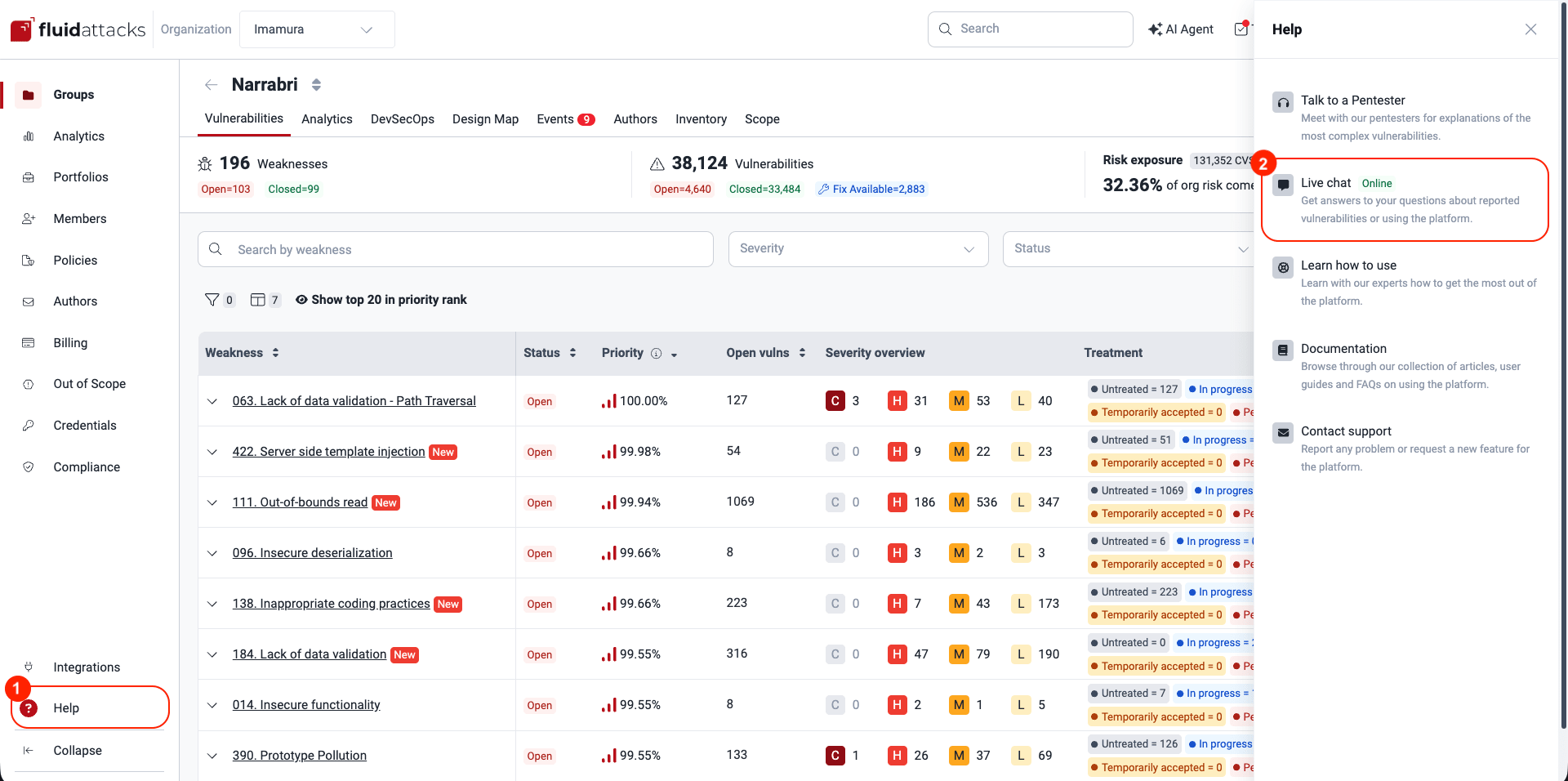
After you click on the Live Chat option, a chat box appears in the bottom right corner of your screen, allowing you to communicate directly with Fluid Attacks' Customer Support team. Before starting the chat, you first need to fill out your contact information and write a message about the issue you want to discuss.
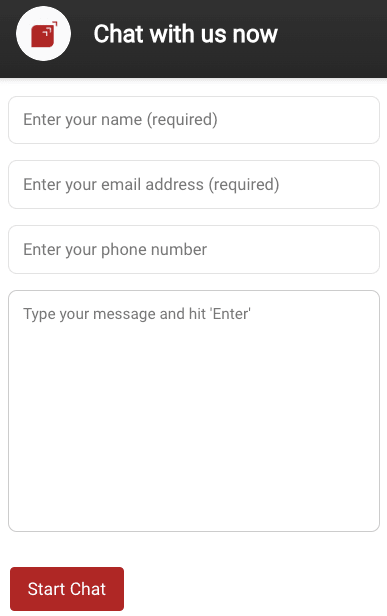
You soon get a response after you click on Start Chat.
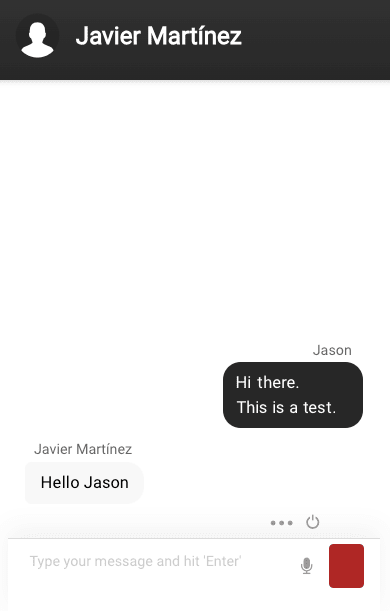
In the chat window, there are several functions available:
-
Click on the microphone icon to record an audio message.
-
Click on the three dots to reveal the options to mute the chat and share the screen.

-
Click on the turn off icon to end the chat.
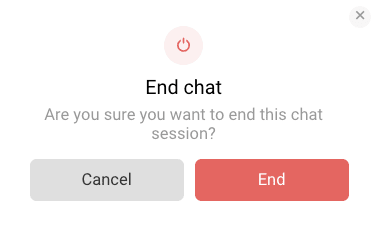
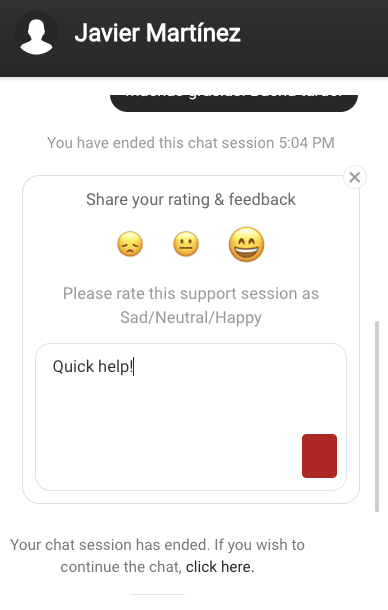
Once you end the chat, you may rate Fluid Attacks' help.
Outside Live chat hours, the chat box title changes to Leave us a message. You are prompted to fill out the form and then submit your message, which is sent as an email to the Customer Support team.
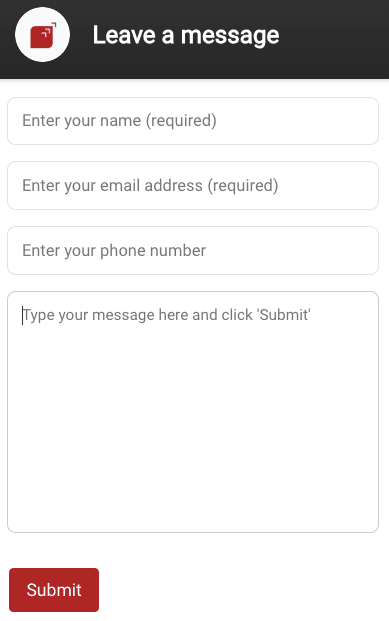
While the dedicated support team strives to respond to email inquiries promptly, please provide detailed information about your issue in the message box, as email communication may take longer than chat.
Make sure you browse the documentation before contacting Fluid Attacks. Have you read the FAQ"?
Search for vulnerabilities in your apps for free with Fluid Attacks' automated security testing! Start your 21-day free trial and discover the benefits of the Essential plan. If you prefer the Advanced plan, which includes the expertise of Fluid Attacks' pentesting team, fill out this contact form.