Installation
Last updated: Oct 27, 2026
The Cursor plugin of Fluid Attacks and all the other local tools and extensions of Fluid Attacks are free of charge.
With the Fluid Attacks extension for Cursor, you can find and fix vulnerabilities directly in this AI code editor.
These are the main functions of this plugin:
- See the files and lines of code with reported vulnerabilities.
- Read the documentation about the vulnerabilities in your code.
- Use the Claude Sonnet AI model to generate custom guides to fix vulnerabilities or fix vulnerabilities automatically.
- Request reattacks.
To learn about these functions, read Identify and address vulnerabilities from Cursor.
On Cursor version 1.1.6 or earlier, you can install the extension from the extensions view. On later versions, install it from a .vsix file.
Download the extension
To download the extension in Cursor version 1.1.6 or earlier, follow these steps:
-
Open Cursor.
-
Open the extensions view.

-
Type Fluid Attacks in the search bar.
-
Find the extension and click Install.

To download the extension in Cursor versions later than 1.1.6, follow these steps:
- Download the .vsix file of the Fluid Attacks extension from this link: marketplace.visualstudio.com/_apis/public/gallery/publishers/fluidattacks/vsextensions/fluidattacks/latest/vspackage.
- Open Cursor.
- Open the command palette (Cmd/Ctrl + Shift + P).
- Type "Extensions: Install from VSIX".
- Select the .vsix file that you downloaded.
Connect Cursor with the Fluid Attacks platform
To configure the extension, you must have a correct API token. Generate one before you do the steps below.
After you download the extension, configure it to connect the Fluid Attacks platform with Cursor. Follow these steps:
-
Type this text in the input bar: >Fluid Attacks: Set Fluid Attacks token.

-
Paste your API token in the input bar.

-
Press Enter.
-
Press Ctrl/Cmd + R to refresh the IDE.
Verify successful installation
The extension analyzes only the files that you give as input. Thus, make sure that you include all the related files to manage all your vulnerabilities.
After you configure the Cursor extension, make sure that it works correctly:
-
Open the base folder of your Git repository in Cursor.
-
Make sure that the Fluid Attacks extension icon is in the activity bar of the IDE.
-
Make sure that the files with vulnerabilities have red dots. If you see them, the configuration is correct.
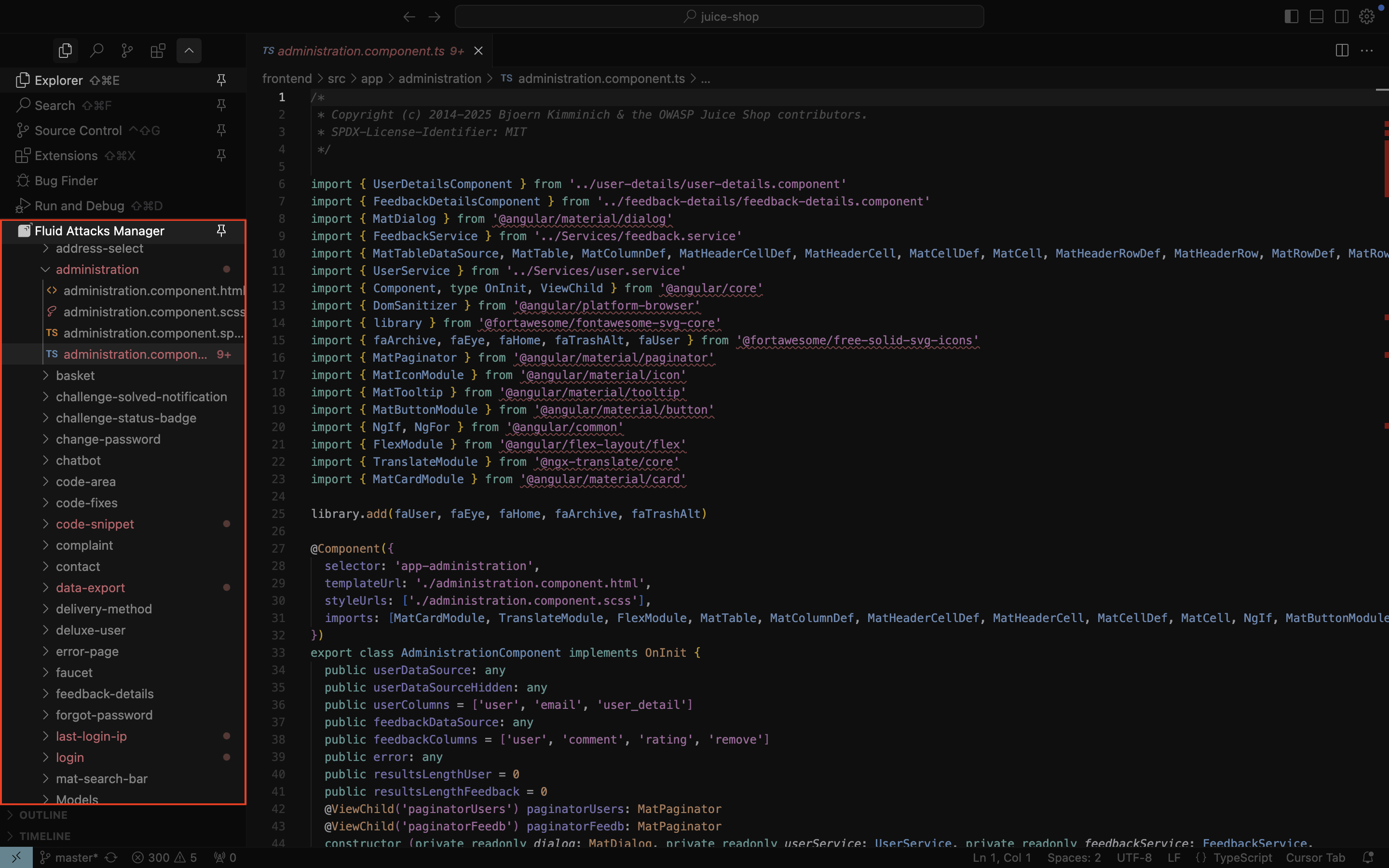
Some functions of the extension do not work without the Git history. Make sure that your project is a Git repository that you cloned with Git.
IDE extensions
Compare Fluid Attacks' IDE extensions for Cursor, VS Code, and IntelliJ IDEA. See which features are supported across platforms to manage your vulnerabilities.
Vulnerability management
Use the Fluid Attacks Cursor extension to view vulnerable code, apply treatments, request reattacks, and fix code directly in your IDE.