Vulnerability management
Last updated: Oct 27, 2026
The Cursor extension of Fluid Attacks has these functions:
- See vulnerable file and code line
- Request reattacks
- Go to DB (links to the documentation of Fluid Attacks about vulnerabilities)
- Go to vulnerability on the platform
- View vulnerability description
- Get step-by-step remediation guides with Custom fix
- Get automatic fix suggestions with Autofix
- Apply SCA fixes automatically
To use these functions, click the Fluid Attacks extension in the activity bar of Cursor. You can also click the repository files with a red dot in the explorer of Cursor. This page tells you how to use these functions. Custom Fix and Autofix have their own pages with more details.
If you do not have the extension, install it.
See vulnerable file and code line
You can see the vulnerabilities that the Fluid Attacks platform reports directly in Cursor.
To start from the Fluid Attacks extension icon, follow these steps:
-
Click the Fluid Attacks icon in the activity bar of Cursor. The extension shows a list of the weaknesses in your code.

The letters next to the names of the weaknesses show their severity, as the CVSS calculates it.
-
Click the weakness that you want to examine. The extension shows all the affected files.

-
Select a file. The line of code with the vulnerability has a red underline.
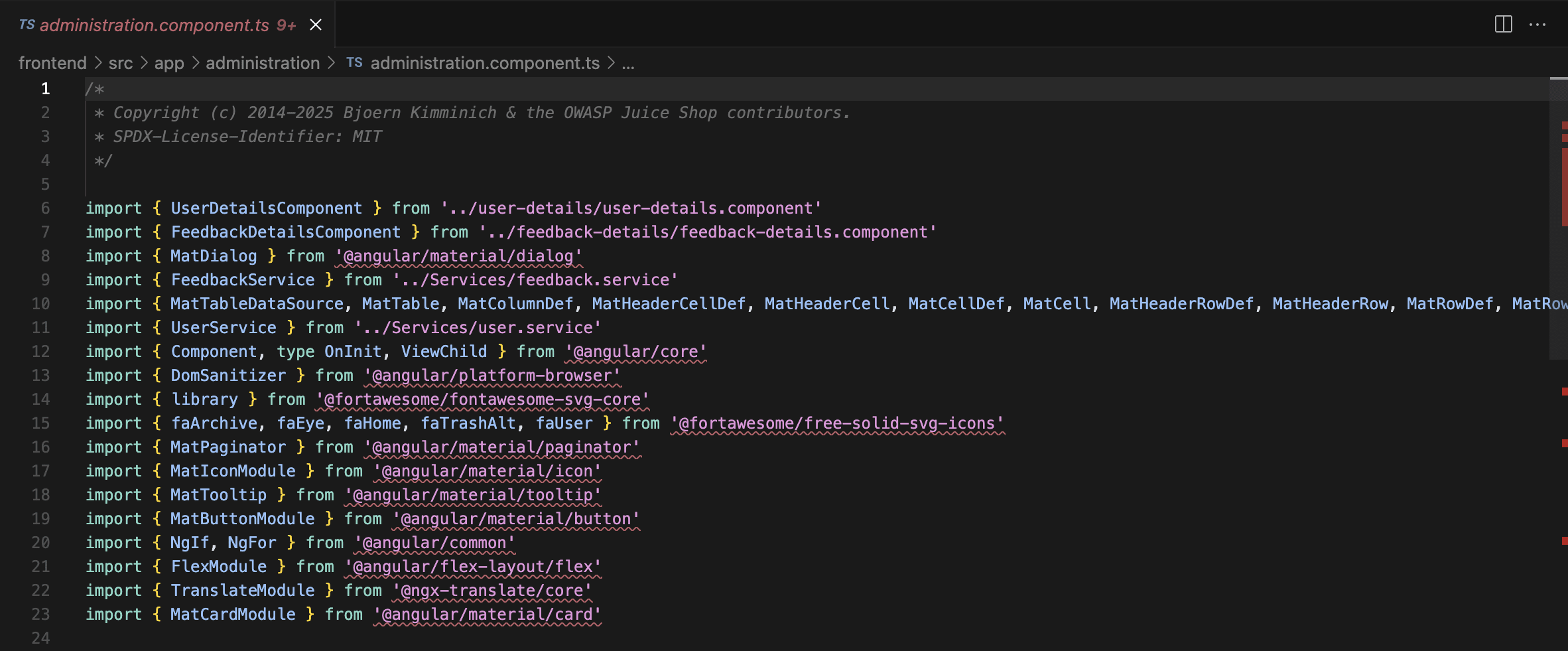
To start from the explorer of Cursor, follow these steps:
-
Open the project of the Git repository that Fluid Attacks tests. The files with vulnerabilities have red dots.
-
Click a file to open it.

-
Find the vulnerable lines of code. They have a red underline.
Request reattacks
Reattacks are the retests where Fluid Attacks examines if the fixes in your code correct the vulnerabilities.
To request reattacks from the Fluid Attacks extension icon, follow these steps:
-
Click the Fluid Attacks extension in the activity bar of Cursor.
-
Click the name of the vulnerability type to expand it.
-
Click a vulnerable file. Some icons appear.
-
Click the shield icon to request a reattack.

-
Type a description of the fix that you applied.
-
Press Enter/Return. After a short time, a notification shows that you sent the request.
-
If you want, refresh the view (Ctrl/Cmd + R). If the underline of the vulnerability changes from red to blue, the Fluid Attacks platform received your request.
To start from the explorer of Cursor, follow these steps:
- Click the file to open it.
- Right-click the underlined code.
- Select the Request reattack option.
- Type a description of the fix that you applied.
- Press Enter/Return. After a short time, a notification shows that you sent the request.
Make sure that you push your code to the tests/security/integration branch.
Go to DB and vulnerability on the platform
The Fluid Attacks Cursor extension has external links to the Fluid Attacks database (DB). It also has links to the report of the vulnerability on the Fluid Attacks platform. The primary subjects of the DB are the standards, requirements, and weaknesses that set the results of security testing.
To open these external links from the Fluid Attacks extension icon, follow these steps:
- Click the extension in the activity bar of Cursor.
- Right-click the vulnerability type that you want to examine.
- Select Go to DB or Go to Finding.
To open the link to the DB from the explorer of Cursor, follow these steps:
- Click the file to open it.
- Right-click the vulnerable line.
- Select Go to DB.
To open the link to the vulnerability on the Fluid Attacks platform from the explorer of Cursor, follow these steps:
-
Click the file to open it.
-
Hover over the vulnerable line. A pop-up window shows the definition and the external link.
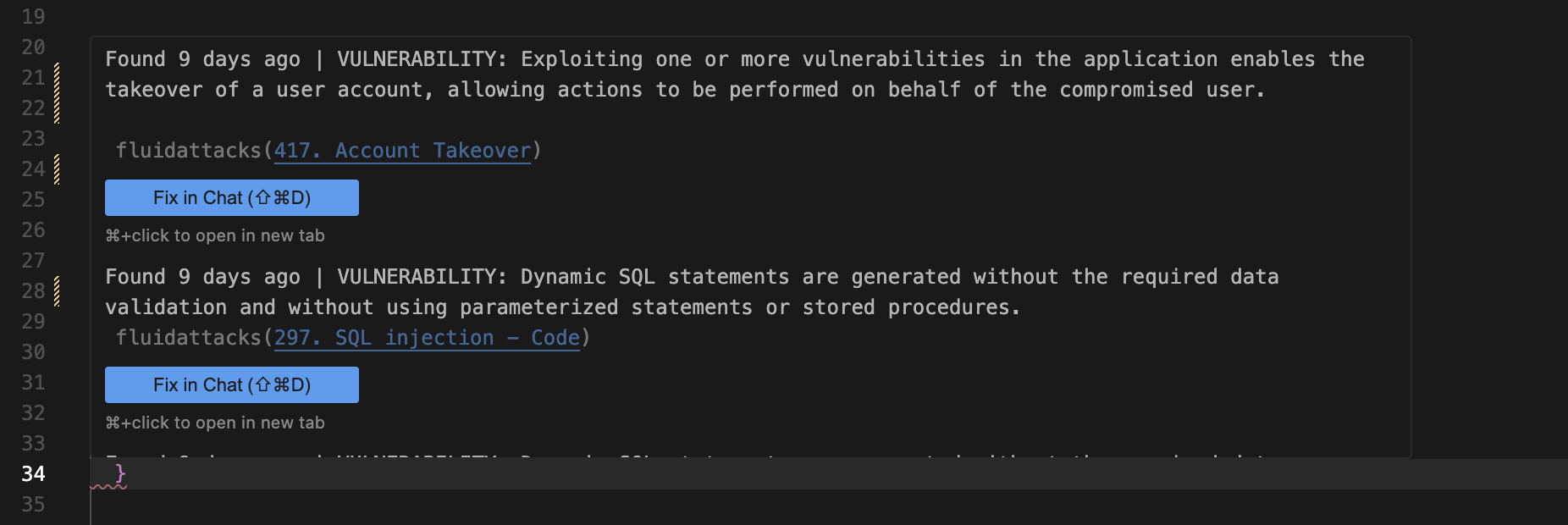
-
Click the link to the vulnerability on the Fluid Attacks platform.
View vulnerability description
Fluid Attacks has full documentation about its classification of weaknesses.
To read the description of a weakness from the Fluid Attacks extension icon, follow these steps:
- Click the Fluid Attacks extension in the activity bar of Cursor.
- Right-click the weakness that you want to examine.
- Select See Finding description. The editor view splits and shows the related documentation of Fluid Attacks in Cursor. This documentation includes the attack vector, threat, severity score, and average remediation time.
To see the vulnerability description from the explorer of Cursor, follow these steps:
- Click the file to open it.
- Right-click the vulnerable line.
- Select See Finding description. The editor shows the vulnerability description and other details on the right side.
Use the fix options
Always make sure that the remediation suggestions from AI are correct.
The Cursor extension of Fluid Attacks uses AI to generate fix suggestions. You can use two functions:
-
Custom fix: Generates a step-by-step guide about how to fix your code. To use it, click a file and then click the wrench icon.

-
Autofix: Generates a suggested pull request with the fixed code automatically. Be careful with this function, because its suggestions change your codebase. To use it, click a file and then click the hammer and wrench icon.

For more information about these functions, read Fix code with gen AI.
Apply SCA Fix
This function works with JavaScript and Python projects. It works with these package managers: npm, Yarn, Bun, pip, Poetry, Pipenv, and uv.
An SCA fix changes the dependency files in your repository. Examine the changes carefully before you commit them.
The Cursor extension can automatically apply the recommended fix for a vulnerable dependency directly to your project files. To apply the fix, follow these steps:
- Click the Fluid Attacks extension in the activity bar of Cursor.
- Expand the vulnerability type that you want to examine.
- Hover over an SCA vulnerability.
- Click the Apply SCA Fix icon.
As an alternative, follow these steps:
- Open the vulnerable dependency file in the editor.
- Put your cursor on the vulnerable line.
- Right-click the vulnerable line.
- Select Apply SCA Fix.
After you start the fix, the extension does these actions:
- Uploads the related dependency files and applies the fix with
git apply. - Updates the manifest files (for example,
package.jsonorrequirements.txt) with the corrected version. - Shows a warning if the automatic update of the lock files fails
(for example,
package-lock.json). The warning tells you to generate them again with your package manager (for example,npm install). - Shows a notification with the fix strategy, the target version, and a confidence level.
- Shows a Retry option if it cannot apply the fix.
Refresh button
Click the refresh button to make sure that the extension shows your actions, for example, reattack requests and treatment assignments.

After the refresh, the vulnerability underlines show their status:
- Blue: Reattack requested or on hold
- Yellow: Accepted treatment applied ("Temporarily accepted" or "Indefinitely accepted")