Manage your credentials
Last updated: Jun 30, 2026
Fluid Attacks requires your organization to provide credentials to access the repositories to be tested. Alternatively, your organization can allow access to repositories via Open Authorization (OAuth), eliminating the need to provide credentials.
Both actual credentials (e.g., username and password pairs) and connections made with OAuth are registered in the Credentials section on Fluid Attacks' platform. From there, you can also begin the connection via OAuth to the supported providers, which are Azure, Bitbucket, GitHub, and GitLab.
View organization credentials table
Role required: User, Vulnerability Manager or Organization Manager
The table in the Credentials section shows the credentials stored for use across the organization, meaning that they are accessible to all groups within the organization.
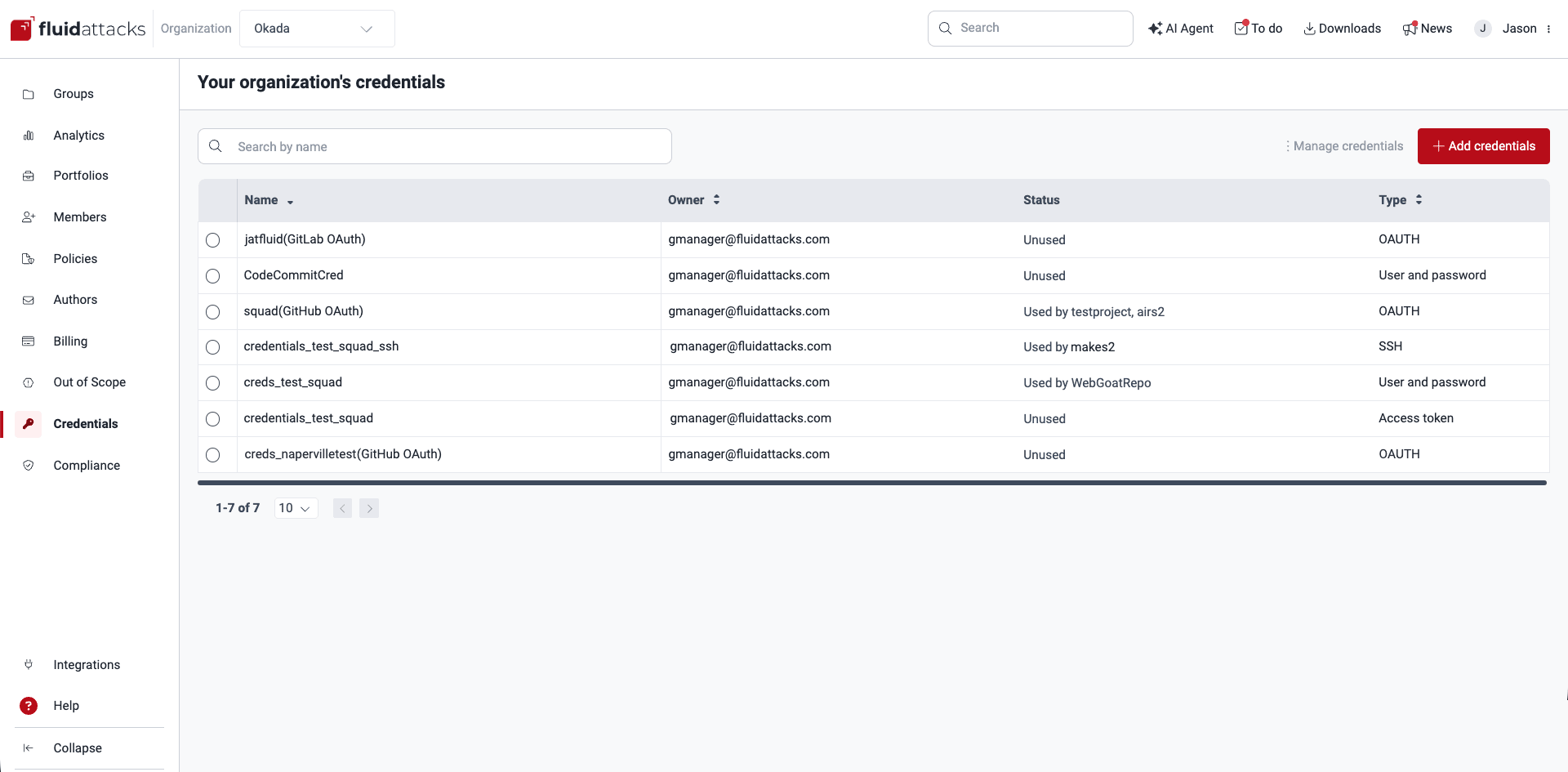
The table provides the following information:
- Name: The unique identifier for the credential
- Owner: The email of either the person who registered the credentials on the platform or the last person who edited them
- Status: Whether credentials are associated with repositories under evaluation by Fluid Attacks and, if so, which repositories
- Type:
The authentication method,
which can be one of the following:
- User and password: The classic combination of username and password
- SSH: A secure key used for accessing remote systems, similar to a password but more secure
- Access token: A Personal Access Token used for authentication with Azure DevOps
- AWSROLE: Allows Fluid Attacks to assume an Identity and Access Management (IAM) role in your AWS account
- OAUTH: Used for delegated authorization to grant Fluid Attacks access to your repositories on supported providers (Azure, Bitbucket, GitHub, and GitLab)
Add credentials
Role required: Organization Manager
If you wish to connect Fluid Attacks' platform with an account on a supported code repository hosting provider, refer to the instructions at "Import repositories fast and safely with OAuth".
Ensure that the provider (Azure, GitLab, GitHub, or Bitbucket) allows third-party applications (such as the Fluid Attacks platform) to access your repositories via OAuth.
If not going for OAuth this time, follow these steps to add new credentials to use across your organization:
-
Go to the Credentials section.
-
Click on Add credentials.
-
Choose Add manually.

-
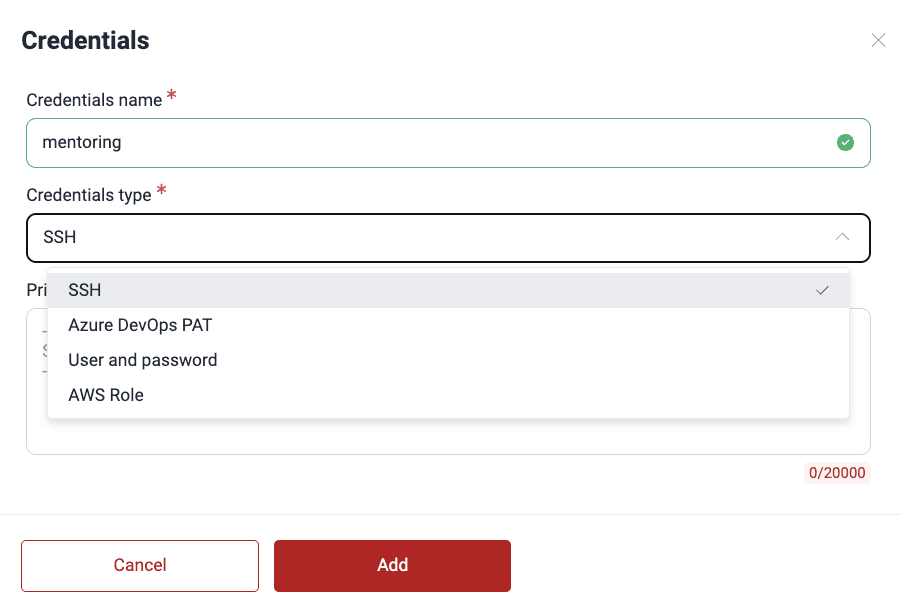
In the pop-up window, enter a unique credential name (shorter than 100 characters) and select the credential type. (Read below what extra steps to follow if you are choosing an AWS role.)
-
Provide the relevant credentials and click on Add. The new credentials are then added to the table.

In case you choose to grant Fluid Attacks access through cross-account IAM, you are asked for the Amazon Resource Name (ARN) of the role. Therefore, you need to follow these extra steps:
-
In the pop-up window, copy the external ID provided by Fluid Attacks.

-
Create an IAM role including the external ID. To learn how to do this, read the instructions.
If your organization has multiple AWS accounts, you can create the IAM role in each account and provide the corresponding ARN when adding credentials.
Edit credentials
Role required: Organization Manager
Do the following to edit existing credentials:
-
Go to the Credentials section.
-
Select the credentials and click on Manage credentials.

-
Click on Edit.

-
In the pop-up window, make the desired changes and, if needed, turn on the toggle that says New secrets to enable editing them.

-
Click Edit to apply the changes.
If you edit credentials secrets, you are the new owner of the credentials in question.
Remove credentials
Role required: Organization Manager
Bear in mind the following considerations about removing credentials:
- Removing credentials also deletes them from all associated Git repositories.
- Removing a member from the organization removes their credentials from the organization, and member removal is only possible if these are unused (if they are in use, you would have to replace them in Scope first).
These are the steps to delete credentials:
-
Access the Credentials section.
-
Select the credentials and click on Manage credentials.
-
Click on Remove.

-
Confirm the removal in the warning window.
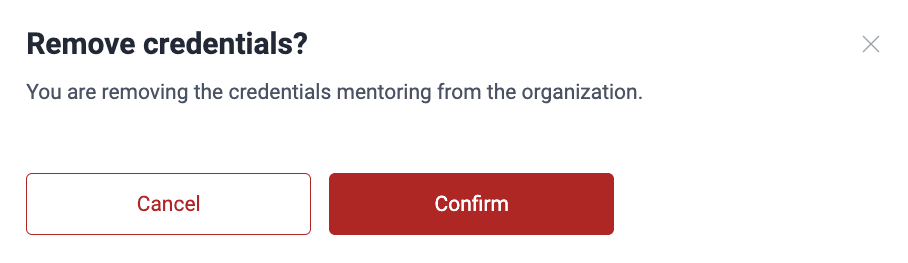
If the credentials are in use, their deletion is prevented. In this case, you are told to navigate to the Scope section to change those credentials in the repositories that are using them. After this, you may go back to Credentials and retry the deletion.

Search the credentials table
Role required: User, Vulnerability Manager or Organization Manager
You can filter the credentials table by using the search bar. You can search by the contents of Name, Type, and Owner. Just type what you are looking for, and only the rows whose content matches your search are shown.

Search for vulnerabilities in your apps for free with Fluid Attacks' automated security testing! Start your 21-day free trial and discover the benefits of the Essential plan. If you prefer the Advanced plan, which includes the expertise of Fluid Attacks' pentesting team, fill out this contact form.
ToE and SBOM
The Fluid Attacks platform has detailed information about the attack surface of your software, showing the status of assets and allowing you to generate SBOMs.
Environments
Manage production and pre-production environments for comprehensive security testing with Fluid Attacks. Add, edit, and exclude them to tailor your scope.