Resolve events
Last updated: Jun 30, 2026
In the course of a security assessment, situations may arise that prevent Fluid Attacks' tool or analysts from testing part of the group's scope or maybe all of it.
These situations, referred to as events, require your team's attention and resolution to ensure the assessment can continue effectively.
The place on the platform where you can see a cumulative record of those situations, including those solved and unsolved, in your groups is its Events section.
Whenever you have events to solve, you are told so in a red banner in the Groups section. The banner is shown for a few seconds only and informs the number of affected groups, unsolved events and days passed since the oldest of them was reported.

You can hover on the banner to reveal the names of the affected groups.

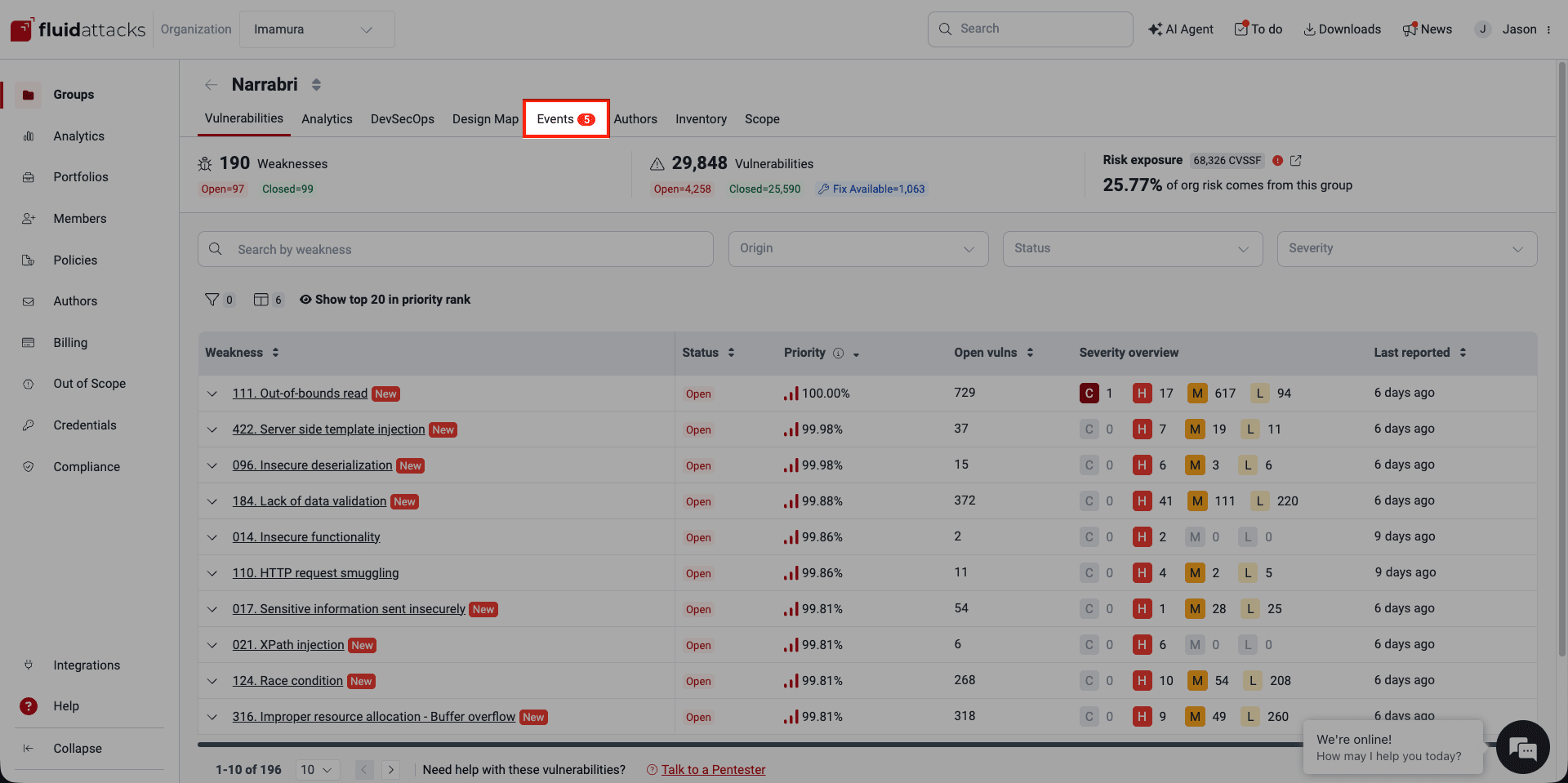
When you enter a group, a red dot on the Events tab indicates the presence of at least one unsolved event within that group, signaling the need for your immediate attention. Click the tab to access the Events section.
Know your events table
Role required: User, Vulnerability Manager or Group Manager
The table in the Events section provides comprehensive information about each event.
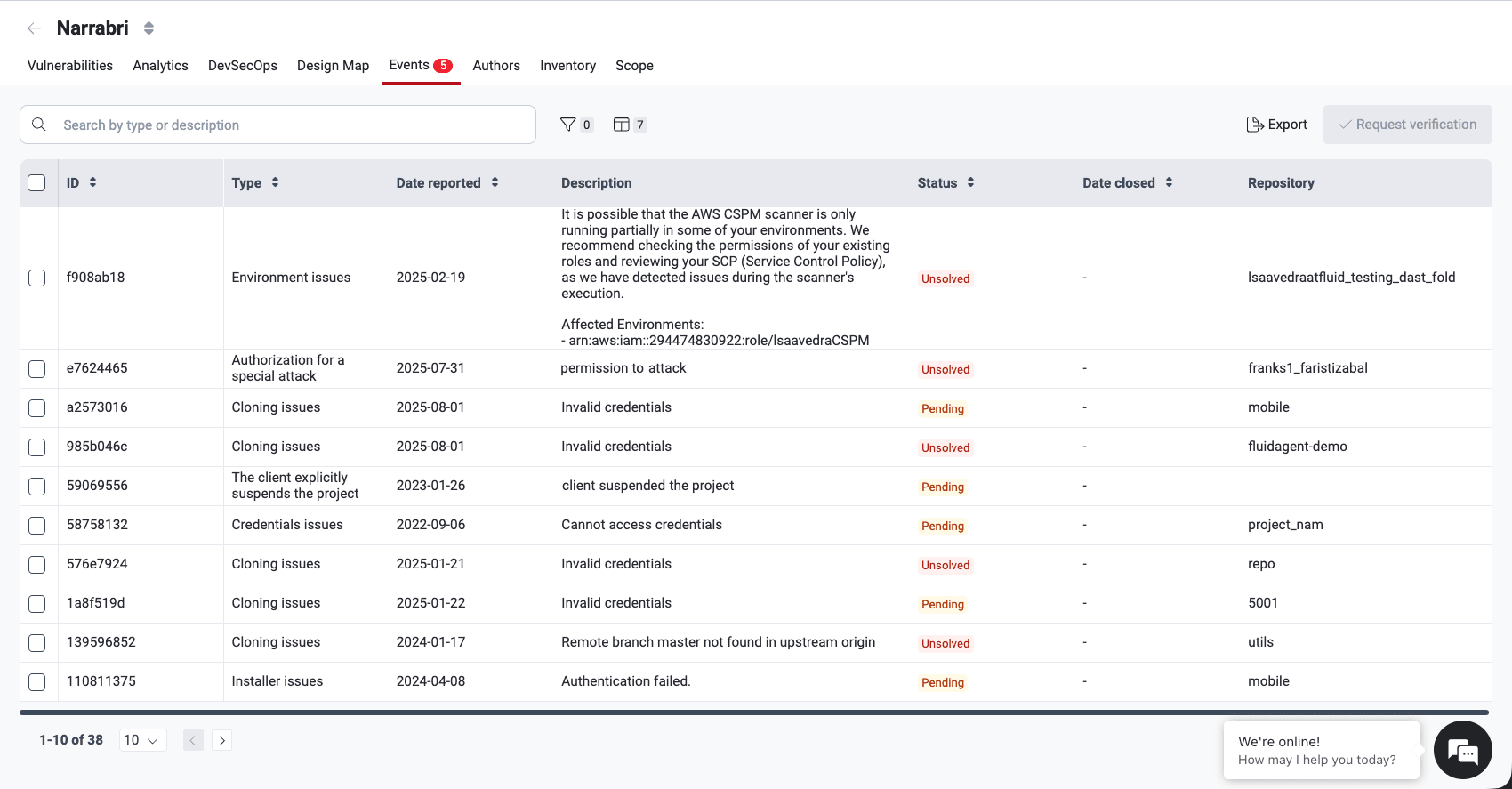
The following are short descriptions of the information provided in the table:
- ID: A unique identifier for the event
- Type: The category the issue falls under (read below the descriptions of event types)
- Date reported: The date the event was initially reported
- Description: A detailed explanation of the issue impeding the security assessment
- Status: The current state of the event, which can be "Solved," "Pending" or "Unsolved" (read below about these event status categories)
- Date closed: The date and time the event was resolved (if applicable)
- Repository: The nickname of the affected repository
Types of events
Fluid Attacks categorizes events as follows:
-
Authorization for a special attack: A specific test requires explicit customer permission due to potential impact on availability or integrity.
If an unforeseen situation affects the performance or execution of the running application during security testing, Fluid Attacks shall immediately notify you via the corresponding Engagement Manager to inform you of the details about the issue and actions performed.
-
Cloning issues: There are problems with cloning the repository
-
Credentials issues: Access to the assets to test is prevented due to missing or invalid credentials
-
Data update required: User credentials or data need to be reset or updated to consume a service
-
Environment issues: There are issues with the testing environment, such as unavailability or functional problems
-
Installer issues: Problems arise when installing or running the application on mobile or desktop
-
Missing supplies: Necessary resources other than credentials are lacking.
A common case is when a group has no repositories registered in scope or all registered repositories have failed to clone successfully, meaning no security testing is being performed.
In that situation, Fluid Attacks automatically opens a missing supplies event with the message "No repositories in scope. No security testing is being performed, but costs may apply."
This event is linked to a virtual repository called general, which exists solely to associate the event and is not counted as an active repository.
Once a repository is added to the group and cloned successfully, the event is closed automatically.
Fluid Attacks checks daily (Monday through Friday) whether each group has at least one repository with a successful clone. Groups without any such repository receive this event automatically; groups that subsequently register one have it closed automatically.
-
Network access issues: Loss of internet connectivity on the network port
-
Other: The issue does not fall into the predefined categories
-
Remote access issues: Problems with connection methods, hindering access to the environment
-
Request user modification/workflow update: Modifications to test users (e.g., a role change or unblocking) or workflow conditions are needed to resume testing
-
The client cancels a project milestone: The client cancels a predefined phase or deliverable within the project
-
The client explicitly suspends the project: The client temporarily suspends the project or excludes specific parts of the target of evaluation (ToE).
-
ToE different than agreed upon: The client provides a ToE that is not covered by the plan
-
VPN issues: There are failures in the VPN connection
Event status
In the platform's Events section, you find out about the state of an event in the Status column.
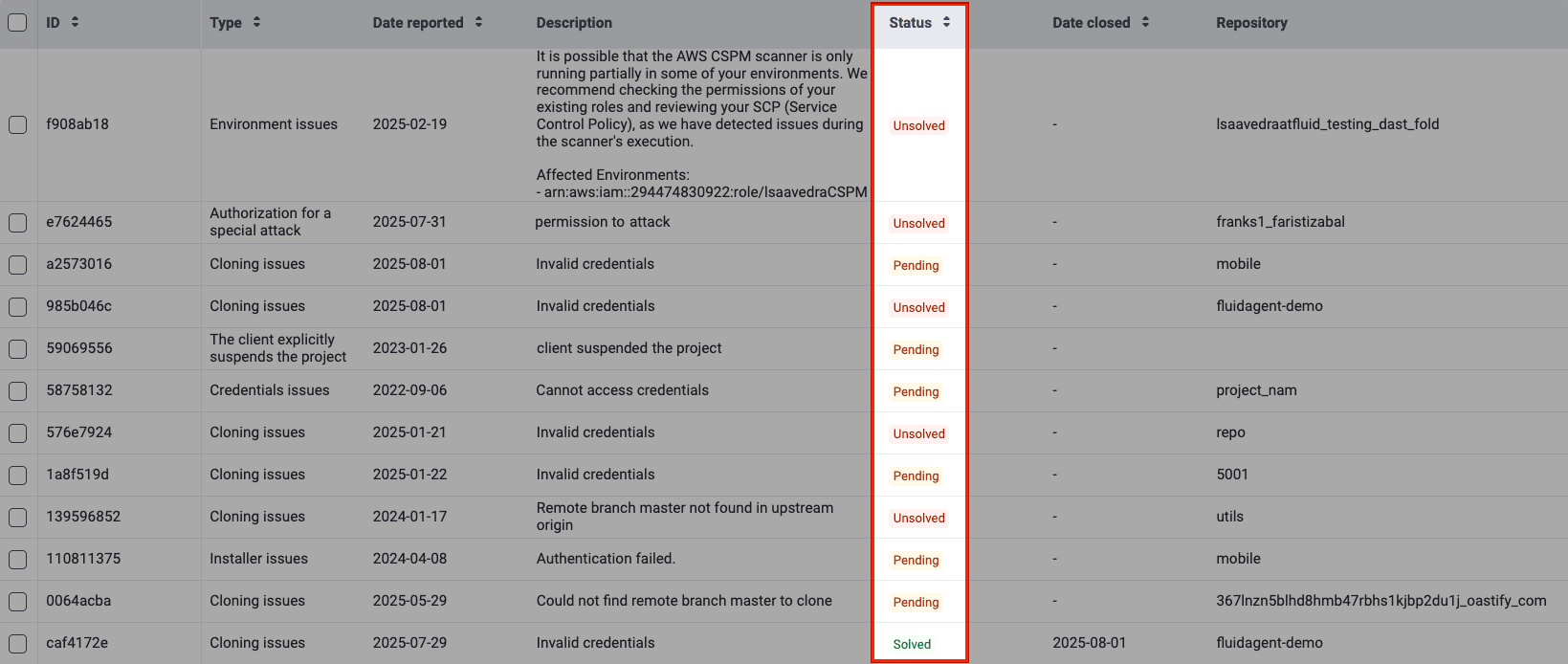
An event progresses through the following statuses:
- Unsolved: The initial state upon reporting, requiring your action.
- Pending: After you solve the event, and upon your request, the event awaits verification by Fluid Attacks.
- Solved: The issue is successfully resolved and verified.
View event details
Role required: User, Vulnerability Manager or Group Manager
Click on an event's ID in the table to access detailed information and a comment space. If your group has an Advanced plan subscription, the latter allows you to post comments for the Fluid Attacks team to see and respond to. Otherwise, it is a read-only section.
Description
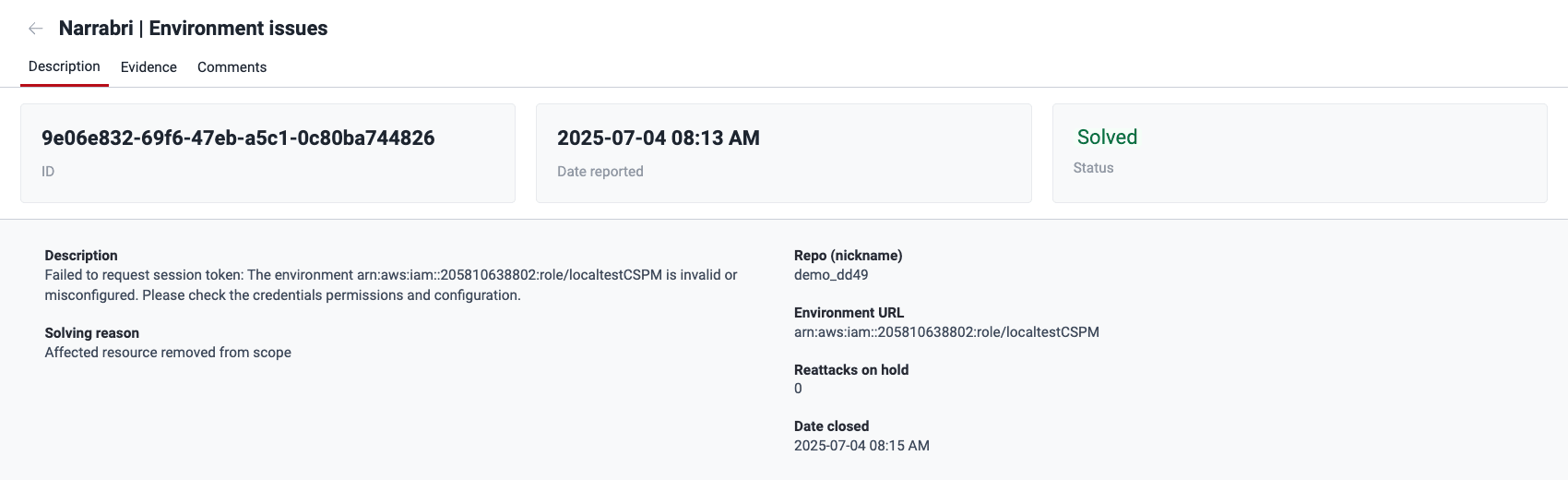
In an event's Description section, you find the following information:
- Description: What the problem is (or was) specifically
- Solving reason: Why the problem is considered solved (if applicable)
- Repo (nickname): The nickname of the affected repository
- Reattacks on hold: The number of reattacks that have not been possible due to the event
- Date closed: The date Fluid Attacks verified the problem as solved (if applicable)
Evidence
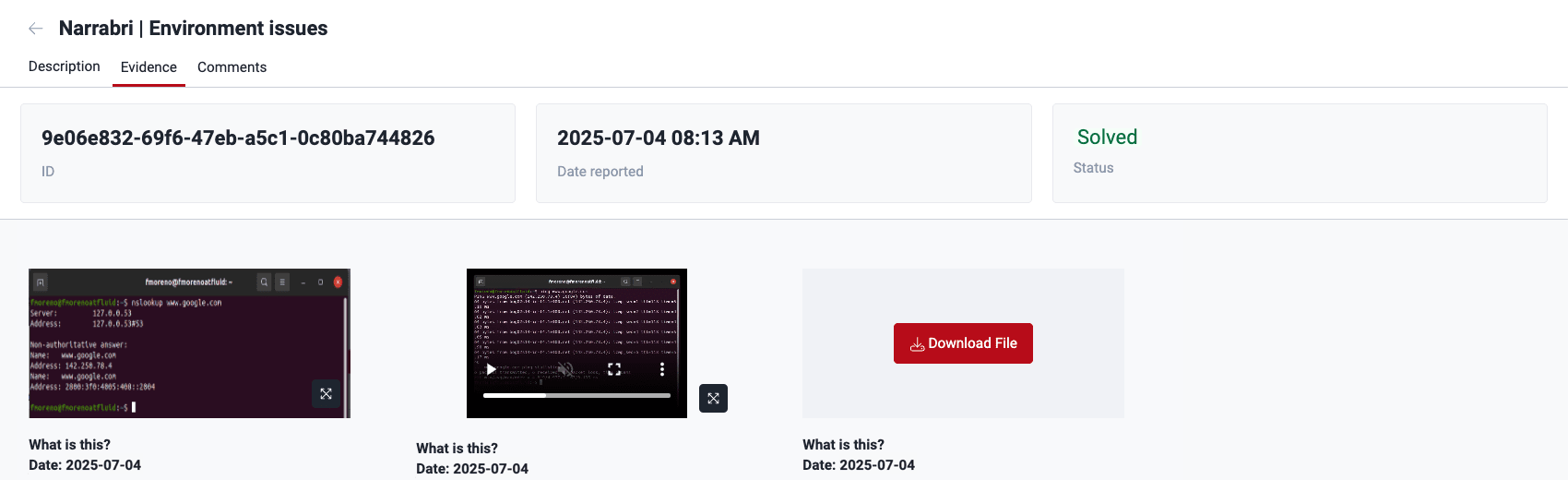
In the event's Evidence section, you find screenshots or videos as proof of the issue that is impeding tests. You can click on a piece of evidence to enlarge it and access the option to download it. If there are several items, you can click on Download File to download them in a ZIP folder.
Comments
Plan required: Advanced
The Comments option is available in view mode for groups subscribed to the Essential plan. This allows members to see comments but not post.
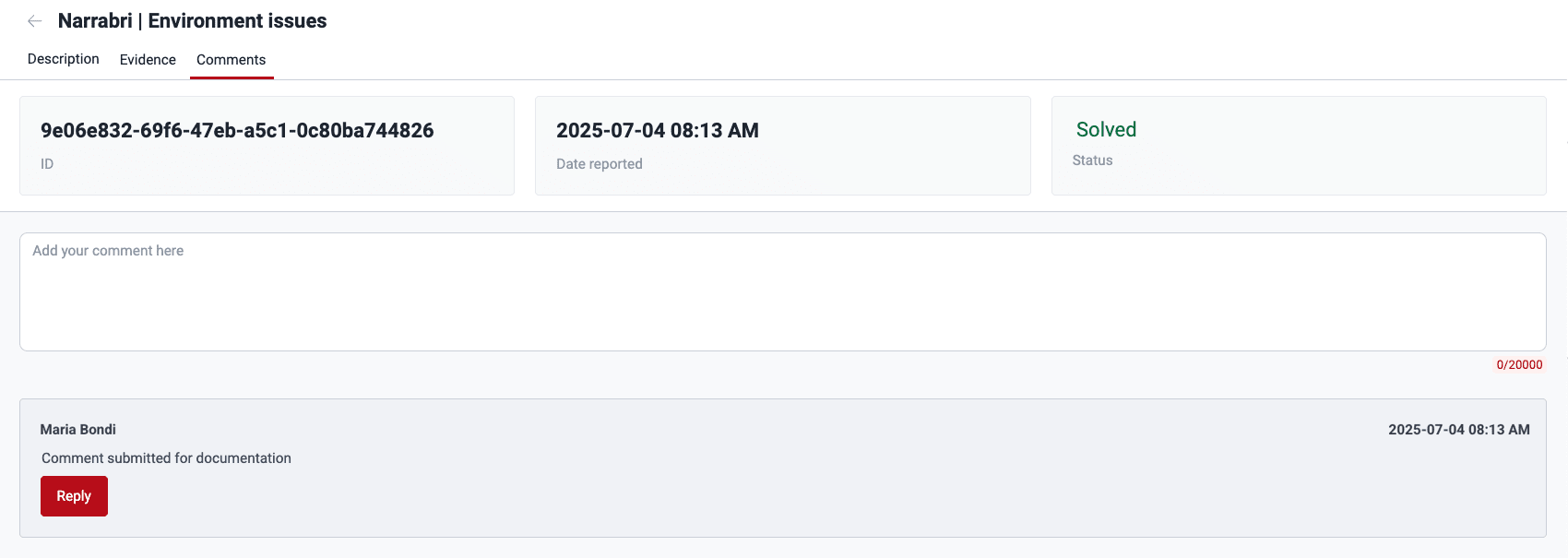
The event's Comments section is a forum-like space to have discussions about the event between your team and Fluid Attacks. For instructions on using this section, read "Post comments".
Request a verification that the event is solved
Role required: User, Vulnerability Manager or Group Manager
Once you have solved the reported issue, you can ask Fluid Attacks' team to verify that the event no longer applies, and testing can resume. To do this, proceed as follows:
-
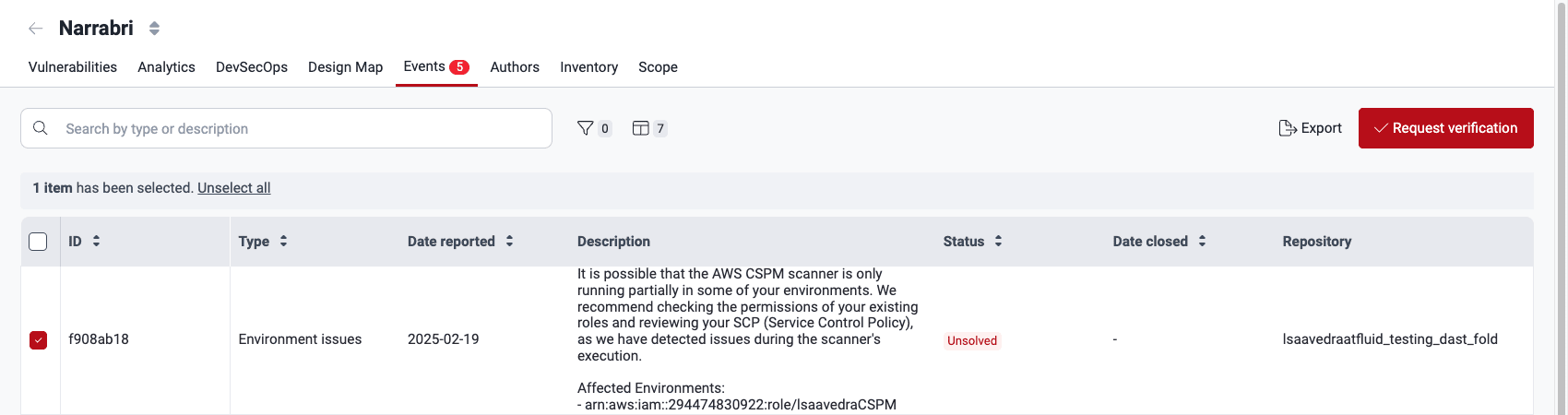
Access the group's Events section.
-
Select the checkbox next to the event you solved.
-
Click on the Request verification button.
-
Provide a description (at least 10 characters) of the implemented solution in the pop-up window.

-
Click Confirm.
The event's status then changes to Pending while Fluid Attacks verifies the effectiveness of your solution.

If Fluid Attacks decides that your provided solution was not effective, you receive a notification telling you so. The outcome is also made available as a comment in the Comments section. The process of verification is to be repeated as described above until the event is solved.
Filter the events table
Role required: User, Vulnerability Manager or Group Manager
Click the filter button
( )
to access the options to filter the events table.
The available options are Date reported,
Type, Status, and Date closed.
)
to access the options to filter the events table.
The available options are Date reported,
Type, Status, and Date closed.


Show or hide columns of the events table
Role required: User, Vulnerability Manager or Group Manager
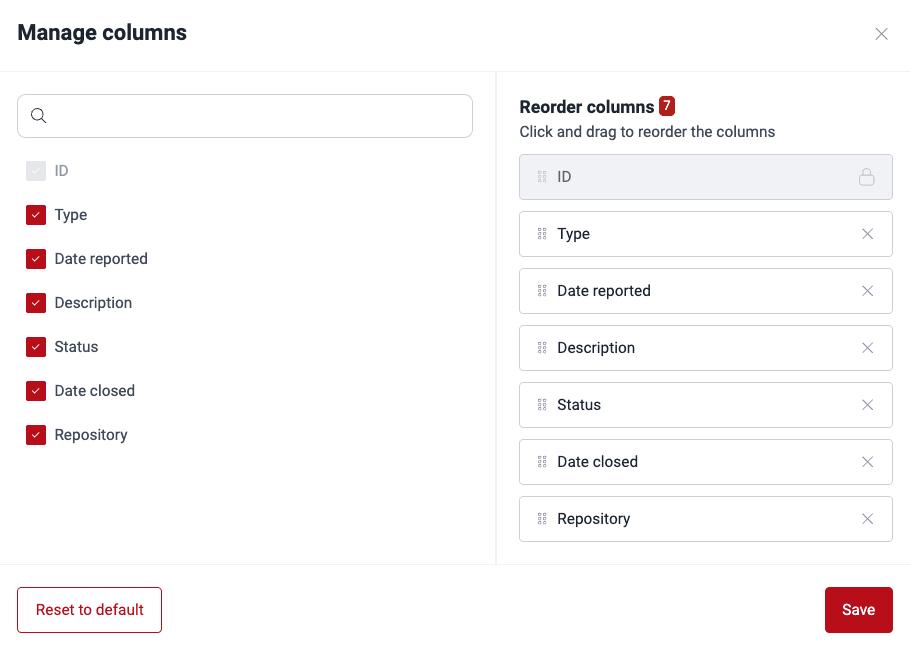
Click the Columns button to open a pop-up window where you can reorder, show or hide columns in the table. Clicking on Reset to default enables all columns.
Export the events table
Role required: User, Vulnerability Manager or Group Manager
Be aware that any applied filters limit the data included in the exported CSV file. Ensure your filters are correct before exporting. To quickly remove them, click on the X next to them.
You can download the contents of the table in the Events section in a CSV (comma-separated values) file. Just click the Export button.

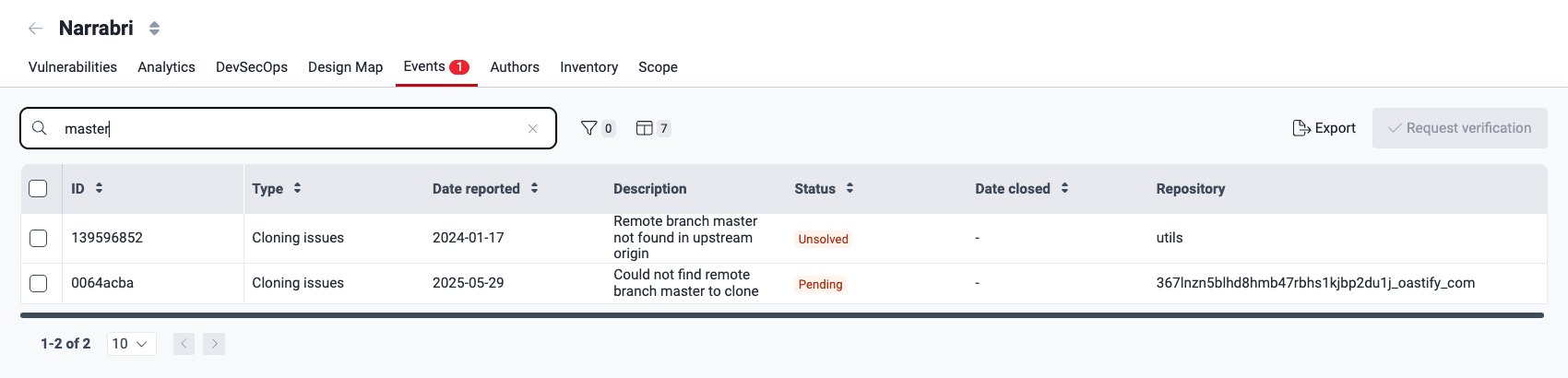
Search the events table
Type in the search box to show only the rows of the table where the content matches your search.
Search for vulnerabilities in your apps for free with Fluid Attacks' automated security testing! Start your 21-day free trial and discover the benefits of the Essential plan. If you prefer the Advanced plan, which includes the expertise of Fluid Attacks' pentesting team, fill out this contact form.
Environments
Manage production and pre-production environments for comprehensive security testing with Fluid Attacks. Add, edit, and exclude them to tailor your scope.
Vulnerabilities section guide
See information about reported vulnerabilities, like description, severity, vulnerable code, treatments, and fix recommendations on the Fluid Attacks platform.