ZTNA logs
Last updated: Jun 30, 2026
On Fluid Attacks' platform, you can view HTTP, network and session logs related to access to your organization's assets when you have enabled zero trust network access (ZTNA).
View logs
Role required: User
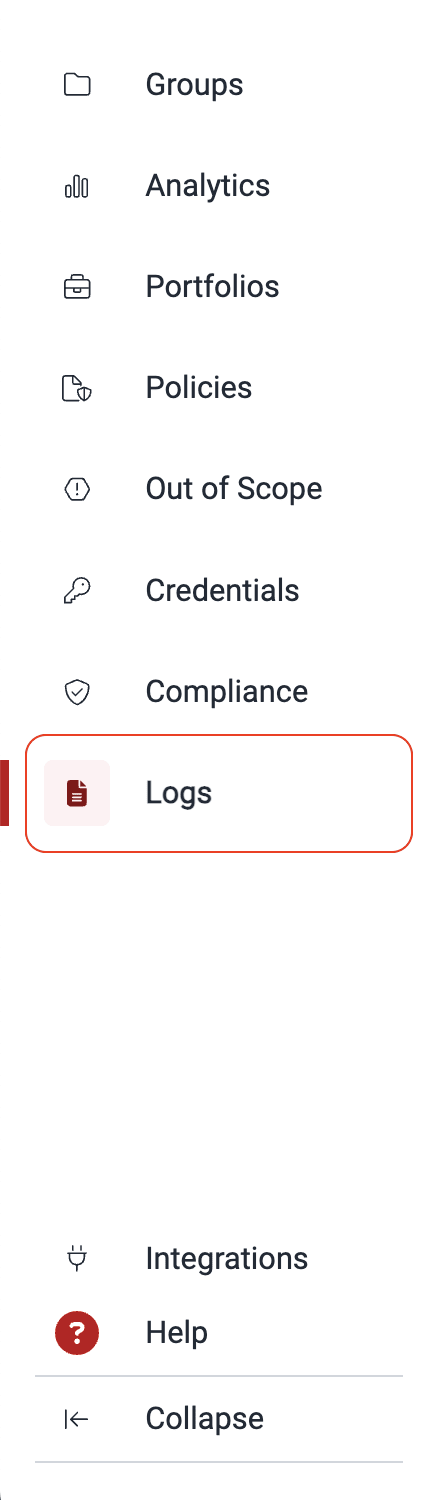
To view logs, access the Logs section from the collapsible menu.
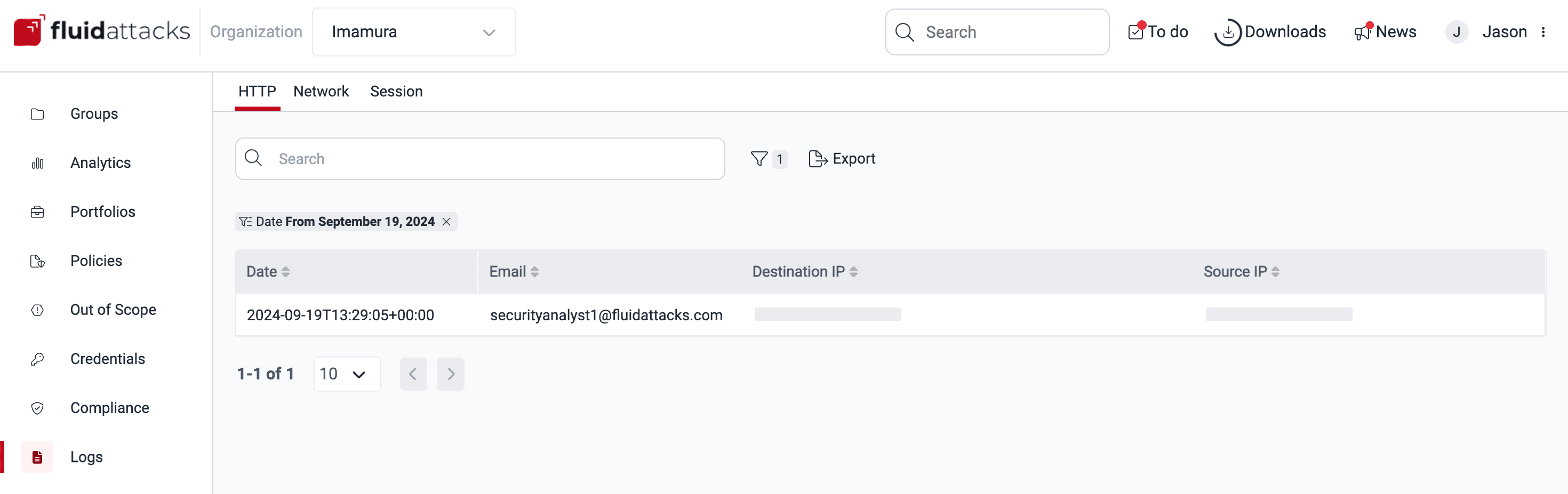
By default, you are presented with the latest HTTP logs. The available data are the transaction's date, the user email, the destination IP and the source IP.
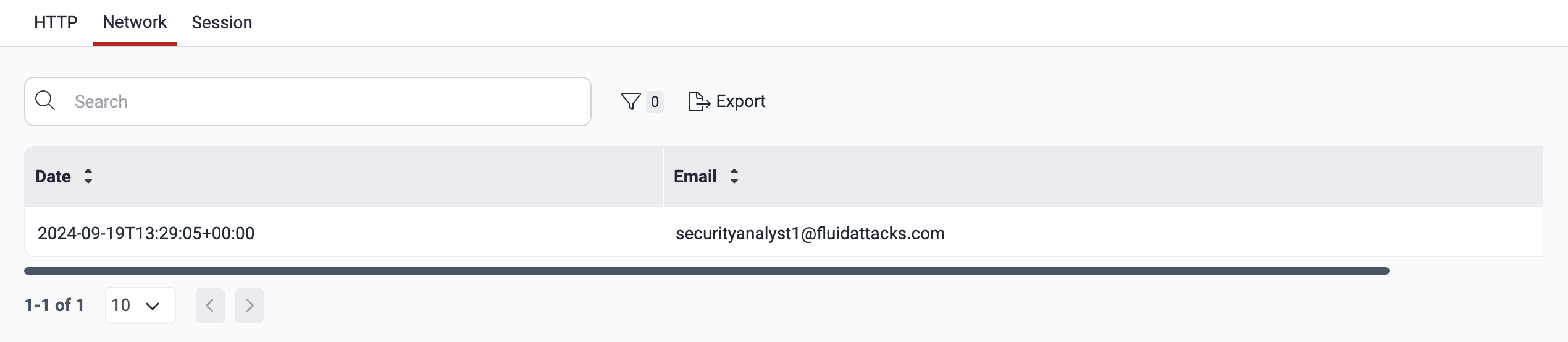
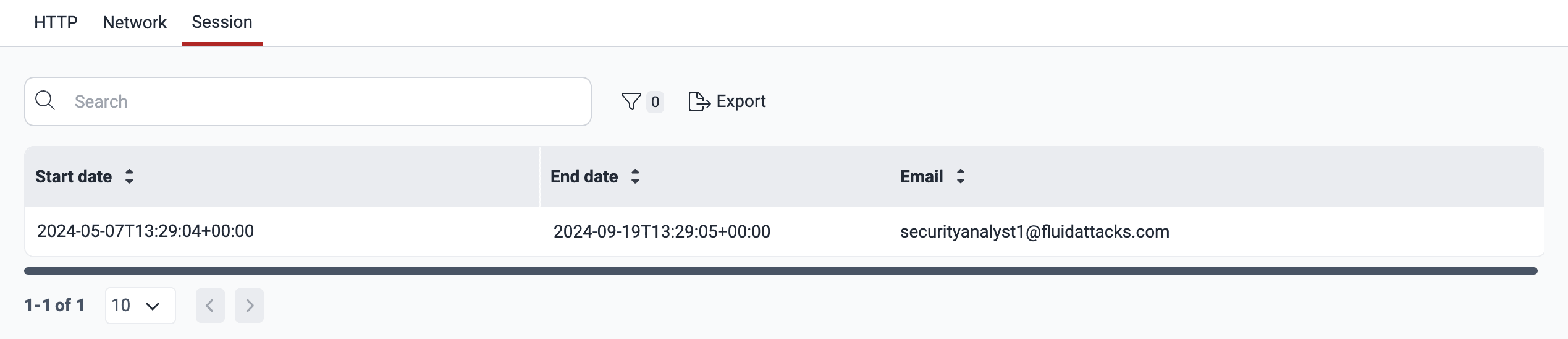
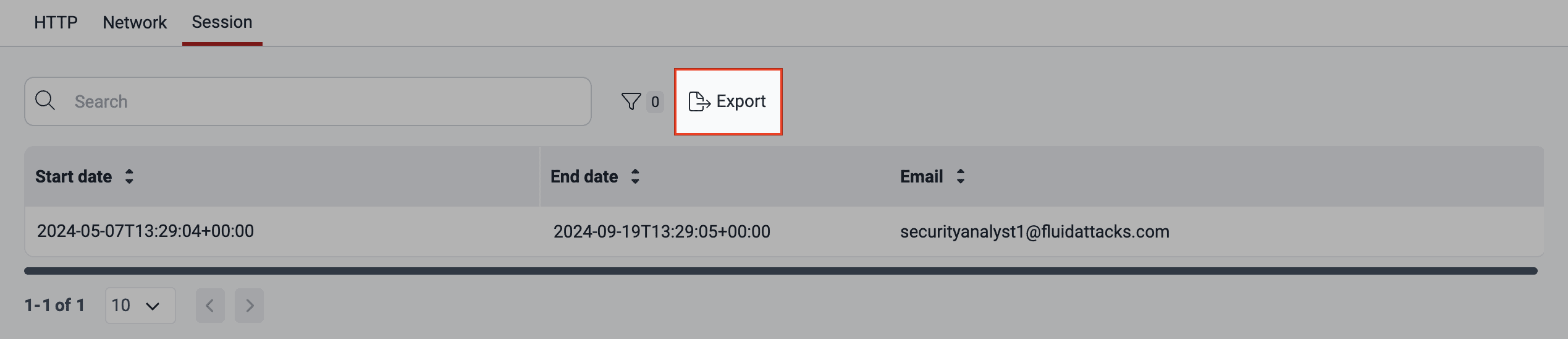
To view network or session logs, select the corresponding tab. The network logs consist of the date and the user email, and the session logs show the start date, the end date and the user email.
You can access options to limit the data you see in the current table. To do this, click on the filters button, provide your specifications, and click on Apply.


Download logs
Role required: User
You can download the log table that you are currently viewing by following these steps:
-
Enter the Logs section of your organization and the specific logs you want to view as instructed above.
-
Click on Export.
-
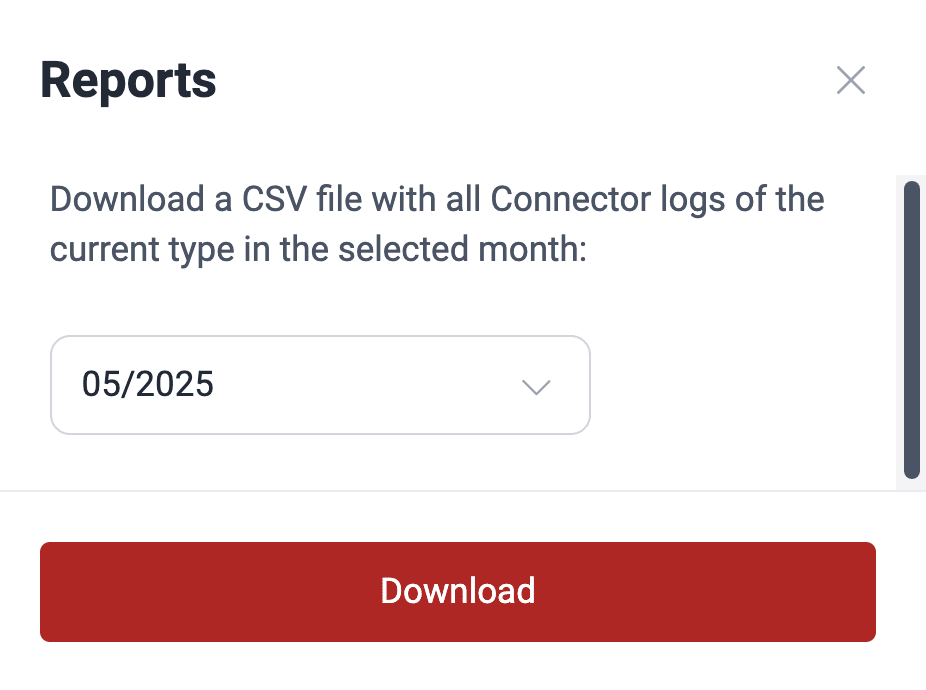
Select the month whose logs you wish to download and then click on the Download button.
-
The CSV file with the requested logs is downloaded immediately to your device and kept in the platform for seven days thanks to the Downloads feature.
Search for vulnerabilities in your apps for free with Fluid Attacks' automated security testing! Start your 21-day free trial and discover the benefits of the Essential plan. If you prefer the Advanced plan, which includes the expertise of Fluid Attacks' pentesting team, fill out this contact form.