Common analytics
Last updated: Oct 26, 2026
Analytics sections are updated daily at 1:00 a.m. (UTC) from Monday to Friday. The values shown depend on preprocessed data updated Mondays through Fridays at 7:00 p.m. (UTC). Please note that there may be brief periods after the Analytics update time when the section may experience a slight delay in data reflection.
Role required: User, Vulnerability Manager or Group Manager
The Fluid Attacks platform has charts and figures about the status of vulnerabilities and your remediation practices. The charts and figures on this page are in all the Analytics sections at the organization, group, and portfolio levels.
Hover over charts to see available options.
Exposure management over time
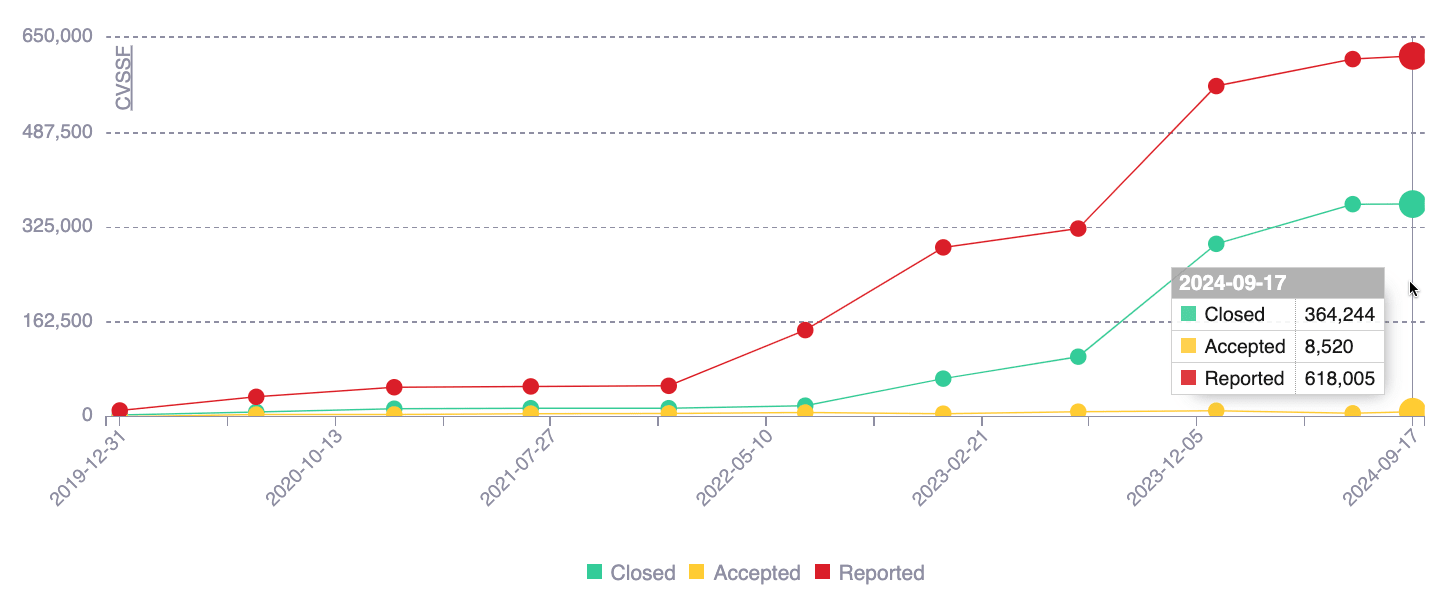
This chart shows the history of reported risk exposure (in CVSSF units) and the history of how your team managed it. The detected software vulnerabilities cause this risk exposure. Thus, the status of these vulnerabilities (closed, which means remediated, or accepted) is also the status of the risk exposure. With this chart, you can identify gaps between known risk and managed risk.
You can use the chart in these ways:
- Hover over a data point to see the exact values.
- Hover over a chart legend to highlight the related line.
- Click a chart legend to hide the related information from the visual comparison.
This chart has many filters. To see them, click the filter icon:
- Exposure: Default view
- Vulns: See the number of vulnerabilities instead of risk exposure units
- 30: See the data of the last 30 days
- 90: See the data of the last 90 days
- All: See the data since the creation of the organization
Sprint exposure increment
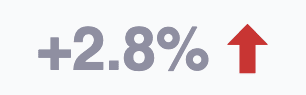
This figure is the percentage increase in risk exposure in the current sprint. It is the newly reported exposure value relative to the initial exposure value. The value is zero when Fluid Attacks reported no vulnerability in the period.
Sprint exposure decrement
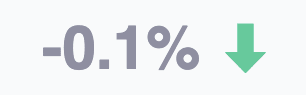
This figure is the percentage decrease in risk exposure in the current sprint. It is the newly remediated exposure value relative to the initial exposure value. The value is zero when your team remediated no vulnerability in the period.
Sprint exposure change overall
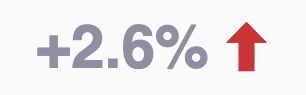
This figure is the total percentage change in risk exposure in the current sprint. It is the exposure increment minus the exposure decrement. A positive value means that the reported exposure is more than the remediated exposure. A negative value means that the remediated exposure is more than the reported exposure. A zero value means that the remediated exposure is equal to the reported exposure.
For an organization, these last three percentage values will depend on the changes (increase, decrease, total) achieved in each of its groups.
Exposure management over time (%)

This chart shows how your team managed risk exposure (in CVSSF units) over time, by the statuses of the vulnerabilities that cause it. Open vulnerabilities are not remediated and not accepted. Closed vulnerabilities are remediated.
With this chart, you can see the trends in your vulnerability management work. Thus, you can identify the areas where you make progress and the areas that must get more attention.
You can use the chart in these ways:
- Hover over a bar to see all the percentages.
- Hover over a chart legend to highlight the related part of the chart.
- Click a chart legend to hide the related information from the visual comparison.
This chart has a filter. To see it, click the filter icon:
- Exposure: Default view
- Vulns: See the percentages for the number of vulnerabilities instead of risk exposure units
Exposure benchmark
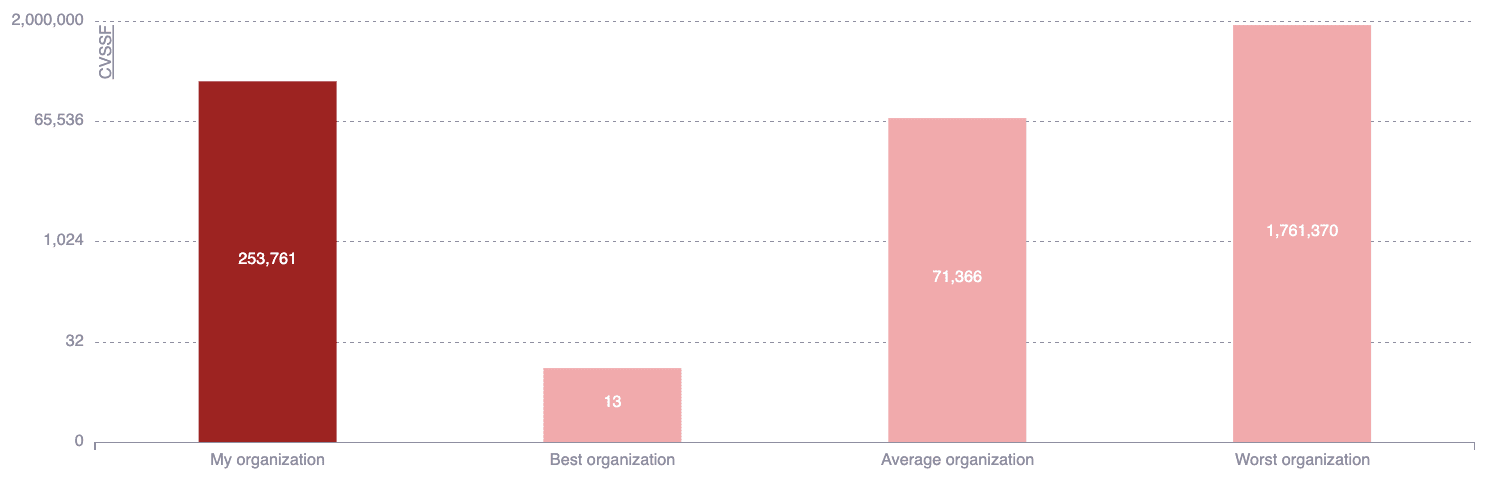
This chart shows your risk exposure level (CVSSF) that is not remediated. You can compare it with the risk exposure of other organizations, groups, or portfolios. You can see the results of the best and worst risk-management teams and the average number of CVSSF units.
With this benchmark, you can compare your performance with other teams and set goals to decrease your risk exposure.
The benchmark for organizations excludes those with low activity (fewer than 100 reattacks on vulnerabilities within their groups) to ensure a fair comparison.
Exposure trends by vulnerability category
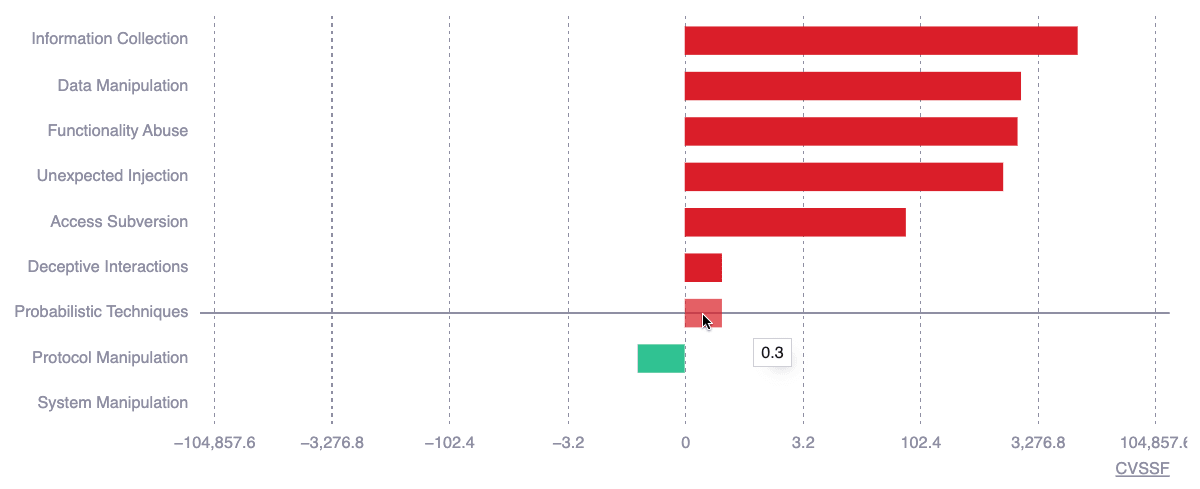
This chart shows how risk exposure (in CVSSF units) changed over time in the nine categories that group the types of vulnerabilities in Fluid Attacks' classification. This information gives you an overview of the kinds of issues related to changes in your risk exposure.
Hover over a bar to see the precise value.
Types of vulnerabilities are the categories into which detected security issues most likely fall. The chart shows a categorization at a higher level. This chart uses a logarithmic scale to effectively display exponential differences in a compact format.
You can switch to the timeframe for which you need to see the data by clicking on the filter icon and then on a suitable option (30, 60, 90 or 180 days).
Days since last remediation
This figure is the number of days since a code fix successfully remediated a vulnerability. This information can show how quickly your team remediates security issues.
Mean time to request reattacks
This figure is the average number of days from the report of a vulnerability to the moment that your team requests a reattack. A reattack is a retest to make sure that code fixes are effective. You can use this information as one factor to measure how quickly your team responds to security issue reports.
Vulnerabilities being reattacked
This figure is the number of vulnerabilities with a requested reattack that Fluid Attacks did not complete at this time. You can use this figure as one factor to measure the productivity of your team.
Days until zero exposure
This figure is an estimate of the time to fix all the reported vulnerabilities. The Fluid Attacks platform calculates it with these values:
- The estimated remediation time of each weakness in the Fluid Attacks database
- The types and number of vulnerabilities reported in your groups
This information can help you set goals for your remediation work.
Mean time to remediate (MTTR) benchmark
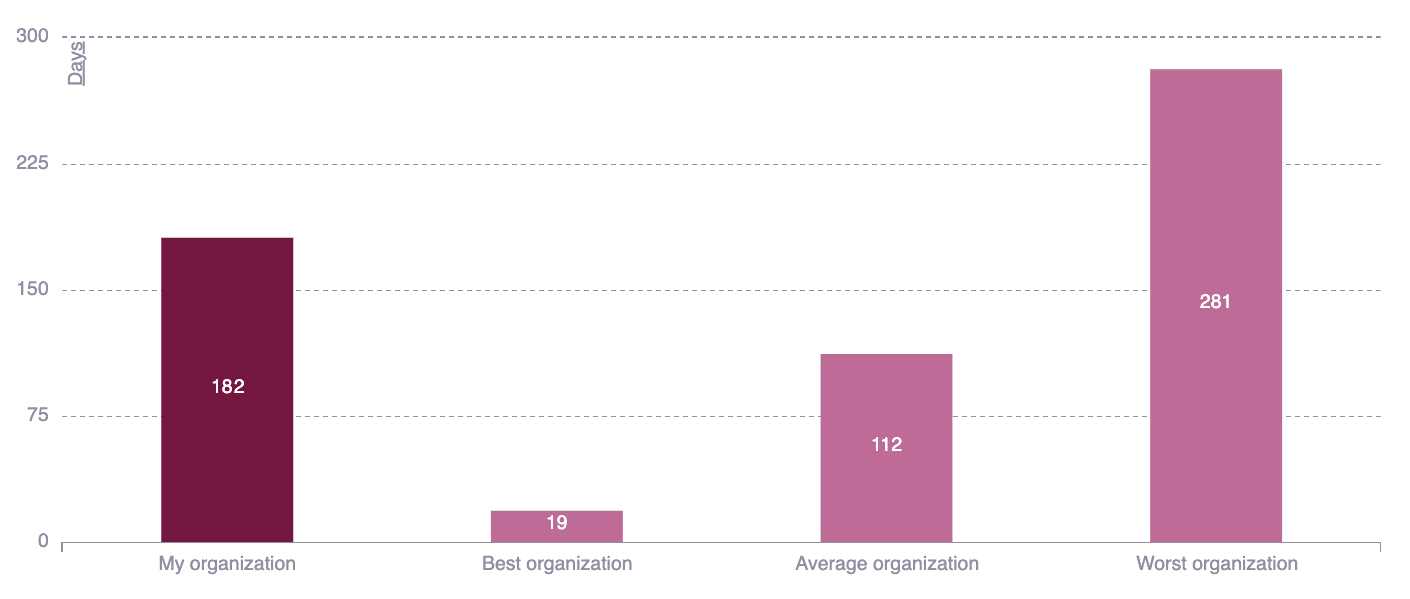
This chart shows the average number of days that your team uses to remediate a vulnerability, weighted by risk exposure with the CVSSF metric. You can also compare your performance with the best and worst organizations, groups or portfolios, and with the average value.
With this benchmark, you can measure the efficiency of your remediation process, compare it with other teams and set goals.
This chart has many filters. To see them, click the filter icon:
- All: Default view (includes all vulnerabilities)
- No treatment: See only data for vulnerabilities with a status that changed to "Safe" while they were "Untreated"
- 30: See the data of the last 30 days
- 90: See the data of the last 90 days
- All: See the data since the creation of the organization
Mean time to remediate (MTTR) by CVSS severity
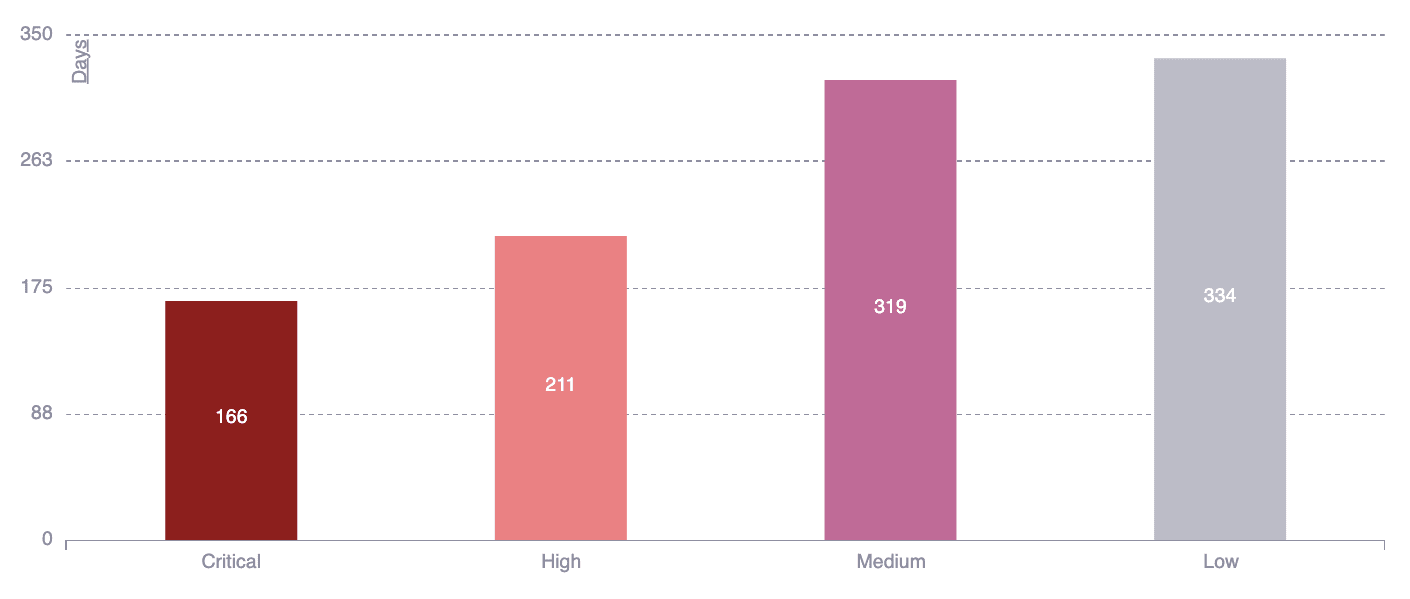
This chart shows the average time to remediate vulnerabilities, weighted by risk exposure, for each qualitative severity rating. The qualitative rating groups CVSS scores as follows: Low = 0.1 - 3.9, medium = 4.0 - 6.9, high = 7.0 - 8.9, critical = 9.0 - 10.0.
This information helps you understand how the severity of vulnerabilities affects your remediation time.
This chart has many filters. To see them, click the filter icon:
- Vulns weighting by exposure: Default view
- Vulns (unweighted): See the unweighted mean time to remediate vulnerabilities
- Vulns (no treatment, weighted): See only data about the remediation of risk exposure related to vulnerabilities with a status that changed to "Safe" while they were "Untreated"
- Vulns (no treatment, unweighted): See only data for vulnerabilities with a status that changed to "Safe" while they were "Untreated"
- 30: See the data of the last 30 days
- 90: See the data of the last 90 days
- All: See the data since the creation of the organization
Accepted vulnerabilities by CVSS severity
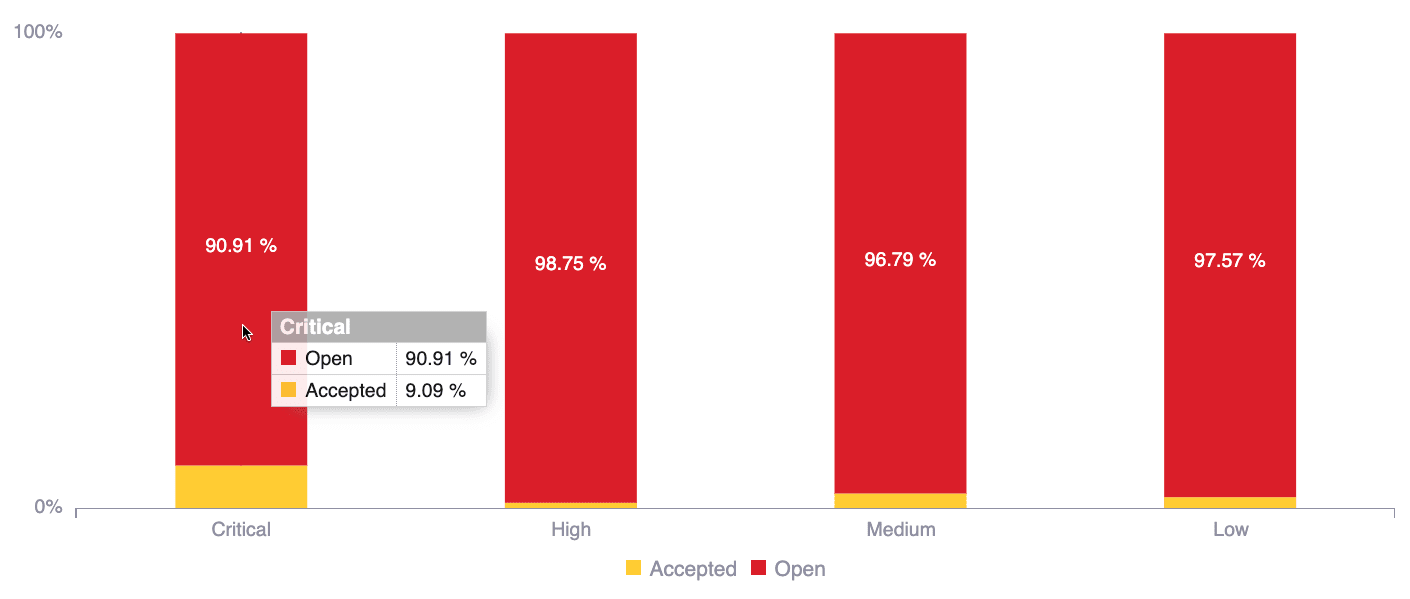
This chart shows the percentages of accepted and open vulnerabilities for each qualitative severity rating (low, medium, high, and critical). Open vulnerabilities are not remediated or accepted. This information helps you understand the risks that your team accepted.
You can use the chart in these ways:
- Hover over a bar to see all the percentages.
- Hover over a chart legend to highlight the related part of the chart.
- Click a chart legend to hide the related information from the visual comparison.
Vulnerabilities by assignment
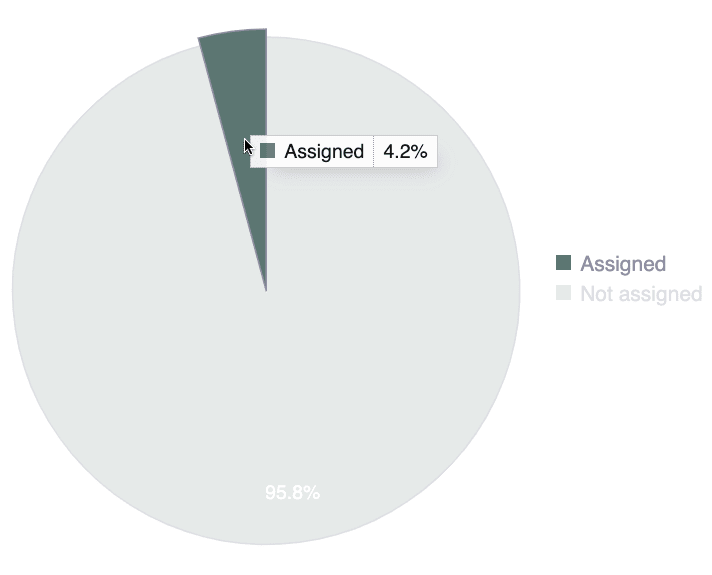
This chart shows the vulnerabilities that are not remediated. It shows the percentage that is assigned to your team members for remediation and the percentage that is not assigned. This chart gives a quick overview of your vulnerability assignment.
You can use the chart in these ways:
- Hover over a slice to see it highlighted with the name of the assignment status and the related percentage.
- Hover over a chart legend to highlight the related slice.
- Click a chart legend to remove the related status from the percentage calculation.
Status of assigned vulnerabilities
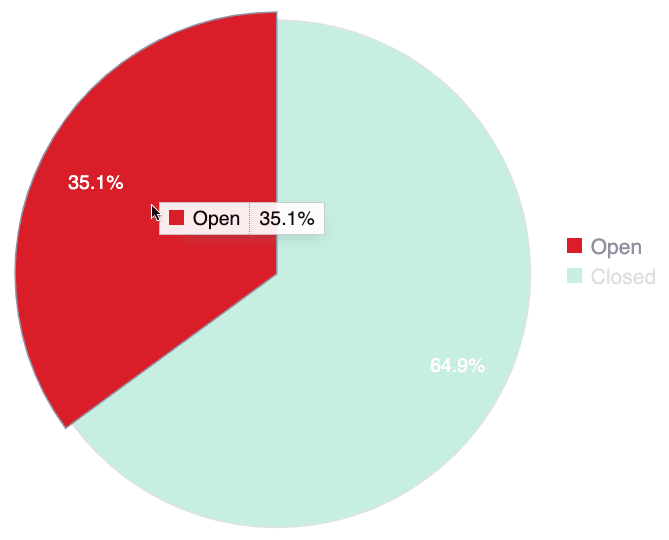
This chart shows the percentage of assigned vulnerabilities that are open (not fixed) and the percentage that are closed (fixed). With this information, you can monitor the progress of your team on the assigned vulnerabilities.
You can use the chart in these ways:
- Hover over a slice to see it highlighted with the name of the vulnerability status and the related percentage.
- Hover over a chart legend to highlight the related slice.
- Click a chart legend to remove the related status from the percentage calculation.
Top weaknesses by exposure

This chart shows the detected types of vulnerabilities that caused the most risk exposure (measured in CVSSF units) over time. The chart includes the risk exposure of open and closed vulnerabilities. This information helps you identify the security issues in your systems to remediate first.
Hover over a bar to see the precise CVSSF units.
This chart has many filters. To see them, click the filter icon:
- Exposure: Default view
- Vulns: See the ranking in number of vulnerabilities instead of risk exposure
- Code: See the ranking in risk exposure caused only by vulnerabilities found in the source code
- Infra: See the ranking in risk exposure caused only by vulnerabilities found in infrastructure
- App: See the ranking in risk exposure caused only by vulnerabilities found in the running application
Vulnerabilities treatment
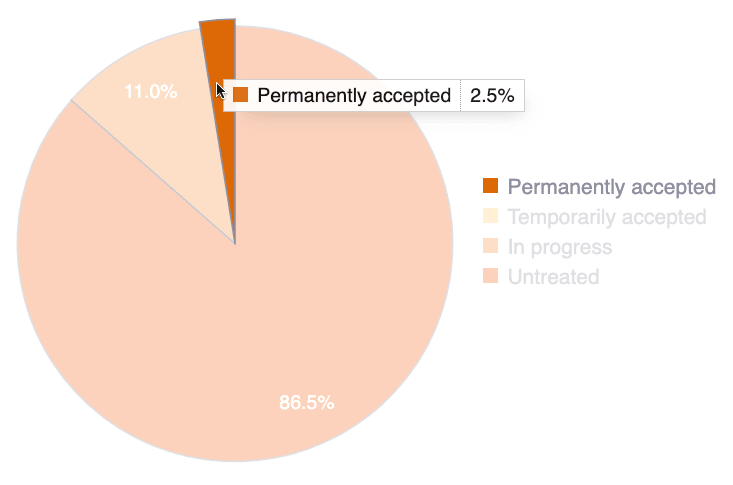
This chart shows the distribution of detected vulnerabilities that are not remediated, by their current treatment:
- Permanently accepted: Vulnerabilities that your team does not plan to fix. Your team accepts the risks permanently. (But your team can fix them at any time, and the Fluid Attacks platform does not cause problems.)
- Temporarily accepted: Vulnerabilities that your team plans to fix in the future. Your team accepts the risks until a specified date.
- In progress: Vulnerabilities that your team assigned to one of its members for remediation
- Untreated: Newly reported vulnerabilities that do not have a treatment
This information helps you analyze your risk acceptance strategy.
You can use the chart in these ways:
- Hover over a slice to see it highlighted with the name of the treatment status and the related percentage.
- Hover over a chart legend to highlight the related slice.
- Click a chart legend to remove the related status from the percentage calculation.
Reporting technique
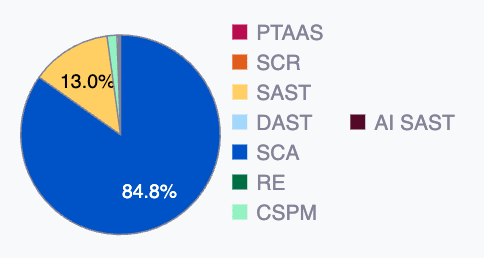
This chart shows the percentage of reported vulnerabilities for each security testing technique that detected them. This information shows the kinds of issues that are more frequent in your system. These are the techniques:
- PTaaS: Dynamic analysis done manually
- SCR: Static code analysis done manually
- SAST: Automated static code analysis
- Web DAST: Automated dynamic analysis of web applications
- API DAST: Automated dynamic analysis of APIs
- SCA: Automated analysis of third-party dependencies
- RE: Reverse engineering of your system done manually
- CSPM: Automated analysis of AWS cloud environments
- AI SAST: AI-powered static code analysis
You can use the chart in these ways:
- Hover over a slice to see it highlighted with the name of the technique and the related percentage.
- Hover over a chart legend to highlight the related slice.
- Click a chart legend to remove the related technique from the percentage calculation.
Active resources distribution
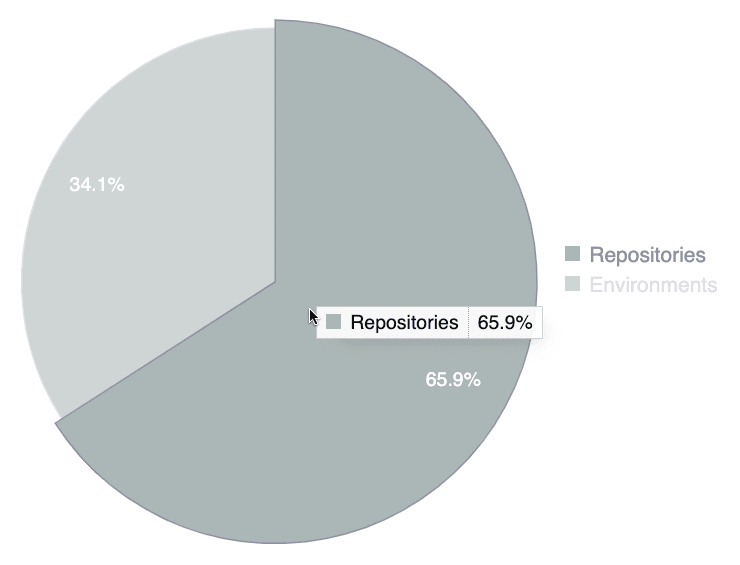
This chart shows the composition of the assets that Fluid Attacks tests. It compares the percentage of source code repositories with the percentage of URLs or IPs linked to these repositories. This information can help you describe the scope of the tests.
You can use the chart in these ways:
- Hover over a slice to see it highlighted with the category of the resource and the related percentage.
- Hover over a chart legend to highlight the related slice.
- Click a chart legend to remove the related category from the percentage calculation.
Total weaknesses

This figure is the number of weaknesses reported to you out of all the types in Fluid Attacks' categorization. The security issues found in your system most likely belong to these categories.
Total vulnerabilities
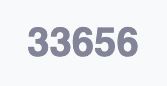
This figure is the total number of reported security issues with a location in your system. This information can help you show why your organization must invest more in security.
Total exclusions
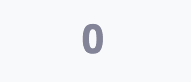
Exclusions are vulnerabilities that your team selected to ignore. This figure shows the total number of exclusions of your group.
Exclusions by root
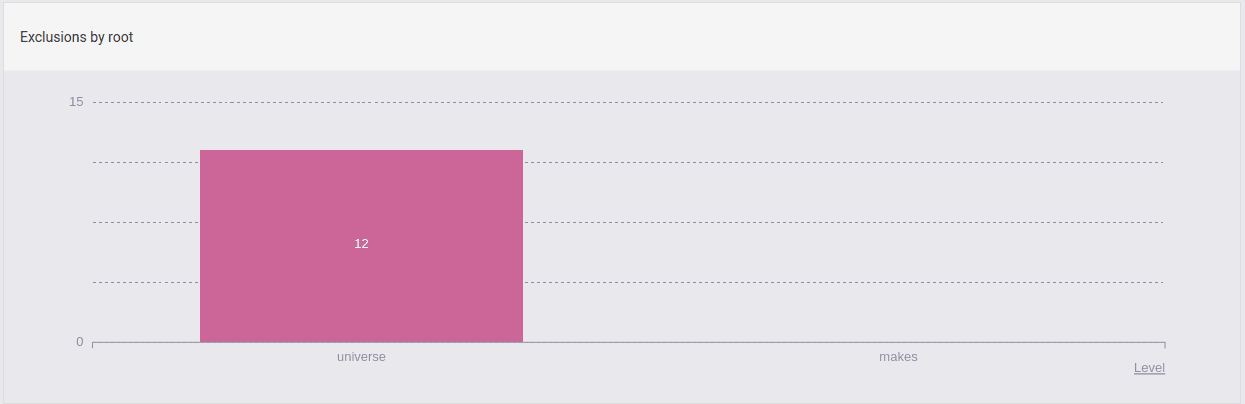
This chart shows all your exclusions by root.
Vulnerabilities by tag

This chart shows the number of vulnerabilities for each tag that your team added when it assigned a treatment. With this information, you can analyze the security issues in your software with categories that are important for your team.
Hover over a bar to see the precise number of vulnerabilities.
Vulnerabilities by priority score

This chart shows the number of vulnerabilities for each priority value that your team gave them when it assigned a treatment. This information can help your team understand its vulnerability prioritization strategy.
Accepted vulnerabilities by user
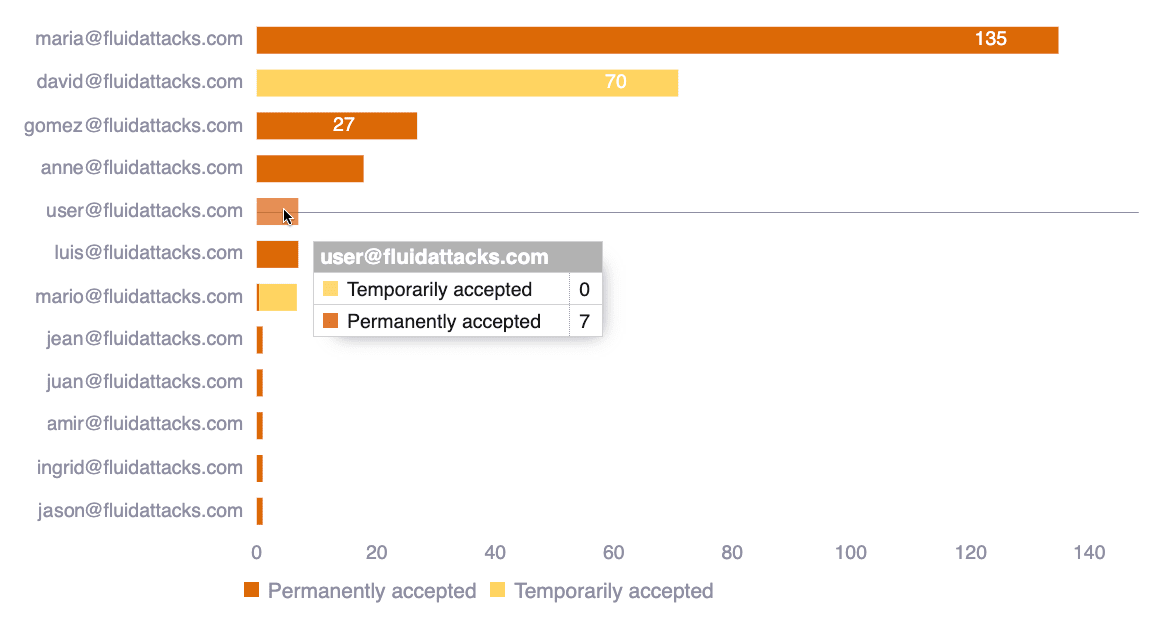
This chart shows the number of accepted vulnerabilities for each user who assigned the treatment. This information shows who is responsible for this important vulnerability management decision.
You can use the chart in these ways:
- Hover over a bar to see all the numbers.
- Hover over a chart legend to highlight the related part of the chart.
- Click a chart legend to hide the related information from the visual comparison.
Exposure by assignee
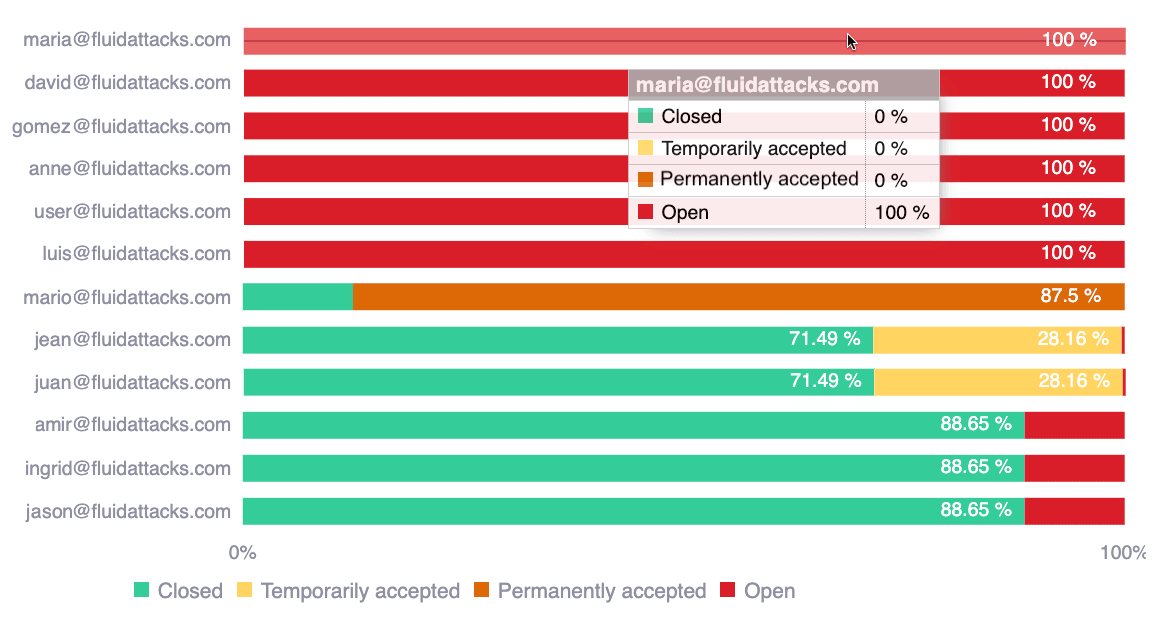
This chart shows how team members managed the risk exposure (CVSSF) assigned to them, by the statuses of the vulnerabilities that cause that risk exposure. Open vulnerabilities are not remediated and not accepted. Closed vulnerabilities are remediated.
This information shows who is responsible for vulnerability remediation.
You can use the chart in these ways:
- Hover over a bar to see all the percentages.
- Hover over a chart legend to highlight the related part of the chart.
- Click a chart legend to hide the related information from the visual comparison.
You can switch to see the percentage corresponding to the number of vulnerabilities instead by selecting the Vulns filter accessible through the filter icon.
Files with open vulnerabilities in the last 20 weeks
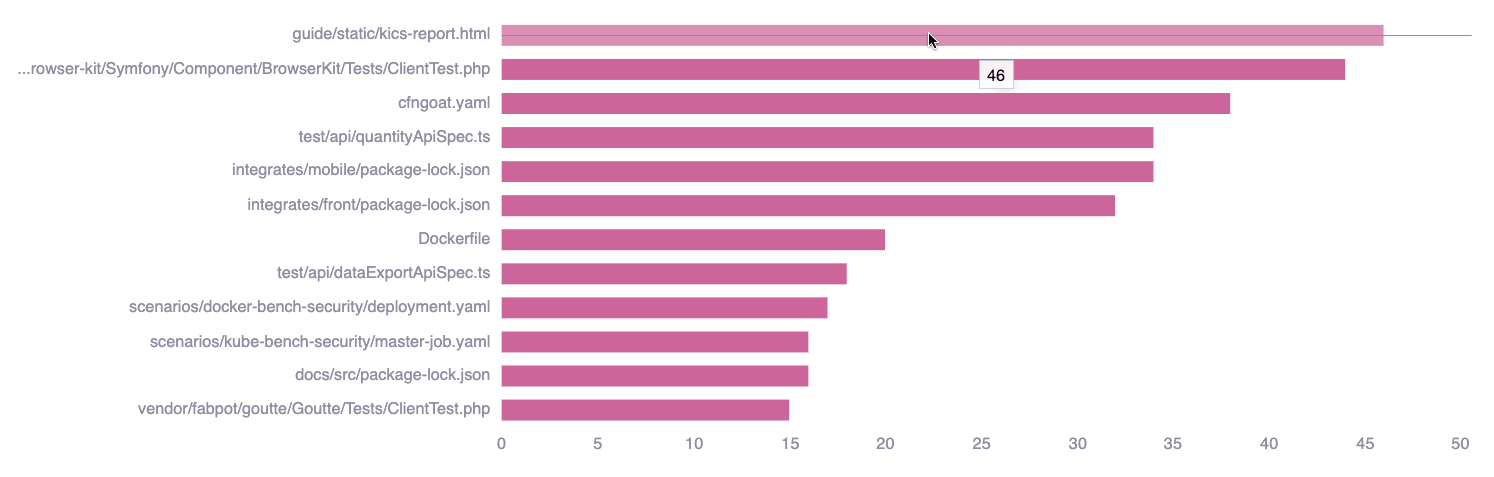
This chart shows the paths of files with vulnerabilities from the last 20 weeks that are not remediated or accepted. It also shows the total number of these vulnerabilities in each file. This information helps you find the files to remediate first.
Hover over a bar to see the precise number of vulnerabilities.
Want advice based on Analytics? Try asking Fluid Attacks' AI Agent!
Search for vulnerabilities in your apps for free with Fluid Attacks' automated security testing! Start your 21-day free trial and discover the benefits of the Essential plan. If you prefer the Advanced plan, which includes the expertise of Fluid Attacks' pentesting team, complete this contact form.