Vulnerability reporting
Last updated: Oct 26, 2026
Since April 4, 2025, reports use CVSS v4.0 exclusively.
Download a group's vulnerability report
Role required: Vulnerability Manager or Group Manager
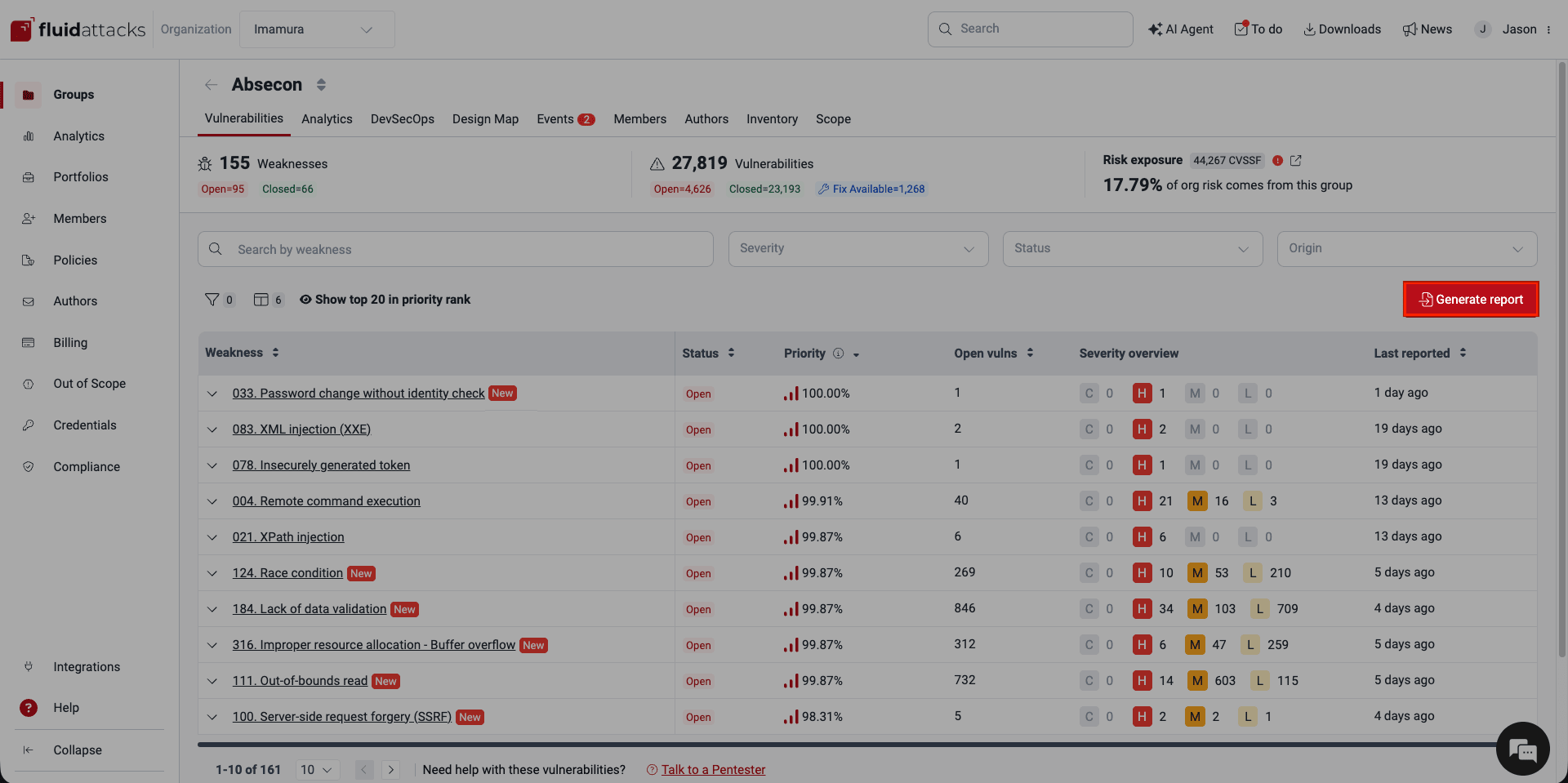
To get a vulnerability report on the Fluid Attacks platform, go to the Vulnerabilities section of your group. Then, click the Generate report button in the top right corner of the page.
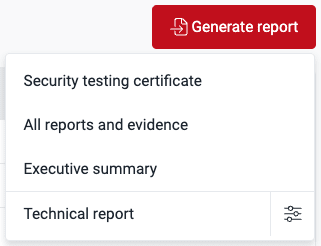
These report options are available. They give different levels of detail about the reported vulnerabilities of a group:
- Security testing certificate:
Available to Group Managers
only.
This document certifies that
Fluid Attacks does security testing on your system
(you must first complete the information section).
The certificate shows these numbers:
- Reported vulnerabilities for each CVSS qualitative rating
- Remediated vulnerabilities
- Accepted vulnerabilities
- Reported risk exposure units
- All reports and evidence: A ZIP folder with the vulnerability reports (the executive summary and the technical report), a file listing compromised records, and the pictures and videos of the vulnerability evidence.
- Executive summary: A summary PDF report of all the vulnerabilities of the group, for managers.
- Technical report: A customizable, detailed XLSX report of the vulnerabilities of the group, for technical analysis.
After you select the report, the platform starts to generate it. Some minutes after that, you receive an email that tells you that the report is available for download. On the platform, click Downloads to find the report. Each report is available there for seven days after the platform generates it.
Definitions of the technical report columns
The technical report gives all the details about the identified vulnerabilities. These are the descriptions of the columns in the XLSX file:
-
#: Row number
-
Weakness: The category that best describes the vulnerability
-
Weakness ID: Unique identifier for the weakness
-
Vulnerability ID: Unique identifier for the vulnerability
-
Package: The name of the package that is possibly unsafe
-
Vulnerable version: Package version in use
-
CVE: Common Vulnerabilities and Exposures (CVE) identifier
-
Location: The path where the vulnerability is present
-
Stream: Steps to reach the vulnerability in dynamic environments
-
Specific: The line, field or port that has the vulnerability
-
Description: Detailed description of the vulnerability
-
Status: The current Status of the vulnerability. 'VULNERABLE' means that it is present. 'SAFE' means that your team remediated it.
-
Severity: Severity score based on the Common Vulnerability Scoring System (CVSS) v4.0
-
Related requirements: The security requirements that the vulnerability possibly does not fulfill
-
Impact: What an attacker can do if they exploit the vulnerability
-
Threat: The attack vector an attacker has to follow and the privileges they require to exploit the vulnerability
-
Recommendation: The recommended actions to fix the vulnerability
-
External BTS: URL of the issue in your bug tracking system (BTS) related to this vulnerability
-
Compromised attributes: The data or information that the vulnerability exposes (for example, usernames, IDs, passwords)
-
Tags: The tags that users added to categorize or identify the vulnerability
-
Business criticality: The priority score. This number shows the importance of this security issue as your organization defines it
-
Technique: The security testing technique that detected the vulnerability
-
Origin: Shows if code changes of the client added the vulnerability (Injected) or if the vulnerability comes from previous code, third-party libraries, or dependencies (Inherited)
-
Report date: The date when Fluid Attacks reported the vulnerability
-
Closing date: The date when your team fixed the vulnerability (if applicable)
-
Age in days: The number of days since Fluid Attacks reported the vulnerability
-
First treatment: Initial treatment applied to the vulnerability
-
First treatment date: Date when the first treatment was applied
-
First treatment justification: Justification for the first treatment
-
First treatment expiration date: Expiration date for the first treatment (if temporarily accepted)
-
First assignee: The email of the first person assigned to remediate the vulnerability
-
Current treatment: Current treatment applied to the vulnerability
-
Current treatment date: Date when the current treatment was applied
-
Current treatment justification: The justification for the current treatment
-
Current treatment expiration date: Expiration date for the current treatment (if temporarily accepted)
-
Current assignee: The email of the person assigned at this time to remediate the vulnerability
-
Pending reattack: Shows if a reattack (a test to make sure that your fix removed the vulnerability) is requested at this time (yes or no)
-
# Requested reattacks: The total number of reattack requests
-
Remediation effectiveness: The percentage of one positive reattack outcome (it shows that the vulnerability is fixed) out of all the reattacks done
-
Last requested reattack: Date of the most recent reattack request
-
Last reattack requester: The email of the person who requested the most recent reattack
-
CVSSv4.0 vector string: The values that give the score, in text format
-
Attack vector: How far the attacker can be to exploit the vulnerable system
-
Attack complexity: How easy it is for the attacker to exploit the vulnerability
-
Privileges required: The level of privileges that an attacker must have
-
User interaction: Shows if user interaction is necessary to exploit the vulnerability
-
Vulnerable confidentiality impact: The impact of exploitation on information confidentiality
-
Vulnerable integrity impact: The impact of exploitation on information integrity
-
Vulnerable availability impact: The impact of exploitation on information availability
-
Exploit maturity: The probability of exploitation, from the current exploitation techniques, the availability of exploit code, and real exploitation "in the wild"
-
Subsequent confidentiality impact: Exploitation impact on information confidentiality in one or more systems other than the vulnerable system
-
Subsequent integrity impact: Exploitation impact on information integrity in one or more systems other than the vulnerable system
-
Subsequent availability impact: Exploitation impact on information availability in one or more systems other than the vulnerable system
-
CWE IDs: Common Weakness Enumeration (CWE) identifier
-
Commit hash: The ID of the commit that added the vulnerability
-
Root nickname: The nickname that users gave to the root where Fluid Attacks found the vulnerability
-
Root branch: The branch that Fluid Attacks tests and where it found the vulnerability
-
Severity level: CVSS qualitative rating
-
EPSS: Exploit Prediction Scoring System. A value from 0 to 100 that shows the probability that attackers exploit the vulnerability in the wild. The SCA module of the Fluid Attacks scanner gets this value from the FIRST database.
EPSS scores are generated daily; likewise, Fluid Attacks retrieves them every 24 hours.
Filter the technical report
Role required: Vulnerability Manager or Group Manager
If you want to customize the technical report, you can apply filters when you request it. To do this, follow these steps:
-
In the Vulnerabilities section, click Generate report.
-
Click the filters button on the right side of the Technical report option.

-
A pop-up window shows the filter options.
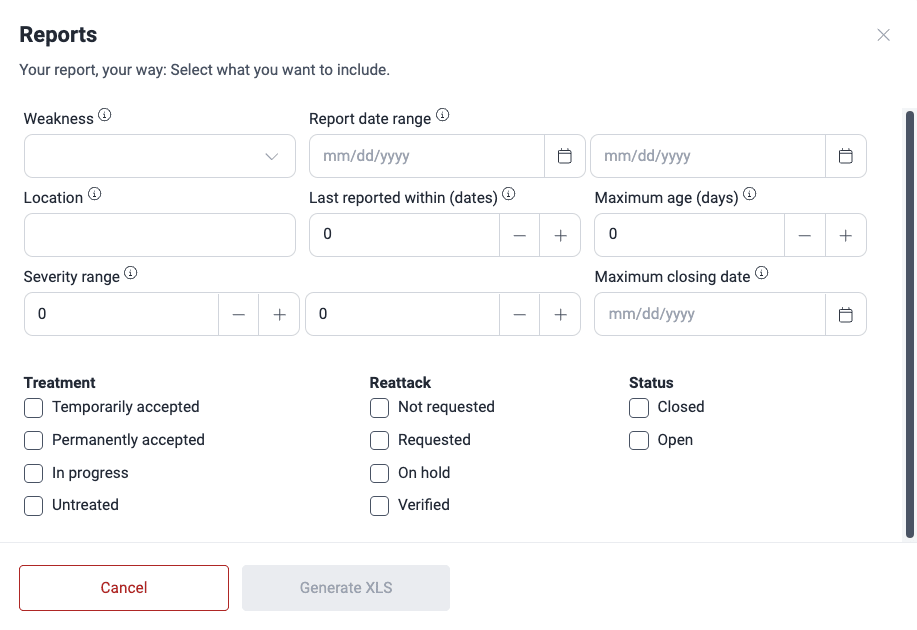
These are the available filters:
- Weakness: The category that best describes the vulnerability
- Report date range: The period when Fluid Attacks reported the vulnerabilities
- Location: The path where the vulnerabilities are present
- Last reported within (dates): Include only weaknesses with a last report more recent than the specified value (in days)
- Maximum age (days): Include only weaknesses with a first report more recent than the specified value (in days)
- Severity range: Minimum and maximum CVSS severity scores
- Maximum closing date: Include only vulnerabilities remediated on or before the specified date
- Treatment: The current vulnerability treatment
- Reattack: Current reattack status
- Status: Shows if the vulnerability is present at this time ("Open") or not ("Closed")
-
Select the filters that you want. Then, click the Generate XLS button.
-
Wait for the email that tells you that the filtered report in XLSX format is available. Then, download it with the Downloads function of the platform.
Download a report of all vulnerabilities in the organization
Role required: Group Manager
To download a comma-separated values (CSV) file with all the vulnerabilities of your organization (and their vulnerability statuses), follow these steps:
-
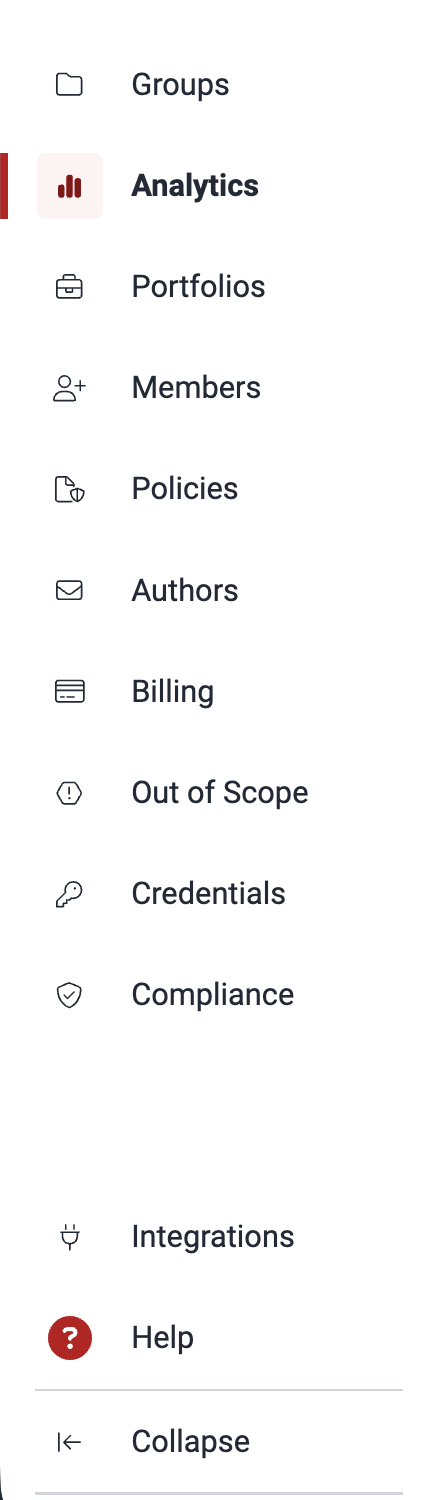
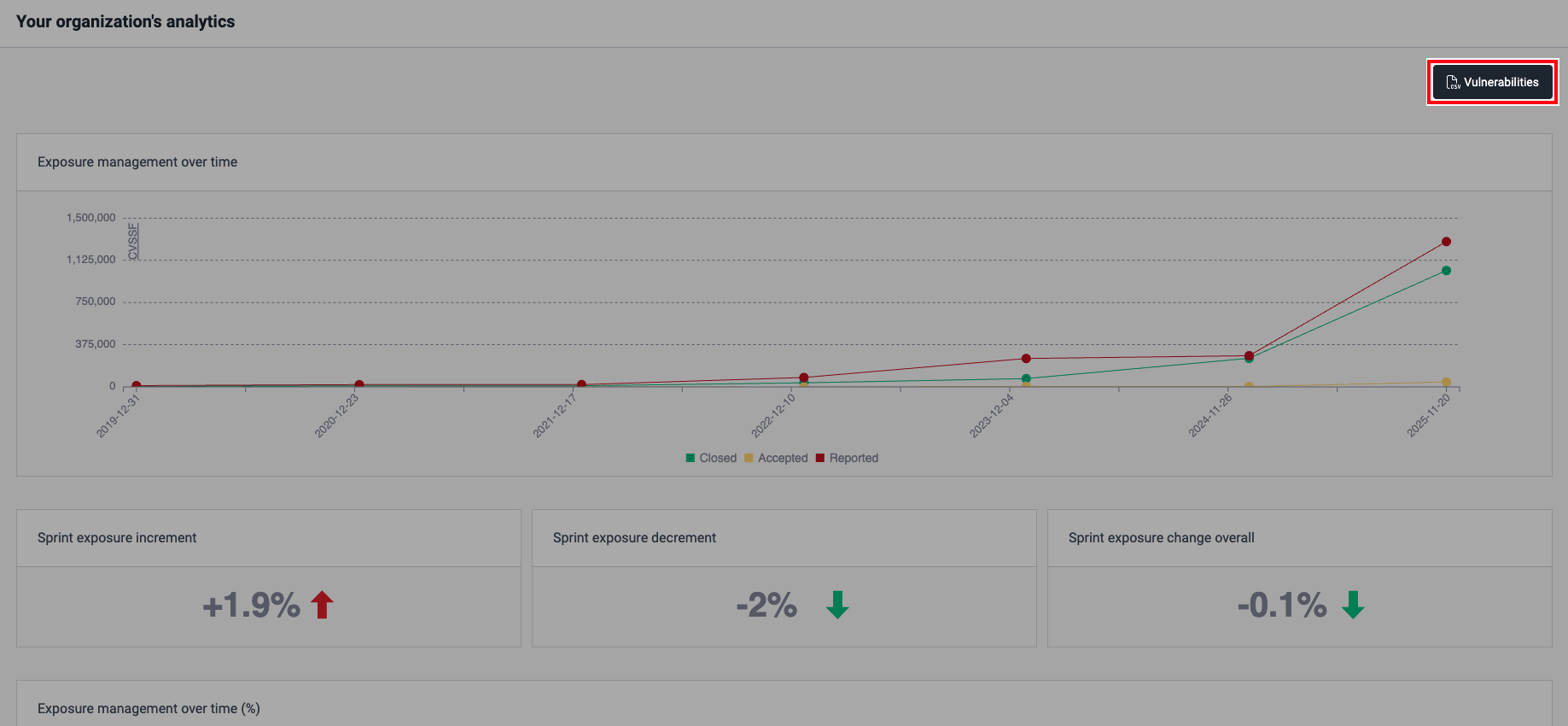
Go to the Analytics section at the organization level (the section that you open from the collapsible menu).
-
Click the Vulnerabilities button in the top right corner of the section.
-
Your browser then downloads a compressed file with the CSV file. The platform generates this file and keeps it for seven days.
You can also obtain this information via API using the
generateOrganizationVulnerabilitiesReport method. Find the details on how to
make API requests to the platform in the Fluid Attacks API
documentation.
Search for vulnerabilities in your apps for free with Fluid Attacks' automated security testing! Start your 21-day free trial and discover the benefits of the Essential plan. If you prefer the Advanced plan, which includes the expertise of Fluid Attacks' pentesting team, complete this contact form.
Tutorial videos or demo
Learn how to use the Fluid Attacks platform effectively with free, certifiable tutorials and live demos covering key product features and functionalities.
Standard compliance
The Compliance section on the platform shows the compliance of your software with the standards validated by Fluid Attacks at the organization and group level.