Groups section
Last updated: Oct 26, 2026
Groups are independent management units that you create in your organization on the Fluid Attacks platform. A group has one or more repositories and environments of the system in evaluation, and Fluid Attacks reports the vulnerabilities that it finds in them. Fluid Attacks recommends that you have more than one group. Each group has its own access, reports, vulnerability management tracking, and policies (read the details in the FAQ).
When you create a group, the multi-method vulnerability scanner of Fluid Attacks starts to examine the system of the group to find vulnerabilities. If you have the Advanced plan, the Fluid Attacks pentesters also examine your system.
This page describes the Groups section of the platform.
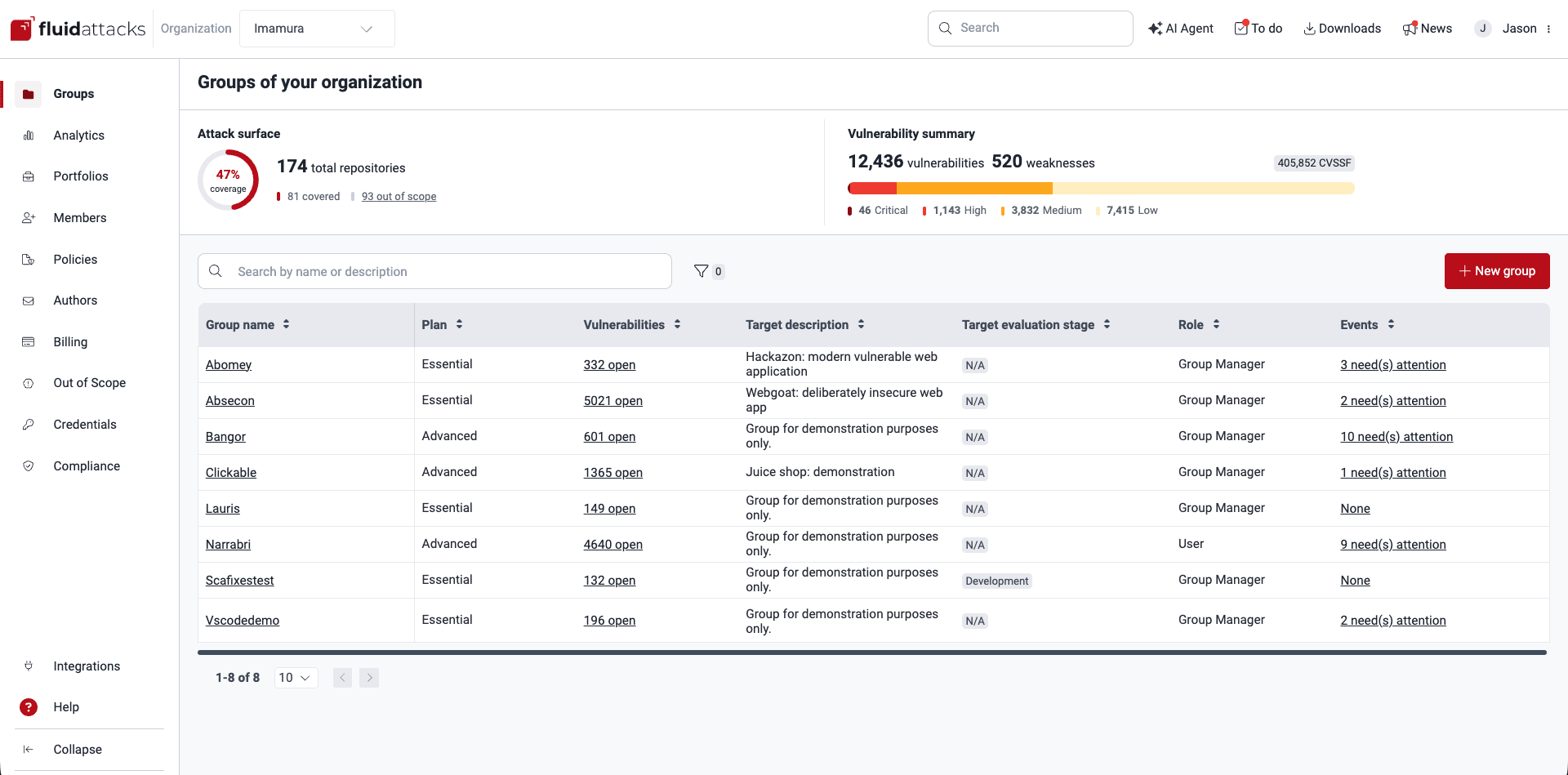
Attack surface
The top part of Groups shows how much of your attack surface the Fluid Attacks tests cover. This is the information that it shows:
- [#]% coverage: The percentage of the repositories that Fluid Attacks got through OAuth and that are in a group, thus in the scope of the security tests
- [#] total repositories: The number of repositories that Fluid Attacks got
- [#] covered: The number of repositories that Fluid Attacks got and that are in a group
- [#] out of scope: The number of repositories that Fluid Attacks got and that are not in a group at this time (to assign them to a group, click the link to go to the Out of scope section)
All members of your organization are shown the same information regardless of their having access or not to all the groups within it.
Vulnerability summary
The top part of Groups also shows a high-level summary of the vulnerabilities in all the groups of your organization. This is the information that it shows:
- The number of open vulnerabilities
- The number of open weaknesses (the count includes a weakness one time for each group that has it)
- The total CVSSF units of the open vulnerabilities
- The number of detected vulnerabilities of each CVSS qualitative severity rating
All members of your organization are shown the same information regardless of their having access or not to all the groups within it.
Group table
The group table shows the names of all the groups of your organization that you have access to. It also shows details about the groups and your role in them. This table has seven columns. To sort a column alphabetically or numerically, in ascending or descending order, click the arrows next to the column name.
You can filter the table by group name or subscription plan. You can also use the search box to show only the rows with the text that you type.
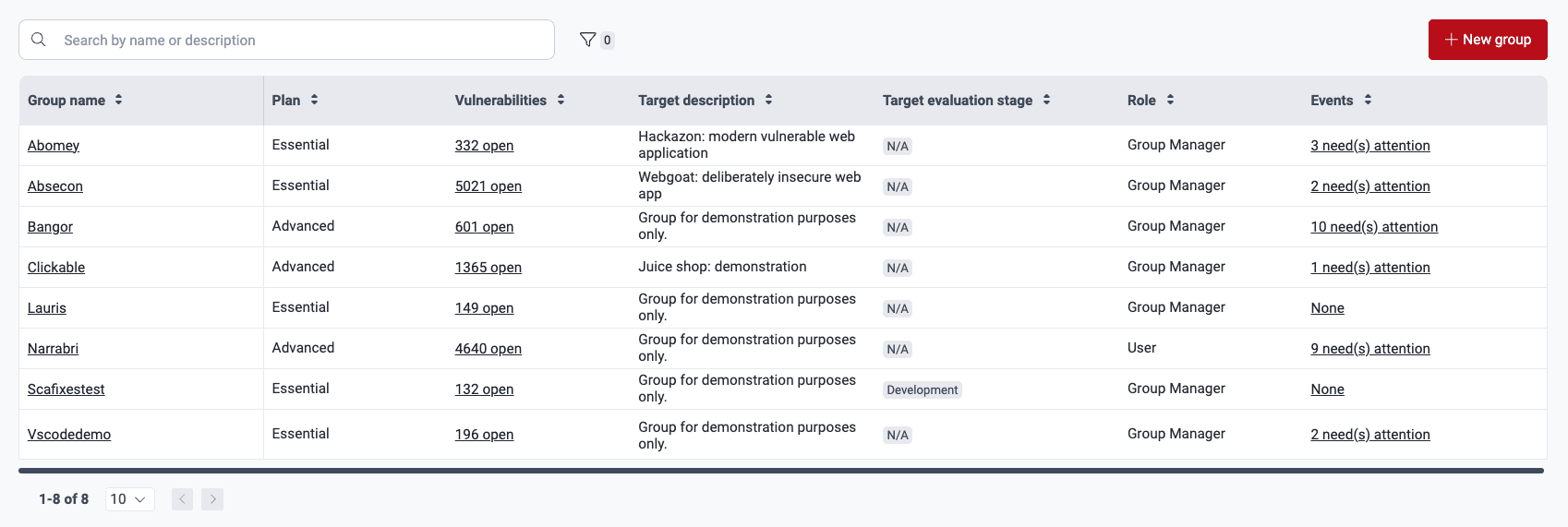
The group table shows this information:
- Group name: The name your organization has given to the group
- Plan:
The plan of the group,
or an indication that the group is in a free trial.
This column can show one of these values:
- Essential: Secures your application with fully automated security testing and help with vulnerability remediation
- Advanced: Includes the Essential plan features, the manual security testing, and the help of a team of pentesters to understand vulnerabilities
- Free trial: Secures your application through all the Essential plan features for 21 days
- Vulnerabilities:
The total number of open vulnerabilities in the systems of the group,
or the status of the assets of the group.
This column can show one of these values:
- Add repository: The group exists, but it does not have a repository to examine at this time
- Cloning: The platform clones a repository for security testing
- Cloning error: The clone process failed for all the roots of the group
- Testing: The platform tests a root that it cloned successfully
- No vulnerabilities: Fluid Attacks did not find vulnerabilities in the systems of the group
- [#] open: The total number of vulnerabilities in the group that are not remediated
- Target description: A short description of the group from its creation
- Target evaluation stage:
The type of environment to evaluate
(it can be one of these):
- Development
- QA
- Pre-production
- Production
- Other (custom environment type)
- Role:
Your role in the group
(it can be one of these):
- User: Role for the persons who must understand and remediate the vulnerabilities in your software projects
- Vulnerability Manager: Role for the persons who must examine the requests of developers, usually with the User role, and monitor the remediation progress
- Group Manager: Role for the persons who must grant access and roles, manage the target of evaluation and policies, and monitor the remediation progress
- Events: The number of unsolved events in the group (situations that prevent the assessment of the target of evaluation or of a part of it)
To go to the sections of a group, click its name. Your role on the platform controls your access to the group sections and to their functions. For a short description of each group-level section, read the page "Platform interface and sections".
Create a new group
Role required: Organization Manager
Creating a new group increases the cost of Our Solution, so make sure it is a concerted action within your organization.
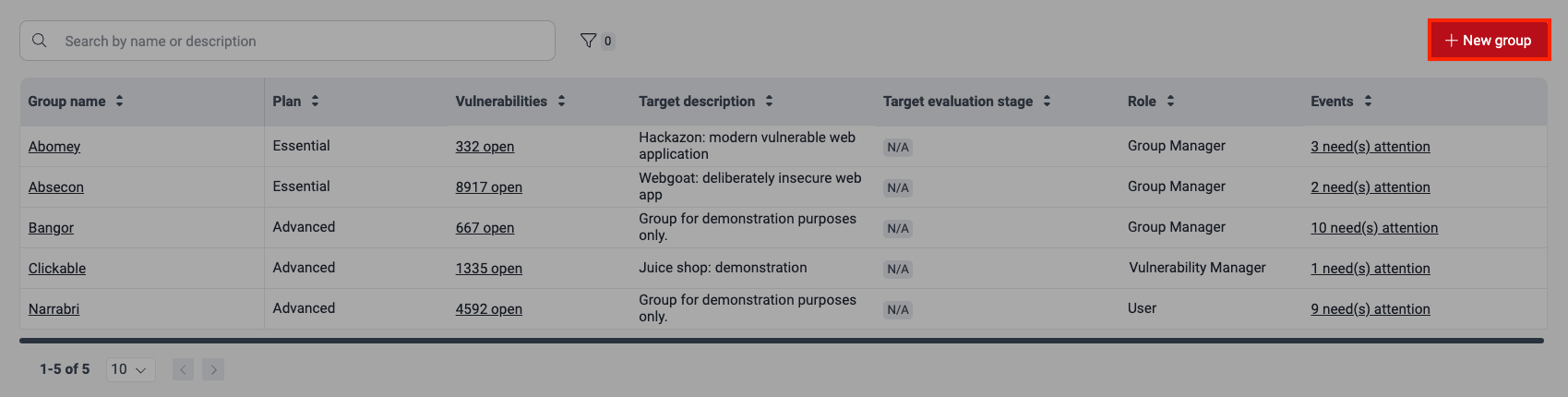
To create a new group, click New group in the Groups section. For a detailed description of the steps, read the page "Create and delete groups".
Filter group table data
Role required: User, Vulnerability Manager, Group Manager or Organization Manager
Filters limit the data that you see,
so that your search is easier.
The Groups section has a filter button
( ).
Click it to filter the group table
by Events, Plan, Role, Target evaluation stage, and Target type.
).
Click it to filter the group table
by Events, Plan, Role, Target evaluation stage, and Target type.


The platform shows the applied filters above the table. A number next to the filter button shows how many filters you applied. To clear a filter, click the X next to it.

Search the group table
Role required: User, Vulnerability Manager, Group Manager or Organization Manager
Type in the search bar of the Groups section to filter the group table. The table then shows only the rows with the text that you type.
See events impeding tests in groups
Role required: User, Vulnerability Manager, Group Manager or Organization Manager
The group table has an Events column. For more information, read Group table. Events are situations that you must resolve quickly, so that the security tests can continue. This column shows how many unsolved events each group has. Click the content of this column to go to the Events section of that group.
When you go to the Groups section and one or more groups have unsolved events, a banner shows for a short time. The banner shows the number of groups with unsolved events and the total number of unsolved events. It also shows the number of days since Fluid Attacks reported the oldest event. Move the pointer over the banner to see a tooltip with the names of those groups.

To learn about the types of events and how to manage them, read the page "Resolve Events impeding tests".
Switch between groups
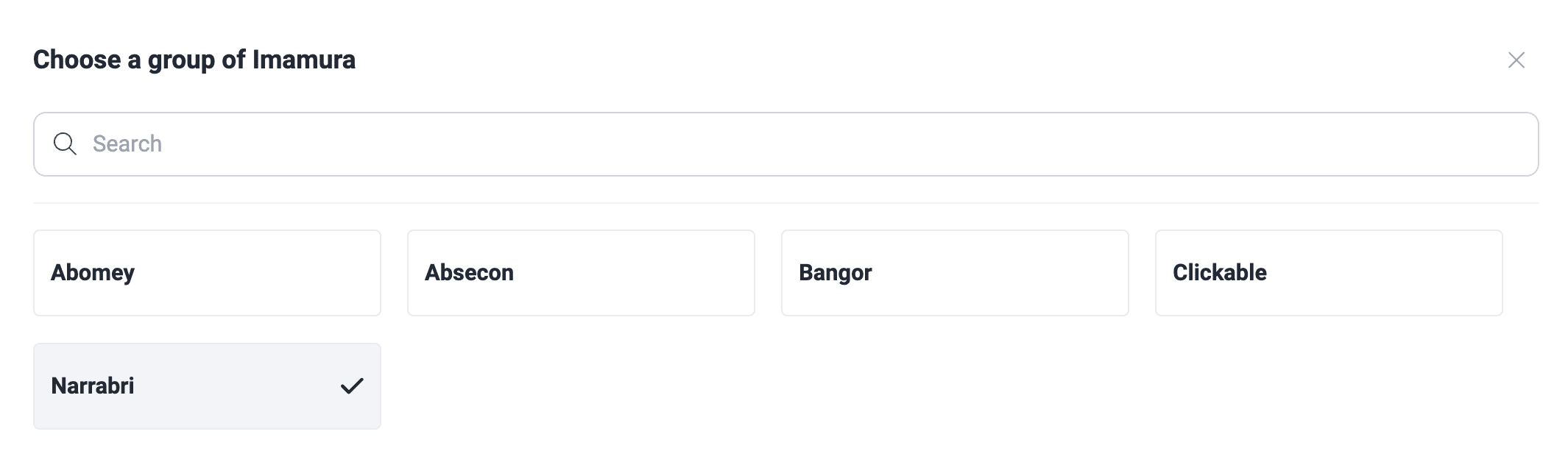
To go quickly from a group to a different group, click the arrows next to the name of the group. Then, select the group in the list.

Search for vulnerabilities in your apps for free with Fluid Attacks' automated security testing! Start your 21-day free trial and discover the benefits of the Essential plan. If you prefer the Advanced plan, which includes the expertise of Fluid Attacks' pentesting team, complete this contact form.