Interface and sections
Last updated: Oct 26, 2026
This page gives an overview of all the sections of the Fluid Attacks platform. The sections are at two levels: organization-level sections and group-level sections.
Organization-level sections
When you log in to the platform, you are at the organization level. This level shows information about all the groups, or projects, that your company has with Fluid Attacks.
Use the collapsible menu to go to the sections at this level from any part of the platform. Roles control the access to the sections and functions of the platform. This image shows the menu for Organization Managers:

Groups
Your company can have more than one application or software product. To monitor the security assessments and risk exposure of each one separately, you can create a group in the platform for each product.
The Groups section shows the list of your groups and some information about each group. It also shows the total number of covered and missed contributing authors and repositories in all the groups of the organization.
Analytics
The Analytics section at the organization level shows charts, tables, and figures with data from all the groups of your organization. The data includes security testing results, vulnerability management strategies, and the progress in the reduction of risk exposure.
These are some examples of the available information:
- Exposure management over time
- Exposure benchmark
- Remediation rate benchmark
- Accepted vulnerabilities by CVSS severity
- Vulnerabilities treatment
- Reporting technique
Portfolios
Portfolios are sets of groups that you create to compare some of the data in the Analytics sections of those groups. The Portfolios section shows the list of portfolios that your organization created.
Fraud risk center
Role required: Fraud Analyst
The Fraud risk center section shows how the open vulnerabilities of your organization relate to fraud categories. This section groups vulnerabilities into fraud categories and shows their exposure level. It also lets you request priority remediation for a fraud category on an affected system.
Members
Role required: Vulnerability Manager or Organization Manager
In the Members section at the organization level, you can see or manage the members of the organization. Members are platform users. Their role controls if they can see the organization-level sections, go to the groups of the organization, and do more management functions.
Policies
In the Policies section, you can see or set policies for these topics:
- The acceptance of vulnerabilities
- The prevention of deployments to production with vulnerabilities
- The prioritization of vulnerabilities for remediation
All the groups of your organization inherit these policies. You can also set group-specific policies in the Scope section.
Authors
Role required: Organization Manager
Contributing developers can make commits with different email addresses. The Authors section shows each contributor one time, with all the user names and email addresses of that contributor.
Billing
Role required: Organization Manager
The Billing section shows the number of monthly active authors in each group and the saved payment methods. The number of authors helps to calculate the cost of the solution.
Out of Scope
Fluid Attacks recommends that you use Open Authorization (OAuth) to import the repositories to test. With OAuth, you connect the Fluid Attacks platform to your account on a code repository hosting provider, such as GitLab. Then, the platform gets your repositories, and you do not share credentials with Fluid Attacks.
The Out of Scope section shows the repositories that you did not select in the import and that are not in a group. Thus, at this time, these repositories are not in the scope of the Fluid Attacks security testing. In this section, you can add them to groups.
Credentials
In the Credentials section, users with the Organization Manager role can authorize Fluid Attacks to get your repositories through OAuth. The repositories can be on Azure, Bitbucket, GitHub, and GitLab. The platform keeps this authorization as credentials. You can connect these credentials to more assets that they give access to, so that Fluid Attacks can test those assets.
You can also add other credentials in this section, such as user names with their passwords. Fluid Attacks uses OAuth and credentials safely to get access to the target of evaluation (ToE).
Compliance
The Compliance section shows the details of the compliance of your organization with international standards. These standards are the basis for the security requirements that Fluid Attacks tests in your systems.
For example, this section compares the compliance of your organization with each standard to the compliance of other organizations. It also shows the number of days until your organization complies with all the standards.
Logs
Role required: User
The Logs section shows the HTTP, network, and session logs of the access to the assets of your organization. This section shows data only if your organization uses zero trust network access (ZTNA).
Integrations
The Fluid Attacks platform can connect with the IDE plugins, bug-tracking systems, and CI/CD systems that your team uses. The Integrations section has links to the Fluid Attacks documentation about the available integrations, for example, the IntelliJ IDEA and VS Code plugins. In this section, you can also manage some integrations: Azure DevOps, GitLab, and Jira Cloud. This section also has links to the documentation about the API and webhooks.
Help
Fluid Attacks gives you help options for its AppSec solution, for the vulnerabilities, and for the use of the platform. To see these options, click Help at the bottom of the collapsible menu. A bar opens on the right side of the screen.
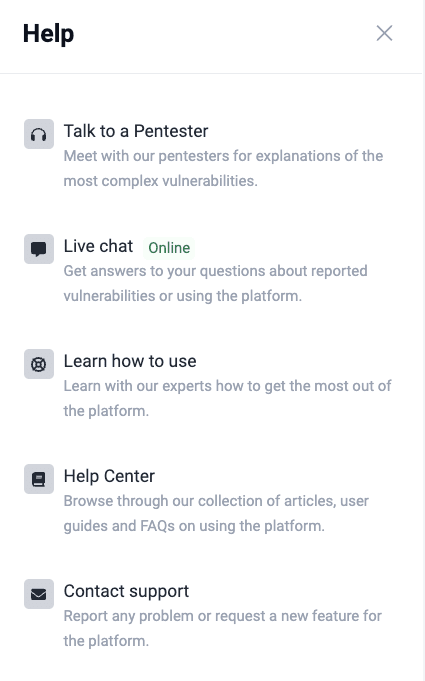
The menu shows these help options:
- Talk to a Pentester: Have a video call with a Fluid Attacks pentester about complex reported vulnerabilities. This option is only for the Advanced plan. You can see and use it only in a group with the Advanced plan.
- Live chat: Send questions to Fluid Attacks about the features and the use of the platform if the documentation does not have the answer.
- Learn how to use: Get a link to the Fluid Attacks certification for your role. You can get this certification in approximately one hour (for the topics, read Tutorial videos). You can also schedule a live demo.
- Documentation: Use this option first for all your questions. If the documentation does not help you, use the other help options.
- Contact support: Send an email to Fluid Attacks.
Group-level sections
To go to a group, click its name in the Groups section. Use the tabs below the name of the group to go to its sections. Roles control the access to the group sections and functions. This image shows the group-level menu for Group Managers:
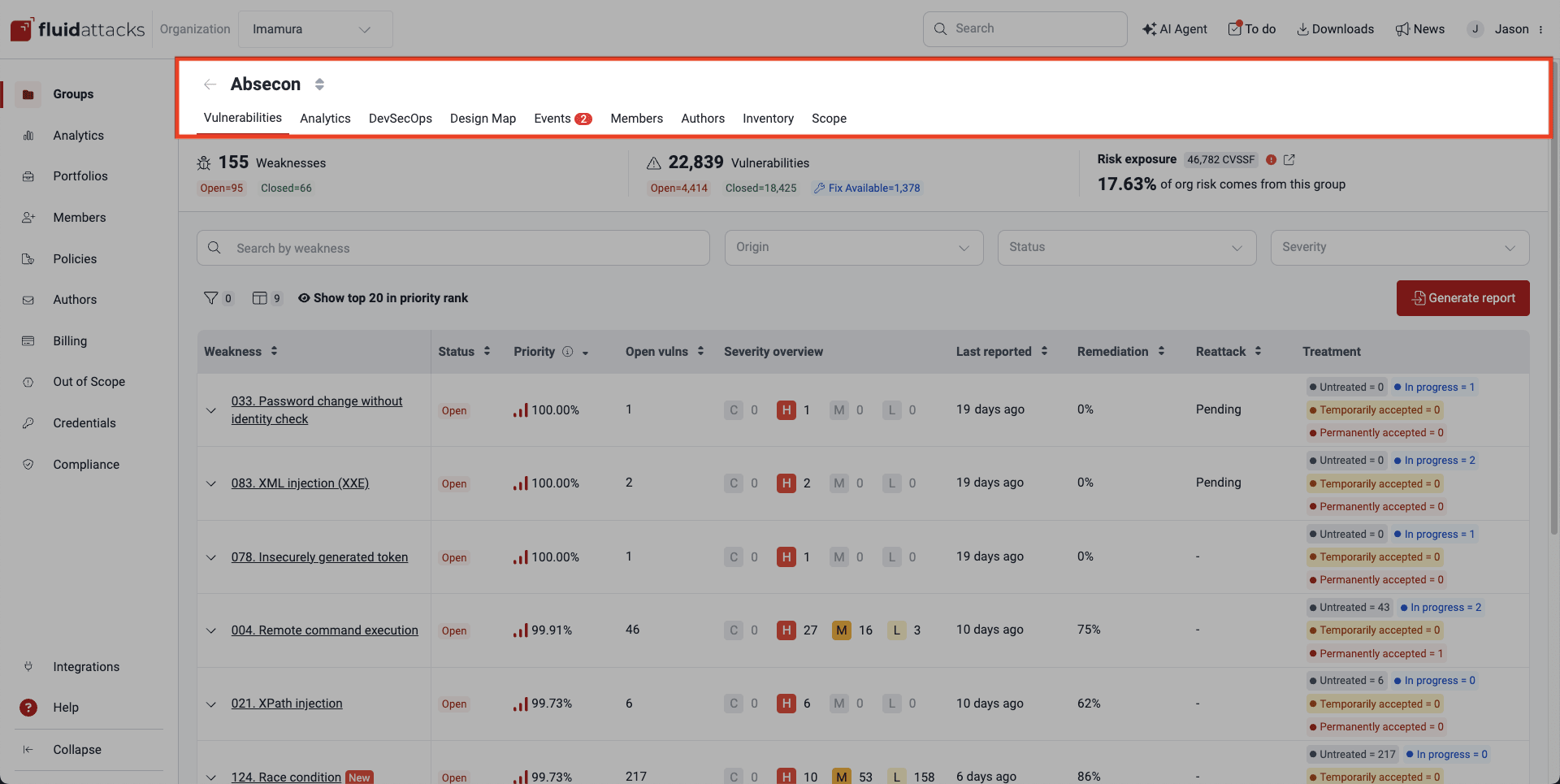
Vulnerabilities (by weakness)
The Vulnerabilities section shows detailed information about all the confirmed security vulnerabilities in your code, with the recommendations to remediate them. The section sorts the vulnerabilities by weakness, as Fluid Attacks defines them.
When you click the name of a weakness, the platform shows the sections for the vulnerabilities of that weakness. The subsequent part of this page summarizes the primary features of these sections.
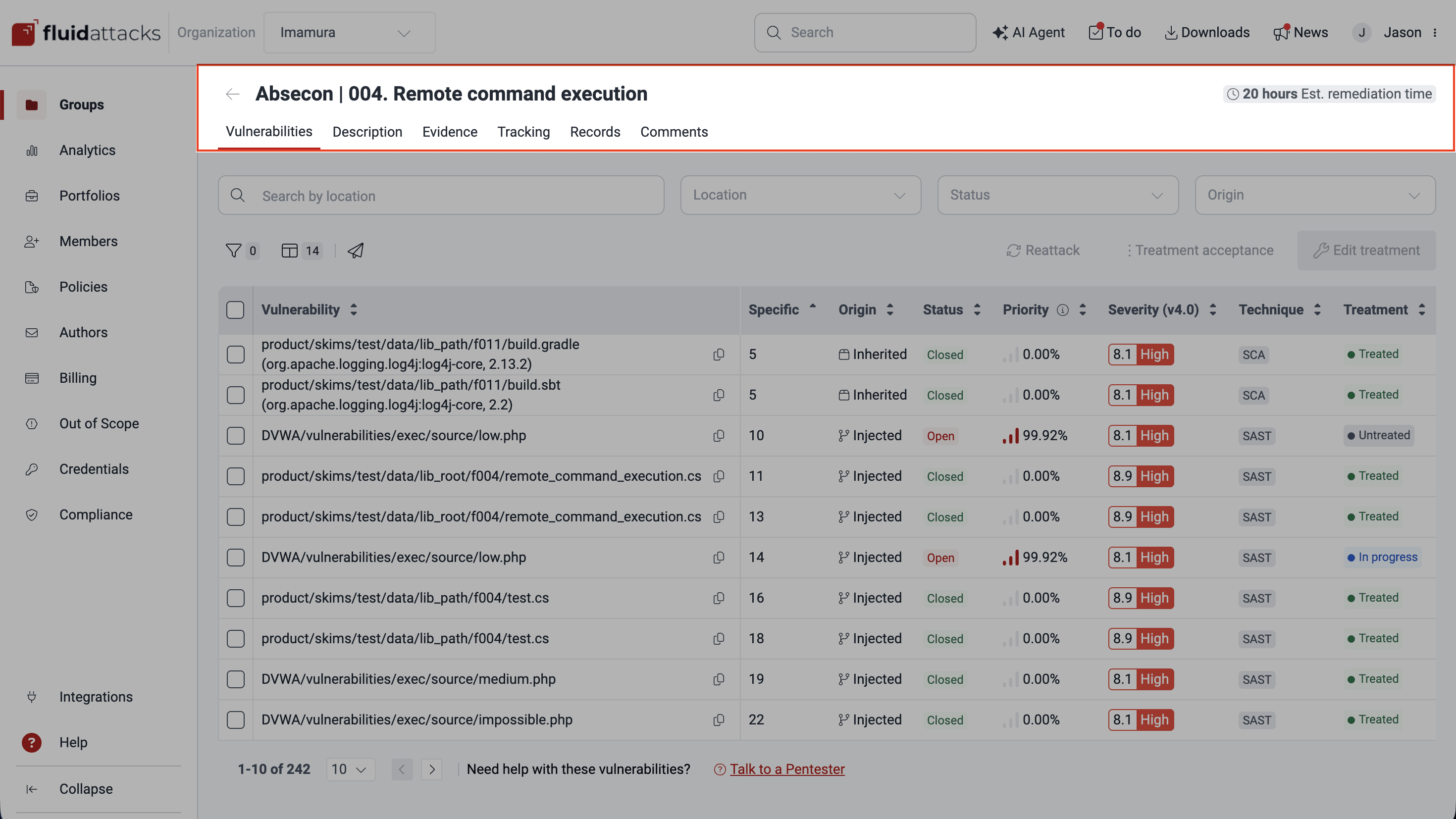
Vulnerabilities
The Vulnerabilities section shows the list of vulnerabilities. The name of each vulnerability is the file path and the input or line of code where Fluid Attacks found it. In this section, you can define the treatment of vulnerabilities. For example, you can assign the fix to yourself or to a person in your team. You can also request a reattack, that is, a new test to make sure that the remediation is correct.
Click a vulnerability in the Vulnerability column. A pop-up window opens with more information about it. If available, you can also use generative artificial intelligence (gen AI) in this window to get a custom guide to remediate the vulnerability. This screenshot shows the window for a reported remote code execution vulnerability.
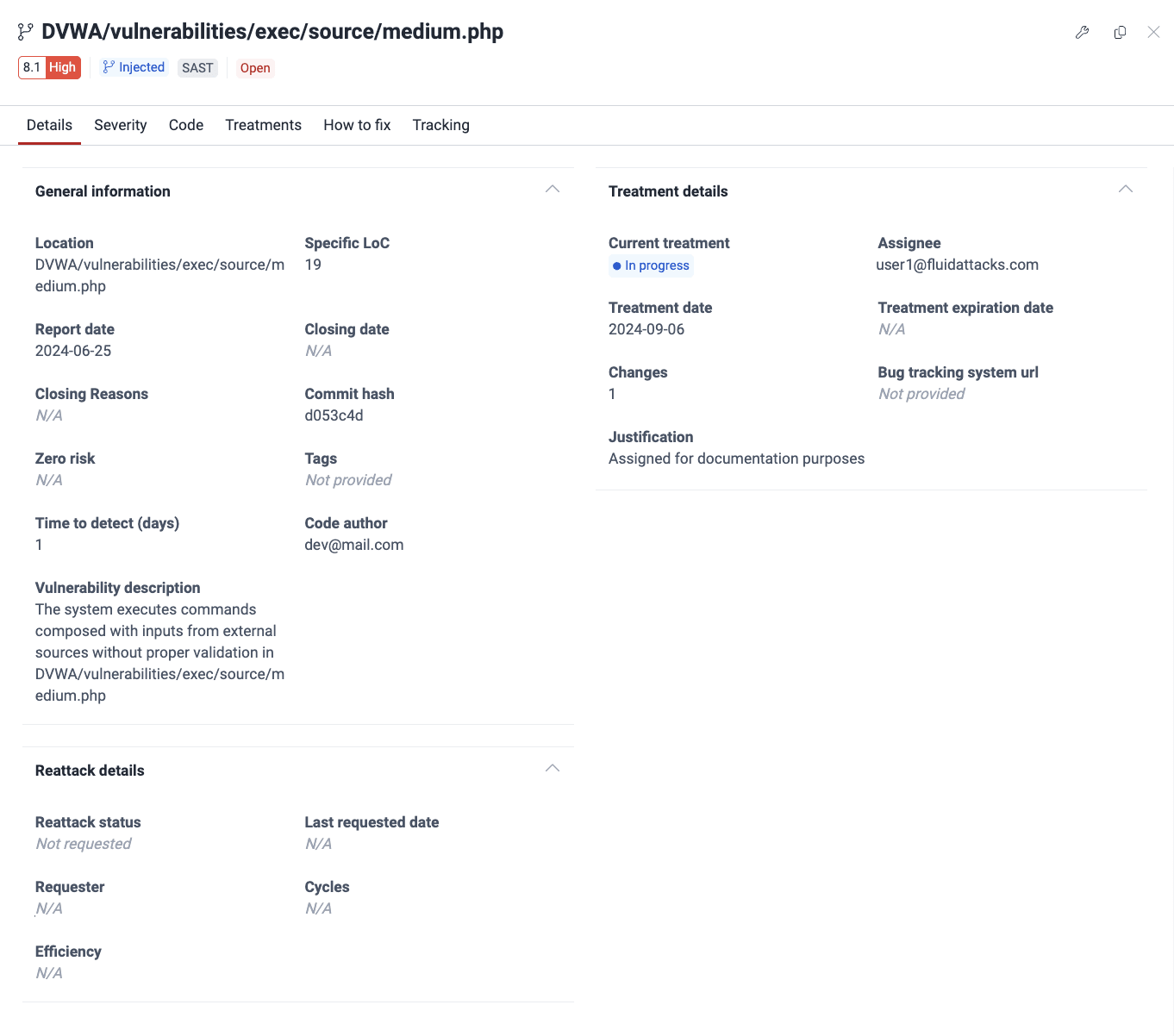
Each tab of the pop-up window gives this information:
- Details: Description and current treatment, among other information
- Severity: Breakdown of the assigned severity score using the Common Vulnerability Scoring System (CVSS) v4.0
- Code: The lines of code with the vulnerability and the lines around them
- Treatments: The current treatment and assigned tags with the option to change them
- How to fix: The AI-generated custom guide to remediate the vulnerability
- Tracking: The treatment and reattack history
Description
The Description section shows this information about the type of vulnerability:
- The definition
- The security requirements that it can break
- The expected impact of an exploitation
- The characteristics of the threat actor that can exploit it
- The recommended actions to fix the code
Evidence
The Evidence section shows evidence that the reported type of vulnerability exists and that an attacker can exploit it. The evidence can be images or videos.
Tracking
The Tracking section shows the detailed treatment history of the type of vulnerability. It also shows the number of reported and remediated vulnerabilities.
Records
The Records section shows a table with the sensitive information that the Fluid Attacks pentesters got when they exploited the vulnerability in your system. The data can be financial information, such as account numbers, personal information, such as phone numbers, or technical information, such as access tokens.
Comments
Comments is a forum-like section. Use it to talk with Fluid Attacks about the reported vulnerabilities or to learn the result of reattacks.
Vulnerability comments are available for users with the Essential plan in view mode.
Analytics (group-level)
The group-level Analytics section shows graphs and figures about the status and characteristics of the reported vulnerabilities in the group and about your remediation practices. It also shows analytics about the status and executions of the Fluid Attacks CI Gate in the group.
DevSecOps
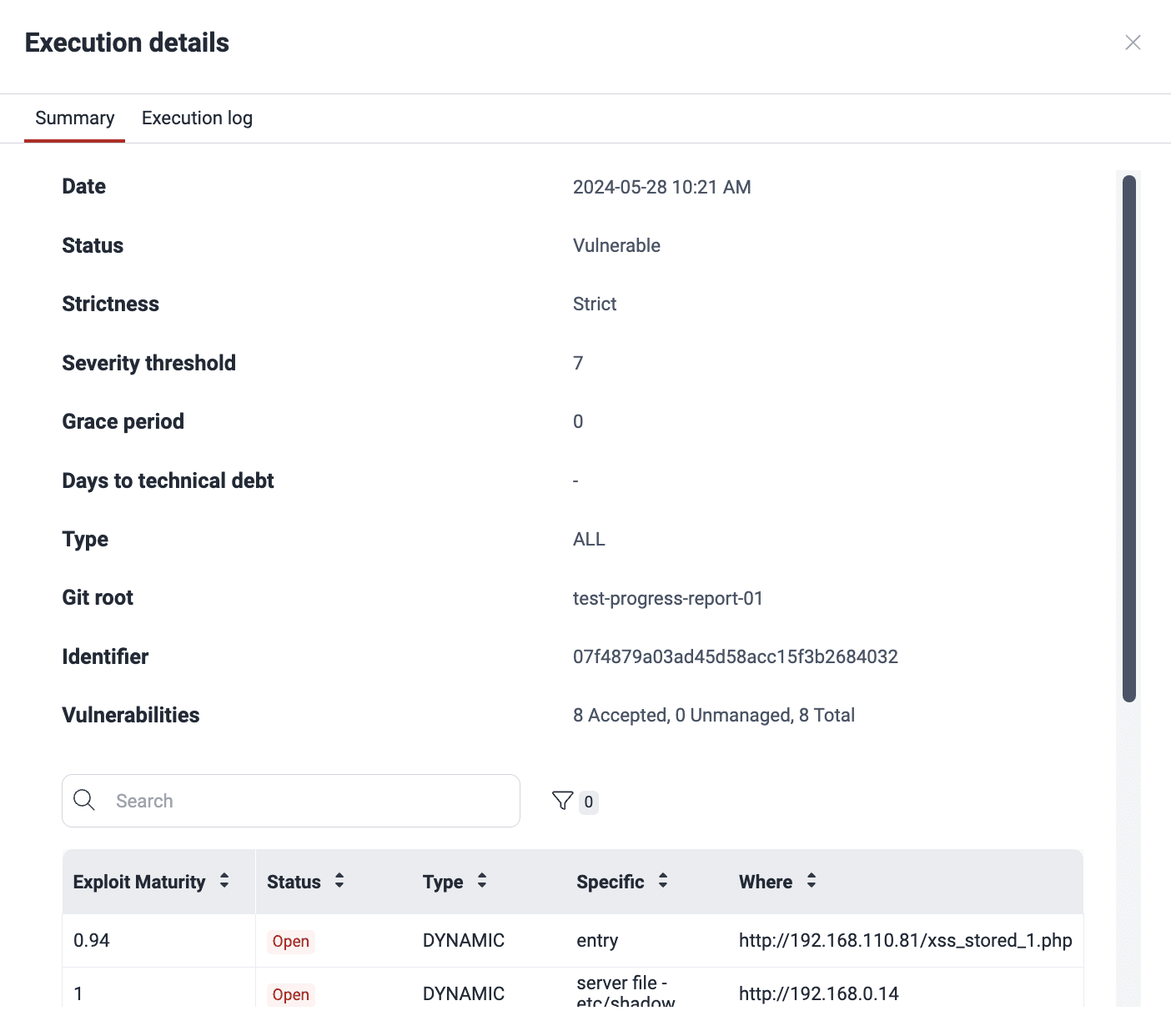
You can install the Fluid Attacks CI Gate in your CI pipelines. The CI Gate can break the build when a pipeline tries to deploy a software version with vulnerabilities to production. If you enable this function, it follows the policies of your organization. The DevSecOps section shows the details and results of the recent CI Gate executions.
Select an execution to see the vulnerabilities that it found or the agent log. A pop-up window shows this information in two tabs.
Design Map
The Design Map section shows the correlations between your threat model and the vulnerabilities that Fluid Attacks found in your system. When you upload your threat model files, the section matches your threat descriptions with the vulnerability categories of Fluid Attacks and their details, such as severity. With this information, you can prioritize your remediation for your security concerns.
Events
For Fluid Attacks, an "event" is a situation that prevents the tests on the target of evaluation (ToE) or on a part of it. Fluid Attacks sorts events into types. For example, a "credentials issues" event occurs when the authentication information is not correct.
The Events section shows the events that Fluid Attacks reports to you, so that you can act on them quickly. Each reported event has its own sections, as this screenshot shows. The list after the screenshot summarizes the primary features of these sections.
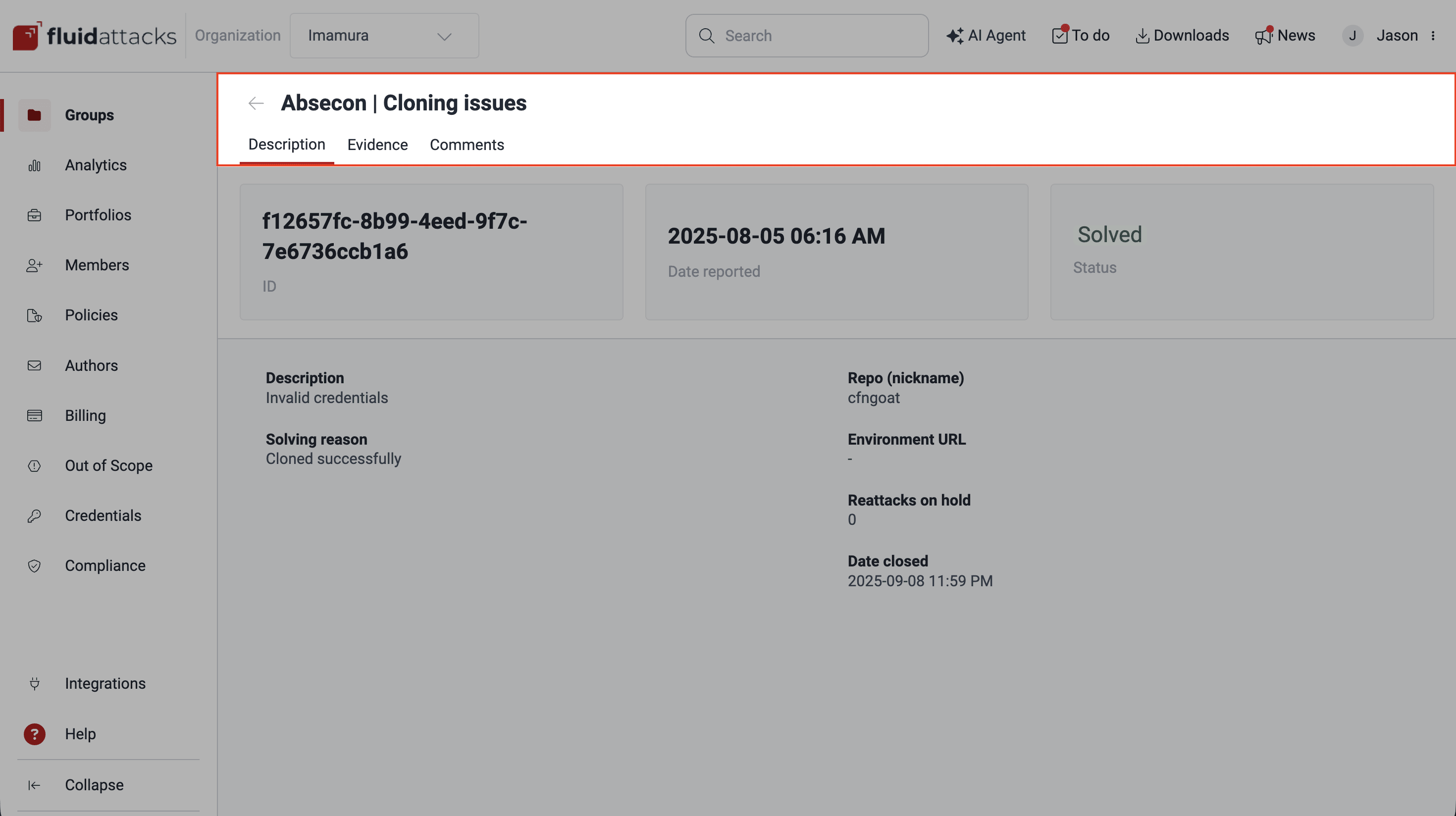
- Description: What the situation is, what part of the ToE it refers to, and whether it prevents reattacks
- Evidence: Images or videos that provide proof of the event
- Comments: Forum-like space to discuss the event
Members (group-level)
Role required: Vulnerability Manager or Group Manager
In the Members section at the group level, you can see or manage the users with access to the group. You can also see or manage their permissions for the platform functions. Your role controls if you can only see this information or also manage it.
Authors (group-level)
For Fluid Attacks, "authors" are the developers who contribute to the code repository each month. The Authors section shows a list of these developers and if they have an account on the Fluid Attacks platform. If you have the Group Manager role, you can invite authors without an account to sign up.
Inventory
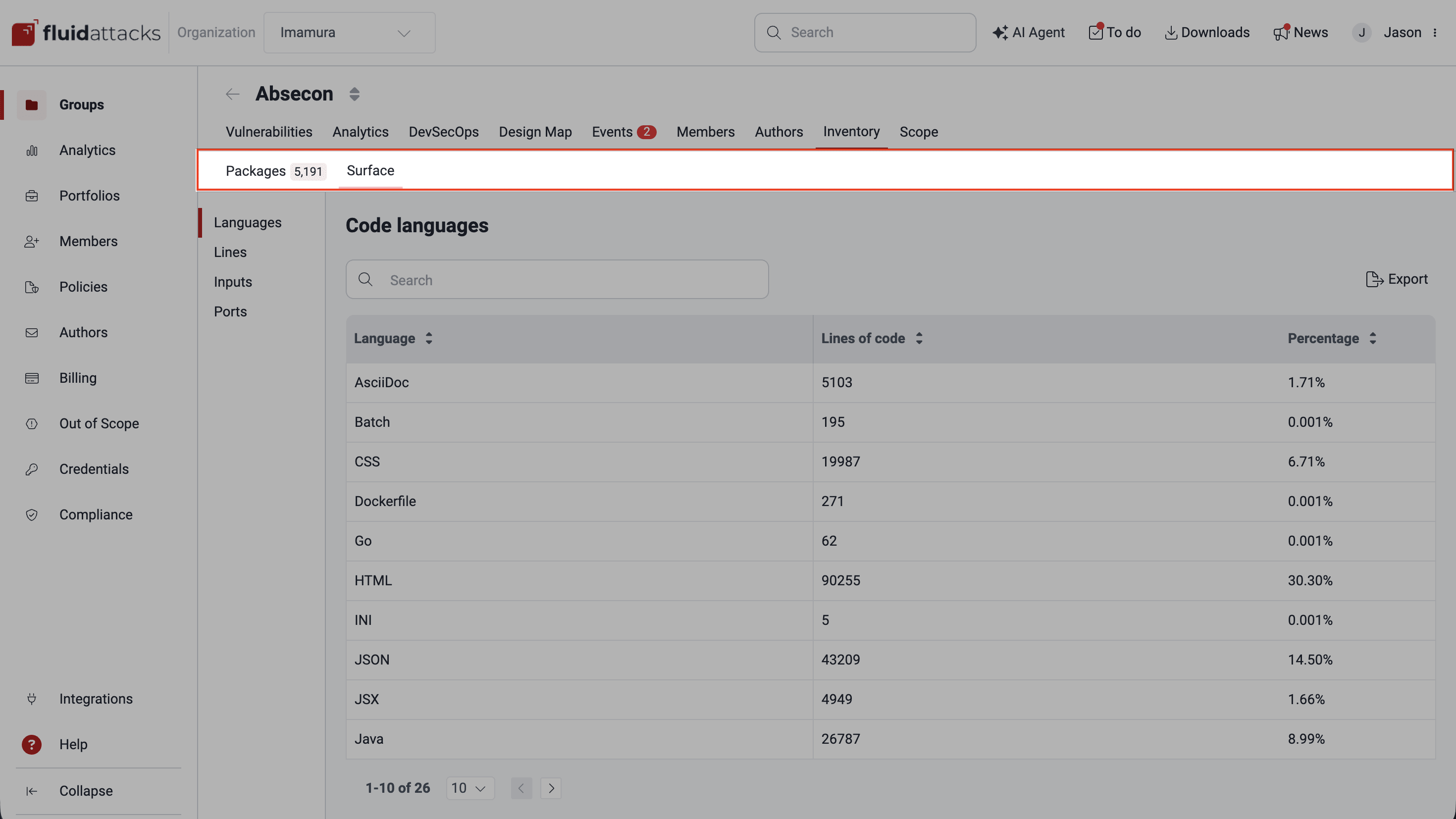
The Packages section of Inventory helps you monitor the third-party dependencies in your software. It shows the dependencies with reachable vulnerabilities and where you use them. With this information, you can analyze their use and make informed decisions.
Inventory also has a Surface section with information about the ToE that you define in the Scope section. The section shows the lines, inputs, packages, and languages of the ToE, each in its own section.
Scope
The primary function of the Scope section is to define the ToE for Fluid Attacks. The information in this section makes the security tests easier. Some tests are not possible without it:
- Git repositories: Git repositories where you version the application's source code
- Environments: URLs where your applications are deployed
- URL roots: Dynamic environments that are on a web server
- Files: Mobile applications or documents, such as software documentation, that help to understand or use the system in evaluation
- Portfolio tags: Keywords to make portfolios and get information and analytics for the groups with the same tag
- Information: General information about your company, for example, to make complete security testing certificates
- Group settings: Specific configuration options for the group: group context, group disambiguation, group token management, and a function to delete the group
Platform header items
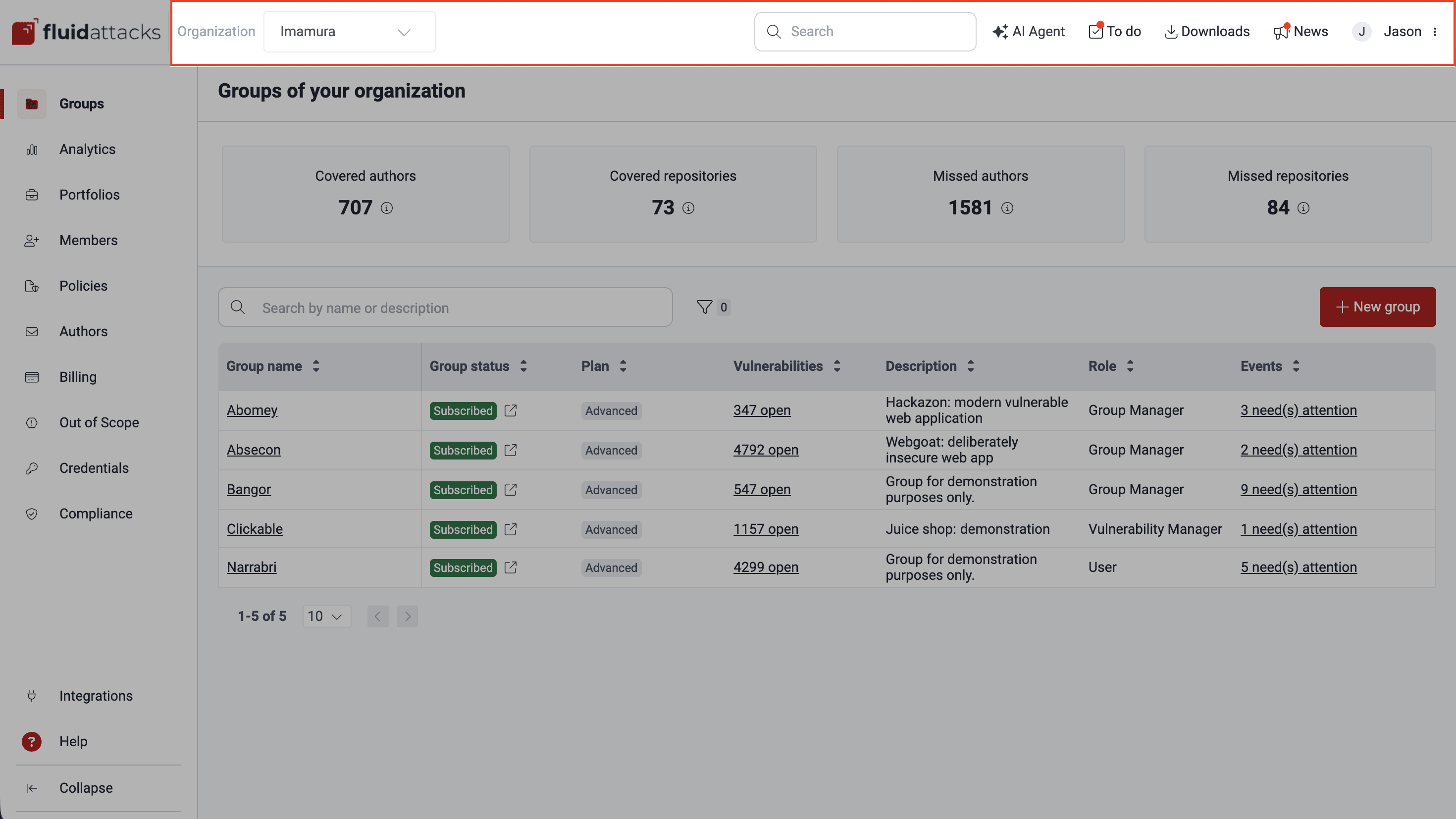
The header and the collapsible menu of the Fluid Attacks platform are always visible when you navigate the application. The header gives you access to your tasks, user information, and settings.
Organization menu
If you have more than one organization on the Fluid Attacks platform, use this drop-down menu to change between them.
Group search box
Type the name of a group of the organization in the search box of the header. Then, use the Enter/Return key to go to that group.
AI Agent
Chat with the AI Agent to quickly get information about your organization or group or advice about vulnerability management. The AI Agent uses the Fluid Attacks generative AI.
To do
Click this item of the header to go to the To do section. This section has a table with general information about the vulnerabilities assigned to you for remediation.
Downloads
Click this item to see the reports that you requested recently and that are ready to download. Each report stays in your download history for seven days.
News
Click this item to open a pop-up window with the headlines of the Fluid Attacks posts about new platform functions, scanner improvements, and more. Each headline links to the complete post on the Fluid Attacks News page.
In the pop-up window, you can also subscribe to the Fluid Attacks News and request a new feature.
User menu
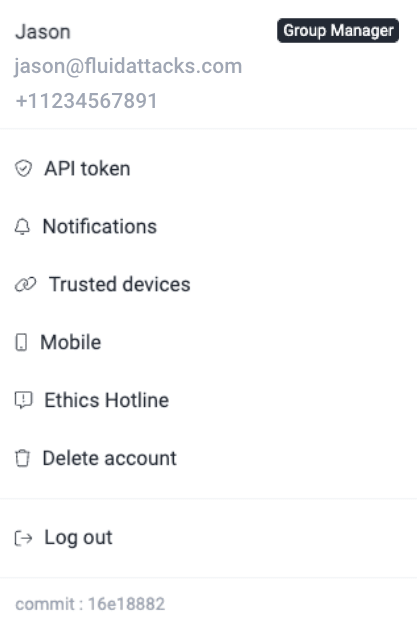
The last option on the right of the header is your user menu. To open it, click your name. The menu shows your role, email, phone number, and user options. This image shows the menu for Group Managers:
View as client
Use this option to see the platform as a client sees it.
Feature preview
Use this option to try platform features that are not generally available at this time.
API token
Use this option to manage your API token. The API token lets you get or change data and start actions to make custom integrations.
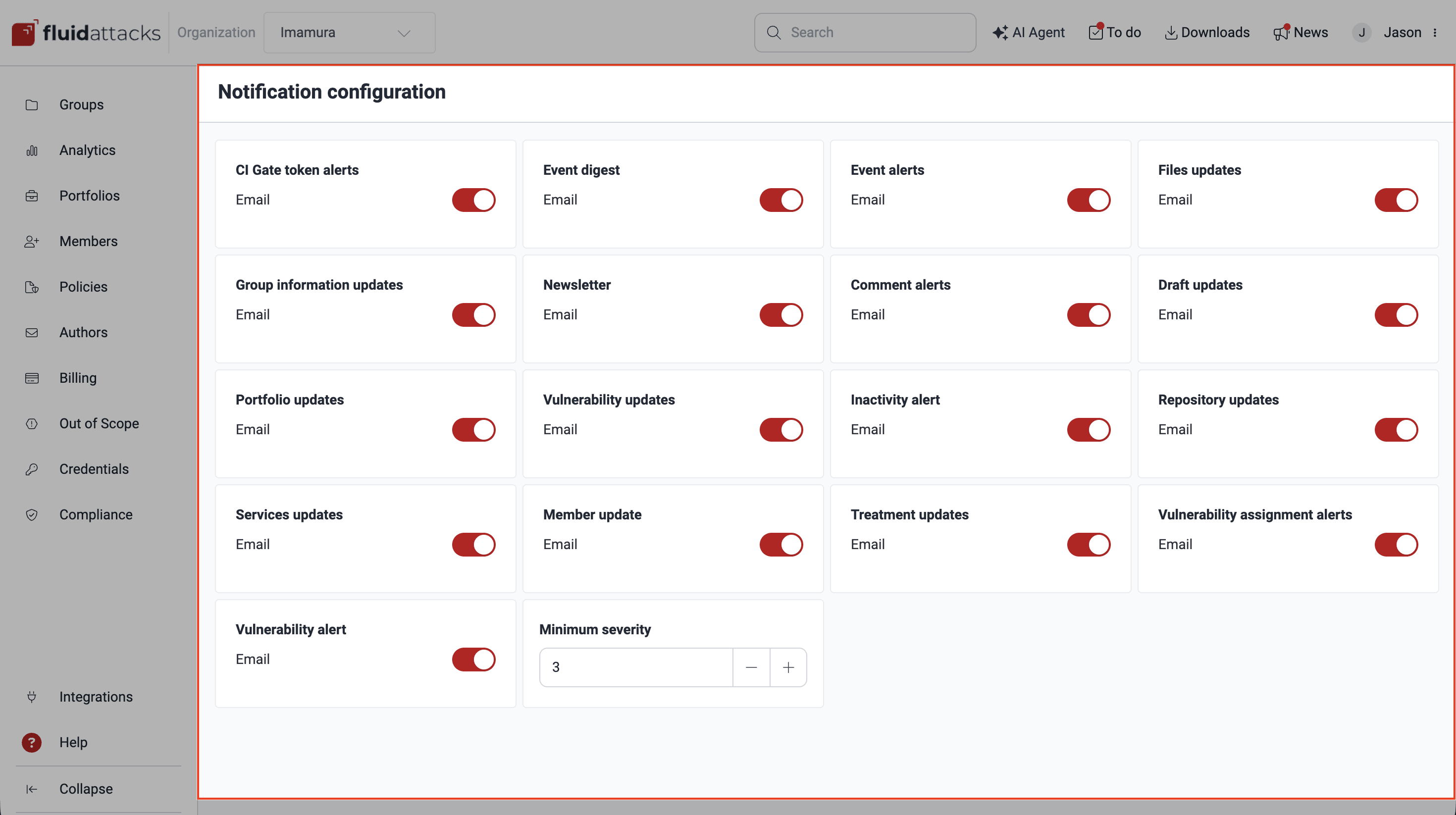
Notifications
Click this option to go to the Notifications section. There, you can see and manage your preferences for the emails from Fluid Attacks. These emails tell you about new reported vulnerabilities, reported events that prevent the tests, and more.
Ethics Hotline
Fluid Attacks lets you report ethics matters, with your name or anonymously. Click the Ethics Hotline option of the user menu to go to a safe web application. There, you can report complaints for yourself or for other persons. You can also send suggestions, questions, or thank-you messages.
Delete account
Use this option to safely delete your account. The platform erases all your information permanently, and no person can get it again.
Log out
Click this option. Then, confirm that you want to log out.
Platform version
The bottom of the user menu shows the commit hash ID of the latest update of the Fluid Attacks platform. The commit hash ID is the unique identifier of a commit. Click the commit hash to see the commit on GitLab. There, you can see the changed lines of code, the developer who made the change, and the removed and added content in each file.
Search for vulnerabilities in your apps for free with Fluid Attacks' automated security testing! Start your 21-day free trial and discover the benefits of the Essential plan. If you prefer the Advanced plan, which includes the expertise of Fluid Attacks' pentesting team, complete this contact form.