Members
Last updated: Jun 30, 2026
Members on the Fluid Attacks platform are individuals who have an account that permits them to at least access one organization, which in turn is the representation of a company or enterprise in the platform.
Organization-level members
Organization members can access the organization's Analytics and Policies sections. Some organization-level member roles allow individuals to give access to new members or configure policies.
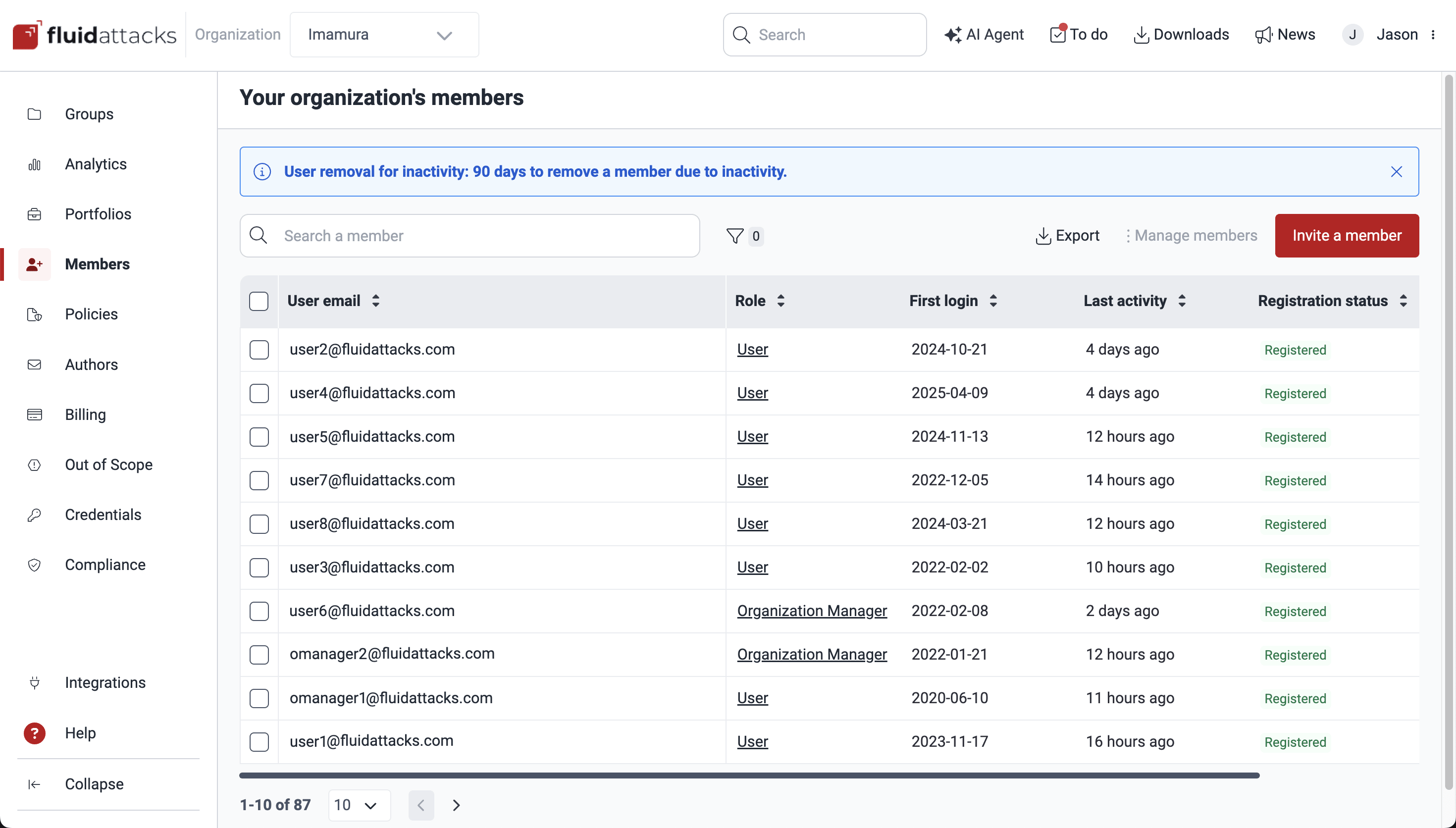
To view members at the organization level, navigate to the Members section from the initial screen upon logging into the platform.
Group-level members
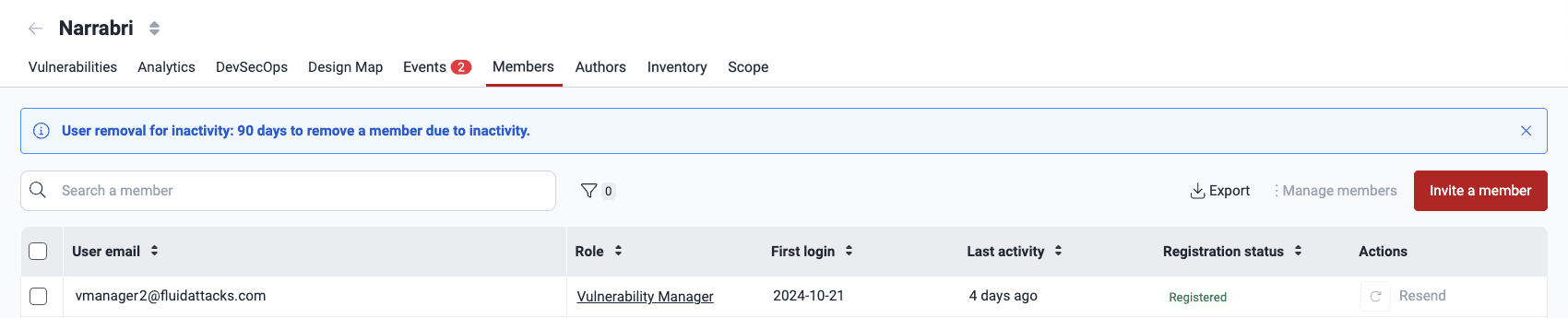
The members of a group are the users who can access it to visualize information or manage vulnerabilities, security testing scope, tags, etc. Only if you have the Group Manager role can you add, edit or remove users. Access these functions through the Members section within your group.
Inactivity policy
Your organization may define the number of days that shall pass before a member is automatically removed due to inactivity (i.e., they're not logging in to the platform or using their access tokens). Refer to Manage security gates for more information.
Upon entering the Members sections, a banner informs you of your organization's inactivity policy. This message is shown only once daily. Below is an example screenshot.

Members table
The tables in the Members sections display the following information:
- User email: The person's email address
- Role: The role that the person has in that organization or group
- First login: The date and time of the member's first login to the organization or group
- Last activity: The time of the member's most recent login or access token usage
- Registration status:
The person's current registration status:
- Registered: The person has registered on the platform
- Unregistered: The person has not registered on the platform nor been sent an invitation to register
- Pending: The person has been sent an invitation to register on the platform, but has not yet registered
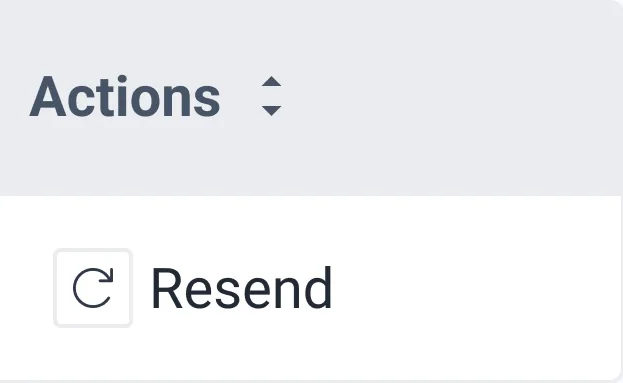
- Actions: Allows resending an invitation to a person who has not yet accepted it
Invite members
Role required: Group Manager or Organization Manager
Follow these steps to add new members at the organization or group level on Fluid Attacks' platform:
-
Go to the Members section. You can access the organization-level section by clicking on its item in the collapsible menu. To access the group-level section, open the group from the Groups section and select the Members tab.
-
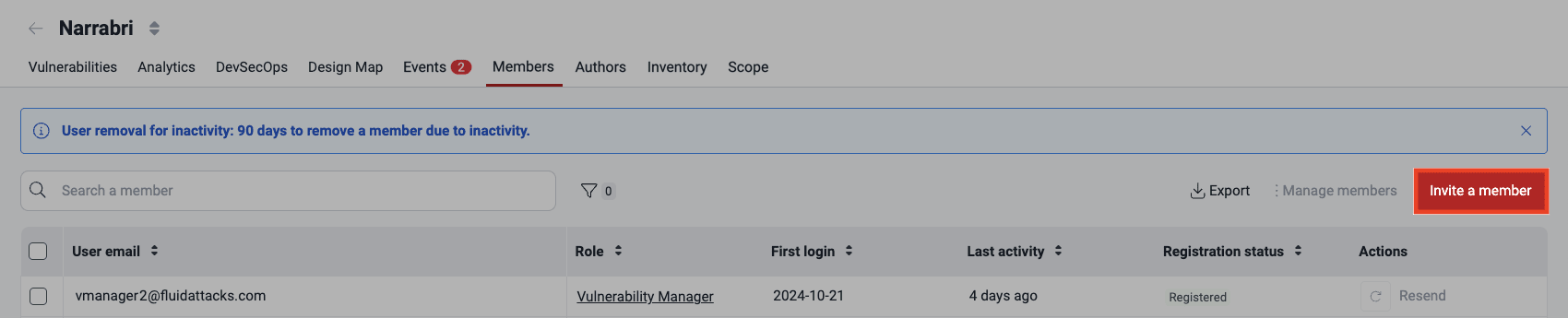
Click on Invite a member. This causes a pop-up window to appear.
-
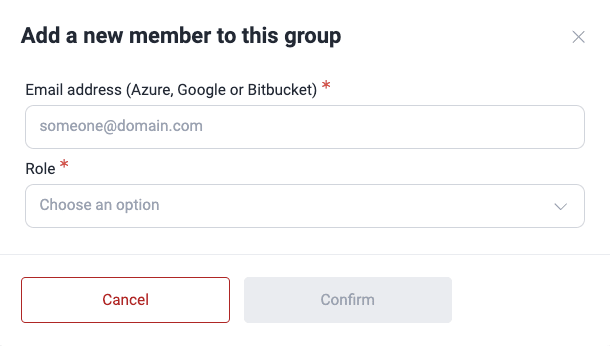
In the pop-up window, enter the new member's email and role. Only email addresses corresponding to valid Azure, Google, or Bitbucket accounts are accepted.
-
Click the Confirm button to send the invite. The user then receives an email asking them to accept their invitation.
If the added person's email is not in the list of
authors,
a warning will ask you to confirm that they are part of your company.
Invitations expire seven calendar days after delivery.
While you wait for the acceptance of the person you invited, their information in the Registration status is 'Pending', and a button is made available in the Actions column for you or another authorized member to resend the invitation if needed.
Edit a member's role
Role required: Group Manager
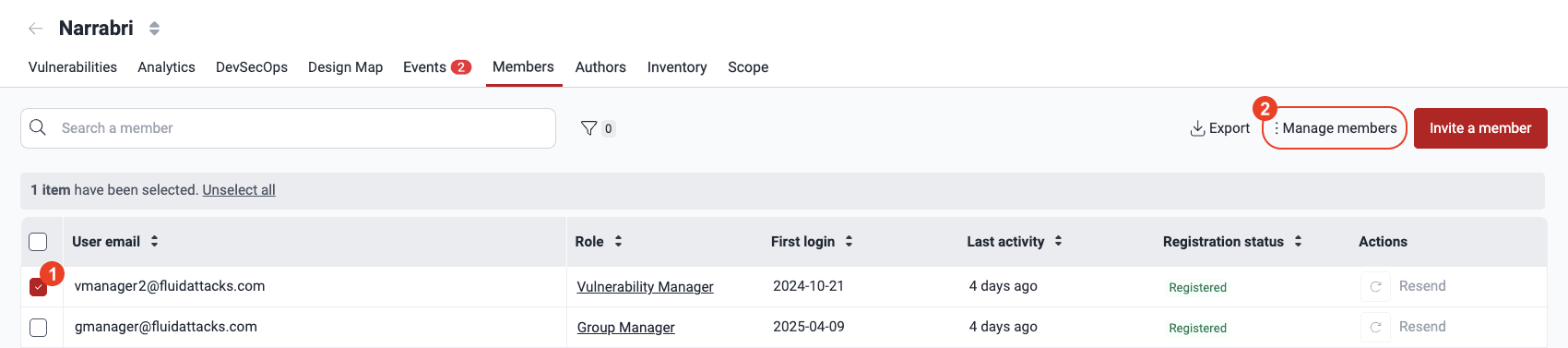
The Manage members button allows you to modify a member's role or delete the member. Follow these steps to edit roles:
-
Select the member to edit and click on Manage members.
-
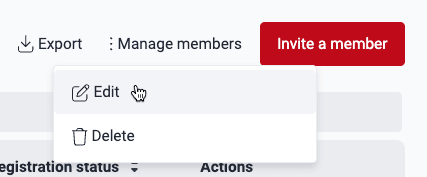
Select Edit from the drop-down menu.
-
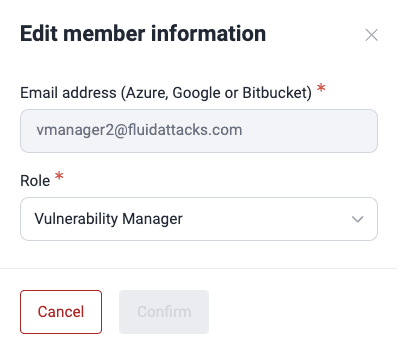
Modify the member's role in the pop-up window.
-
To save the changes, click on Confirm.
Delete members
Role required: Group Manager or Organization Manager
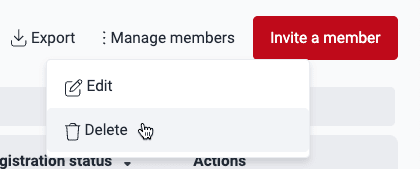
The Delete option available in the Manage members menu allows you to delete one or multiple members. Follow these steps:
-
In the Members section, select the members you want to delete by clicking their respective checkboxes on the left.
-
Click on Manage members.
-
Click the Delete button.
-
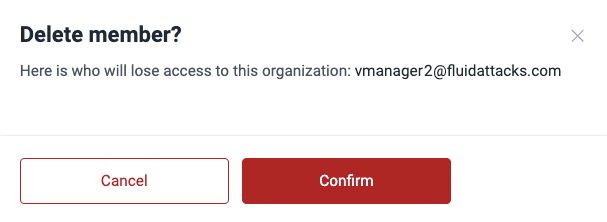
A pop-up window appears, asking you to confirm the removal of the selected members.
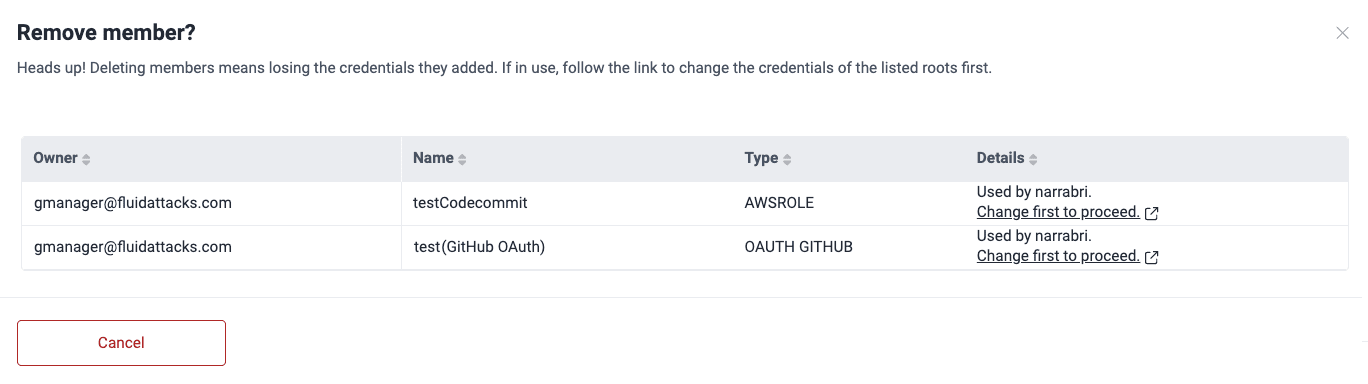
However, if the selected people own credentials that are in use by the organization, you have to follow the link to Scope and change the credentials of the resources that are shown to you in the window. Then you may come back and successfully delete the member.
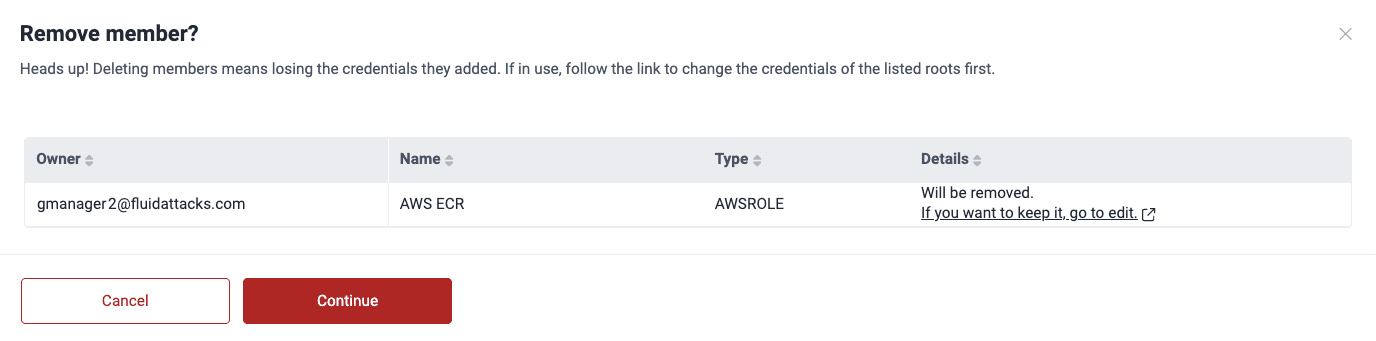
If the selected people own unused credentials in the organization, you are informed that by proceeding, you delete those credentials as well.
-
Clicking Confirm or Continue automatically deletes the selected members from either the entire organization or the specific group, depending on the Members section you are currently in.
Members are always subject to automatic removal after a period of inactivity.
You can modify the organization policy that specifies the number of days of inactivity after which members are automatically removed from groups.
The above policy defaults to 90 days.
Export the members table
Role required: Group Manager or Organization Manager
Vulnerability Managers can view and export the members table at the group level.
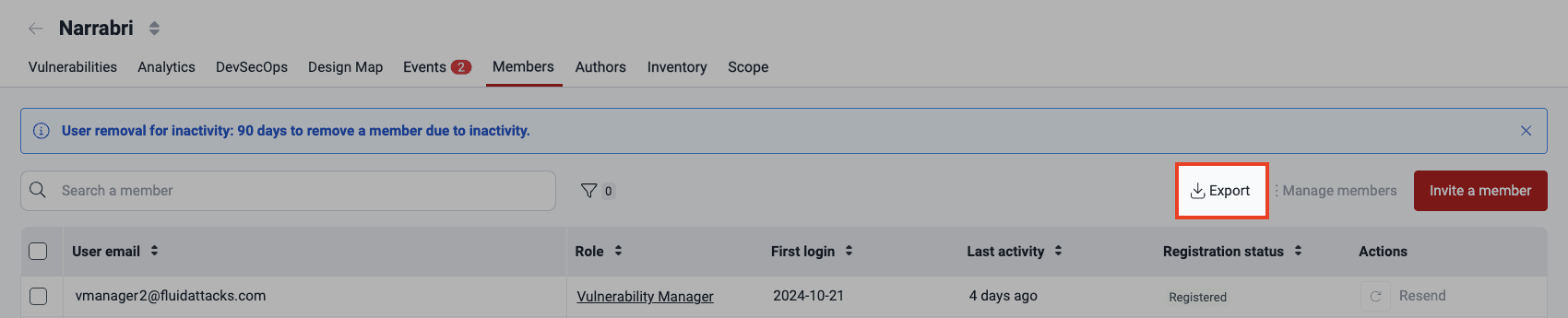
Clicking the Export button downloads a CSV file containing all the information displayed in the members table you are currently viewing.
Search the members table
Role required: Group Manager or Organization Manager
Vulnerability Managers can search the members table at the group level.
The search bar filters the information displayed by the table. Just type the content you are looking for so that only the rows containing it are shown.
Filter the members table
Role required: Group Manager or Organization Manager
Vulnerability Managers can filter the members table at the group level.
The group-level members table offers filters accessible by clicking the filters button.

You can filter member data by Role and Registration status. Click Apply to proceed.

Search for vulnerabilities in your apps for free with Fluid Attacks' automated security testing! Start your 21-day free trial and discover the benefits of the Essential plan. If you prefer the Advanced plan, which includes the expertise of Fluid Attacks' pentesting team, fill out this contact form.