Assigned to you
Last updated: Oct 26, 2026
In the To do section of the Fluid Attacks platform, you can monitor all the vulnerabilities that you must remediate. To go to this section, click the To do button in the header.

To learn how to assign fix work to yourself, read Assign treatments.
Members with the Group Manager or Vulnerability Manager role can assign vulnerabilities to any member of the group.
Know your Assigned vulnerabilities table
Role required: User, Vulnerability Manager or Group Manager
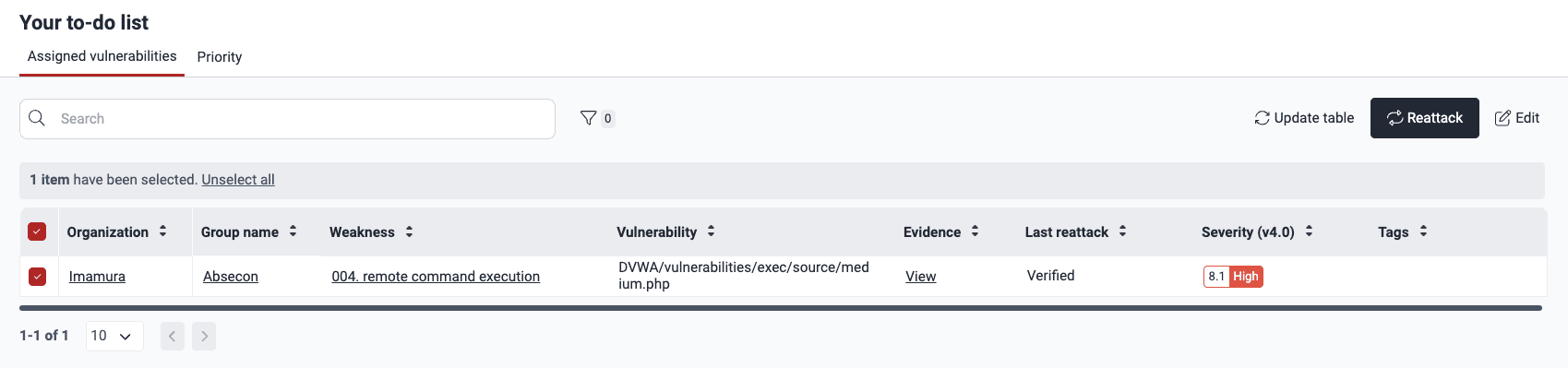
The table in Assigned vulnerabilities in the To do section gives an overview of the vulnerabilities that you must remediate.

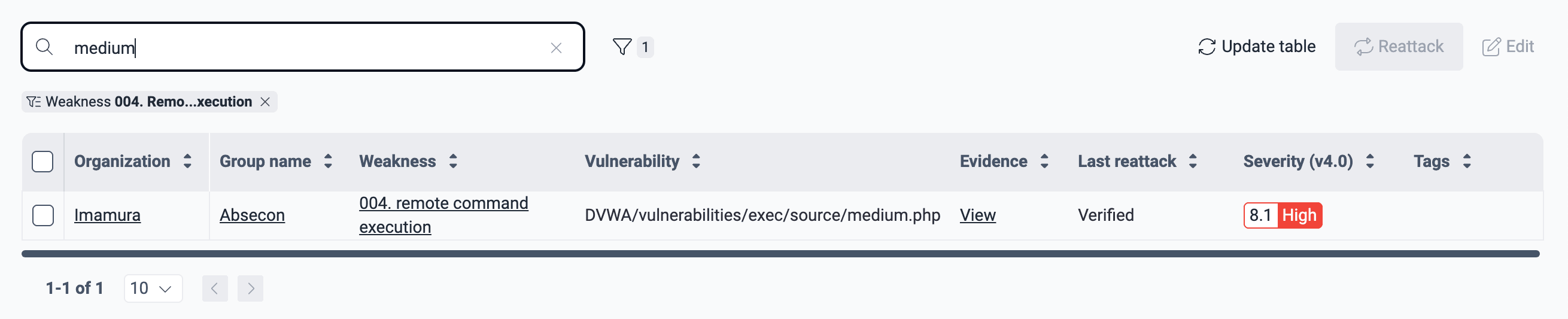
The table shows this information:
- Organization: The organization where Fluid Attacks identified the vulnerability
- Group name: The group where the vulnerability is present (click the group name to go to the Vulnerabilities section of that group)
- Weakness: The weakness of the vulnerability (click it to go to its section in the group)
- Vulnerability: The location of the vulnerability
- Evidence: The link to the Evidence section of the weakness
- Last reattack: The status of the most recent reattack request for this vulnerability
- Severity (v4.0): The severity level of the vulnerability, from the Common Vulnerability Scoring System (CVSS)
- Tags: The tags added to the vulnerability during assignment
Edit vulnerabilities in your to-do list
Role required: User, Vulnerability Manager or Group Manager (the User role can only assign fix work to themselves and edit the External BTS and Tags)
To edit a vulnerability in the to-do list, follow these steps:
-
Go to the To do section.
-
In the table, select the checkbox on the left of the vulnerability.
-
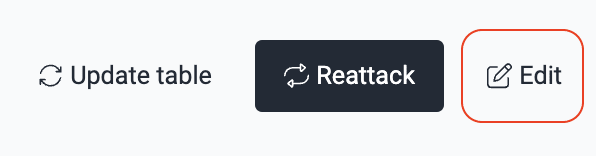
Click the Edit button.
-
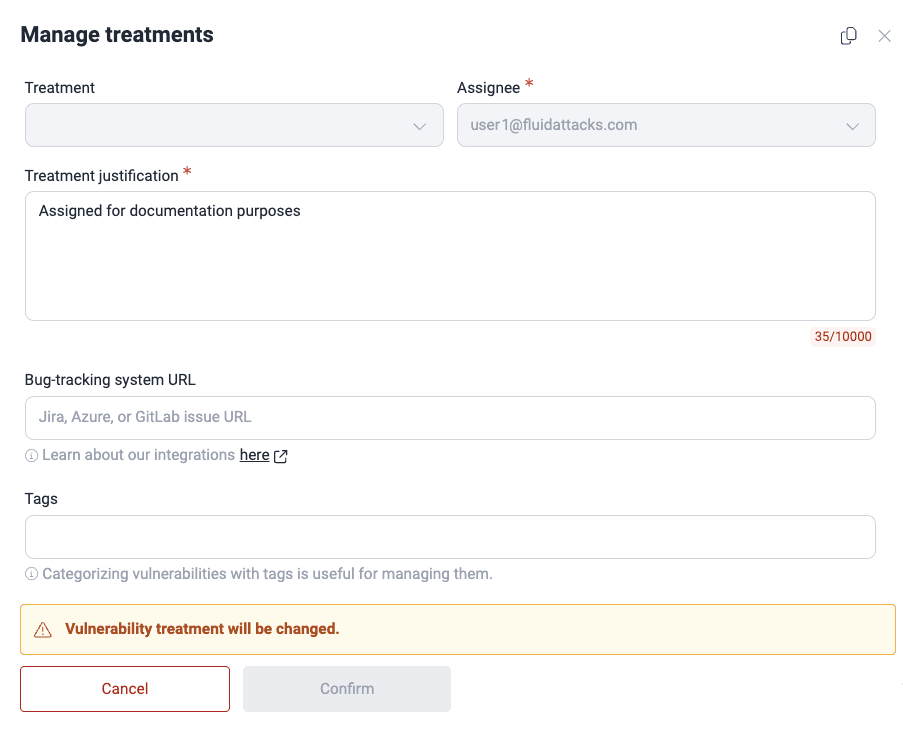
Make the changes in the form. Only Vulnerability Managers and Group Managers can change the values of Treatment and Assignee. (For descriptions of the fields, read Assign treatments.)
-
Click Confirm to apply the changes.
Each change sends notifications to the members who subscribed to them.
Request a reattack
Role required: User, Vulnerability Manager or Group Manager
After you fix your code to remediate a vulnerability, you can request a reattack to make sure that your fix removed the vulnerability. You can request reattacks from the Vulnerabilities and To do sections.
To request a reattack from the To do section, follow these steps:
-
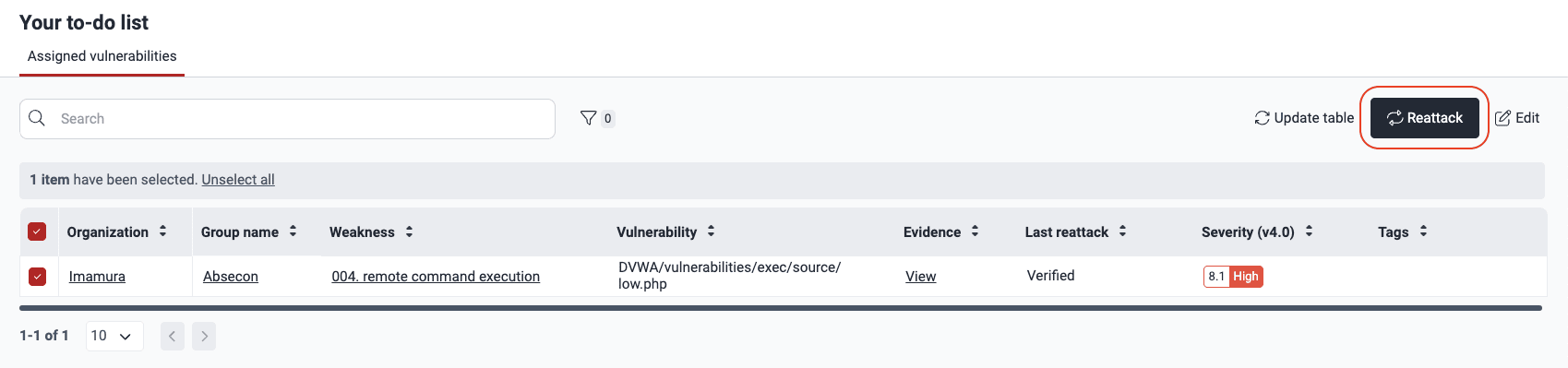
In the To do section, select the vulnerability that you remediated.
-
Click the Reattack button.
-
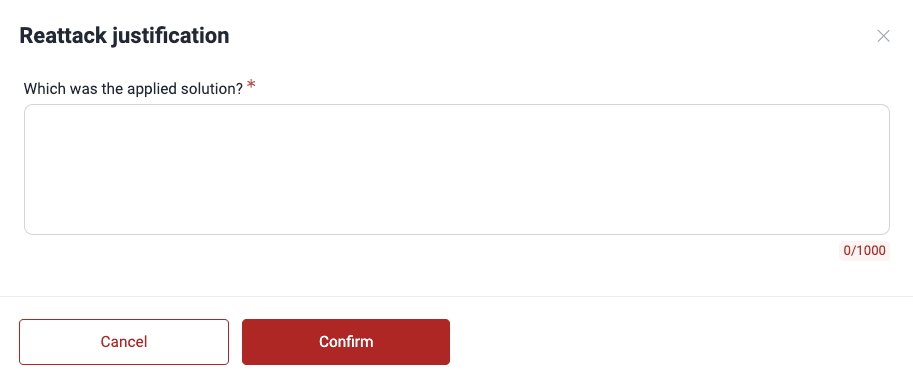
In the pop-up window, if applicable, write a justification for the reattack request (minimum 10 characters).
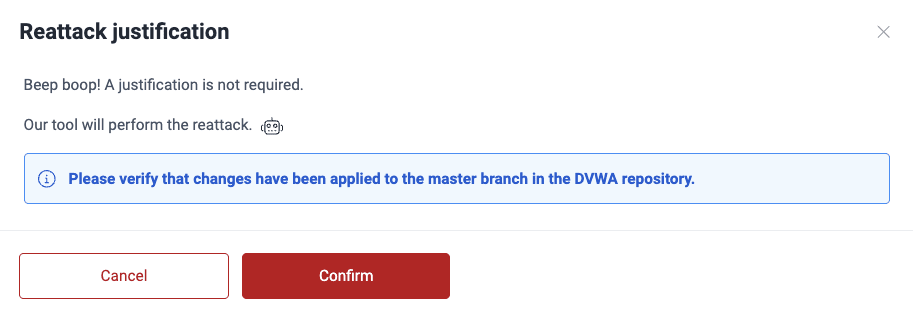
If the scanner reported the vulnerability, the pop-up window only tells you to make sure that you applied the changes. This means that the system version synced to the platform contains the fixes.
-
Click Confirm to send the request.
Filter the Assigned locations table
Role required: User, Vulnerability Manager or Group Manager
With filters, you can quickly limit the vulnerabilities that the table shows
to those that match your criteria.
To see the options,
click the filters button
( ).
).

To remove a filter, click the X next to it.

Refresh the Assigned locations table
Role required: User, Vulnerability Manager or Group Manager
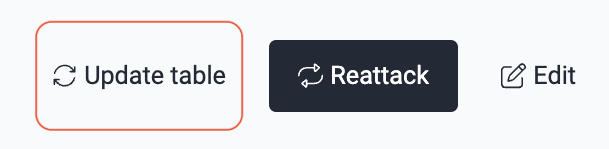
To show the most recent changes in the table and keep your list of pending tasks up to date, click the Update table button.
Search the Assigned locations table
Role required: User, Vulnerability Manager or Group Manager
The search bar shows only the rows of the table that match your search.
See events across your groups
Role required: Vulnerability Manager or Group Manager
The Events section in To do gives important details about situations that affect security testing in the groups that you manage. This section shows the events of all your groups in one place. Thus, it is easier to manage the events when you manage more than one group.

Read a description of the columns in Know your events table.
Filter events
Role required: Vulnerability Manager or Group Manager
Use the Filters option to find the events that you want to see.

Export events
Role required: Vulnerability Manager or Group Manager
Be aware that any applied filters limit the data included in the exported CSV file. Ensure your filters are correct before exporting. To quickly remove them, click on the X next to them.
Click the Export button to download the contents of the table in a CSV (comma-separated values) file.
Search for vulnerabilities in your apps for free with Fluid Attacks' automated security testing! Start your 21-day free trial and discover the benefits of the Essential plan. If you prefer the Advanced plan, which includes the expertise of Fluid Attacks' pentesting team, complete this contact form.
Assign treatments
The Treatments section in the Fluid Attacks platform allows you to define business decisions concerning vulnerabilities, including assigning fix work to users.
Verify fixes with reattacks
Request reattacks on the Fluid Attacks platform to test the success of fixes addressing vulnerabilities. Understand reattack outcomes and troubleshoot errors.