Vulnerabilities section guide
Last updated: Oct 26, 2026
See a vulnerability summary
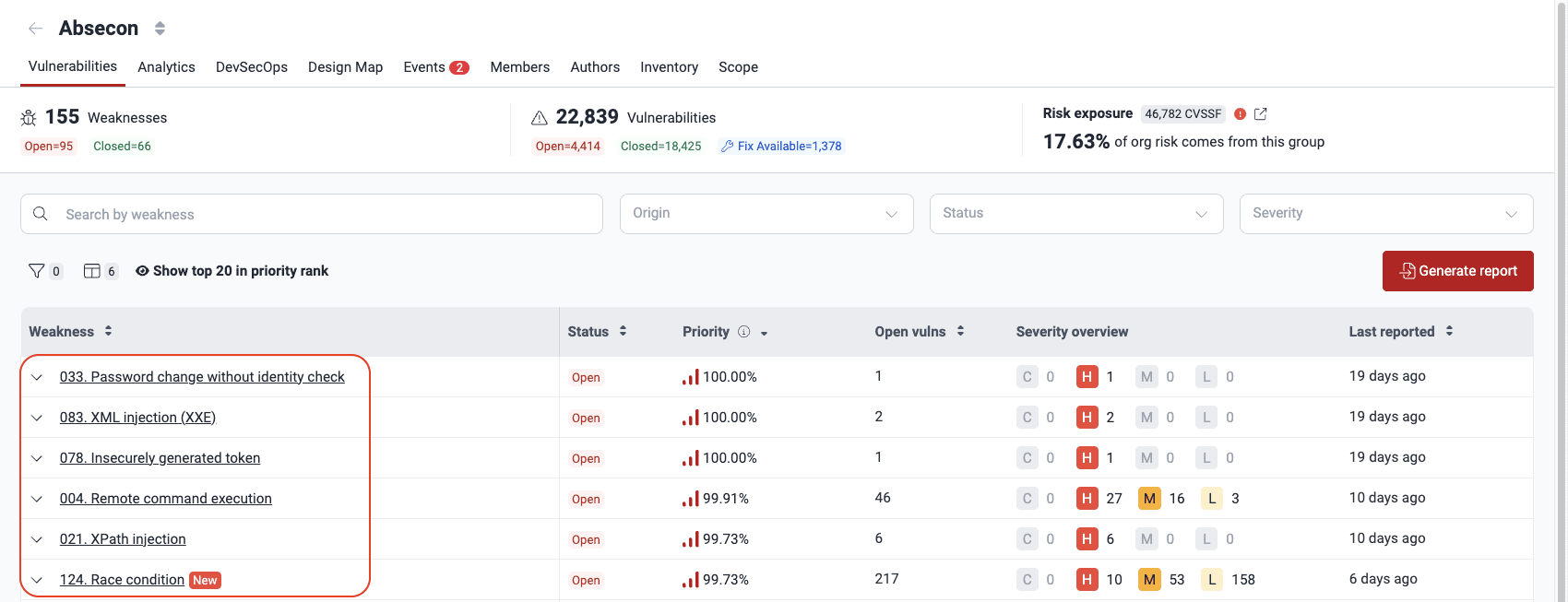
When you open a group, the platform first shows the Vulnerabilities section. This section shows a summary of the vulnerabilities detected in the group. The summary includes the number of vulnerabilities and their risk exposure. Risk exposure measures how vulnerable the system is to successful cyberattacks. Fluid Attacks measures risk exposure using the CVSSF metric.

The summary gives you this information:
- Weaknesses:
The number of categories
that the detected security issues most likely belong to
- Open: The number of weaknesses with vulnerabilities that are present in the system
- Closed: The number of weaknesses that Fluid Attacks reported before but that are not present in the system at this time
- Vulnerabilities:
The number of locations in the system
where Fluid Attacks detected security issues
- Open: The number of vulnerabilities that are present
- Closed: The number of vulnerabilities that Fluid Attacks reported before but that are not present at this time
- Fix Available: The number of open vulnerabilities that have a fix available from Custom Fix, Autofix, or a suggested package update
- Risk exposure:
The sum of the CVSSF scores of all the vulnerabilities that are not remediated.
The percentage below the value shows the part of the total risk exposure of the organization that comes from the group.
A warning icon appears next to the risk exposure value if there are unsolved events in the group (that is, situations that impede testing). Next to the warning icon, there is an external link icon that directs to the group's Events section.
See the list of vulnerabilities detected
Role required: User, Vulnerability Manager or Group Manager
The Vulnerabilities section shows all the vulnerabilities detected in your software. The section groups the vulnerabilities by weakness.
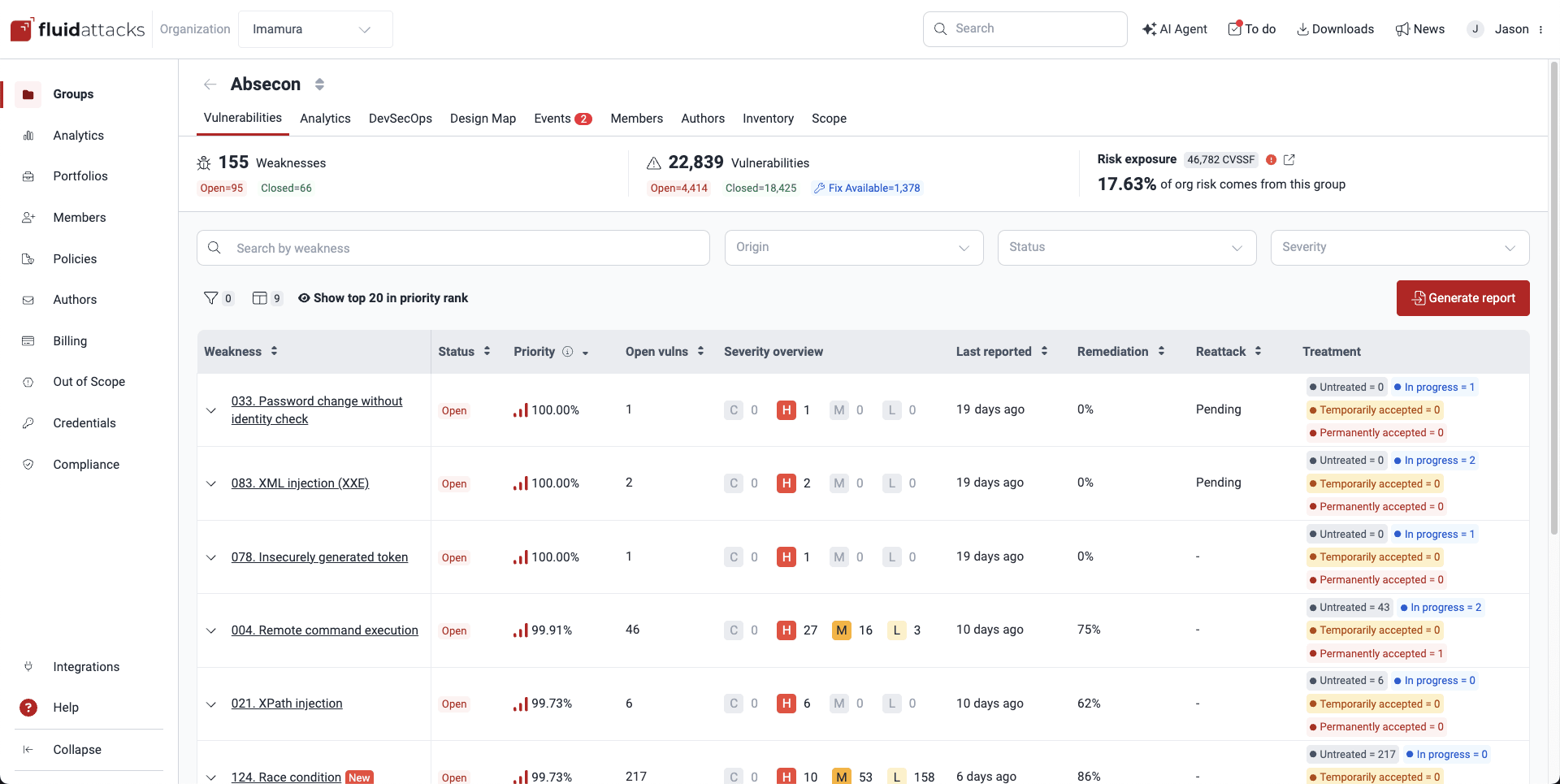
A weakness is a category following Fluid Attacks' classification, whereas a vulnerability is a specific instance of that weakness found in your software.
Vulnerabilities table
Role required: User, Vulnerability Manager or Group Manager
The Vulnerabilities table groups the vulnerabilities detected in your system by weakness. It also shows general details.

These are short descriptions of each column:
- Weakness: The standardized security weakness that best matches the characteristics of the vulnerabilities in your system
- Status: The condition of this weakness. It is Open if the weakness is present or Closed if your team remediated the weakness
- Priority:
The percentile of the vulnerability with the highest priority score
in the weakness.
This percentile is relative to all the vulnerabilities that Fluid Attacks identified.
The priority score depends on two factors:
- (a) Your organization's prioritization policies: the transitivity of the affected dependency, the phase of use of the vulnerable component, whether it is listed in CISA's KEV list, the EPSS, the estimated time to fix, the VLAI severity level, and the reachability of the vulnerable function (for SCA vulnerabilities)
- (b) A default score that Fluid Attacks calculates from the CVSS as follows: (4^(CVSS-4)) / 4,096
- Open vulns: The number of vulnerabilities of the weakness that are present in your system
- Severity overview:
The number of detected vulnerabilities
for each CVSS qualitative severity rating.
The ratings group the scores as follows:
- Low (0.1 - 3.9)
- Medium (4.0 - 6.9)
- High (7.0 - 8.9)
- Critical (9.0 - 10.0)
- Last reported: The number of days since Fluid Attacks last detected a vulnerability of this weakness (with any Status)
- Age: The number of days since Fluid Attacks first detected this weakness in your system
- Release date: The date when Fluid Attacks first reported the weakness in your system
- Remediation: The percentage of the reported vulnerabilities of this weakness that your team remediated
- Reattack: The status of reattacks for this weakness. It is 'Pending' if a reattack is due. Otherwise, it is '-'.
- Treatment: The number of vulnerabilities for each assigned treatment
Customize your view by reordering, showing or hiding columns using the columns button.
To see more information about the weakness, for example, if it is exploitable, click the downward arrow to expand the row.

You may see the same weakness listed more than once. This is because vulnerabilities that share a weakness can differ in specific attributes such as description, recommendations and severity.
Spot newly reported vulnerabilities
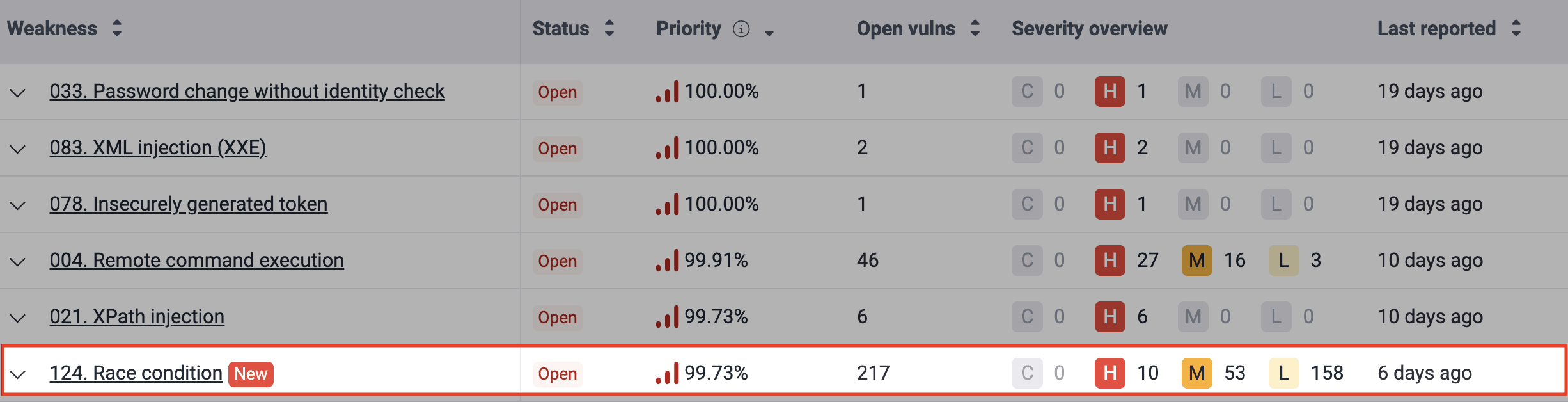
For seven days, the table shows a New label next to newly reported weaknesses. This label helps you find them quickly.
Search the Vulnerabilities table
Role required: User, Vulnerability Manager or Group Manager
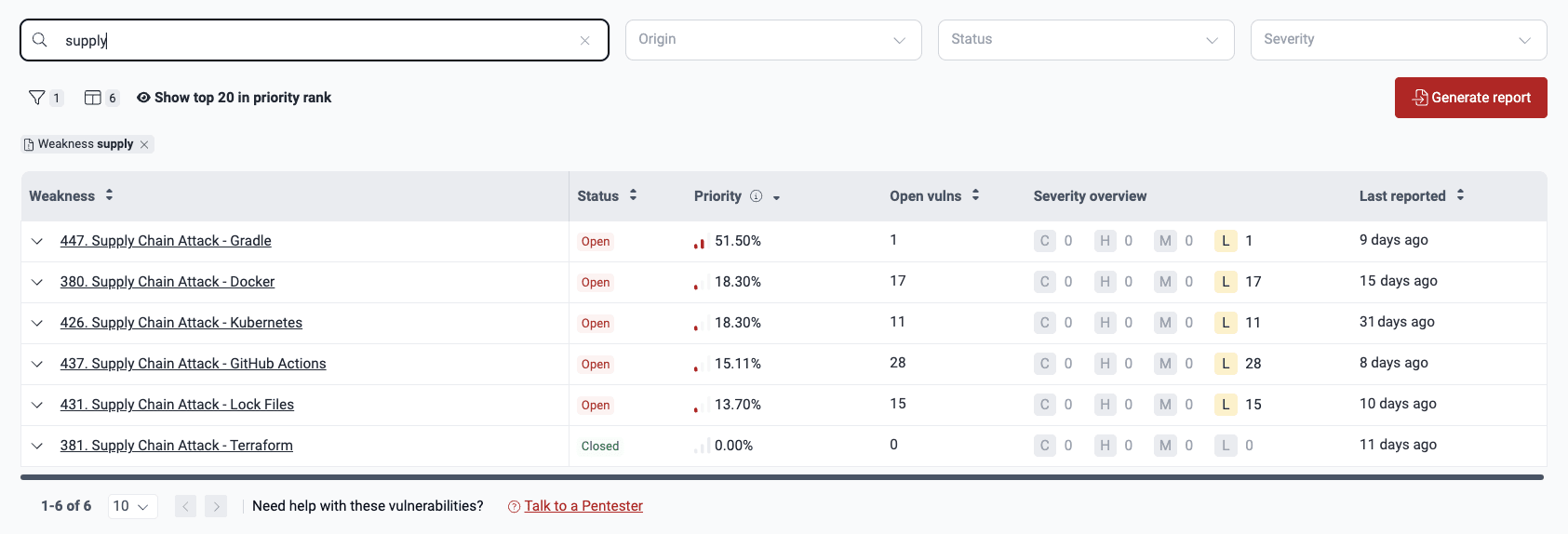
The search bar in the Vulnerabilities section shows only the rows whose content matches your search. You can search for the name of the weakness, the repository nickname or the vulnerability location (for example, a file name).
Filter the Vulnerabilities table
Role required: User, Vulnerability Manager or Group Manager
You can filter the table to show only the information that you want.
To see the filter options,
click the filters button ( ).
).


To remove a filter, click the X next to it.

Your filters persist only in the Vulnerabilities section of the group you applied them to.
You can also use these quick filters: Origin, Status, and Severity.

See top 20 vulnerabilities to prioritize
Role required: User, Vulnerability Manager or Group Manager
To find the vulnerabilities that are most urgent to fix, click Show top 20 in priority rank.

The platform then shows the 20 vulnerabilities with the highest Priority value in the group. For a description of the columns, read See where vulnerabilities are located. Click Go to vulnerability to see details of the vulnerability, apply a treatment, get AI-generated remediation guidance, and more.
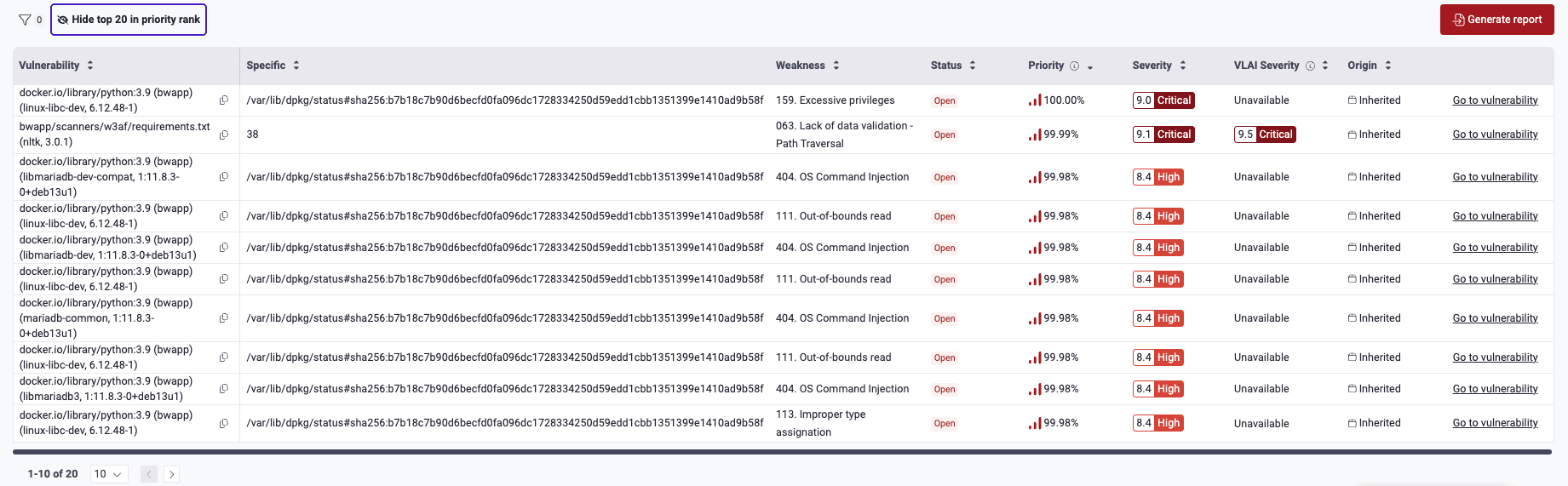
To hide the top 20, click Hide top 20 in priority rank.
Hide and show columns in the Vulnerabilities table
Role required: User, Vulnerability Manager or Group Manager
You can select the columns that the table shows.
Click the columns button ( )
to open a pop-up window.
In this window, you can hide or show columns.
To find a column quickly,
type its name in the search bar of the window.
When you finish, click Save.
)
to open a pop-up window.
In this window, you can hide or show columns.
To find a column quickly,
type its name in the search bar of the window.
When you finish, click Save.
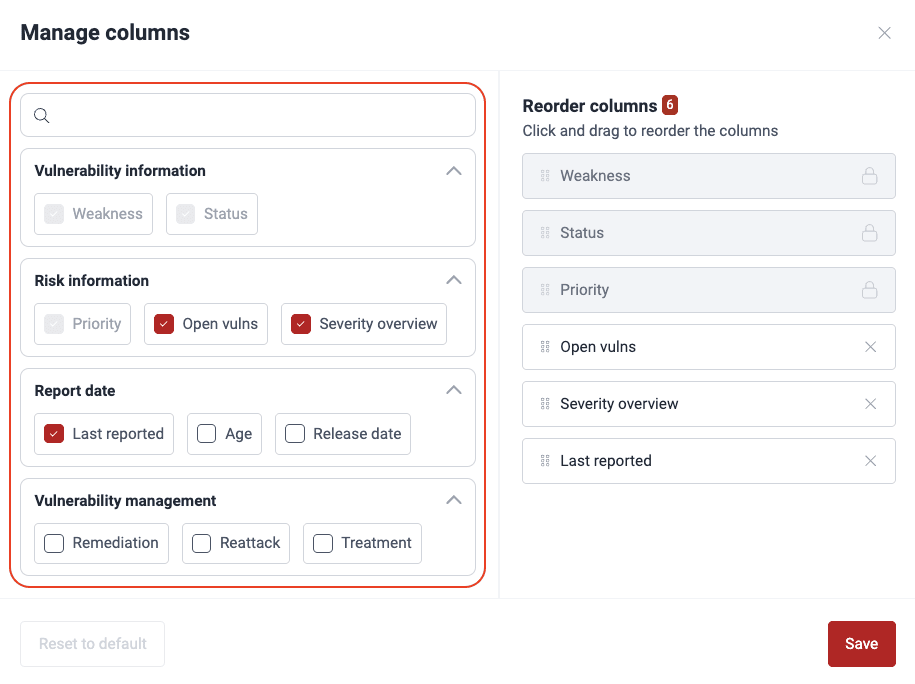
- Your preferences for which exact columns to see persist across your groups.
- Use the Reset to default button to enable only these recommended columns: Weakness, Status, Priority, Open vulns, Severity overview, and Last reported.
Reorder columns in the Vulnerabilities table
Role required: User, Vulnerability Manager or Group Manager
You can also change the order of the columns in the table.
Click the columns button ()
to open a pop-up window.
In this window, drag the column names to put them in the order that you want.
To hide a column, click its X.
When you finish,
click Save.
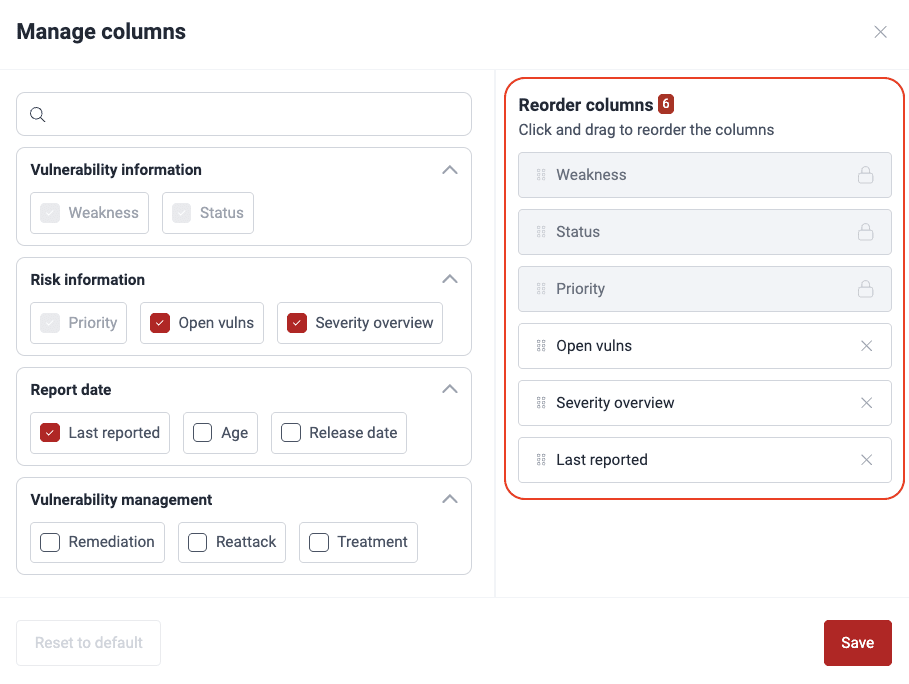
Your column order preferences persist across Vulnerabilities sections within your groups.
Generate reports
Role required: Vulnerability Manager or Group Manager
With the Generate report option in the Vulnerabilities section, you can download reports with different levels of detail. Group Managers can also generate security testing certificates. For the available report types and the procedure to generate them, read Download a report of detected vulnerabilities.
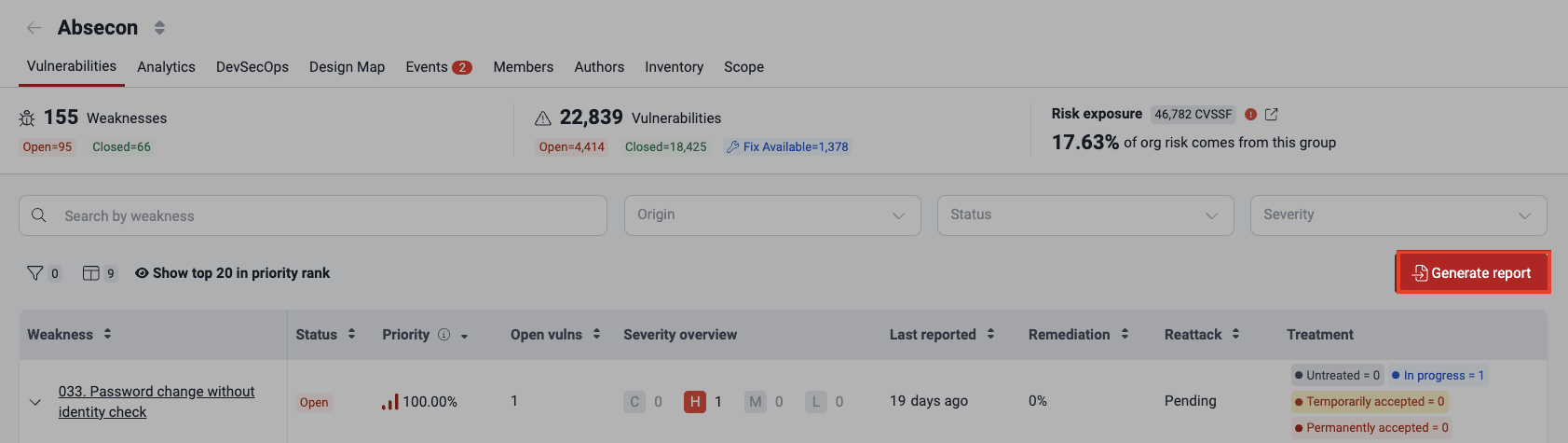
Remember the feature to access recent downloads!
See where vulnerabilities are located
Role required: User, Vulnerability Manager or Group Manager
In the Vulnerabilities section, click a weakness to open its view. All the tabs show the same header. The header shows the group name, the weakness, and the estimated remediation time for one vulnerability.

The Vulnerabilities section shows the location in your system of each vulnerability of the selected weakness. It also gives information to manage each vulnerability.
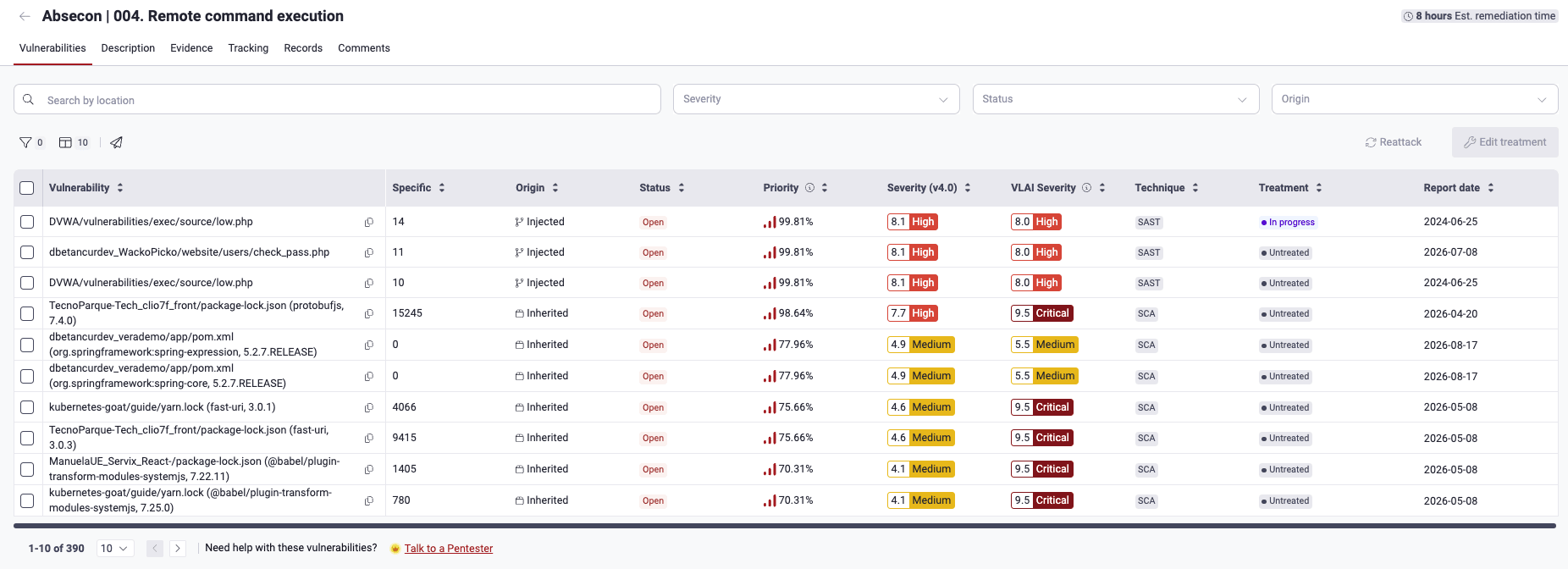
These are the descriptions of the columns in the table:
- Vulnerability: The detected vulnerability, identified by its file path
- The copy icon in this column allows you to copy the URL of the vulnerability on the platform for sharing.
- Newly reported vulnerabilities are marked with the New label for seven days.
- Specific: The exact lines of code, inputs (for example, password fields), or ports where Fluid Attacks found the vulnerability. Thus, the same file can appear more than once in the Location column.
- Origin: Whether the vulnerability is Inherited (present in third-party code) or Injected (present in code owned by your team).
- Status: Shows if the vulnerability is Open (present) or Closed (no longer present) in the line of code, input or port
- Severity (v4.0): The Common Vulnerability Scoring System (CVSS) v4.0 score assigned to the vulnerability
- VLAI: The AI-estimated severity level of the vulnerability. Put the pointer on the value to see the confidence percentage of the model. It shows Unavailable when no classification is available for any reason.
- Priority:
The percentile, relative to all vulnerabilities identified so far,
occupied by the vulnerability.
The priority score depends on two factors:
- (a) Your organization's prioritization policies: the transitivity of the affected dependency, the phase of use of the vulnerable component, whether it is listed in CISA's KEV list, the EPSS, the estimated time to fix, the VLAI severity level, and the reachability of the vulnerable function (for SCA vulnerabilities)
- (b) The result of (4^(CVSS-4)) / 4,096
- Technique:
The security testing technique that detected the vulnerability.
It can be one of these:
- SAST: Automated static code analysis
- Web DAST: Automated dynamic analysis of web applications
- API DAST: Automated dynamic analysis of APIs
- SCA: Automated analysis of third-party dependencies
- SCR: Static code analysis done manually
- PTaaS: Dynamic analysis done manually
- RE: Reverse engineering of your system done manually
- AI SAST: AI-powered static code analysis
- MAST: Analysis of mobile apps
- CSPM: Automated analysis of AWS cloud environments
- SS: Automatic detection of secrets in code
- Treatment:
The treatment
of the vulnerability.
It can be one of these:
- Untreated: The vulnerability does not have a treatment at this time (default value for newly reported vulnerabilities)
- In progress: A member of your team has the task to remediate the vulnerability
- Temporarily accepted: Your organization accepts the vulnerability until a specified date
- Permanently accepted: Your organization accepts the vulnerability with no end date
- Treated: The vulnerability is no longer present
- Report date: The date and time when the vulnerability was reported
- Treatment acceptance:
The status of a vulnerability acceptance request.
It can be one of these:
- Submitted: The initial status of the request, until a Vulnerability Manager or Group Manager makes a decision
- Approved: A member with one of these roles approved the request
- Rejected: A member with one of these roles rejected the request
- Reattack:
The status of reattack requests or outcomes,
if applicable.
It can be one of these:
- Pending: The result of the requested reattack is not available at this time
- On hold: The requested reattack is not possible until your team solves an event impeding testing
- Verified open: The reattack shows that the vulnerability is present
- Verified closed: The reattack shows that the vulnerability is no longer present
- Tags:
The tags that your team added to identify the vulnerability
Type a tag in the search bar to see only vulnerabilities labeled with it. And go to Analytics to see the number of vulnerabilities for each of the tags you or other team members have created.
- False positive: Shows if your organization identified the vulnerability as not a risk
- Assignees: The members assigned to remediate the vulnerability
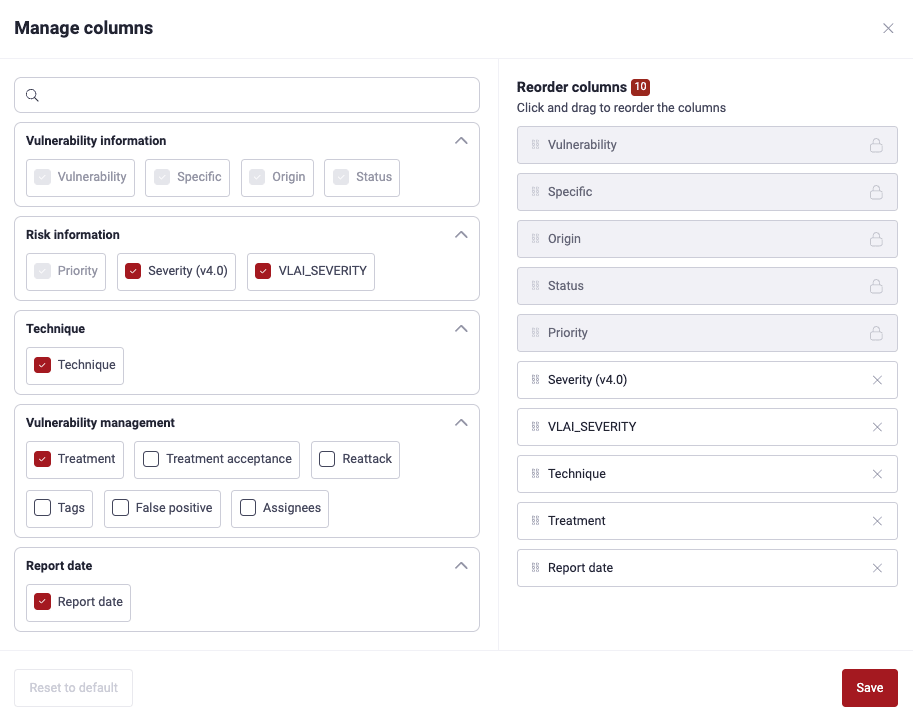
To show, hide or reorder columns,
click the columns ()
button.
A pop-up window opens.
On the left, select the columns.
On the right, reorder the enabled columns.
Click Save to apply the changes.
- Your preferences for which exact columns to see persist across your groups.
- Use the Reset to default button to enable only these recommended columns: Weakness, Status, Priority, Open vulns, Severity overview, and Last reported.
To find information in the table, type the repository name in the search bar. The table then shows only the rows whose content matches your search.
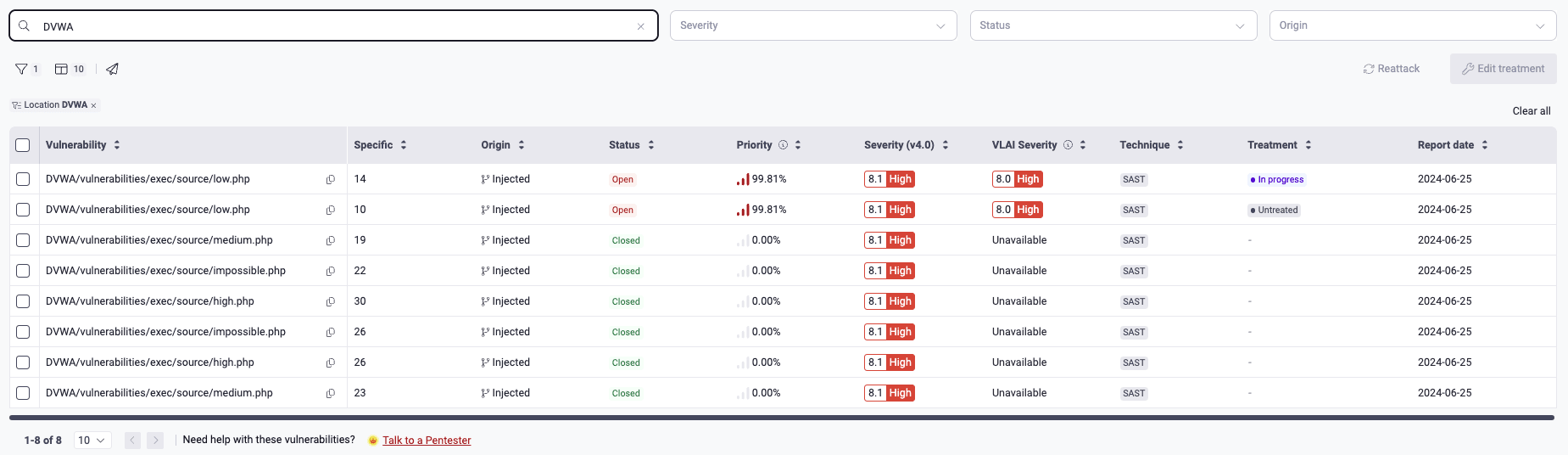
To limit the information in the table,
click the filters button ().
Then, use one or more of the available options.


You can also use these quick filters: Location, Status, and Origin.

The Location filter and quick filter make the table display only the vulnerabilities detected in the target of evaluation (for example, a Git repository environment URL) whose name you type.
See inside a vulnerability
Role required: User, Vulnerability Manager or Group Manager
In the Vulnerabilities section, click a vulnerability to open a pop-up window. The window has a header and these tabs: Details, Severity, Code (if applicable), Treatments (if applicable), How to fix, and Tracking. This window has a unique URL. You can share it with team members or Fluid Attacks staff. To copy the URL, click the link icon.
All the tabs show the same header. The header has tags that show the Severity, Origin, Technique and Status of the vulnerability. If the vulnerability is in third-party software, the header also shows a reachability tag. This tag can have one of these values:
- Latent: (a) The vulnerability is in a package declared in your code, but (b) your code does not import the package.
- Potential: (a) The vulnerability is in a package declared in your code. (b) Your application's code imports the package. (c) But it is possible that the vulnerability is not the vulnerable function that the CVE entry describes.
- Reachable: (a) The vulnerability is in a package declared in your code. (b) Your application's code imports the related package. (c) And the vulnerability is the vulnerable function that the CVE entry describes.
See the details of a specific vulnerability
Role required: User, Vulnerability Manager or Group Manager
The Details tab shows complete information about the state of the selected vulnerability.
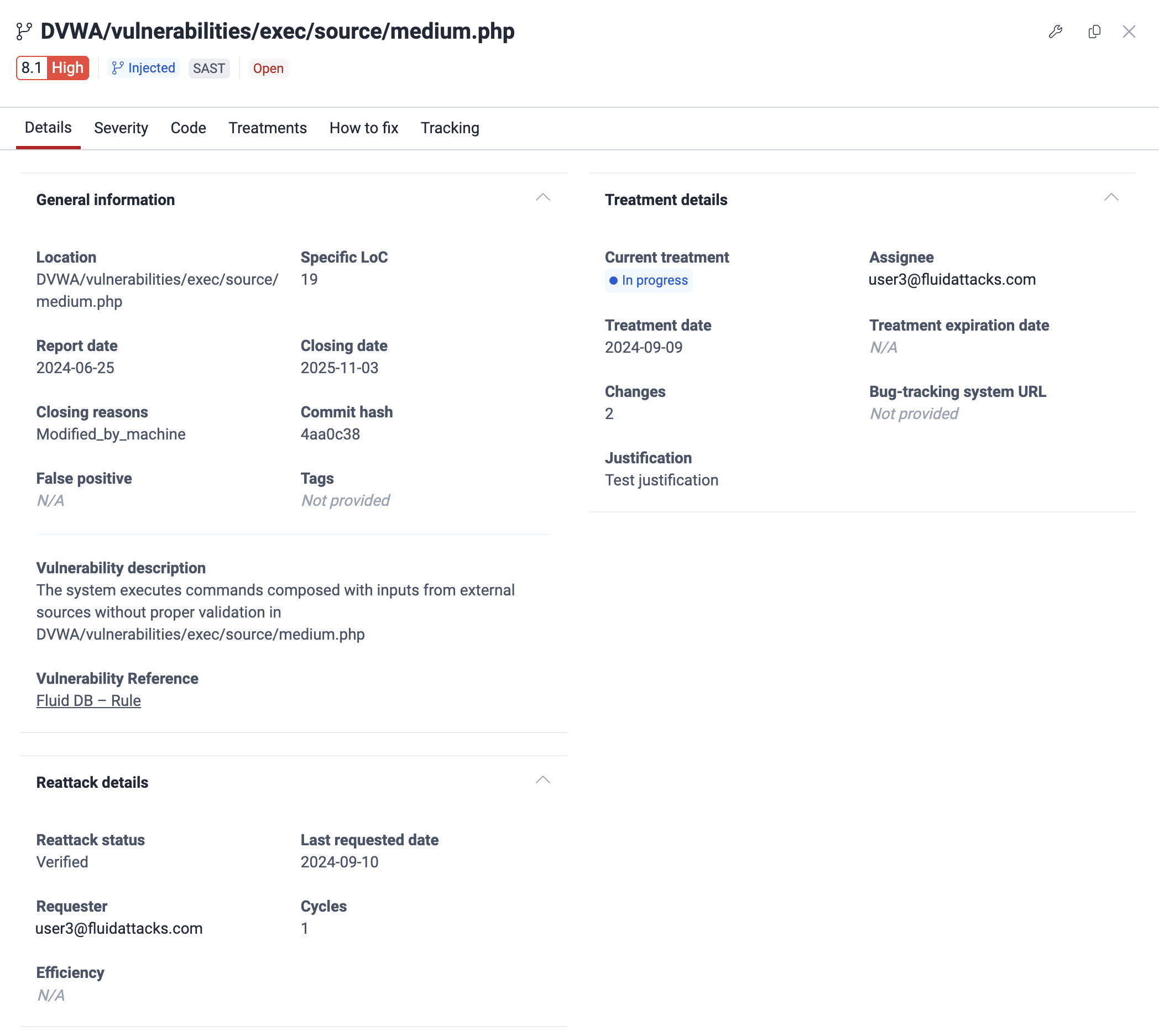
These are the details shown in this tab:
- General information:
- Location: The file path or environment URL
- Specific LoC/port/input: The specific line of code, port number, or input field affected
- Report date: The date the vulnerability was reported
- Closing date: The date when the vulnerability status changed from Open to Closed
- Closing reasons: The reason the vulnerability's Status changed from 'Open' to 'Closed'
- Commit hash: The ID of the commit that added the vulnerability
- False positive: Shows if the False positive request applies to this vulnerability. Your organization makes this request if the vulnerability is not a risk
- Tags: The tags that users added to identify the vulnerability
- Time to detect (days): The number of days from the commit that added the vulnerability to the report of the vulnerability
- Code author: The email of the contributor whose commit added the vulnerability
- Vulnerability description: Fluid Attacks' definition of the vulnerability
- Reattacks:
- Reattack status: The result of the last reattack request, if applicable (for the possible values, see above)
- Last requested date: The date of the most recent reattack request
- Requester: The email of the member who requested the last reattack
- Cycles: The total number of reattack requests for this vulnerability
- Efficiency: The percentage of one positive reattack result (it confirms that the vulnerability is fixed) out of all the reattacks done
- Treatments:
- Current treatment: The current treatment of the vulnerability (Untreated when there is no treatment)
- Assignee: The email of the member assigned to remediate the vulnerability
- Treatment date: The date the treatment was applied
- Treatment expiration date: The expiration date for a Temporarily accepted treatment
- Changes: The number of times the treatment of that vulnerability has changed
- Bug tracking system url: URL of the issue in your bug-tracking system (BTS) related to this vulnerability
- Justification: The reason for the treatment
- Packages details:
(Only for vulnerabilities found with SCA)
- Dependency: The name of the vulnerable package
- Transitivity:
Shows if the vulnerable file in your software is directly
or indirectly related to the third-party component:
- Direct: The file in your project explicitly imports and uses the third-party dependency
- Transitive: Your direct dependencies use the third-party dependency, but the file in your project does not import it directly
- Undeterminable: It is not possible to know if this dependency is direct or transitive for this file
- Advisory ID: The associated Common Vulnerabilities and Exposures (CVE) identifier of the vulnerable version
- %EPSS: The probability that someone exploits the vulnerability, compared to all other known vulnerabilities
- Stage:
The stage(s) in which your project depends on the third-party dependency:
- Build: Your file depends on the third-party component only in the software development stage
- Run: Your file depends on the third-party component in the live production environment
- Reachability: Shows if your application's code calls the function related to the vulnerability (see a description of the possible values above)
- Version status: Shows if you use the latest version of the dependency or if a newer version is available. It also shows the version that you use and the latest available version.
- Affected version: The vulnerable dependency version
- CPEs: The string, in the format of the Common Platform Enumeration (CPE), that identifies the dependency
- Namespace: The identifier of the supplier organization or project of the entry
- Advisory URLs ([#]): Reference URLs (for example, the URL of the vulnerability advisory)
- KEV: Shows if the related vulnerability is in CISA's Known Exploited Vulnerabilities Catalog. If it is, there are known attacks that exploit it
Learn the severity of a specific vulnerability
Role required: User, Vulnerability Manager or Group Manager
The Severity tab gives detailed information about the CVSS severity score of the vulnerability.
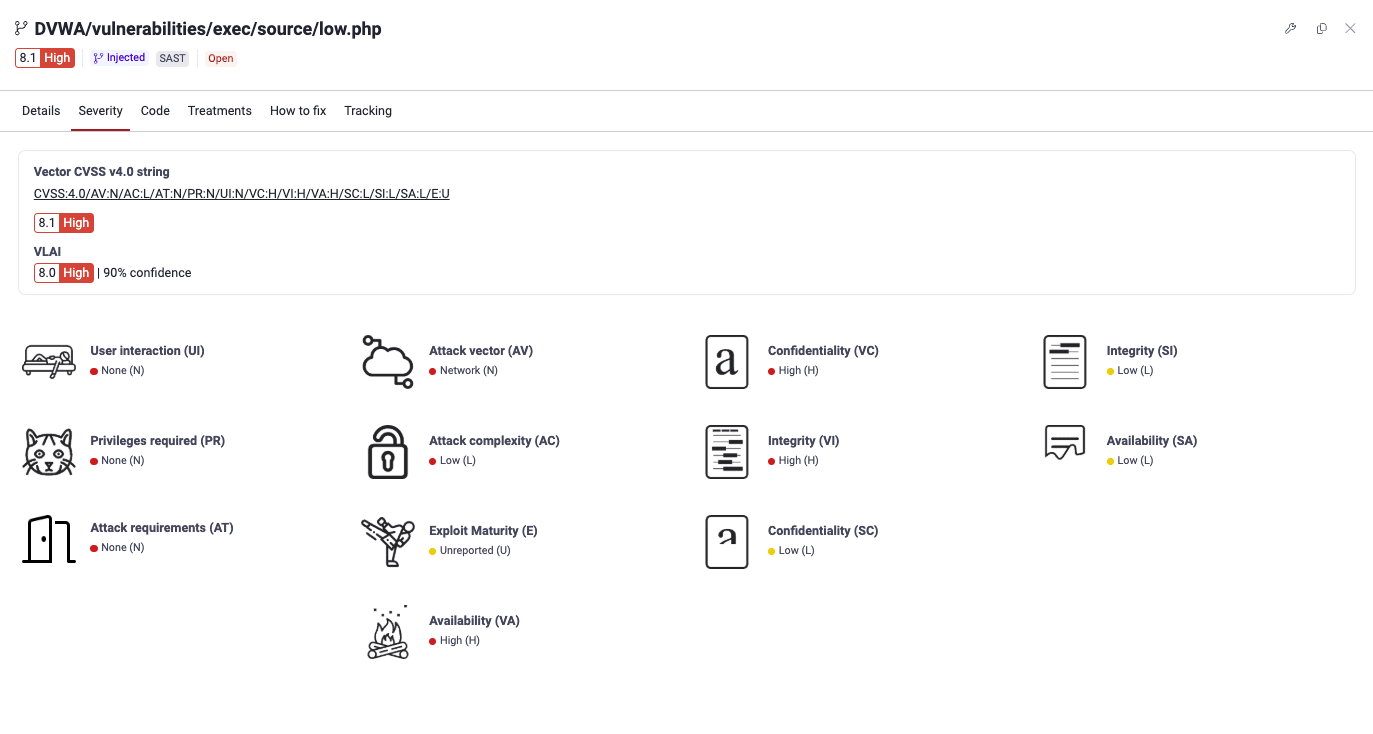
The tab shows these details:
- Vector CVSS v4.0 string:
The values that give the score, in text format
Click the string to follow the link to the score calculator showing said values.
- The calculated severity score and its corresponding qualitative rating
- The severity score breakdown.
It shows the value of each metric
and a visual representation of the value
Hover over the metric to reveal its definition and the description of its possible values.
- VLAI Severity: The AI-estimated severity level. It shows the qualitative rating (Low, Medium, High or Critical), a representative numeric score, and the confidence percentage of the model. It shows Unavailable when no classification is available for any reason.
See the vulnerable line of code
Role required: User, Vulnerability Manager or Group Manager
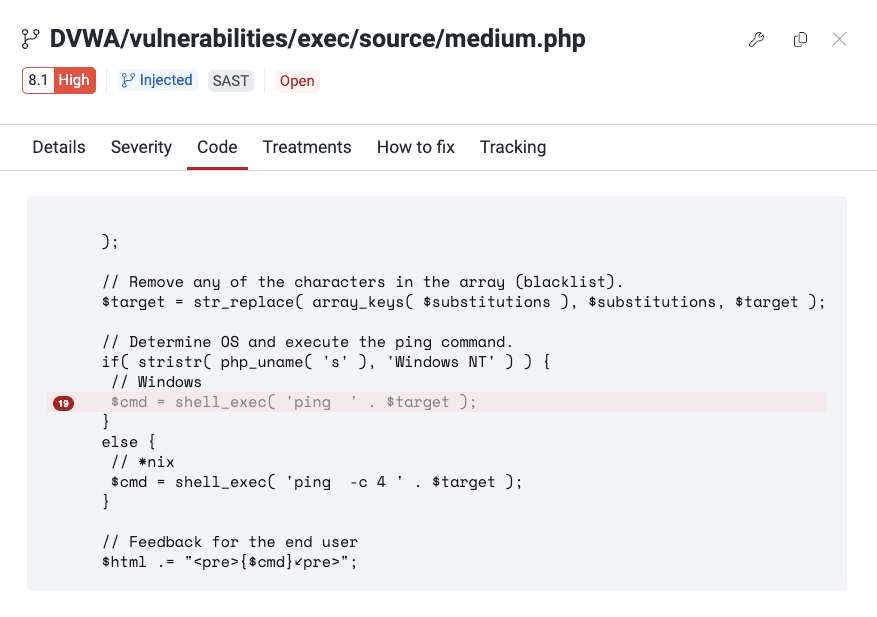
The Code tab highlights the vulnerable code snippet and shows the code around it. With this information, you can find the issue in your codebase.
Edit treatment for a vulnerability
Role required: User, Vulnerability Manager or Group Manager
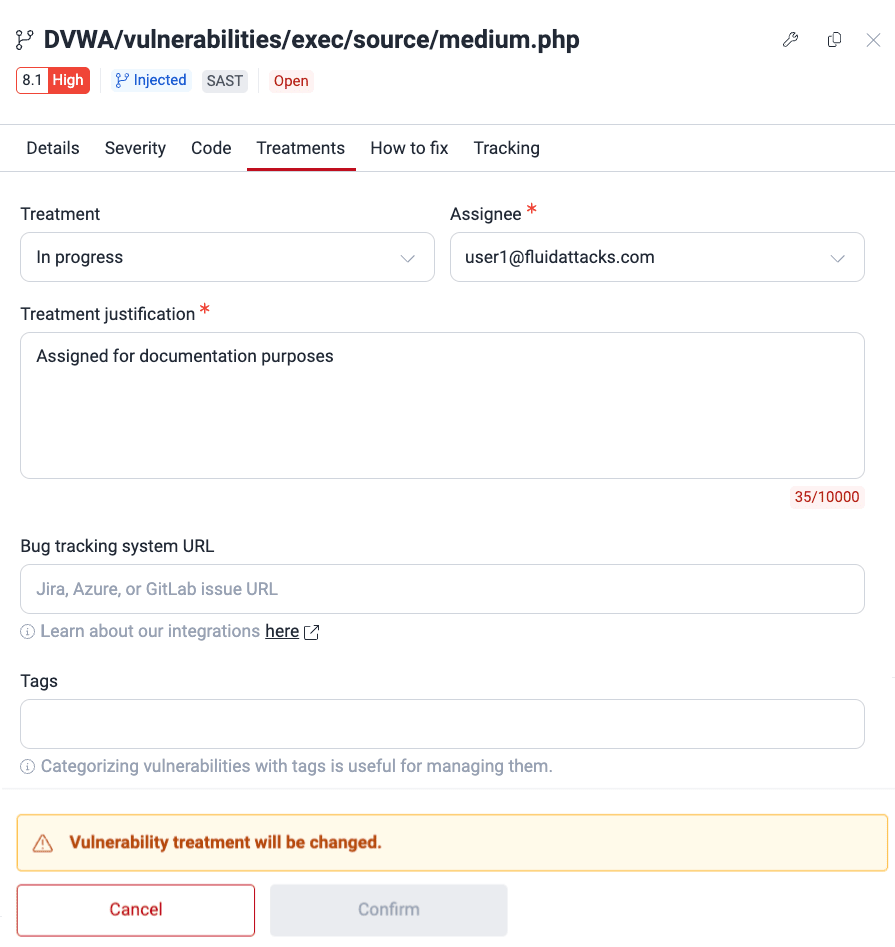
In the Treatments tab, you can manage the treatment of the vulnerability. You can also manage tags and add a link to the related issue in a bug-tracking system. For a description of these fields, read Assign treatments.
Get a custom guide to fix the vulnerability
Role required: User, Vulnerability Manager or Group Manager
- AI-generated fix guides are only available for vulnerabilities detected via SAST or SCR in supported languages. - Always review the accuracy of remediation guides generated with AI.
From the pop-up window,
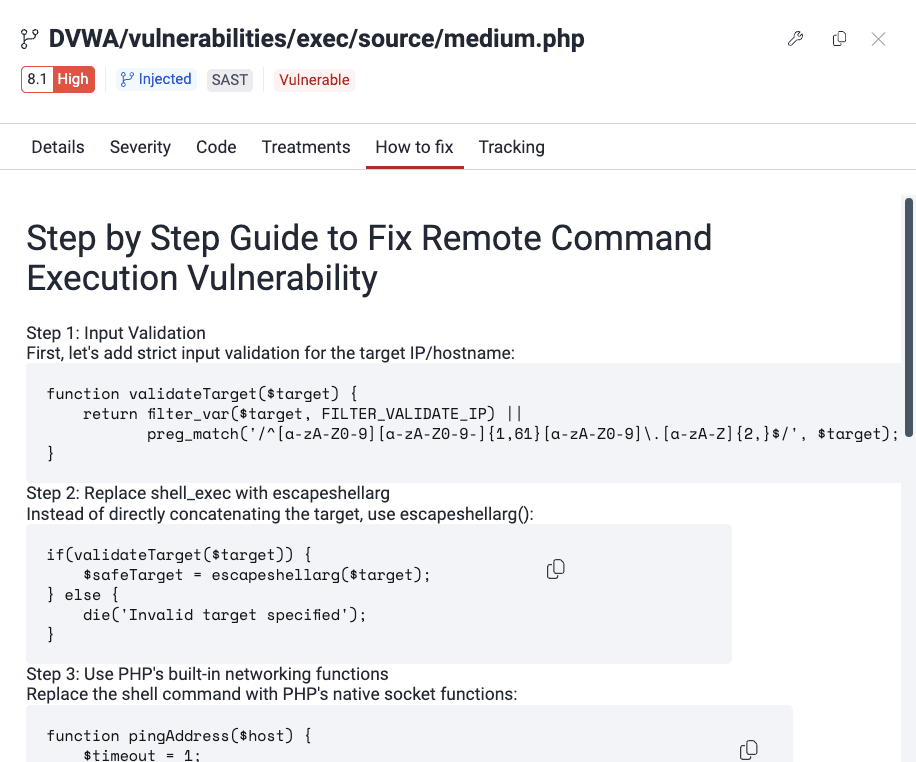
you can get a step-by-step,
AI-generated guide
to remediate the vulnerability.
Select the How to fix tab
or click the fix button ( ).
Fluid Attacks'
Custom fix feature
then creates a remediation guide for the vulnerability.
This feature is not available for some vulnerabilities.
).
Fluid Attacks'
Custom fix feature
then creates a remediation guide for the vulnerability.
This feature is not available for some vulnerabilities.

Get an automatic fix for the vulnerability
Role required: User, Vulnerability Manager or Group Manager
- AI-generated fix guides are only available for vulnerabilities detected via SAST or SCR in supported languages. - Always review the accuracy of remediation guides generated with AI.
At this time, automatic fix suggestions are available only
in VS Code and Cursor,
with the Fluid Attacks extension.
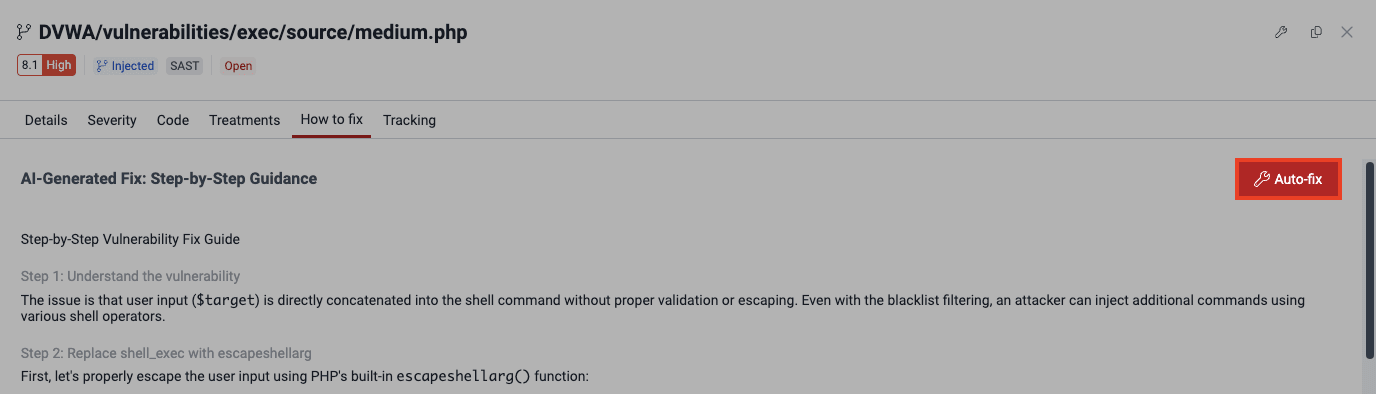
If Fluid Attacks has an automatic fix for the vulnerability,
a button labeled Auto-fix appears.
The button appears after you click the How to fix tab
or the fix button ().
When you click Auto-fix, a pop-up window opens.
This window shows the requirements to use the feature
and a link to download the extension.
See the recommended dependency version
Role required: User, Vulnerability Manager or Group Manager
For inherited vulnerabilities, the How to fix tab shows the dependency versions to upgrade to. To learn more, read See safe dependency versions.
See the history of a specific vulnerability
Role required: User, Vulnerability Manager or Group Manager
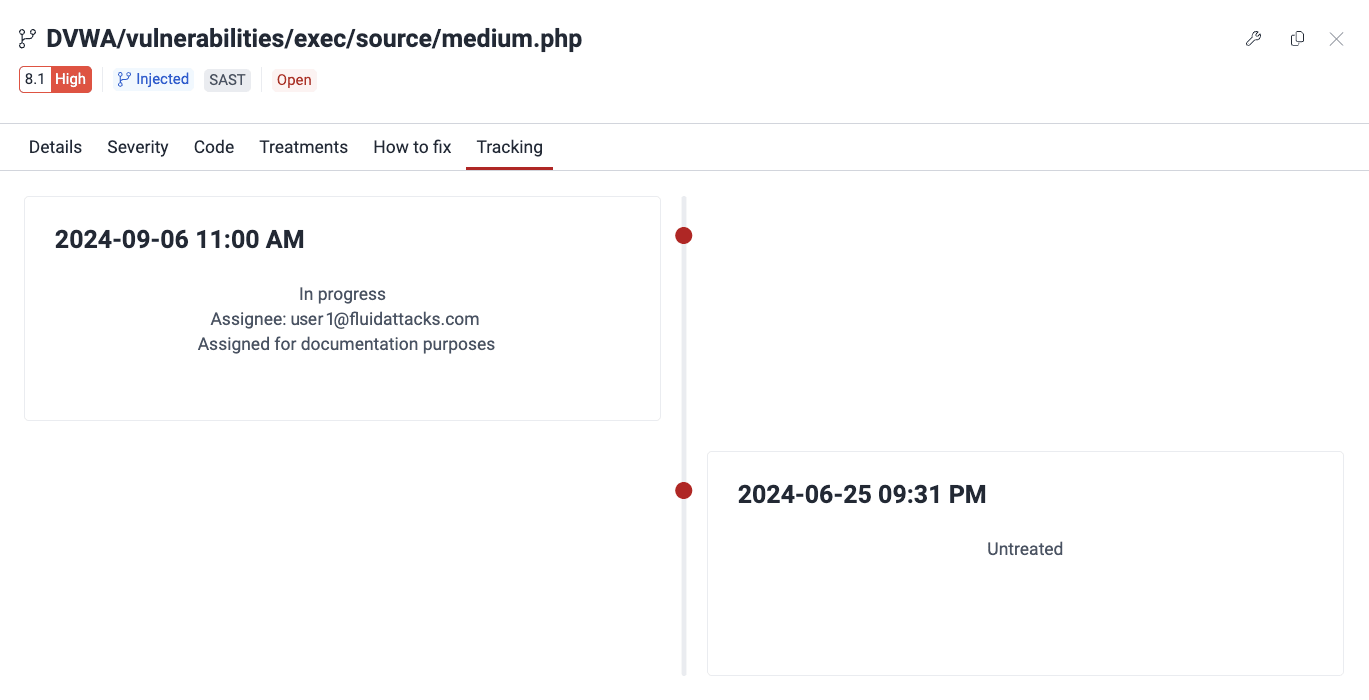
In the Tracking tab, you can see the management decisions about a vulnerability over time. These decisions include changes in status, treatments, and other related details.
Get the link to share the details of a vulnerability
Role required: User, Vulnerability Manager or Group Manager
The pop-up window of a vulnerability has a unique URL
that contains the vulnerability ID.
Thus, you can share the window with other persons.
To copy the URL,
click the copy icon ( ).
).

This feature is also available through the copy icon in the Vulnerability column.
See the description of vulnerabilities
Role required: User, Vulnerability Manager or Group Manager
The Description section gives definitions and characteristics. This information helps you understand the issues and possible fixes.
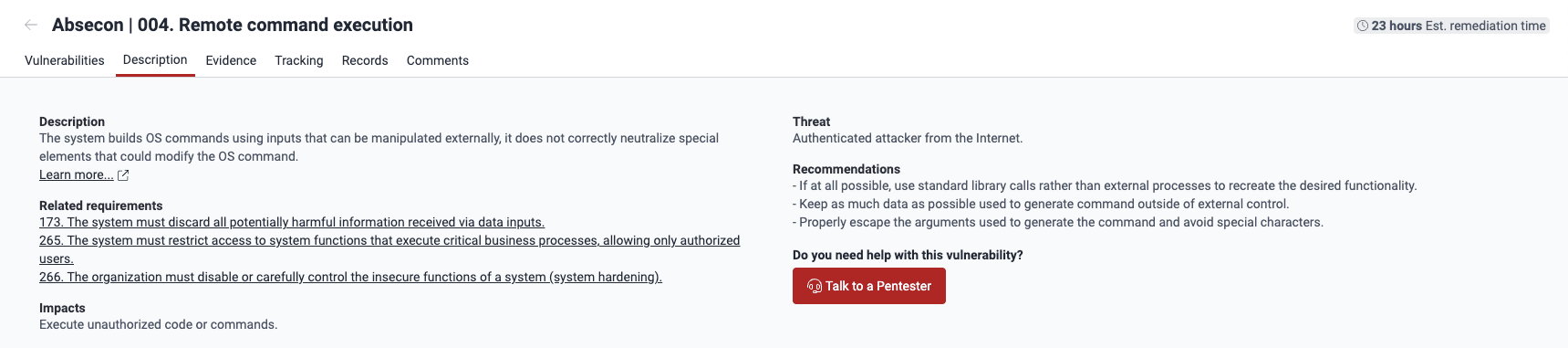
The section gives this information:
- Description: Fluid Attacks' definition of the weakness in question
- Related requirements: The security requirements, according to Fluid Attacks' classification, that the vulnerability possibly violates
- Impacts: What an attacker can do if they exploit the vulnerability
- Threat: The attack vector an attacker has to follow and the privileges they require to exploit the vulnerability
- Recommendations: Instructions to remediate the vulnerability
- Do you need help with this vulnerability?: Link to schedule a video meeting to discuss the vulnerability with one of Fluid Attacks' pentesters
See evidence of exploitability
Role required: User, Vulnerability Manager or Group Manager
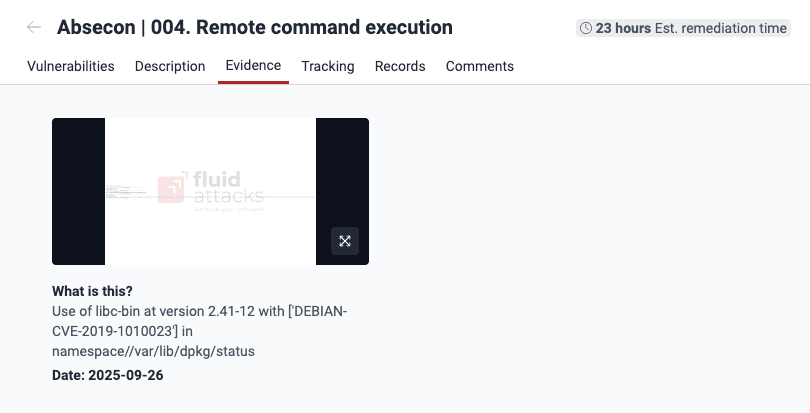
The Evidence section can have screenshots of code snippets that show the vulnerabilities. It can also have screenshots or videos that show the ethical exploitation of some of these vulnerabilities. To make a resource larger, click it. Then, you can download it. For more details about this section, read Examine the evidence of exploitability.
See the timeline of vulnerabilities
Role required: User, Vulnerability Manager or Group Manager
In the Tracking section, you can see the timeline of vulnerabilities. The timeline shows cycles. Reattack results and acceptance treatments mark each cycle. To see the timeline of a vulnerable line of code, input or port, read See the history of a specific vulnerability.

See affected records
Role required: User, Vulnerability Manager or Group Manager
The Records section contains sensitive information that Fluid Attacks' pentesters collected during ethical vulnerability exploitation. This information is specific to your organization. It can include:
- Financial details (for example, account numbers, transactions, and credit card numbers)
- Personal data (for example, phone numbers, contacts, and personally identifiable information)
- Technical information (for example, roles, keys, and access tokens)
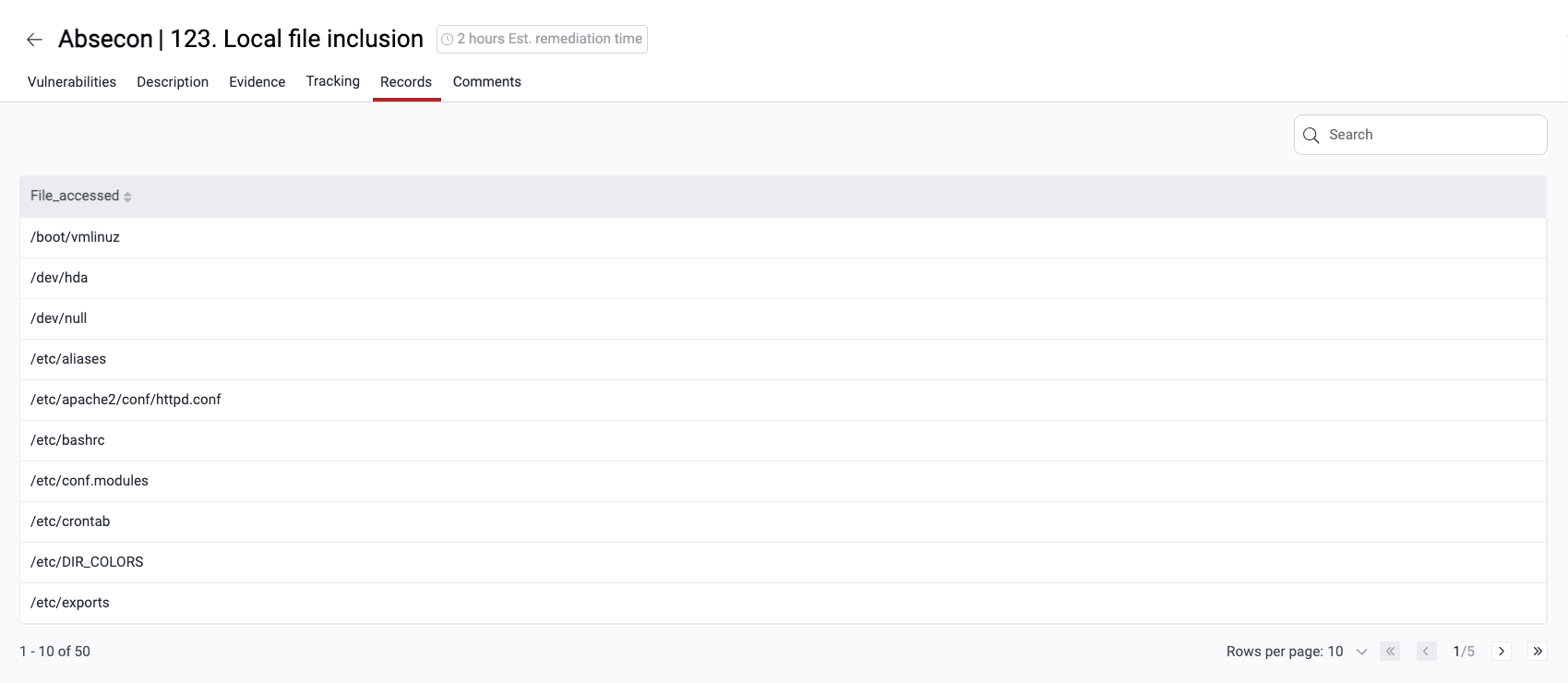
The information in this section is stored only here and is exclusively accessible to authenticated users with proper permissions within your group.
Comment on vulnerabilities
Role
required:
User, Vulnerability Manager or Group Manager
Plan required: Advanced
(this section is available in the Essential plan in view-only mode)
The Comments section is a space for discussions between your team and Fluid Attacks about vulnerabilities. Any member can post a new thread or reply to an existing one. To learn more, read Post comments.

To learn more about the platform, see Platform interface and sections.
Notify of a vulnerability
Role required: Vulnerability Manager or Group Manager
You can send an email notification to members to inform them of open vulnerabilities. To do this, follow these steps:
- Go to the group where Fluid Attacks detected the vulnerability.
- In the Vulnerabilities section,
click the related weakness.
- In the Vulnerabilities section,
click the notify button (
 ).
).

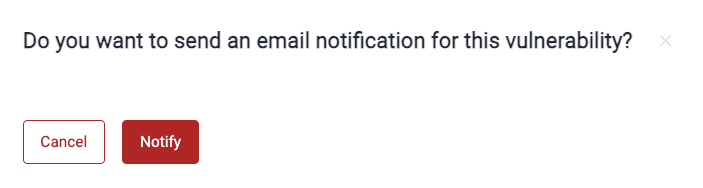
- In the pop-up window,
click Notify to confirm.
The platform then sends the notification to members who have Vulnerability alert enabled.
Request reattacks
Role required: User, Vulnerability Manager or Group Manager
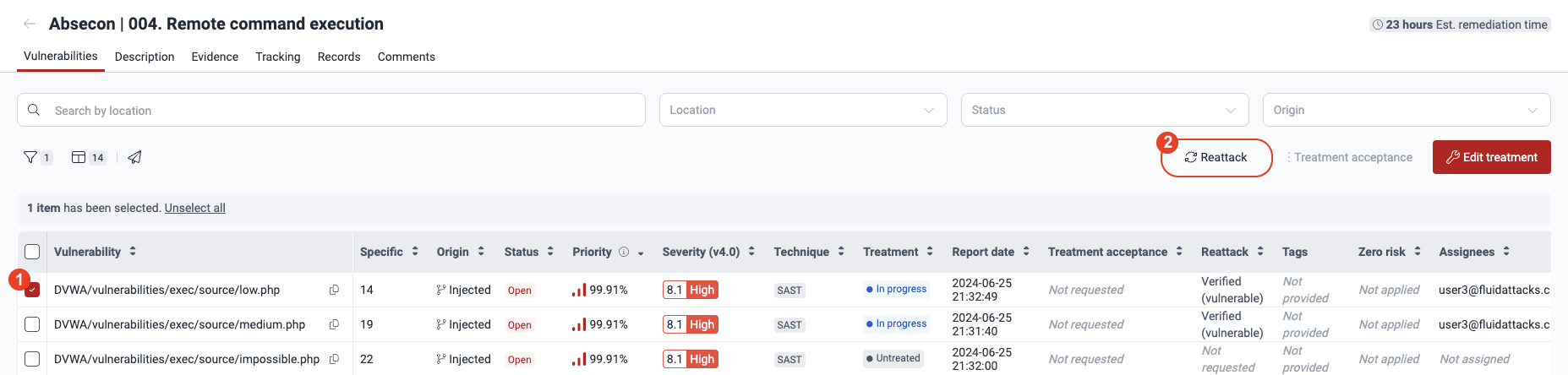
From the Fluid Attacks platform, you can request tests of your code fixes. Fluid Attacks calls these retests reattacks. To request them, select the checkboxes of the vulnerabilities in the Vulnerabilities section. Then, click Reattack. For all the details about this feature, read Verify fixes with reattacks.
Edit treatment, assignee, BTS link and more
Role
required:
User, Vulnerability Manager or Group Manager
Members with the User role can assign fix work to themselves and edit the
External BTS, Tags and Priority values.
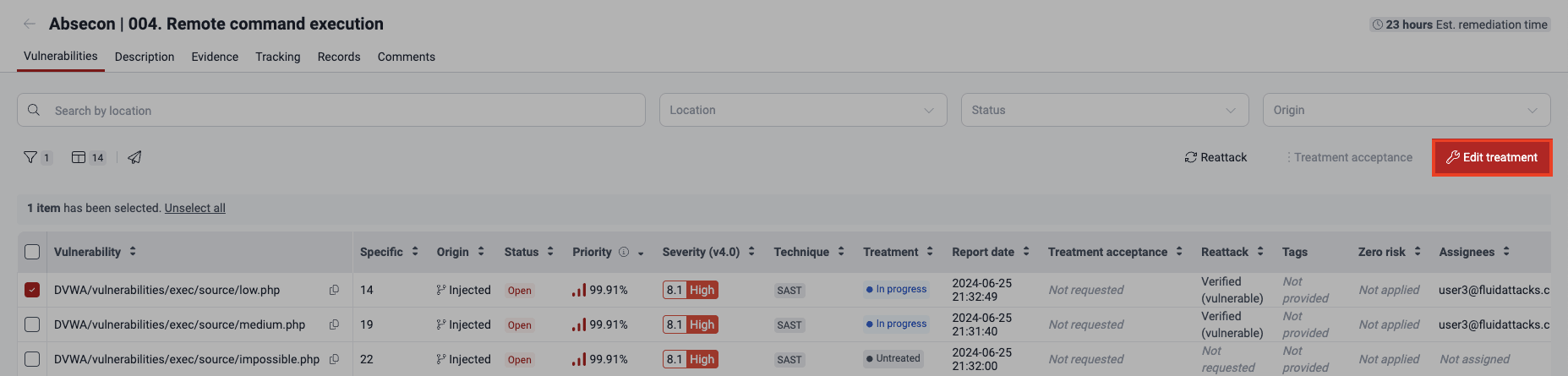
You can change vulnerability management decisions in the Vulnerabilities section of the platform. To make the changes, follow these steps:
- Click a weakness name to go to Vulnerabilities.
- In the table, select the checkbox on the left of the vulnerability that you want to edit.
- Click the Edit treatment button.
- Make the changes in the form.
Only Vulnerability Managers
and Group Managers
can change Treatment and Assignee.
(For the descriptions of the fields,
read Assign treatments.)

- Click Confirm to apply the changes.
Approve vulnerability acceptance requests
Role required: Vulnerability Manager or Group Manager
In the Vulnerabilities section, you can approve a request to accept a vulnerability temporarily or permanently. To do this, use the Treatment acceptance option. For all the details, read Assign treatments.

Search for vulnerabilities in your apps for free with Fluid Attacks' automated security testing! Start your 21-day free trial and discover the benefits of the Essential plan. If you prefer the Advanced plan, which includes the expertise of Fluid Attacks' pentesting team, complete this contact form.
Resolve events
The Events section in the Fluid Attacks platform keeps a record of solved and unsolved events within a group, which are situations impeding security testing.
Examine evidence
In the Evidence section of the platform, Fluid Attacks provides supporting proof of the existence and exploitation of the corresponding type of vulnerability.