Skip to Content
logo
  • Home
  • Quick start
    • FAQ
      • Billing
      • Integrations
      • Platform
      • Scanner
      • Ask our pentesters to explain a vulnerability
      • Fix code with gen AI from the IDE
      • See safe dependency versions
      • Import repositories to test
      • Invite team members to sign up
      • Billing for the Advanced plan
      • Continuous Hacking free trial, plans and pricing
      • Continuous Hacking methodology
      • Continuous Hacking PoV
      • CVSSF metric
      • Glossary
      • Main website
      • Platform demo
      • Tutorial videos
      • What is DAST?
      • What is SAST?
      • What is SCA?
      • Assign vulnerability remediation to a team member
      • See details of the reported security vulnerabilities
    • Sign up to Fluid Attacks
      • Break the build
      • Install CI Gate to break the build
      • Verify whether a fix was successful
  • Find and fix
    • Use the platform
        • Sign-up and login
        • Interface and sections
        • Create and delete groups
        • Create another organization
        • Know your Groups section
        • Manage a group's configuration
        • Register payment information
        • See the target of evaluation's status and SBOM
        • Sort groups into portfolios
        • Invite contributing developers
        • Manage members
        • Manage your organization's authors
        • Understand roles
        • Import repositories fast and safely with OAuth
        • Manage environments
        • Manage repositories
        • Manage your credentials
        • Resolve events impeding tests
        • See retrieved repositories not yet added to any group
        • Analyze your supply chain security
        • Assign treatments
        • Correlate your threat model to vulnerabilities
        • CVSS score adjustment
        • Examine the evidence of exploitability
        • Find reachable dependency vulnerabilities
        • Request a vulnerability be dismissed as Zero Risk
        • See vulnerabilities assigned to you
        • See where vulnerabilities are and more details
        • Verify fixes with reattacks
        • Vulnerability signature update
        • Ask the AI Agent
        • Ask via chat
        • Post comments
        • Send Fluid Attacks an email
        • Talk to a Pentester
        • Watch certifiable tutorial videos or get a demo
        • Access recent downloads
        • Check your compliance with standards
        • View analytics common to orgs, groups and portfolios
        • Download a report of detected vulnerabilities
        • View analytics for the group level only
        • View analytics for the portfolio level only
        • Use analytics charts options
        • View and download logs
        • Accept vulnerabilities
        • Manage fix prioritization policies
        • Manage security gates
        • Prevent the deployment of builds with vulnerabilities
        • View details of the security of your builds
        • Explore the user menu
        • Enable and disable notifications
        • Subscribe to News
        • Leave a group
      • Manage repositories
      • See vulnerabilities
        • Fluid Attacks' scanners
        • OWASP Benchmark results
        • Your feedback
      • Use the scanners
        • Local run
        • CI/CD integration
        • Understanding outputs
        • Findings exclusion
      • Use a configuration file
        • SAST scanner
        • SCA scanner
        • DAST scanner
        • APK scanner
      • Automatic remediation
      • Custom remediation guides
      • Introduction to Sorts
      • Sorts user guide
      • Connection mechanisms
      • Cloud connection
      • Egress connection
      • Connector connection
      • Types of authentication
      • AWS CodeCommit
    • Service-level agreement
      • Availability SLA
      • Response SLA
      • Accuracy SLA
      • False negatives
      • False positives
      • Scope
    • Support information
      • Changelog
        • 2023
        • 2024
        • 2025
        • 2026
      • Roadmap
      • AI functions
      • Attack surfaces
      • Binaries
      • Browsers
      • CI/CD
      • Clouds
      • CVEs for reachability
      • Evidence formats
      • Frameworks
      • IDE functionalities
      • Languages
      • Languages for fixes
      • Package managers
      • Remediation
      • SCM systems
      • Secrets
      • Standards
      • Ticketing systems
      • Documentation sections
  • Integrations
      • Local tools
      • Access Talk to a Pentester and help from Jira issues
      • Automate Jira issue creation
      • Create Jira issues for vulnerabilities
      • Go to vulnerability evidence and more from Jira issues
      • Install the Fluid Attacks app for Jira Cloud
      • Link vulnerabilities to Jira issues or unlink them
      • Request reattacks from Jira issues
      • Set up the Jira integration
      • Set up the Azure DevOps integration
      • Set up the GitLab integration
      • Install the VS Code extension
      • View vulnerable lines, use fix options and more
      • VS Code extension error and solution catalog
      • Identify and address vulnerabilities from IntelliJ
      • Install the IntelliJ plugin
      • Identify and address vulnerabilities from Cursor
      • Install the Cursor extension
      • AWS Marketplace integration
    • MCP server
      • Installation
      • Capabilities and use cases
      • Docker installation
      • Excluding files from analysis
      • Integrate with Azure DevOps Peer Reviewer Assistant
      • Integrate with GitLab Peer Reviewer Assistant
      • Troubleshooting
      • Introduction
      • Use the API
      • Learn the basics of the Fluid Attacks API
      • Things to know before using the API
  • Stack
      • Bash
      • Python
      • Terraform
      • TypeScript
      • Ariadne
      • Commitlint
      • D3
      • Docker
      • ESLint
      • GraphQL
      • Hypercorn
      • Kubernetes
      • Labels
      • Mypy
      • Nix Flakes
      • Platform audit logs
      • Platform authentication
      • Platform authorization
      • Pydantic AI
      • React
      • Ruff
      • Sops
      • Starlette
      • Tree-sitter
      • Visual Studio Code
      • AWS
      • Batch
      • Bedrock
      • BigCodeBench
      • BugSnag
      • Checkly
      • Claude 3.5 Sonnet
      • Cloudflare
      • CloudWatch
      • Cost Management
      • Datadog
      • dbt
      • DynamoDB
      • EBS
      • EC2
      • EKS
      • ELB
      • Engineering metrics
      • ePayco
      • EventBridge
      • GitLab
      • GitLab CI
      • Google Workspace
      • IAM
      • Jamf
      • KMS
      • Lambda
      • LogRocket
      • Okta
      • OpenAI
      • OpenSearch
      • Organizations
      • QuickSight
      • S3
      • SageMaker
      • Snowflake
      • Statuspage
      • Step Functions
      • Stripe
      • Treli
      • Ubiquiti
      • Vanta
      • Voyage AI
      • VPC
      • VPN
      • Zoho One
      • Zoho Sign
    • Pentesting tools
  • Compliance
    • Authentication
      • Clients
      • Password policies
      • Staff
    • Authorization
      • Access revocation
      • Clients
      • Employee termination
      • Endpoints
      • Secret rotation
      • Sessions
      • Staff
    • Availability
      • Distributed apps
      • Distributed firewall
      • Everything backed up
      • Multiple zones
      • Recovery objective
    • Confidentiality
      • Device (re)enrolling
      • Direct hiring
      • Encryption at rest
      • Encryption in transit
      • No personal gain
      • Personnel NDA
      • Secure deletion
    • Integrity
      • Applicant evaluation
      • Awareness
      • Certification Hub
      • Certified cloud provider
      • Certified security analysts
      • Comprehensive reporting
      • Developing for integrity
      • Monitoring
      • Production data isolation
      • Secure emails
      • SLSA compliance
      • Standard timezone
      • Static website
      • Training plan
    • Non-repudiation
      • Everything as code
      • Extensive logs
    • Privacy
      • Data privacy policy
      • Data retention policy
      • Data use policy
      • Email obfuscation
      • Time tracking
      • Manual for the NDR
      • OTR messaging
      • Polygraph tests
      • Project pseudonymization
      • Data transmission
      • Unsubscribe email
      • Use of cookies
    • Resilience
      • Continuity and recovery
      • Equipment and telecommuting
      • Everything is decentralized
      • Redundant roles
    • Transparency
      • Complaint management
      • Data leakage policy
      • Ethics hotline
      • Help channel
      • Incident management
      • Information security responsibility
      • Open source
      • Quality policy
      • Status page
      • Testing our technology
      • Vulnerability releasing
  • Compare
    • 42Crunch
    • 7 Way Security
    • Aikido
    • Anvil Secure
    • Apiiro
    • AppCheck
    • Appdome
    • Appknox
    • Aqua
    • ArmorCode
    • Arnica
    • Astra
    • Base4
    • Bishop Fox
    • Black Duck
    • Black Hills
    • Breachlock
    • Bright Security
    • Burp Suite
    • Checkmarx
    • CloudGuard
    • Cobalt
    • Codacy
    • Conviso
    • Cure53
    • Cycode
    • Cyver
    • Data Theorem
    • DataDog
    • DeepSource
    • DefectDojo
    • Detectify
    • Devel
    • Dynatrace
    • Edgescan
    • Endor Labs
    • Escape
    • Evolve Security
    • Faraday Security
    • FortiDevSec
    • Fortify
    • GitHub Advanced Security (GHAS)
    • GitLab Ultimate
    • GuardRails
    • HackerOne
    • Hackmetrix
    • Hadrian
    • HCL AppScan
    • Heeler
    • Hopper Security
    • ImmuniWeb
    • Inspectiv
    • Intigriti
    • Intruder
    • Invicti
    • JFrog
    • Jit
    • Kiuwan
    • Legit Security
    • Mandiant
    • Mend
    • Mindgard
    • Moderne
    • NetSPI
    • NowSecure
    • Nucleus Security
    • Oligo Security
    • Orca Security
    • Oversecured
    • OX Security
    • Phoenix Security
    • PlexTrac
    • Praetorian
    • Prancer
    • Prisma Cloud
    • Probely
    • Prowler
    • ReversingLabs
    • RunSybil
    • Safety
    • Securitum
    • Seemplicity
    • Semgrep
    • Snyk
    • Socket
    • SonarQube
    • Sonatype
    • SOOS
    • StackHawk
    • Strike
    • Synacktiv
    • Tenable Nessus
    • ThreatModeler
    • Veracode
    • White Jaguars
    • Wiz
    • Xygeni
    • ZAP
    • ZeroPath

  • Log in to the platform 
  • Home
  • Quick start
    • FAQ
      • Billing
      • Integrations
      • Platform
      • Scanner
      • Ask our pentesters to explain a vulnerability
      • Fix code with gen AI from the IDE
      • See safe dependency versions
      • Import repositories to test
      • Invite team members to sign up
      • Billing for the Advanced plan
      • Continuous Hacking free trial, plans and pricing
      • Continuous Hacking methodology
      • Continuous Hacking PoV
      • CVSSF metric
      • Glossary
      • Main website
      • Platform demo
      • Tutorial videos
      • What is DAST?
      • What is SAST?
      • What is SCA?
      • Assign vulnerability remediation to a team member
      • See details of the reported security vulnerabilities
    • Sign up to Fluid Attacks
      • Break the build
      • Install CI Gate to break the build
      • Verify whether a fix was successful
  • Find and fix
    • Use the platform
        • Sign-up and login
        • Interface and sections
        • Create and delete groups
        • Create another organization
        • Know your Groups section
        • Manage a group's configuration
        • Register payment information
        • See the target of evaluation's status and SBOM
        • Sort groups into portfolios
        • Invite contributing developers
        • Manage members
        • Manage your organization's authors
        • Understand roles
        • Import repositories fast and safely with OAuth
        • Manage environments
        • Manage repositories
        • Manage your credentials
        • Resolve events impeding tests
        • See retrieved repositories not yet added to any group
        • Analyze your supply chain security
        • Assign treatments
        • Correlate your threat model to vulnerabilities
        • CVSS score adjustment
        • Examine the evidence of exploitability
        • Find reachable dependency vulnerabilities
        • Request a vulnerability be dismissed as Zero Risk
        • See vulnerabilities assigned to you
        • See where vulnerabilities are and more details
        • Verify fixes with reattacks
        • Vulnerability signature update
        • Ask the AI Agent
        • Ask via chat
        • Post comments
        • Send Fluid Attacks an email
        • Talk to a Pentester
        • Watch certifiable tutorial videos or get a demo
        • Access recent downloads
        • Check your compliance with standards
        • View analytics common to orgs, groups and portfolios
        • Download a report of detected vulnerabilities
        • View analytics for the group level only
        • View analytics for the portfolio level only
        • Use analytics charts options
        • View and download logs
        • Accept vulnerabilities
        • Manage fix prioritization policies
        • Manage security gates
        • Prevent the deployment of builds with vulnerabilities
        • View details of the security of your builds
        • Explore the user menu
        • Enable and disable notifications
        • Subscribe to News
        • Leave a group
      • Manage repositories
      • See vulnerabilities
        • Fluid Attacks' scanners
        • OWASP Benchmark results
        • Your feedback
      • Use the scanners
        • Local run
        • CI/CD integration
        • Understanding outputs
        • Findings exclusion
      • Use a configuration file
        • SAST scanner
        • SCA scanner
        • DAST scanner
        • APK scanner
      • Automatic remediation
      • Custom remediation guides
      • Introduction to Sorts
      • Sorts user guide
      • Connection mechanisms
      • Cloud connection
      • Egress connection
      • Connector connection
      • Types of authentication
      • AWS CodeCommit
    • Service-level agreement
      • Availability SLA
      • Response SLA
      • Accuracy SLA
      • False negatives
      • False positives
      • Scope
    • Support information
      • Changelog
        • 2023
        • 2024
        • 2025
        • 2026
      • Roadmap
      • AI functions
      • Attack surfaces
      • Binaries
      • Browsers
      • CI/CD
      • Clouds
      • CVEs for reachability
      • Evidence formats
      • Frameworks
      • IDE functionalities
      • Languages
      • Languages for fixes
      • Package managers
      • Remediation
      • SCM systems
      • Secrets
      • Standards
      • Ticketing systems
      • Documentation sections
  • Integrations
      • Local tools
      • Access Talk to a Pentester and help from Jira issues
      • Automate Jira issue creation
      • Create Jira issues for vulnerabilities
      • Go to vulnerability evidence and more from Jira issues
      • Install the Fluid Attacks app for Jira Cloud
      • Link vulnerabilities to Jira issues or unlink them
      • Request reattacks from Jira issues
      • Set up the Jira integration
      • Set up the Azure DevOps integration
      • Set up the GitLab integration
      • Install the VS Code extension
      • View vulnerable lines, use fix options and more
      • VS Code extension error and solution catalog
      • Identify and address vulnerabilities from IntelliJ
      • Install the IntelliJ plugin
      • Identify and address vulnerabilities from Cursor
      • Install the Cursor extension
      • AWS Marketplace integration
    • MCP server
      • Installation
      • Capabilities and use cases
      • Docker installation
      • Excluding files from analysis
      • Integrate with Azure DevOps Peer Reviewer Assistant
      • Integrate with GitLab Peer Reviewer Assistant
      • Troubleshooting
      • Introduction
      • Use the API
      • Learn the basics of the Fluid Attacks API
      • Things to know before using the API
  • Stack
      • Bash
      • Python
      • Terraform
      • TypeScript
      • Ariadne
      • Commitlint
      • D3
      • Docker
      • ESLint
      • GraphQL
      • Hypercorn
      • Kubernetes
      • Labels
      • Mypy
      • Nix Flakes
      • Platform audit logs
      • Platform authentication
      • Platform authorization
      • Pydantic AI
      • React
      • Ruff
      • Sops
      • Starlette
      • Tree-sitter
      • Visual Studio Code
      • AWS
      • Batch
      • Bedrock
      • BigCodeBench
      • BugSnag
      • Checkly
      • Claude 3.5 Sonnet
      • Cloudflare
      • CloudWatch
      • Cost Management
      • Datadog
      • dbt
      • DynamoDB
      • EBS
      • EC2
      • EKS
      • ELB
      • Engineering metrics
      • ePayco
      • EventBridge
      • GitLab
      • GitLab CI
      • Google Workspace
      • IAM
      • Jamf
      • KMS
      • Lambda
      • LogRocket
      • Okta
      • OpenAI
      • OpenSearch
      • Organizations
      • QuickSight
      • S3
      • SageMaker
      • Snowflake
      • Statuspage
      • Step Functions
      • Stripe
      • Treli
      • Ubiquiti
      • Vanta
      • Voyage AI
      • VPC
      • VPN
      • Zoho One
      • Zoho Sign
    • Pentesting tools
  • Compliance
    • Authentication
      • Clients
      • Password policies
      • Staff
    • Authorization
      • Access revocation
      • Clients
      • Employee termination
      • Endpoints
      • Secret rotation
      • Sessions
      • Staff
    • Availability
      • Distributed apps
      • Distributed firewall
      • Everything backed up
      • Multiple zones
      • Recovery objective
    • Confidentiality
      • Device (re)enrolling
      • Direct hiring
      • Encryption at rest
      • Encryption in transit
      • No personal gain
      • Personnel NDA
      • Secure deletion
    • Integrity
      • Applicant evaluation
      • Awareness
      • Certification Hub
      • Certified cloud provider
      • Certified security analysts
      • Comprehensive reporting
      • Developing for integrity
      • Monitoring
      • Production data isolation
      • Secure emails
      • SLSA compliance
      • Standard timezone
      • Static website
      • Training plan
    • Non-repudiation
      • Everything as code
      • Extensive logs
    • Privacy
      • Data privacy policy
      • Data retention policy
      • Data use policy
      • Email obfuscation
      • Time tracking
      • Manual for the NDR
      • OTR messaging
      • Polygraph tests
      • Project pseudonymization
      • Data transmission
      • Unsubscribe email
      • Use of cookies
    • Resilience
      • Continuity and recovery
      • Equipment and telecommuting
      • Everything is decentralized
      • Redundant roles
    • Transparency
      • Complaint management
      • Data leakage policy
      • Ethics hotline
      • Help channel
      • Incident management
      • Information security responsibility
      • Open source
      • Quality policy
      • Status page
      • Testing our technology
      • Vulnerability releasing
  • Compare
    • 42Crunch
    • 7 Way Security
    • Aikido
    • Anvil Secure
    • Apiiro
    • AppCheck
    • Appdome
    • Appknox
    • Aqua
    • ArmorCode
    • Arnica
    • Astra
    • Base4
    • Bishop Fox
    • Black Duck
    • Black Hills
    • Breachlock
    • Bright Security
    • Burp Suite
    • Checkmarx
    • CloudGuard
    • Cobalt
    • Codacy
    • Conviso
    • Cure53
    • Cycode
    • Cyver
    • Data Theorem
    • DataDog
    • DeepSource
    • DefectDojo
    • Detectify
    • Devel
    • Dynatrace
    • Edgescan
    • Endor Labs
    • Escape
    • Evolve Security
    • Faraday Security
    • FortiDevSec
    • Fortify
    • GitHub Advanced Security (GHAS)
    • GitLab Ultimate
    • GuardRails
    • HackerOne
    • Hackmetrix
    • Hadrian
    • HCL AppScan
    • Heeler
    • Hopper Security
    • ImmuniWeb
    • Inspectiv
    • Intigriti
    • Intruder
    • Invicti
    • JFrog
    • Jit
    • Kiuwan
    • Legit Security
    • Mandiant
    • Mend
    • Mindgard
    • Moderne
    • NetSPI
    • NowSecure
    • Nucleus Security
    • Oligo Security
    • Orca Security
    • Oversecured
    • OX Security
    • Phoenix Security
    • PlexTrac
    • Praetorian
    • Prancer
    • Prisma Cloud
    • Probely
    • Prowler
    • ReversingLabs
    • RunSybil
    • Safety
    • Securitum
    • Seemplicity
    • Semgrep
    • Snyk
    • Socket
    • SonarQube
    • Sonatype
    • SOOS
    • StackHawk
    • Strike
    • Synacktiv
    • Tenable Nessus
    • ThreatModeler
    • Veracode
    • White Jaguars
    • Wiz
    • Xygeni
    • ZAP
    • ZeroPath

  • Log in to the platform 

On This Page

  • Follow AI-generated fix guides
  • Get AI-generated automatic fix suggestions
Quick startFix Your CodeFix code with gen AI from the IDE

Fix code with gen AI from the IDE

After you have learned the details of reported vulnerabilities , Fluid Attacks helps you fix your source code through AI-generated suggestions.

To access Fluid Attacks’ custom guides or automatic fixes produced with generative AI, you need to install and configure Fluid Attacks’ Visual Studio Code extension  or Cursor extension . Once you have that covered, come back to these instructions.

Fluid Attacks’ plugin lets you quickly locate the lines of code that need fixing. You can choose to use gen AI to

  1. generate custom, step-by-step guides to fix your code , or
  2. fix code automatically .

Follow AI-generated fix guides

The following are the steps to use the plugin’s Custom fix function:

  1. Open the Fluid Attacks extension and click on the type of vulnerability you want to remediate.
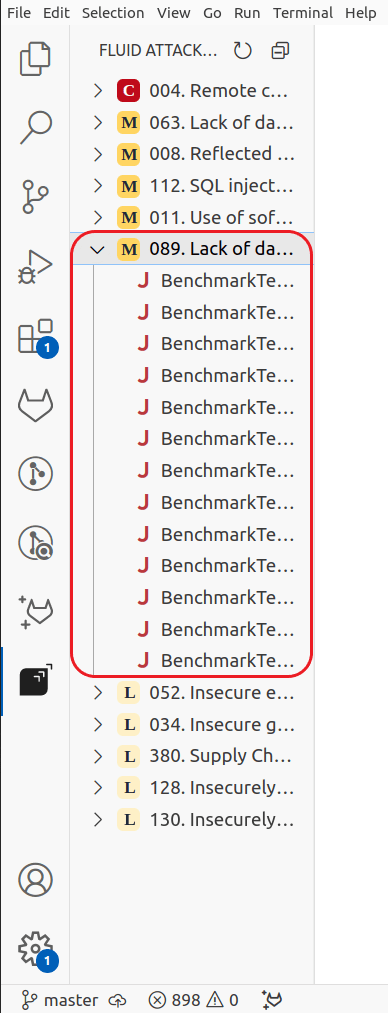
    Select the vulnerability type to fix on the Fluid Attacks extension
  2. Click the wrench that appears over the entry corresponding to the vulnerable line of code you will fix.
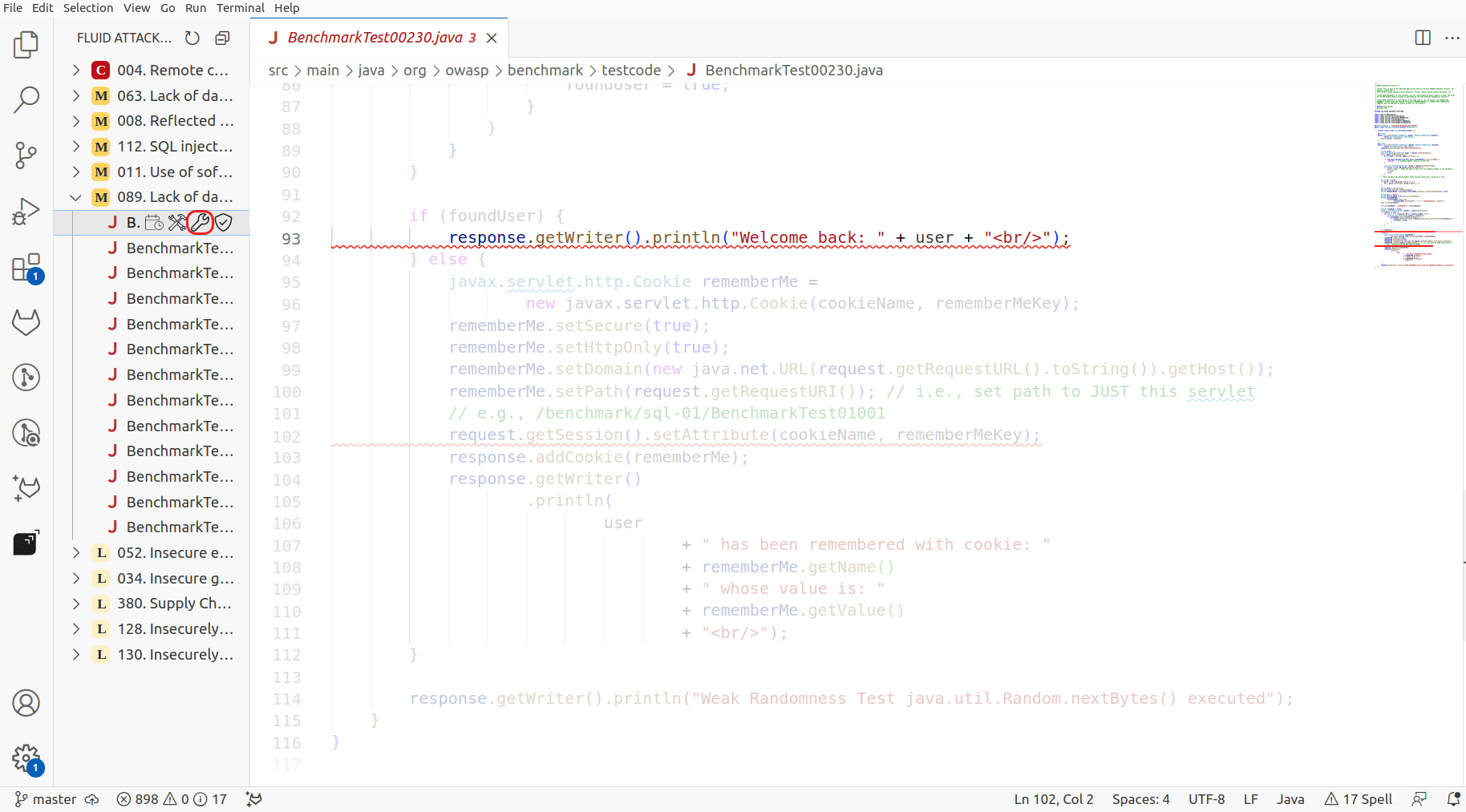
    Use the custom fix by gen AI option on the Fluid Attacks extension
  3. Follow the step-by-step guide to secure your code. Do this critically, as gen AI may produce vulnerable code.
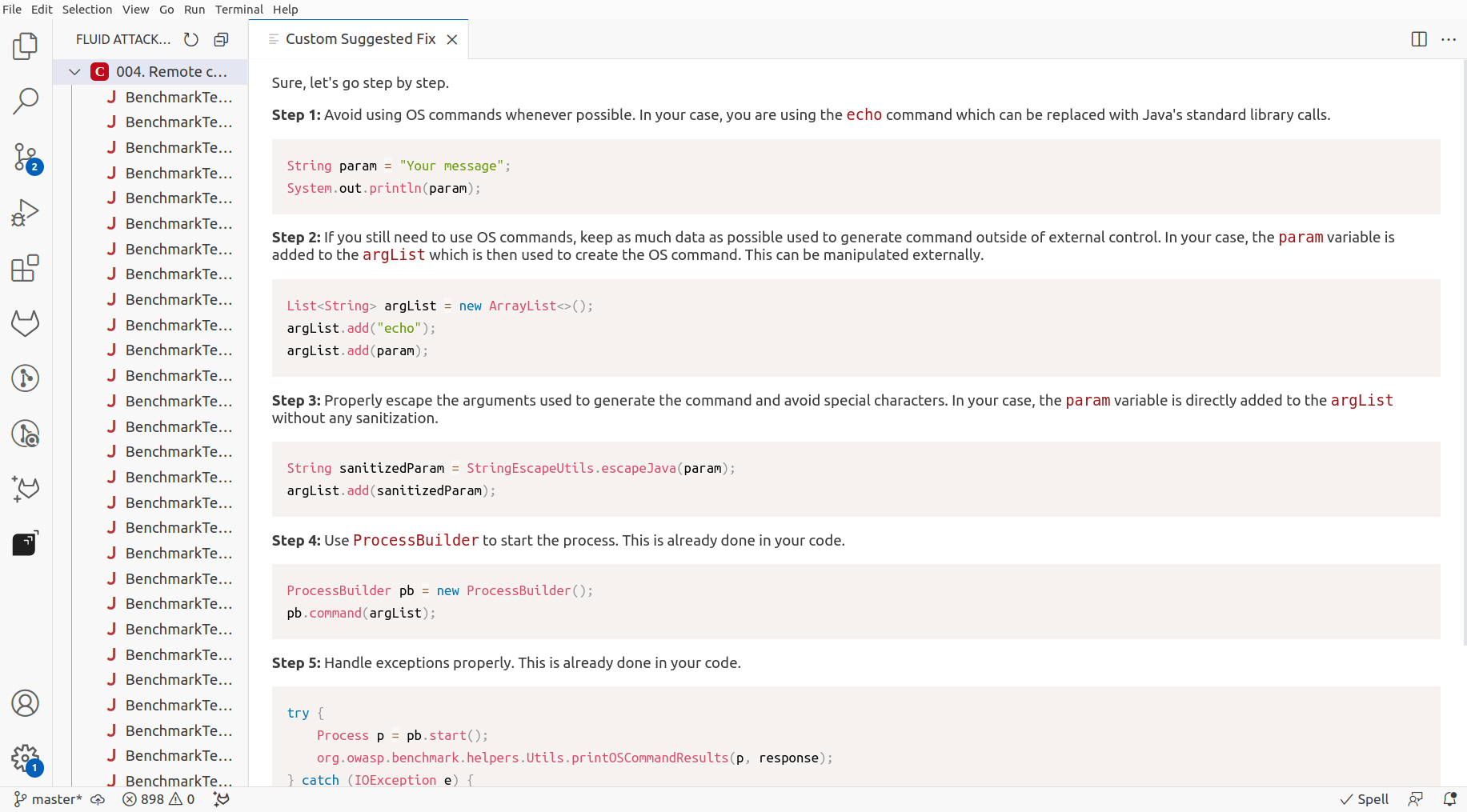
    Generate a step by step fix guide with gen ai on the Fluid Attacks plugin

After you have fixed the code, you can verify whether the fix was successful . If you are subscribed to the Advanced plan  and need help understanding a vulnerability, you can request an explanatory session  with a member of Fluid Attacks’ hacking team.

Get AI-generated automatic fix suggestions

To use the plugin’s Autofix function, do the following:

  1. Open the Fluid Attacks extension and click on the type of vulnerability you want to remediate.

  2. Click the hammer and wrench appearing over the entry that corresponds to the line of code you wish to fix automatically.

    Use the automatic fix by gen AI option on the Fluid Attacks extension
  3. Review the output, which is presented as modifying the file already.
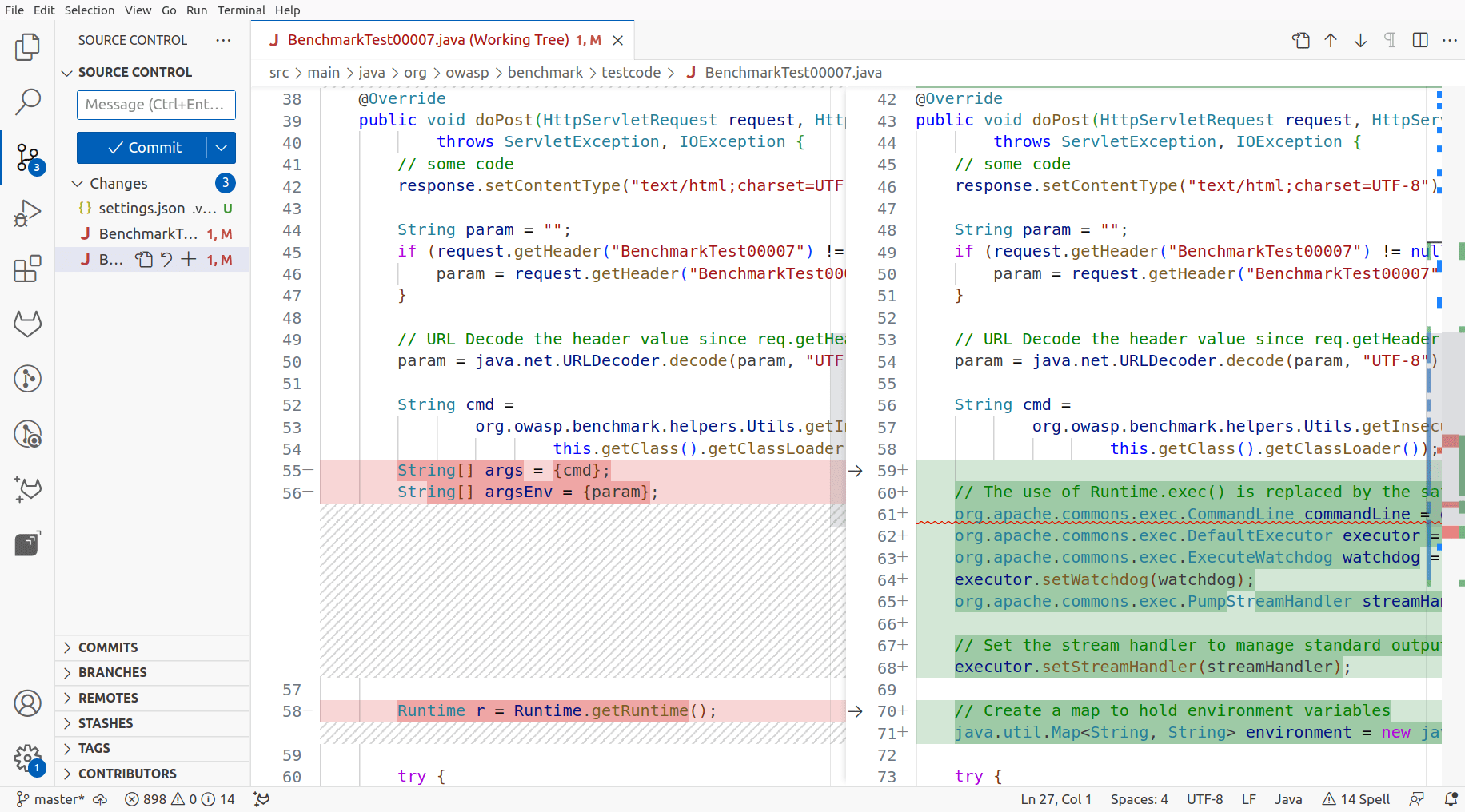
    See the output of automatic fix by gen AI on the Fluid Attacks extension

Again, after applying this suggestion, you can request a reattack to verify whether the remediation was successful .

Last updated on February 13, 2026
Ask our pentesters to explain a vulnerabilitySee safe dependency versions

Fluid Attacks 2026. All rights reserved.